
If you dont remember how to create a ticket in the i3-Technologies customer portal you can find the explanation here.
Servicedesk Support Access
Via the portal http://servicedesk.i3-technologies.com/
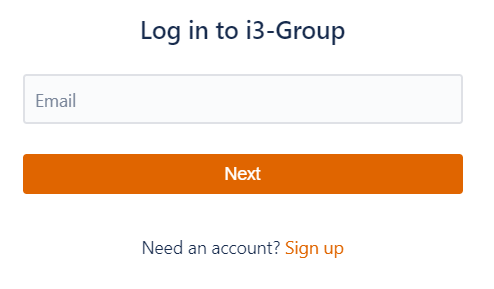
An account is mandatory to access the i3T Servicedesk portal. If you don’t have an account, you can create one by clicking ‘sign up’. Fill in your email address and activate via the activation link which you will find in the confirmation mail.
Acces our ticketingsystem via your mobile browser in desktop mode to create an issue.
Advantages:
-Unique reference SR-###
-Get email notifications on changes
-Share with your team
-Always keep a good overview
-Add attachments
Servicedesk Profile Language
Upon first login, make sure your profile language is set to ENGLISH, or your browser translation will be in conflict with our JIRA ticket system. Which will result in wrong forms options.
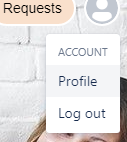
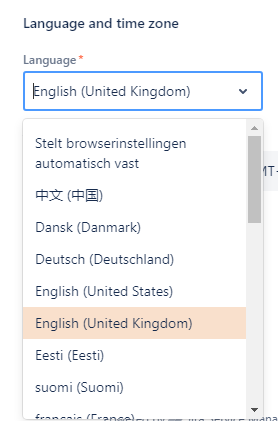

Click on i3-Group to return to the homepage.

Servicedesk Access Knowledge Base
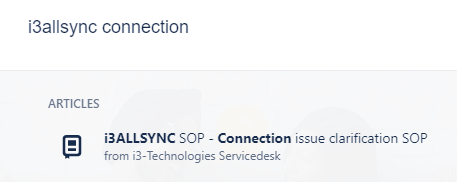
Start typing keywords to your issue in the knowledge base search field. You might find a solution faster than adding your ticket in the queue.

HINT: search for product types like ‘i3ALLSYNC’
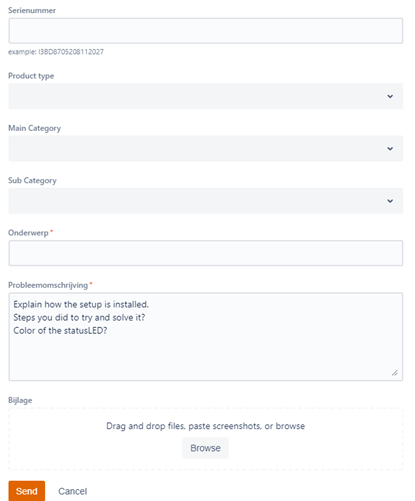
Servicedesk Create a ticket

Depending on the reporter the ticket will be assigned to an i3service&support Agent.
Filters possible due to fields [product type, main cat, sub cat, other fields which are needed]
Customer able to add own attachments.
System automatically sends email notification to customer with ticket reference and ticket updates on changes.
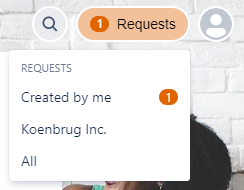
Servicedesk Follow up via the portal
Follow up on your own and your team support tickets in the right upper corner.
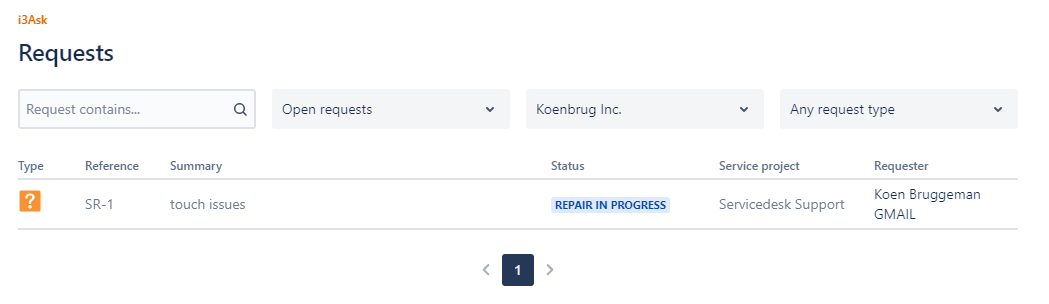
Select the support ticket you wish to update.
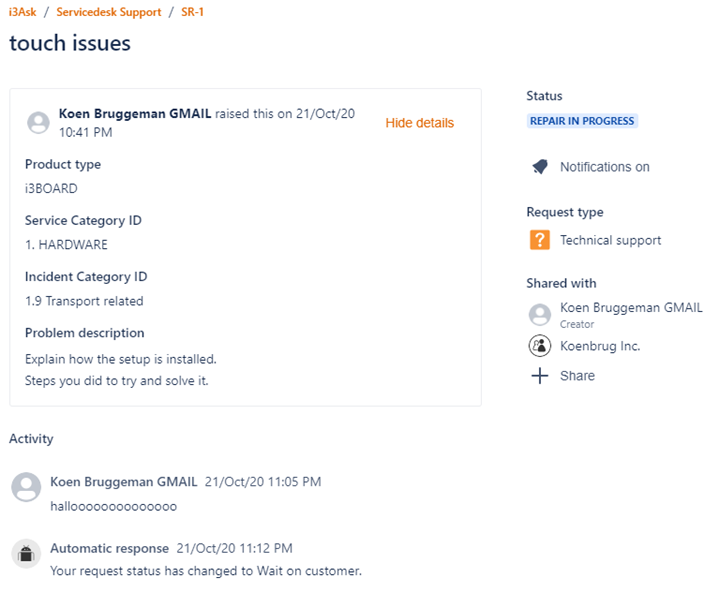
You can add own updates [text only or also drag attachments into the textbox], turn notifications on or off, and even share the support ticket with other people.
Servicedesk Follow up via the notification mail
Reply the notification mail to add your comment inside the ticket. You can add people in ‘to’ and/or ‘cc’ receiptants.
Existing customers can add new customers to the project by:
-
entering their email address in the portal, or;
-
including their email address in the "To" or "Cc" field when replying to a request’s email notification.
They will be added to the ticket as ‘request participant’.
You cannot create a ticket by sending an email towards the Jira notification email address.
Servicedesk Good to know
If you are also using a ticket-system or if you’re using own references to follow up on your matters, please ask to add this reference in the subject if needed. If you change the ticket subject just before you reply via mail, our system might not always process this mail reply correctly. Wost case the reply will go lost without triggering a notification.
Servicedesk Support Live demo
Live demo
(ask service@i3-technologies.com if needed)