
i3WHITEBOARD will automatically store your current session, so you don’t have to worry about losing progress when navigating to and from other apps.
Instructions: saving
-
Open the whiteboard main menu and select Save: Main menu of the whiteboard
-
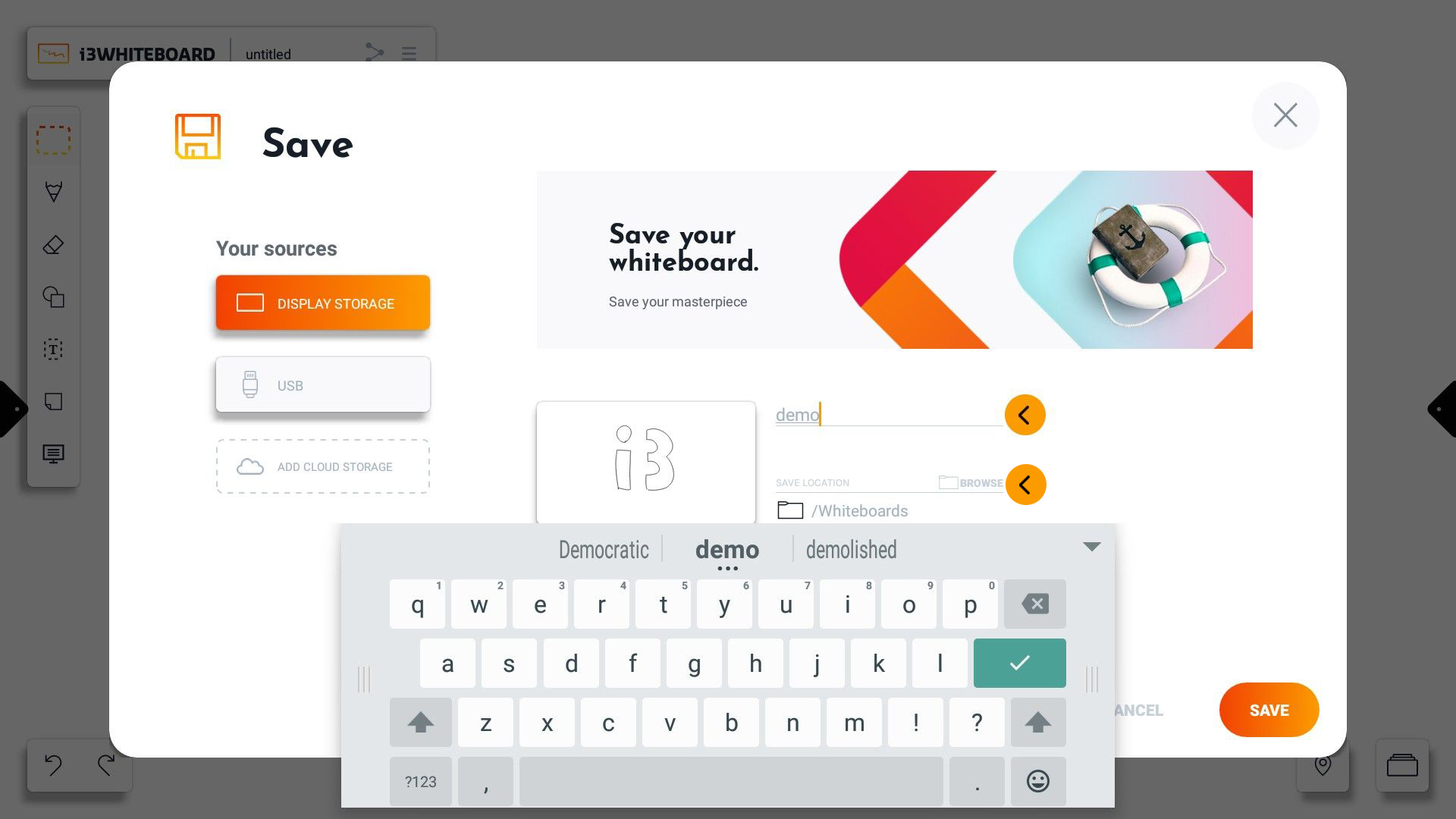
Choose a name for your i3WHITEBOARD file.
-
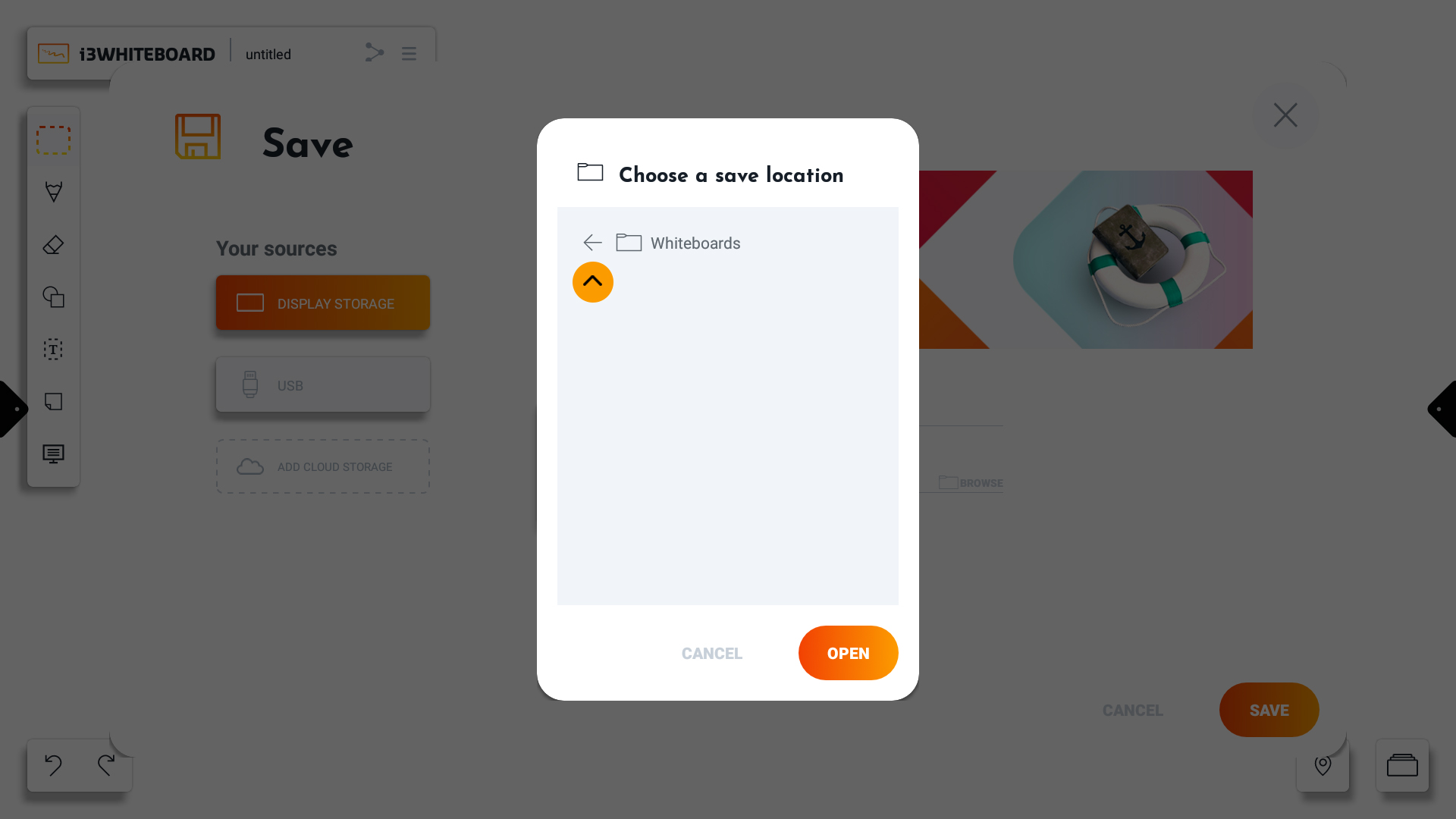
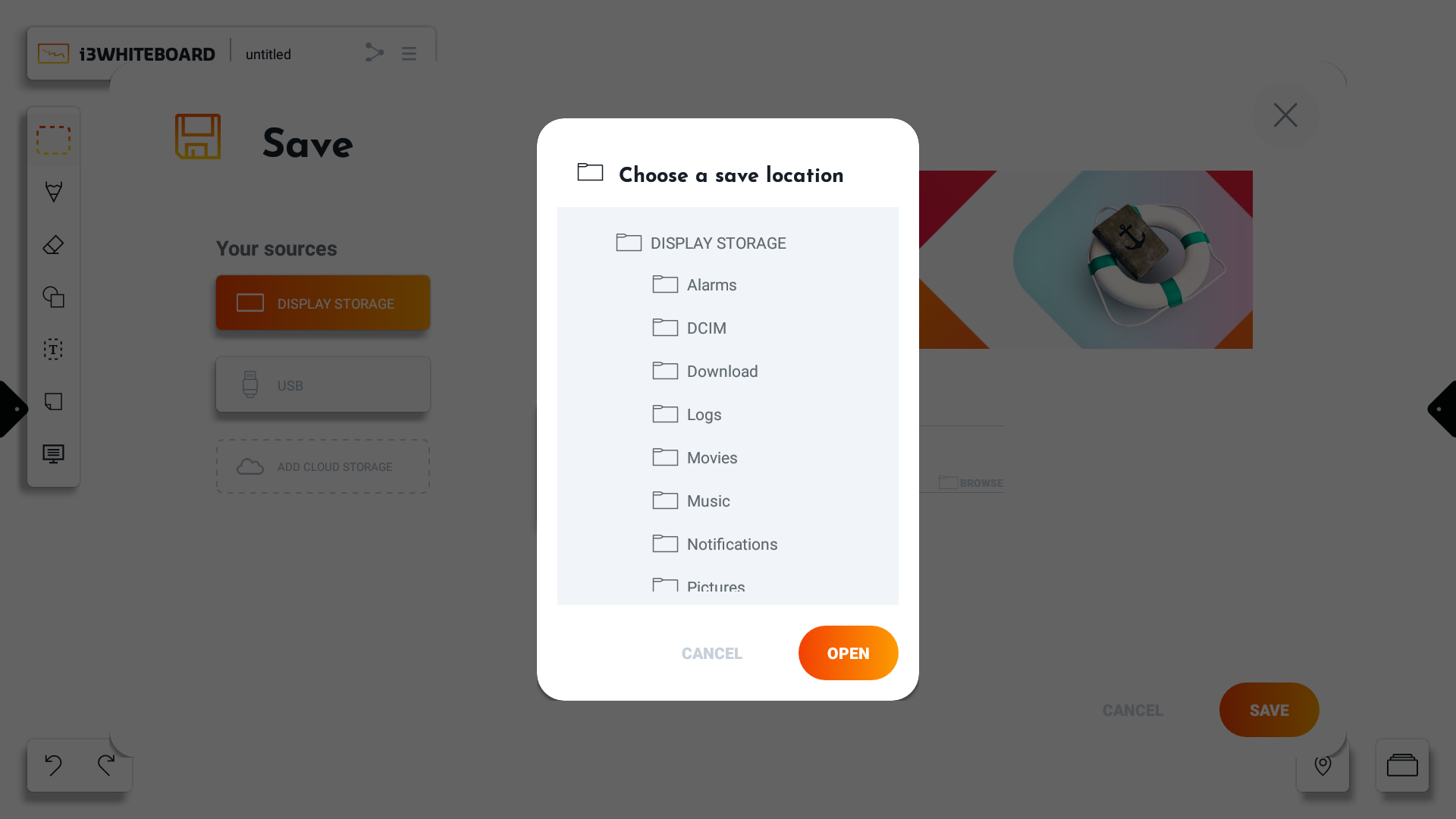
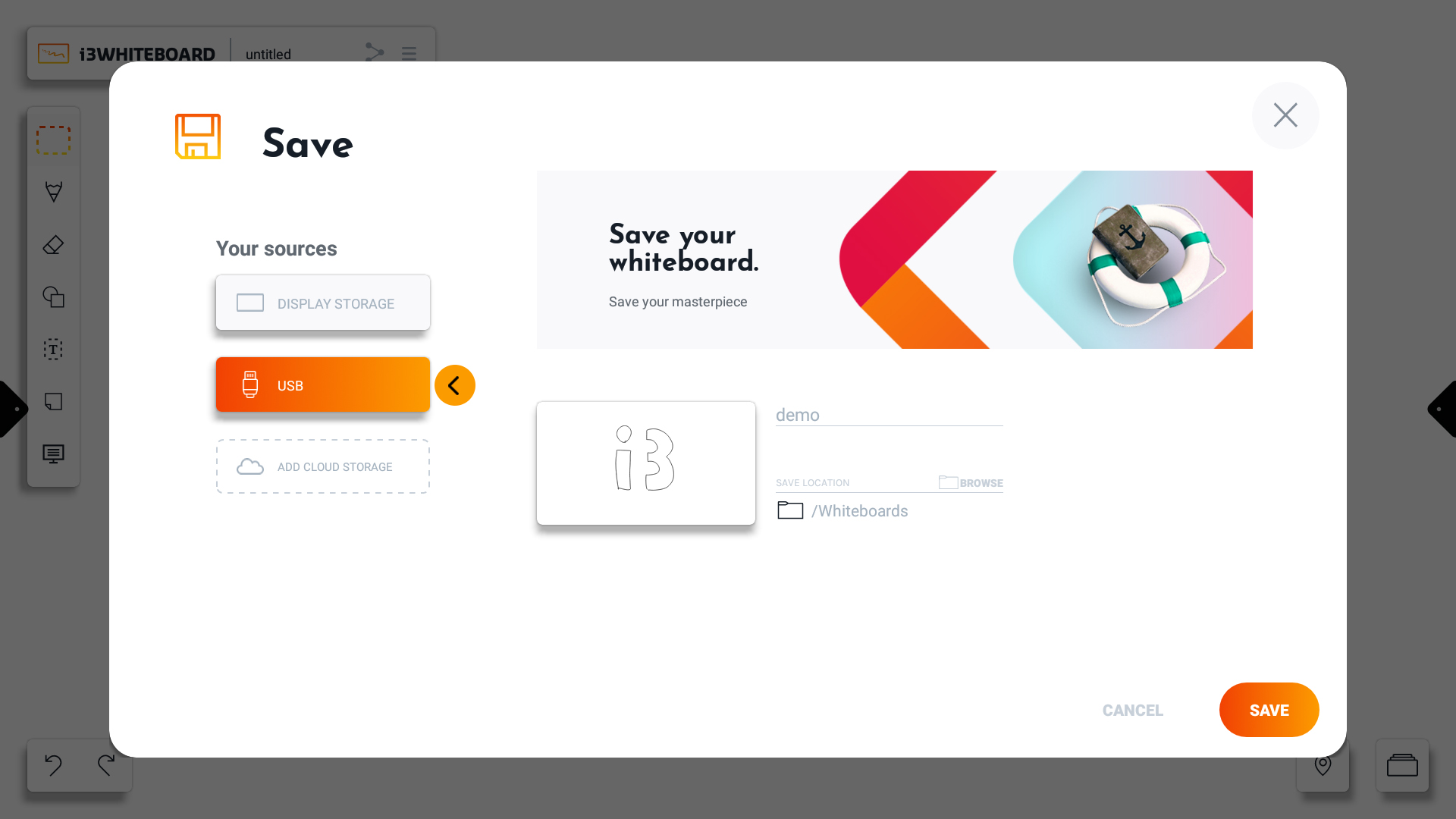
Choose a location to save your whiteboard. By default, i3WHITEBOARD will save your whiteboard file in the Whiteboards folder on your display. You can choose a different location by pressing on “Browse.” To the left, you can choose another source location. This can be one of the following:
-
Display Storage: The internal storage of your i3TOUCH display. Other users will be able to access the files if you store them here.
-
USB: Connect a USB drive to the i3TOUCH display, you’ll be able to save your file to the preferred folder here.
-
Cloud storage: This is the preferred storage since it’ll allow you to use your i3WHITEBOARD files on multiple i3TOUCH displays, and other users of the display won’t be able to open them. see Link your Google Drive and OneDrive to your whiteboard.
-
You can navigate back by pressing the back arrow marked in the image. From there you can choose a different folder.
-
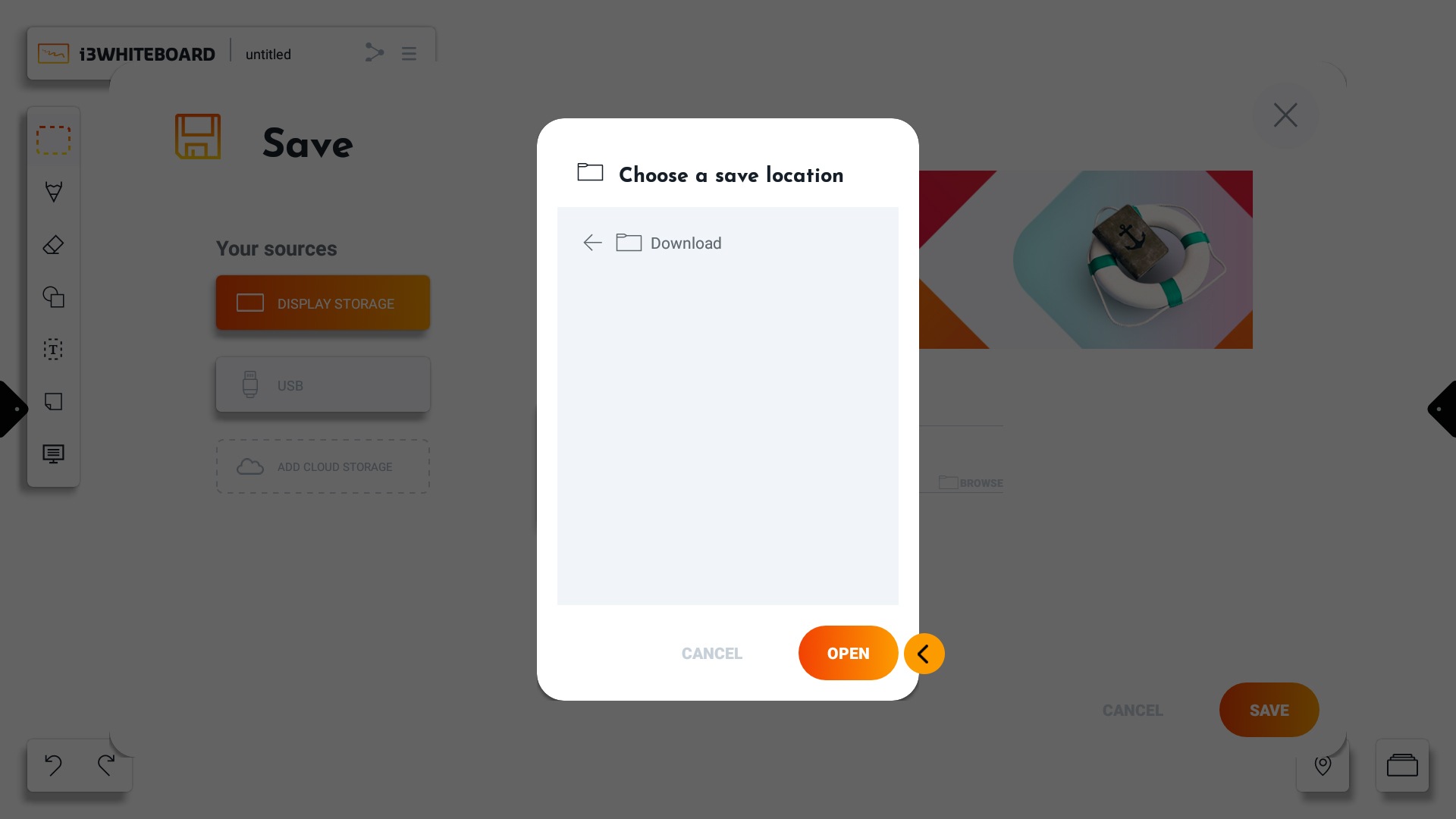
Press open when you have chosen your preferred folder.
-
Press “Save” to save your work to the final chosen location.
Instructions: saving with password protection
When you need to protect a file with a password, you can do so when saving the file.
-
When saving a file, the toggle “Add Password“ is present, adding a field to the saving screen where the password can be inserted.
-
To open it later visit: Open a whiteboard file (and delete it)
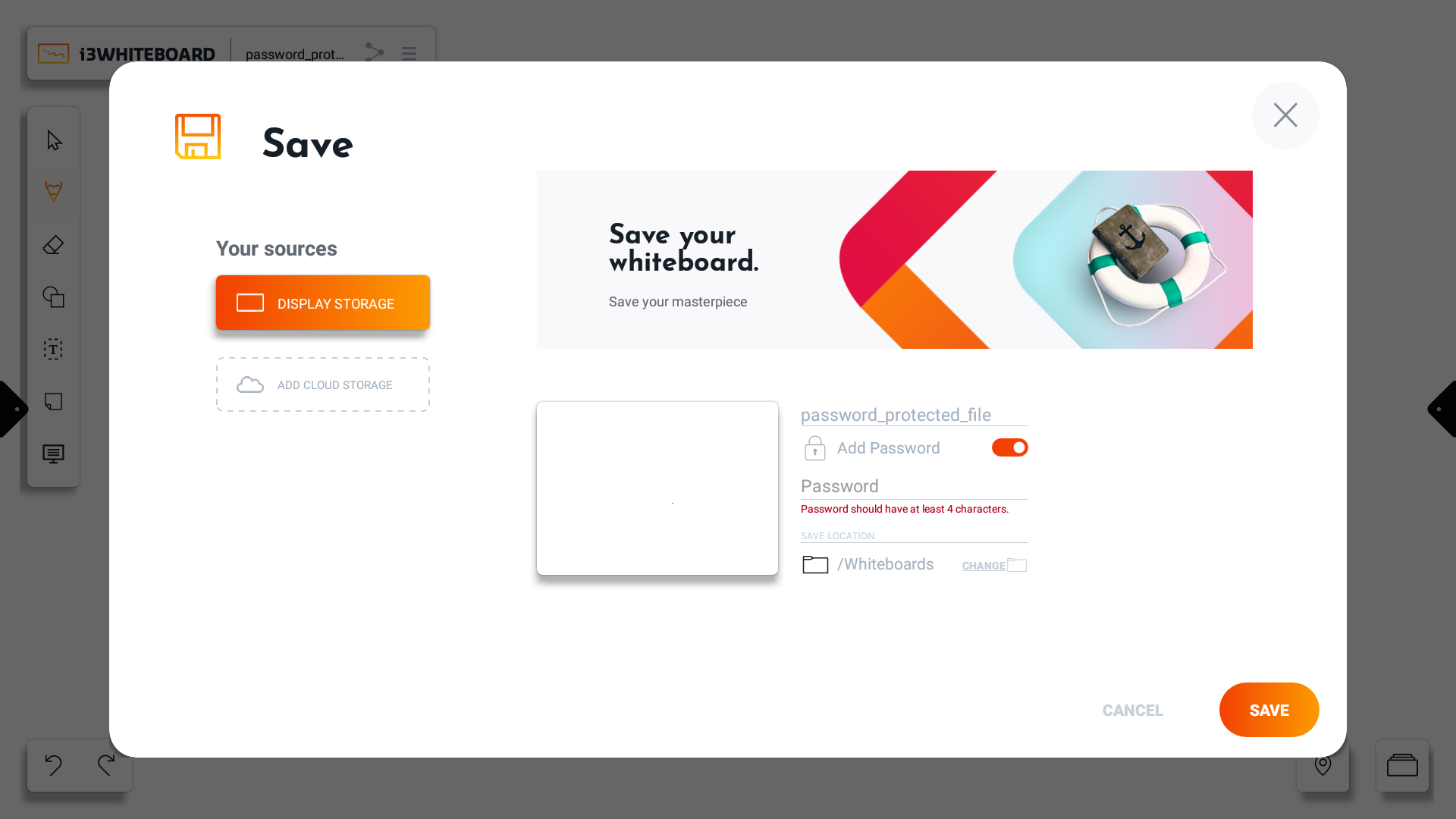
The password of the file has no restrictions in characters but in length. The password must be of 4 or more characters. Once the minimum length requirement is met, the error message about the password length will disappear.