
In this tutorial we’ll guide you through the creation of your CTOUCH Sphere account. CTOUCH Sphere is our cloud-based tool to manage CTOUCH displays remotely, accessible via https://sphere.ctouch.eu. CTOUCH Sphere is intended to be used by the IT department of educational institutions or businesses to manage their touchscreens remotely.
It is also possible for the dealer/reseller to manage their customers’ touchscreens. Customers need to create an account and connect to their dealer’s Sphere account in settings via a dealer code.
Important: for best use of CTOUCH Sphere, please use Microsoft Edge or Google Chrome.
Instructions
-
Sign up
-
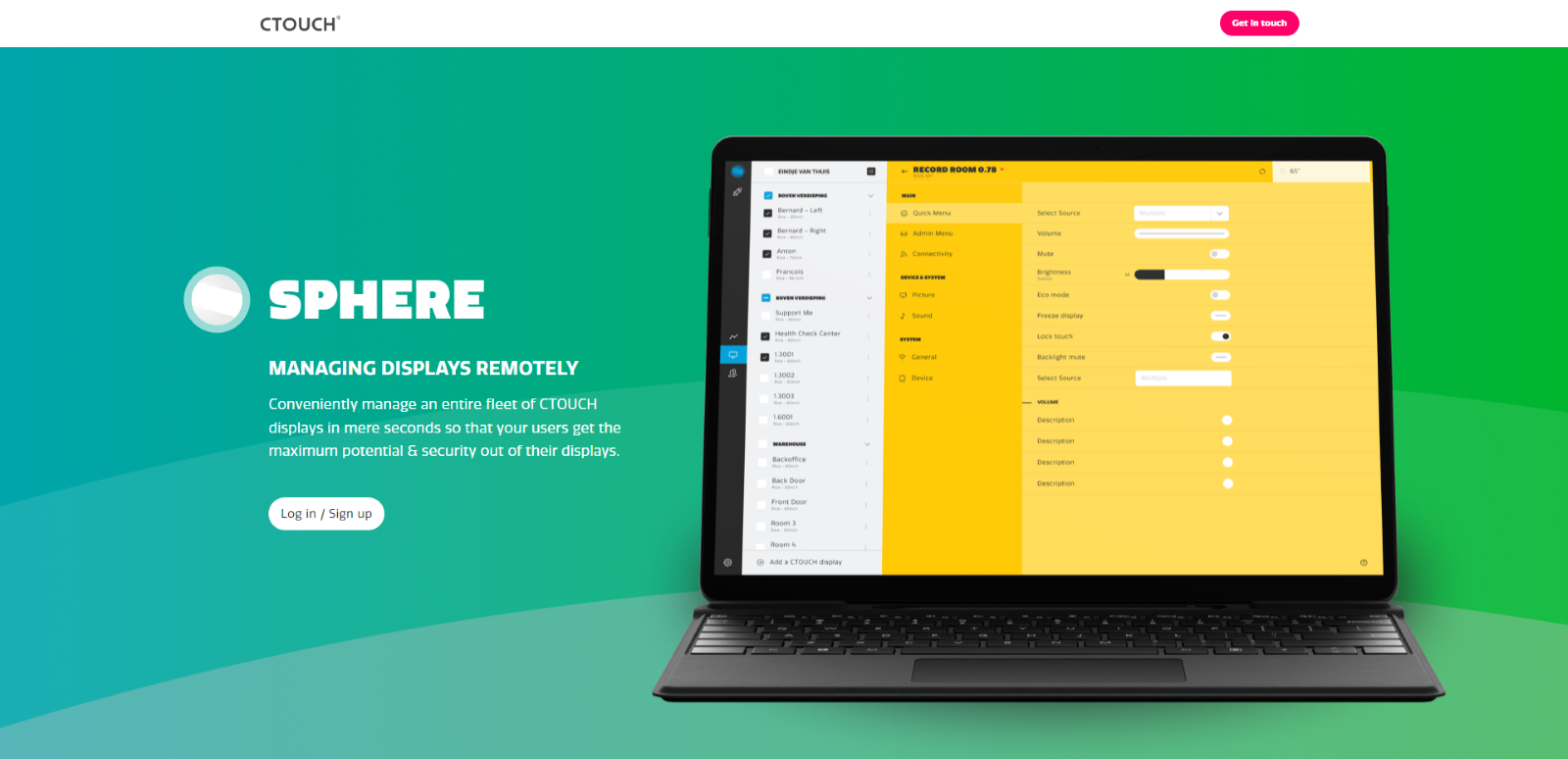
Browse to https://sphere.ctouch.eu
-
Click the button “Log in / Sign up”.
-
-
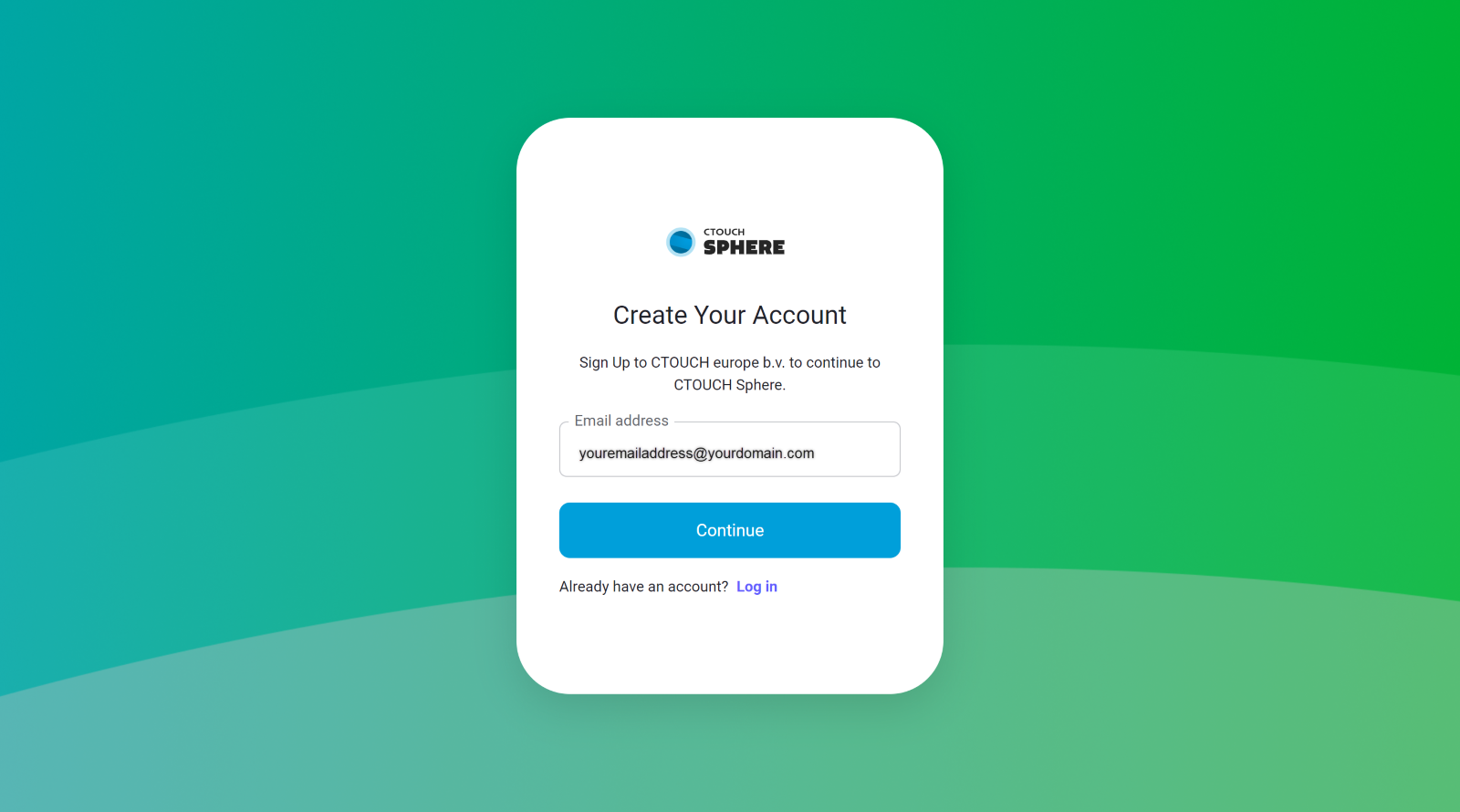
Enter your e-mail: Enter your e-mail address and click the button “Continue”.
-
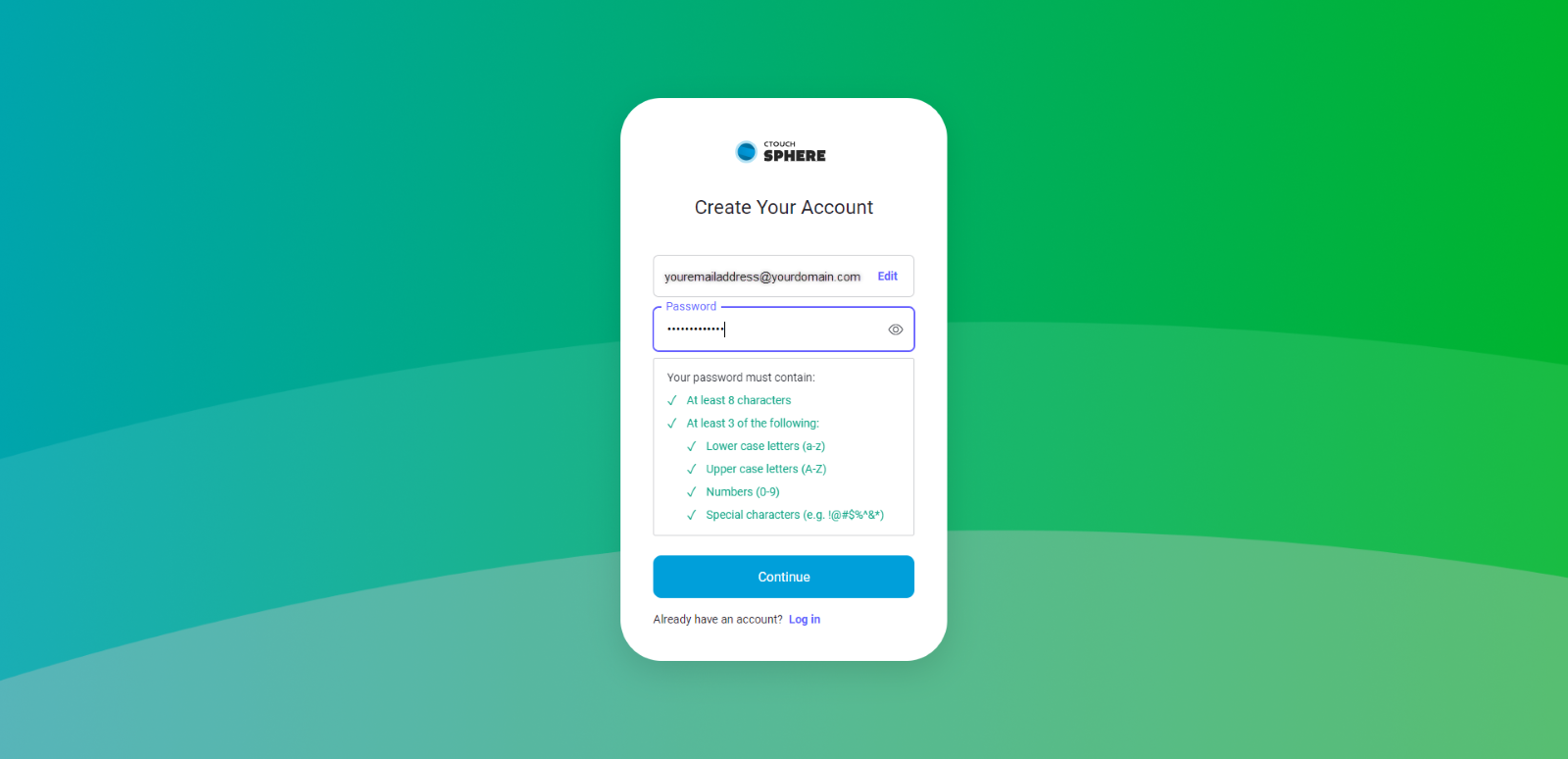
Set your Password
-
Set the password you wish to use. Your password must meet several requirements, as shown.
-
After choosing your password, click the button “Continue”.
-
-
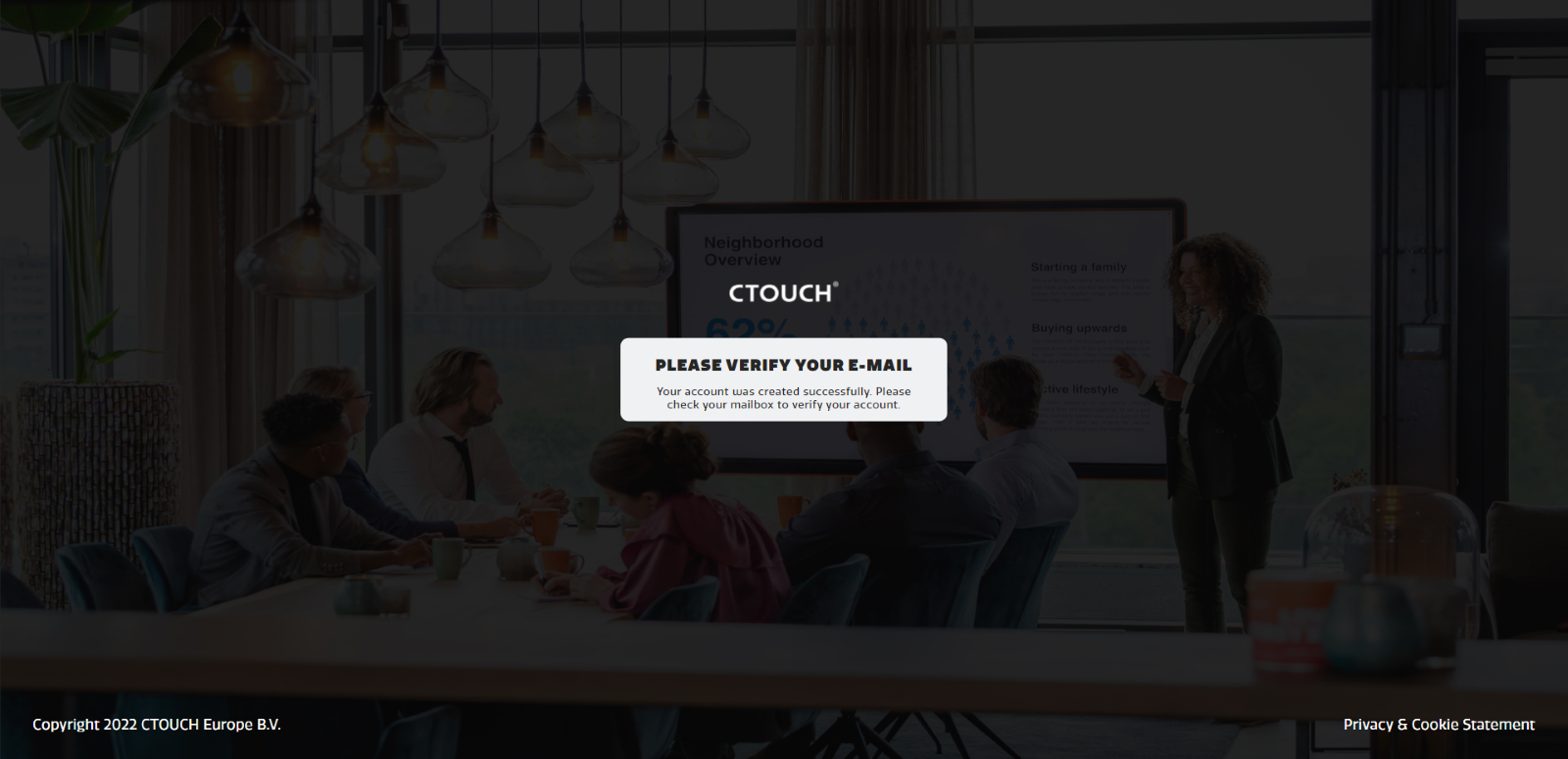
Verify your account: A verification e-mail has been sent to your entered e-mail address’ inbox.
-
Check your mailbox for a “CTOUCH Sphere – Verify your email” e-mail.
-
Open the e-mail and click the link to verify your account.
-
-
Enter your company name: Please browse again to https://sphere.ctouch.eu and log in with your created credentials. A pop up will appear.
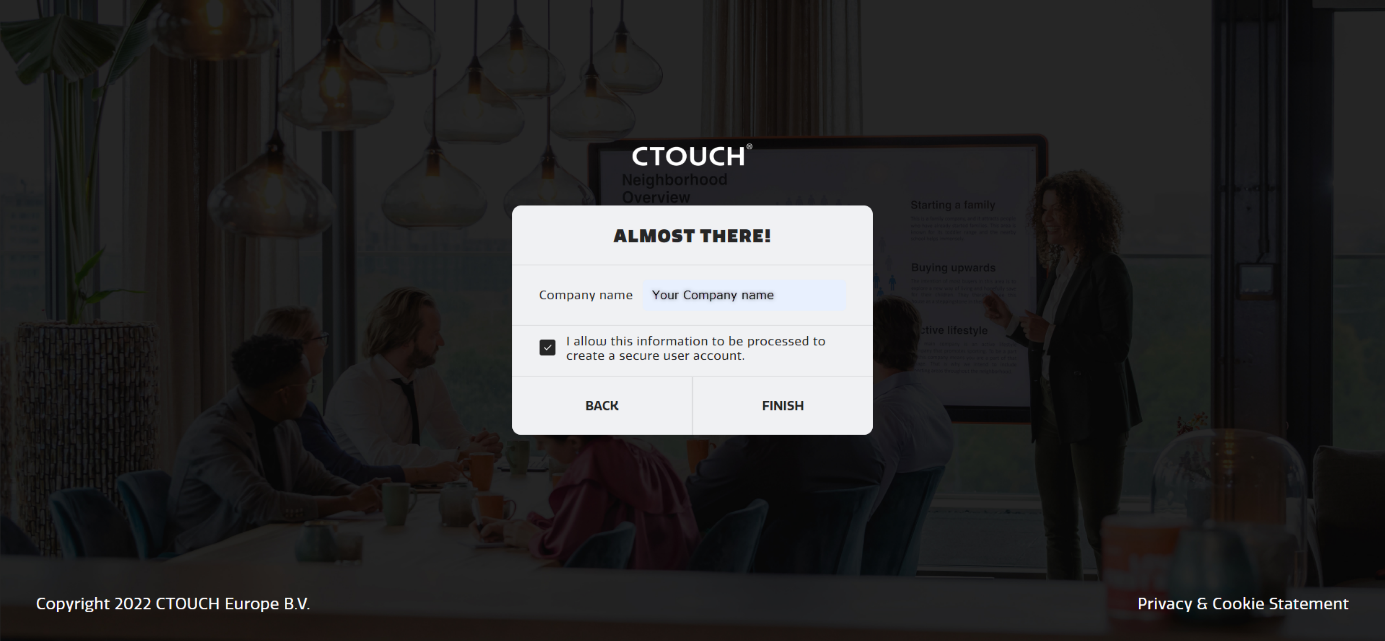
-
Fill in your company name or school name
-
Check the box to give permission for CTOUCH to process your information in a secure way.
-
-
For dealers/resellers: upgrading CTOUCH Sphere account: Are you a dealer/reseller? Please contact your CTOUCH account manager to upgrade your account to a dealer account.