
This feature is available for all tools except eraser, text tool, and sticky notes.
The line thickness comes with 3 values:
-
Thin (for drawing fine lines)
-
Regular (for most use cases)
-
Thick (for drawing canvas-filling objects)
These values were given a default value which would cover most use cases. However, you still have the option to fine-tune these values to your liking, while still maintaining the ease of use of having three options to choose from.
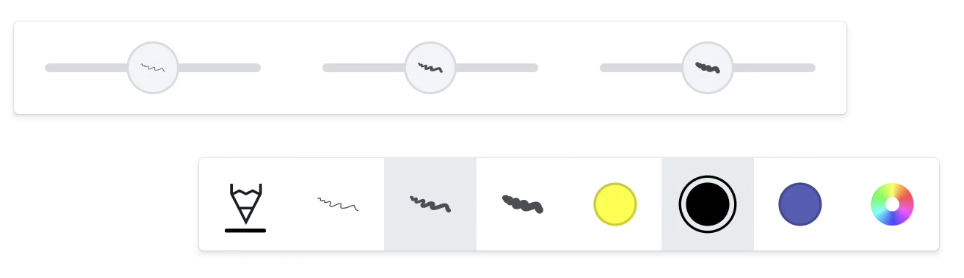
Instructions: fine-tuning the line thickness
-
Long-press (press and hold for about a second) any of the line thickness buttons in the Features menu for a second
-
A sub-menu will appear with a slider for each line thickness value, thin, regular and thick.
-
By default, the sliders will be centred. Dragging the slider cursor to the left will make the value thinner while moving it to the right will make it thicker. While dragging, the new value will be displayed above the cursor.
-
Once changed, you can use these new values straight away. If you start drawing, the slider will disappear. To make it reappear again, for instance, to return to the default values, simply long press any of the line thickness buttons again.