
Virtual Reality (VR) tools can be activated from the Whiteboard settings
There are three tools: Nautical Protractor Ruler, a Normal Ruler, and a Drawing Compass. These tools will appear on the screen once their toggle is activated in the whiteboard settings. To remove them from the screen, they must be un-toggled.
Nautical Protractor Ruler/Triangle Protractor
The nautical protractor triangle can be found as the first option in the VR tools menu. It has three sides; two show degrees from 0 to 180, and the bottom side shows length in centimeters (cm).
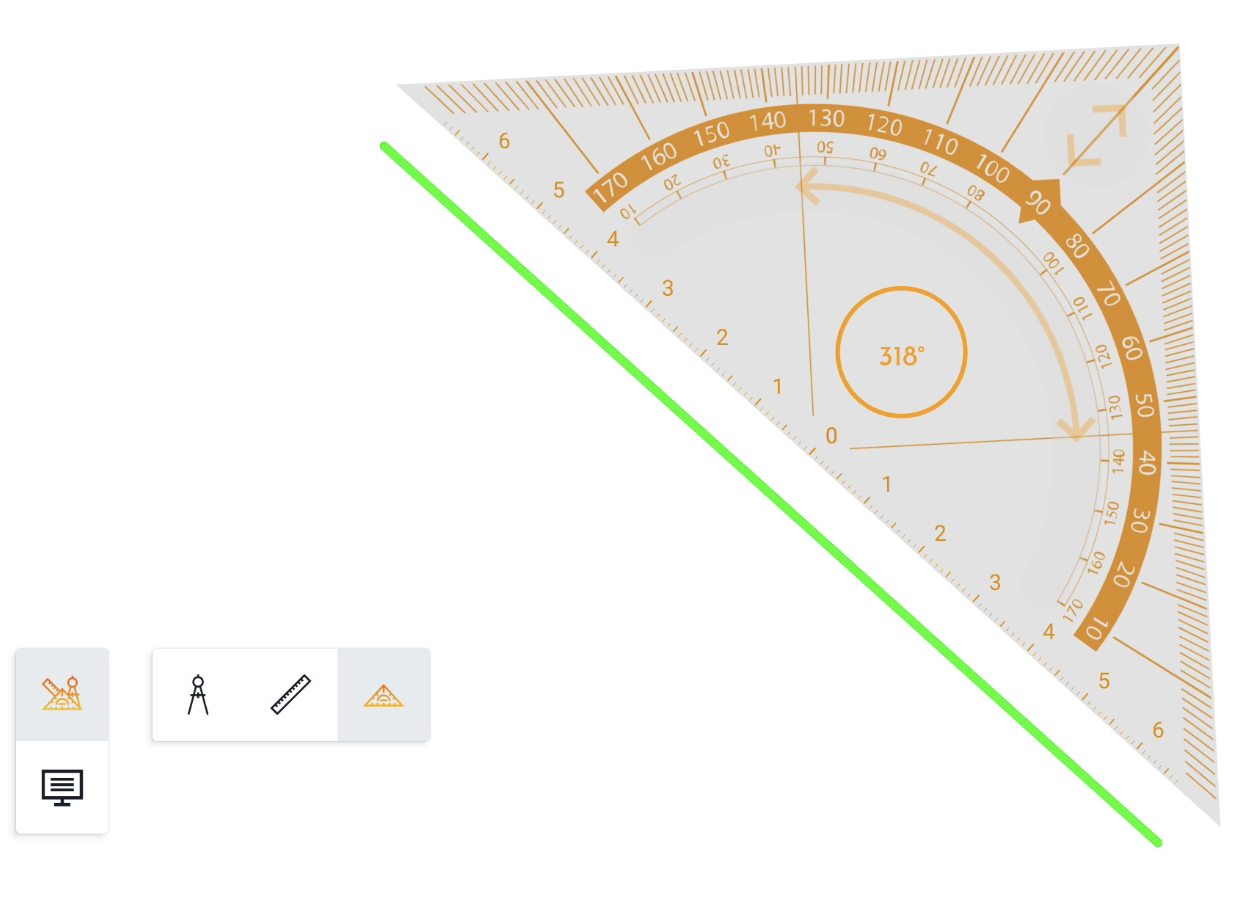
Drawing against ruler
Using a pen or finger near the ruler borders, we can draw straight lines that will follow the border.
Besides drawing, this ruler also helps define and measure angles by placing the center of the ruler (bottom) at the starting point of the lines we want to measure.
Rotating ruler
Rotating the triangle can be done by selecting the rotation handle. The triangle will rotate around its' center point and the indicator will tell the user the angle. While rotating, the triangle can no longer accidentally be scaled or moved. Additionally, a red dot will appear to indicate the center point
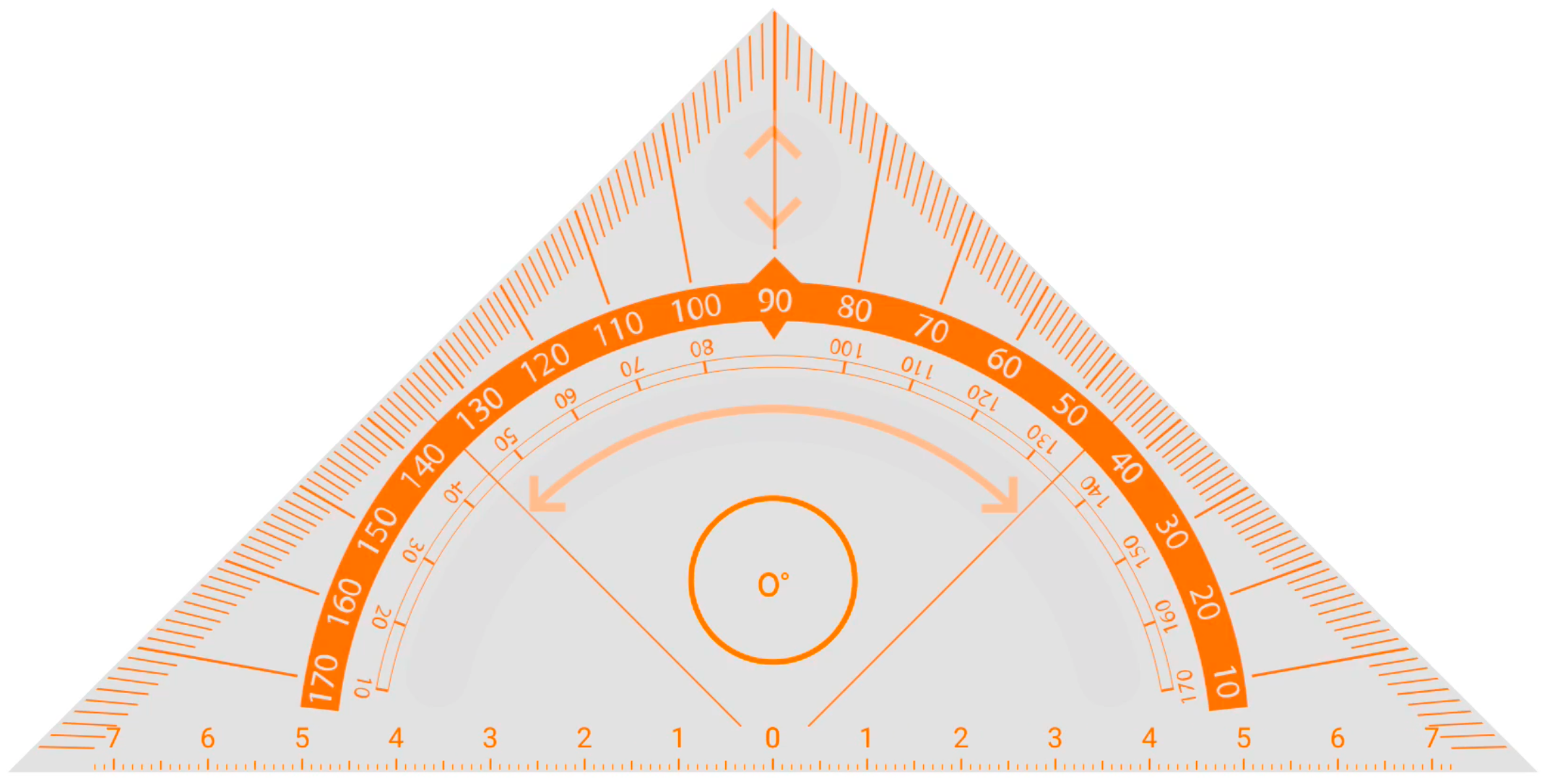
Scaling (enlarge/shrink) a ruler
The triangle can be scaled bigger and smaller by using the scale arrow in the top corner of the triangle. While scaling, you’ll notice that the measurement range will no longer scale along with the triangle but will now give you more or less range depending on the size on the triangle.
Zooming the canvas
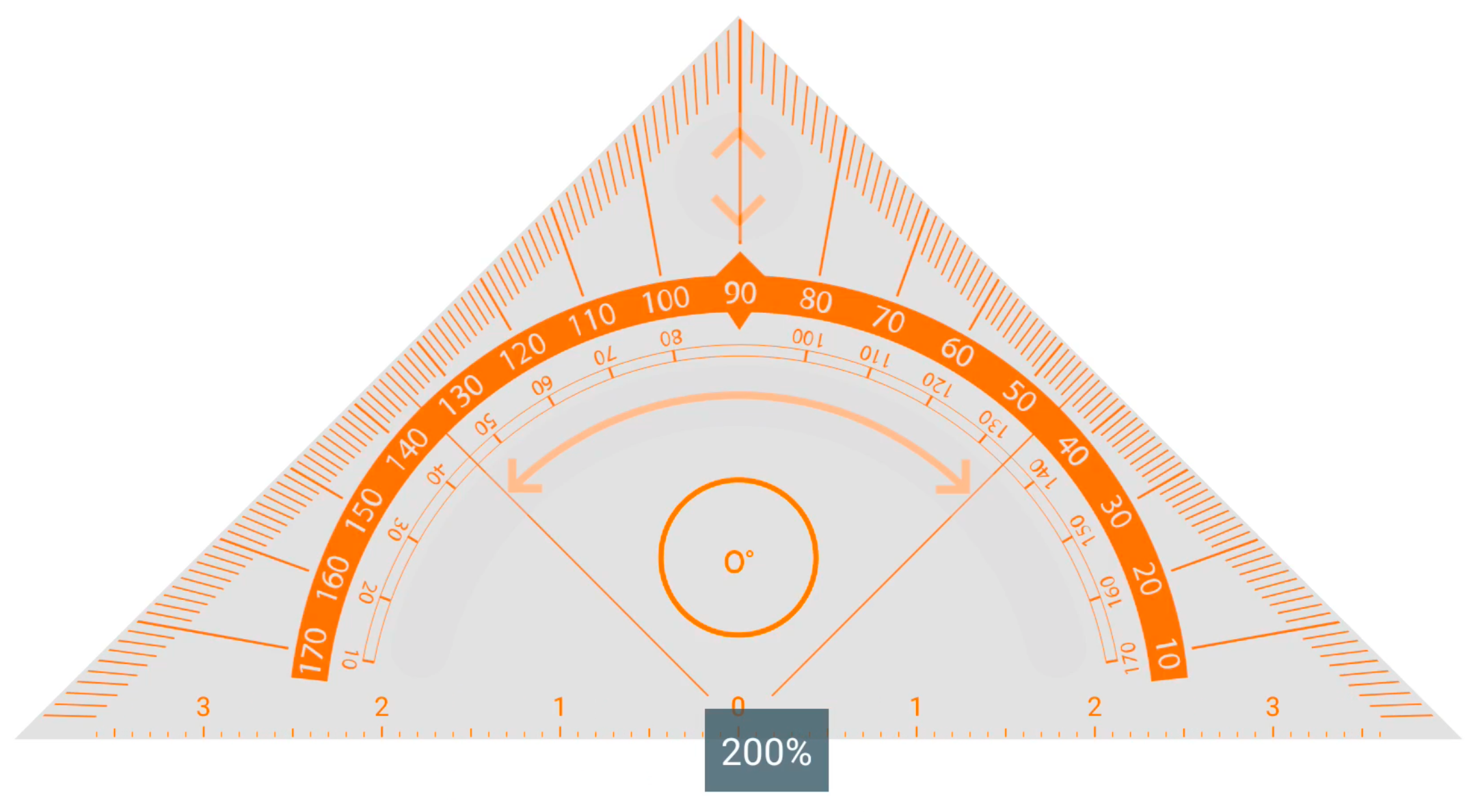
A similar functionality can be observed if you zoom the canvas in or out:
If you add a triangle or ruler to the canvas and start zooming in or out, you’ll notice that the measurement range increases or decreases according to the zoom scale. This is very handy if you’ve drawn a line and ran out of space but need to draw a new line using the same measurement scale.
Ruler
Apart from the protractor ruler, there is also the possibility of a regular ruler, which can be found as the second option in the VR tools menu. This ruler can draw straight lines or make relative measurements on the device.
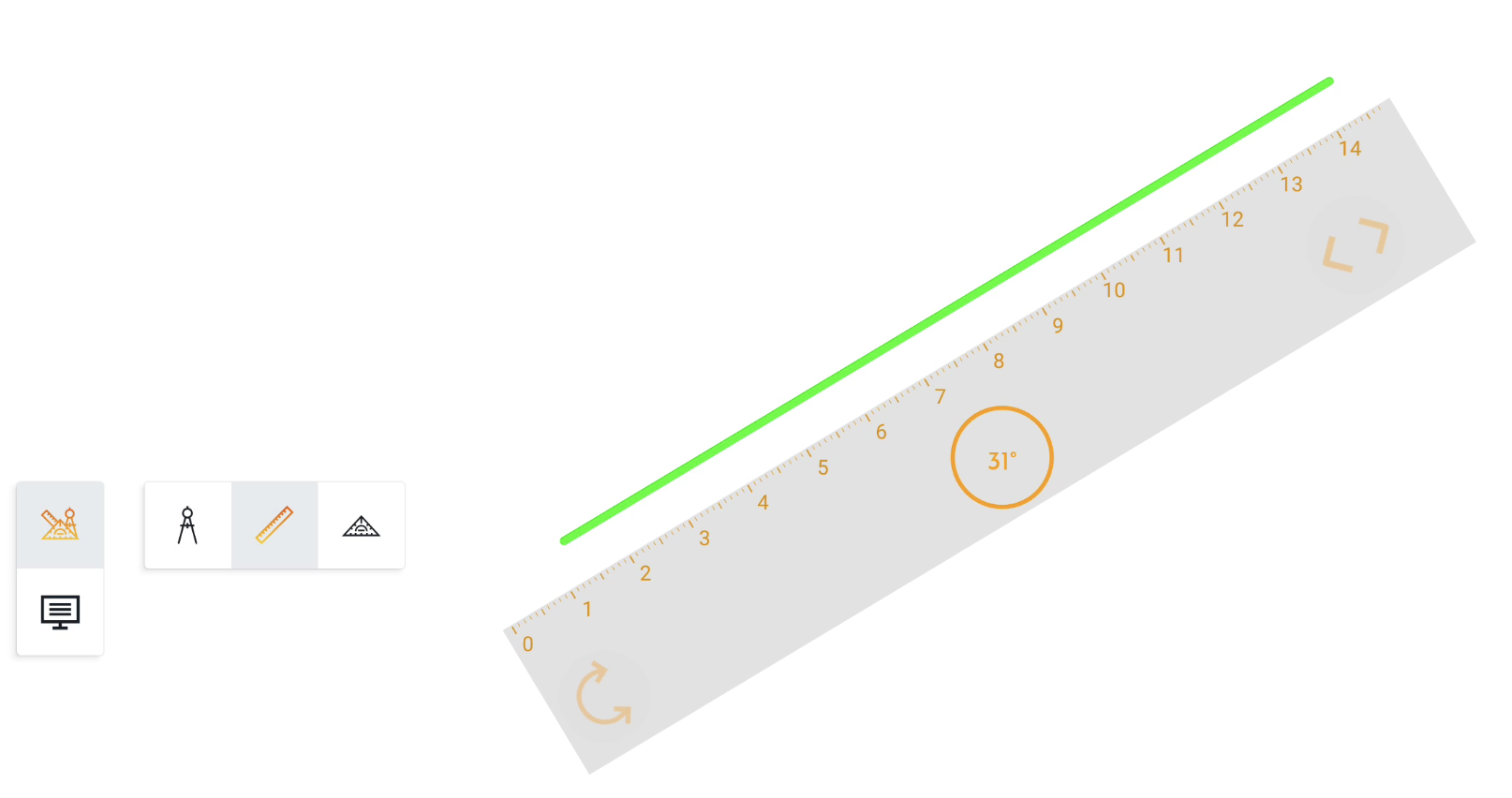
Drawing against the ruler
Both rulers could extend the drawn line outside their borders as long as the drawing started on the ruler, with all the sides available for drawing.
When using the ruler, only one side will be available at a time while drawing. In order to use another side of the ruler, the drawing needs to be interrupted and started again in the desired side/border.
Rotating
Rotating the ruler can be done by selecting and moving the rotation button at the left end of the ruler. The value in the middle of the ruler will indicate the angle the ruler is in.
While rotating, a red dot will appear to indicate the center point.

Scaling
Scaling the ruler can be done by selecting and moving the scale button at the right end of the ruler. This will either contract or expand the ruler. You’ll see that expanding will give you a larger measurement range while scaling down, gives you a smaller range.
Zooming canvas
Note that, just like with the triangle, zooming in or out will now update the measurement range based on the new scale.
Drawing compass
The drawing compass is the third option in the VR tools menu. Unlike the other tools, the drawing compass has different sections with which you can interact, namely the handle and the wheels.
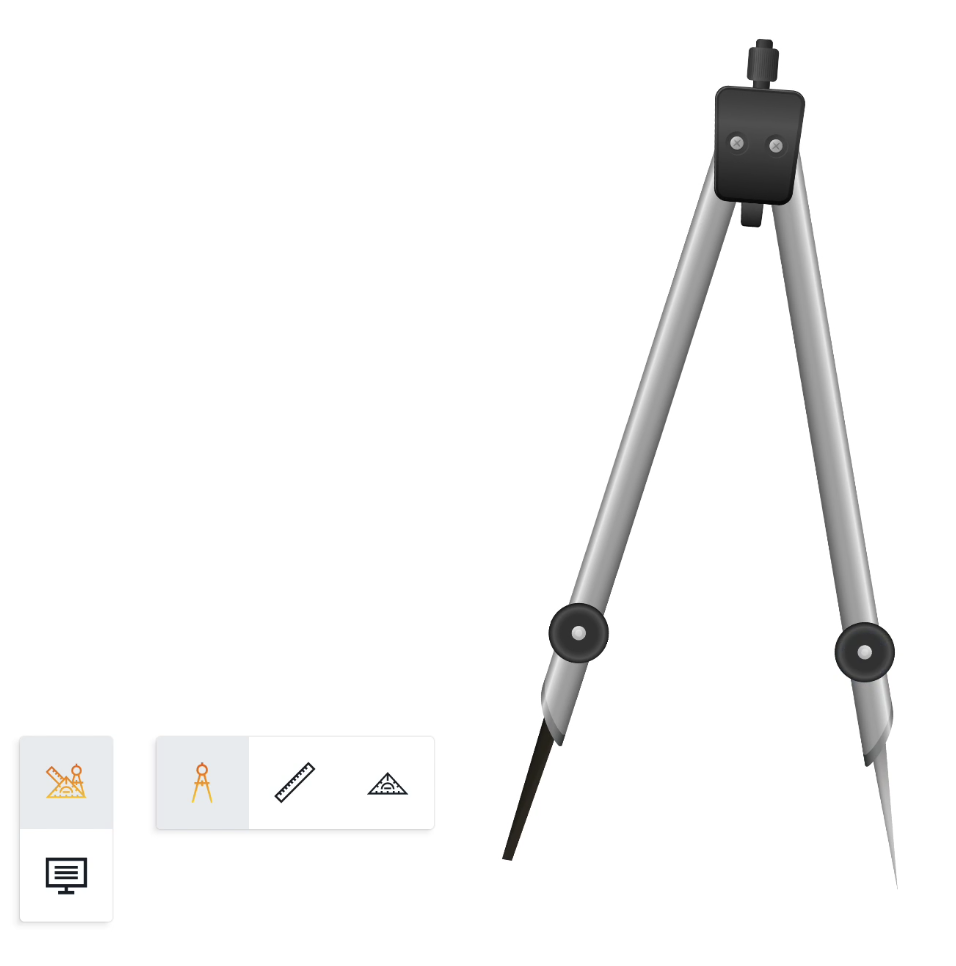
First, when using the compass, it needs to be placed in the desired position. To move it, the right wheel can be used. If there is the need to enlarge the distance between the compass leg, the left wheel can be used to set the preferred size/distance.

To start drawing, the handle has to be moved around. Depending on the desired output from the compass drawing, it can be released, and the compass will stop drawing.

If a full circle is the desired output, a full rotation of the compass should be performed.