
Open i3WHITEBOARD
i3WHITEBOARD is included in Studio. You can open it from the Launcher on the Home page or from the side menu found on the left or right of the display.
Creating or opening files
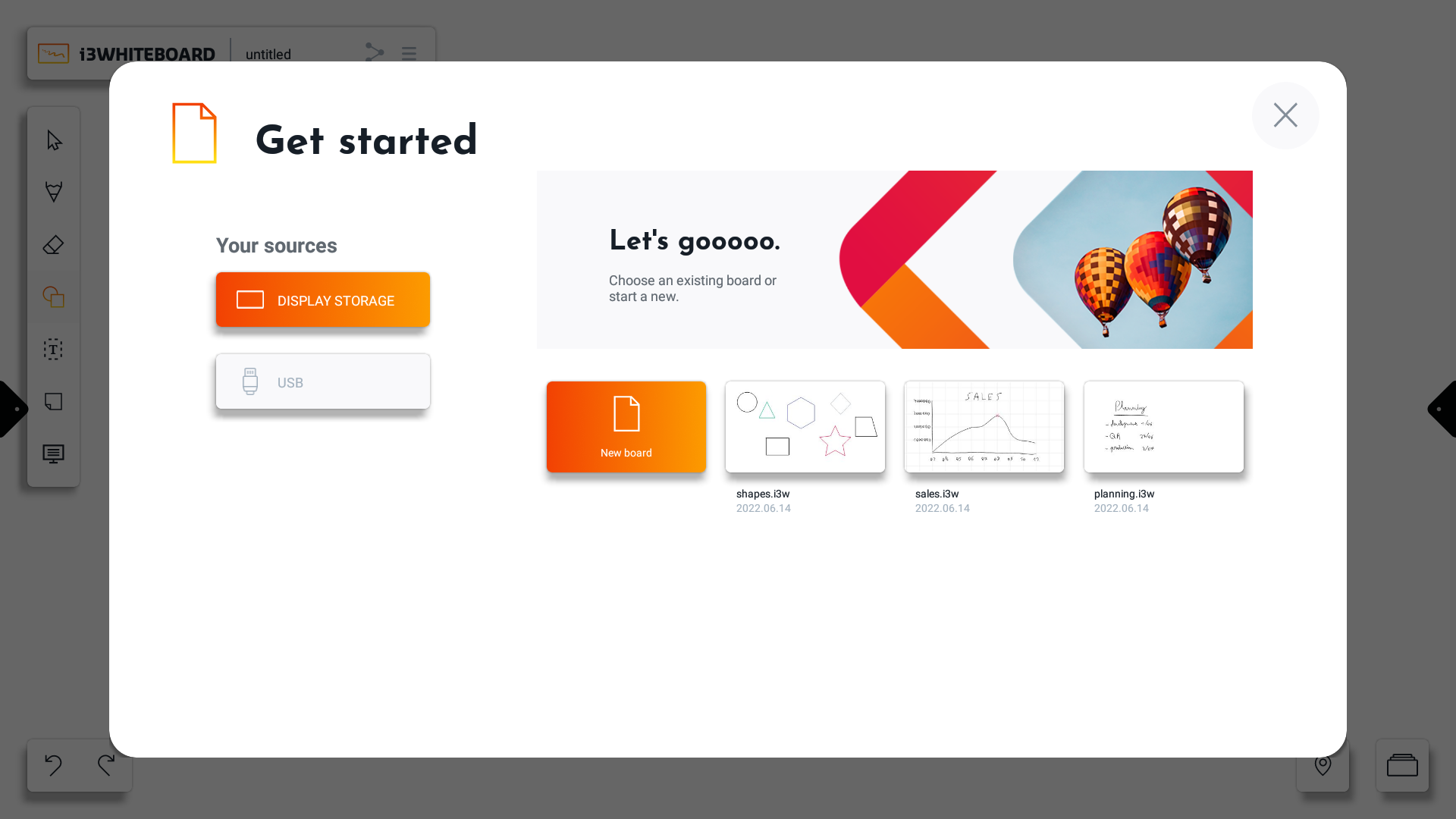
When i3WHITEBOARD is started for the first time, or when no workspace is currently open, you will be presented with the “Get started” screen. This is where you can create a new board or find previously made boards on the display, on a USB drive or in the cloud.
Open a whiteboard file (and delete it)
Connecting to cloud storage
You may be asked to connect i3WHITEBOARD to Cloud storage. If you’re using User Profiles, this is the ideal way to use i3WHITEBOARD. The advantages of connecting to your Cloud:
-
You can use the same i3WHITEBOARD file on multiple i3TOUCH displays
-
Your files are your own. other users will not be able to access it
-
Don’t lose your files. your files are always backed up in the Cloud