
The Icon tool can be selected from the Whiteboard toolbar (Whiteboard tools: Overview)
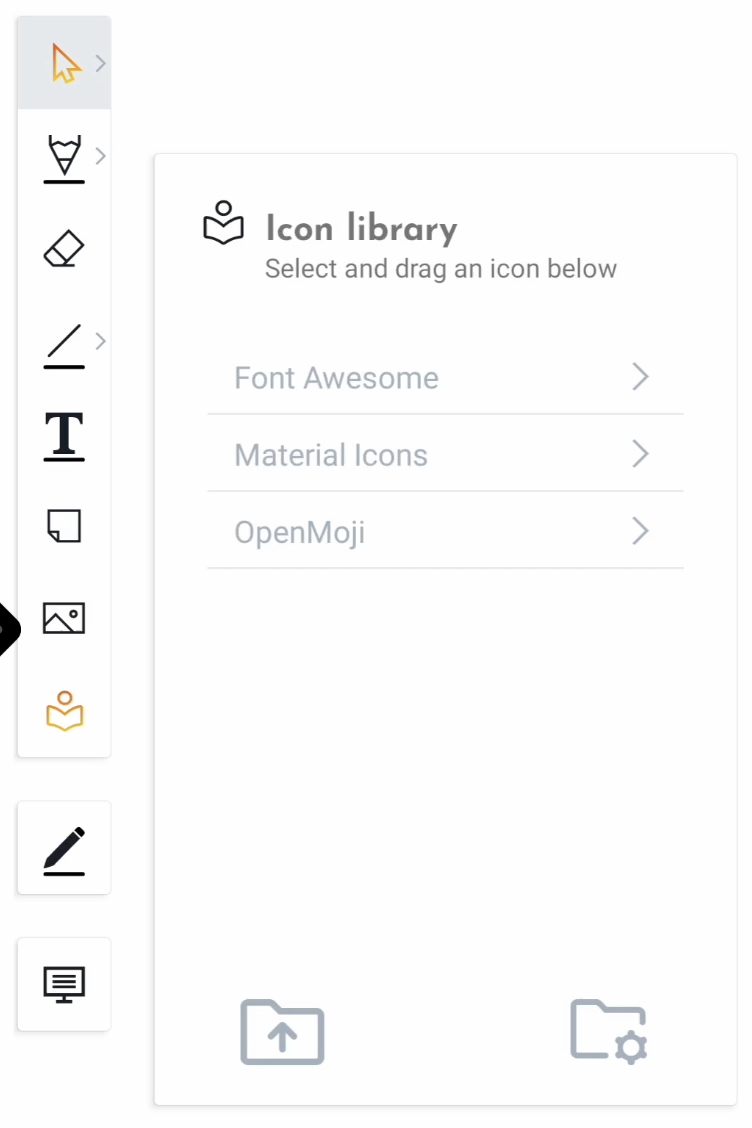
The Icon library allows users to drag and drop icons on the canvas. We already added popular and extensive icon libraries that you can use right now, such as Material Icons, FontAwesome and OpenMoji, giving you immediate access to thousands of icons.
Browsing the icon libraries
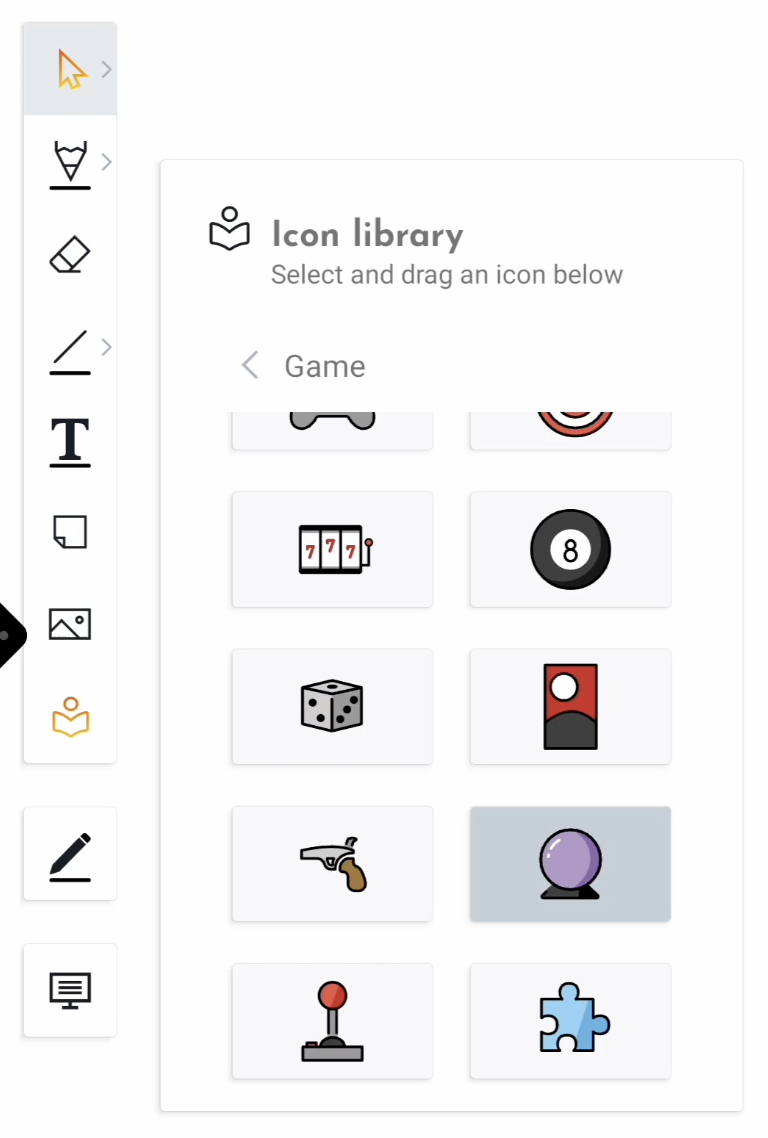
The first time you load the icon library, you’ll see each icon library displayed in its own folder, along with sub folders for each category. You can easily browse through the folders by selecting them. If only the parent folder is shown, there are no more sub folders or categories at this level. You’ll have to navigate back by selecting the parent folder.
Dragging icons to the canvas
Select an icon from the library. Once selected, you can drag it to the canvas. It now becomes an object on the canvas that you can later select and manipulate.
You can also select multiple icons within a folder and drag them all to the canvas at once. They will all be separate objects that you can still move around as you like. Note that the icons will be saved to the document and could impact the file size.
Create your own libraries
Want to create your own libraries? Well, you can do that easily in i3WHITEBOARD by putting a folder with all your svg, png, jepg, WEBp files, organised in sub folders, on the i3TOUCH display or copying them from a USB stick. i3WHITEBOARD will recognise the sub folders and add them to the library.
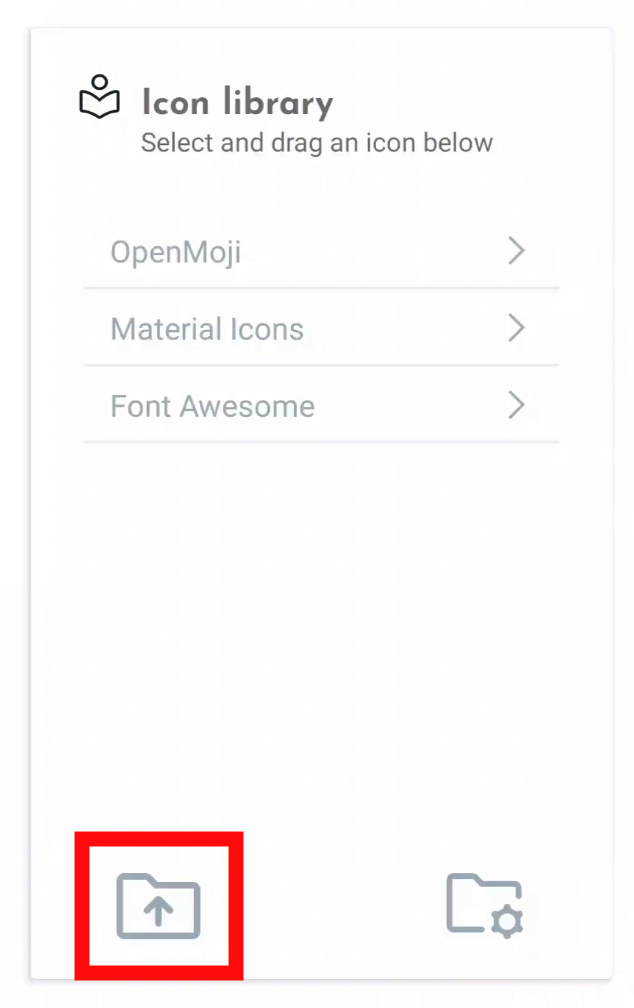
At the bottom of the Icon library, select the Upload button.
Locate the source of your icons, either on the i3TOUCH display or USB drive. Select the parent folder and all its sub folders/ items at once by selecting the circle in the top left corner. Don’t forget to add a title.
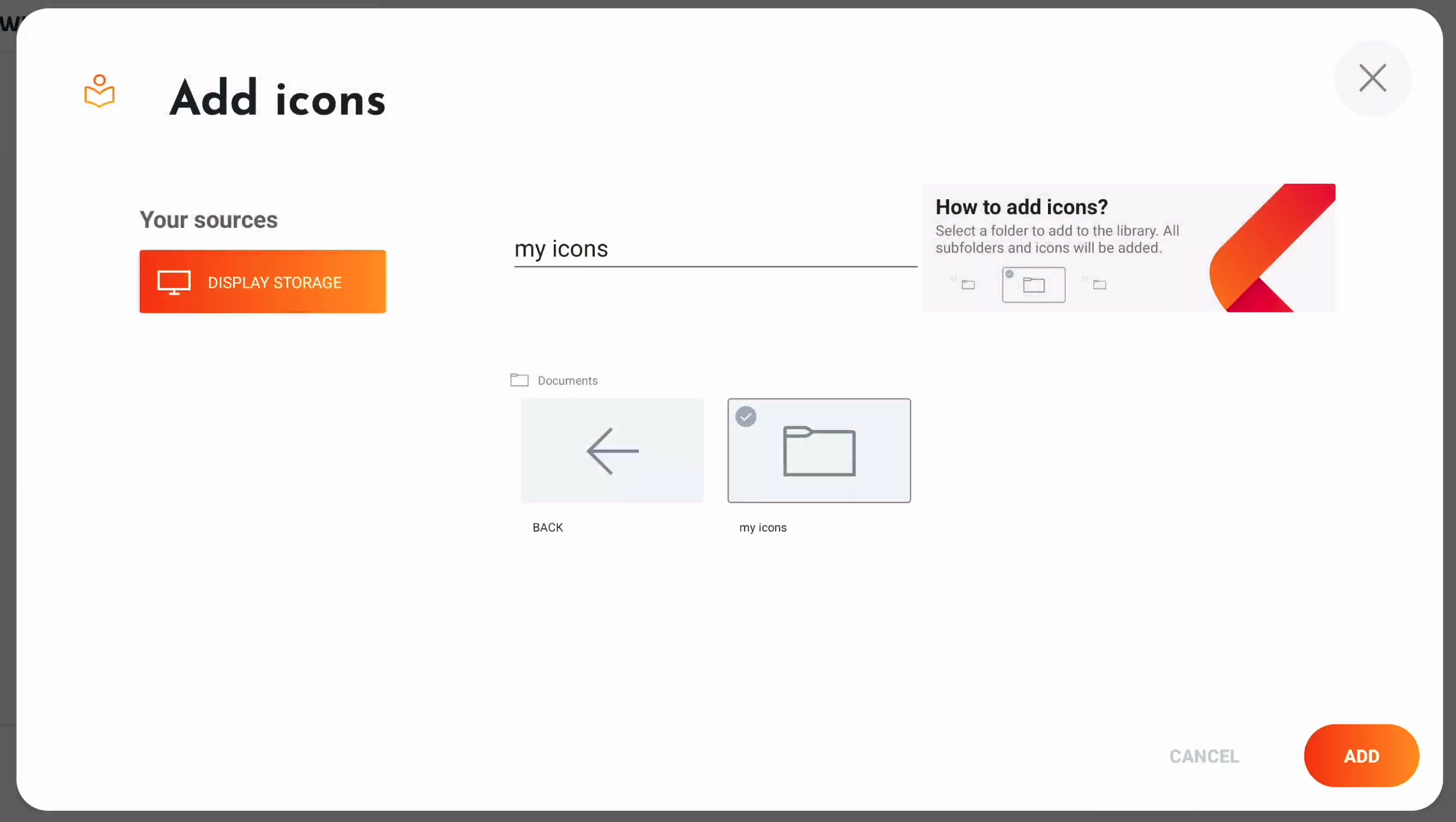
Select Add and your new icon folder is available in the Icon library. If it takes time to import the icons, a loading menu might appear.
Alternatively, you can have your IT administrator upload them using our remote management system: Cortex - Remote Management. This way, they can add them to a remote configuration and copy the library to all i3TOUCH devices within your organisation!
Managing your icon libraries
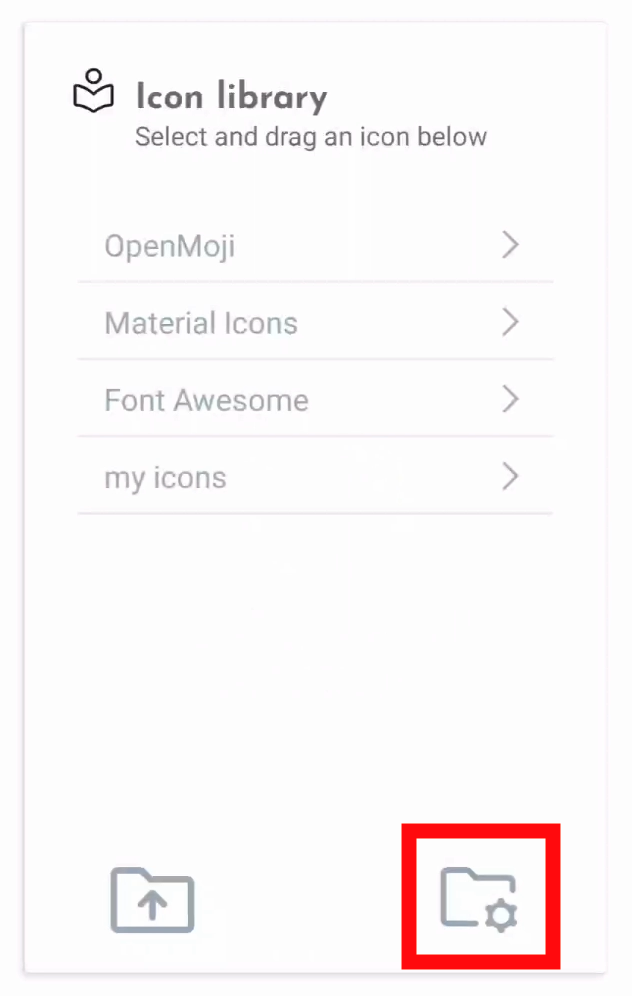
Select the Manage icon at the bottom right of the Icon library.
This changes the view of the libraries and adds the feature to drag the libraries around. User libraries can also be renamed and/ or removed.
Icon licenses
Material Icons icon library is licensed under the Apache License version 2.0.
OpenMoji icon library emojis are designed by OpenMoji – the open-source emoji and icon project. License: CC BY-SA 4.0
Font Awesome icon library is fully open source and is GPL friendly. License: SIL OFL 1.1