In this guide we explain the steps in order to successfully install the CTOUCH Riva D2 or R2 display while connected to the internet. Installation consists of two actions: create a connect code and following set-up on the display.
It is recommended to create a connect code before following set-up. Please see Creating a CTOUCH Sphere connect code for instructions.
Important: to successfully complete the installation of the CTOUCH Riva R2/D2 you need to have completed the “Create a connect code” action. If you do not have a connect code, installation will not be possible.
Instructions: install with internet connection
-
Select language: Set the language of the display.

-
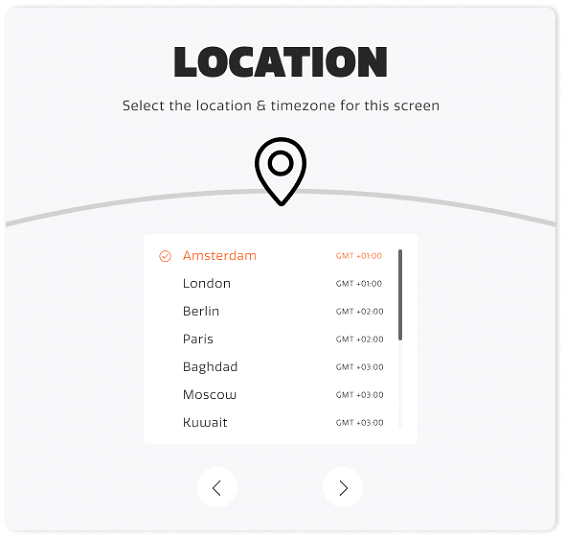
Select location: Select your location to set the time.
-
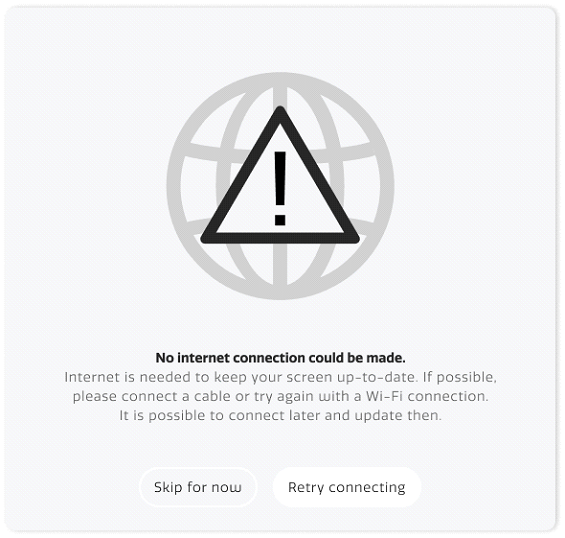
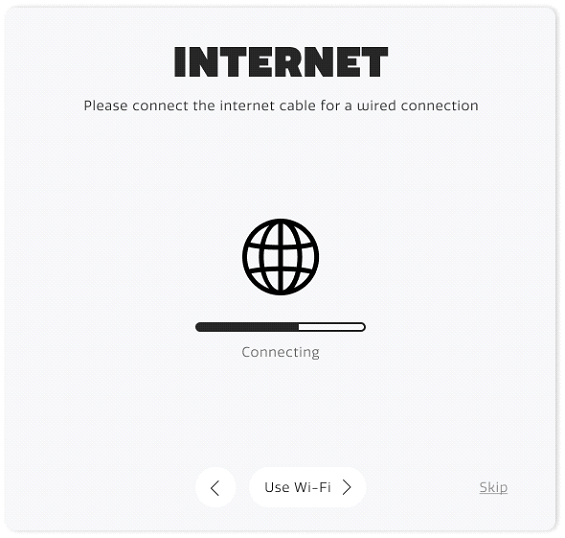
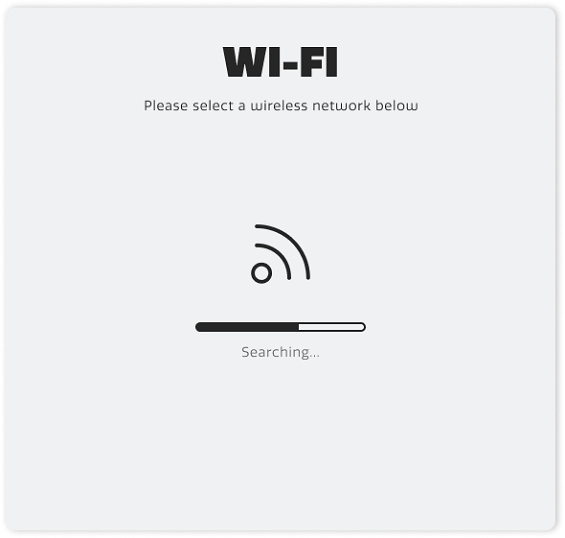
Connect to the internet: Follow the steps on the screen to connect your display to the internet. You can connect to the internet via cable or Wi-Fi. No internet connection available? Please see Installation Guide Riva R2/D2 (Without Internet Connection)
-
Enter the connect code: Log in to http://sphere.ctouch.eu and retrieve your connect code. In the ‘Registration code’ field, type the connect code. Please see How to create a CTOUCH Sphere connect code for instructions.
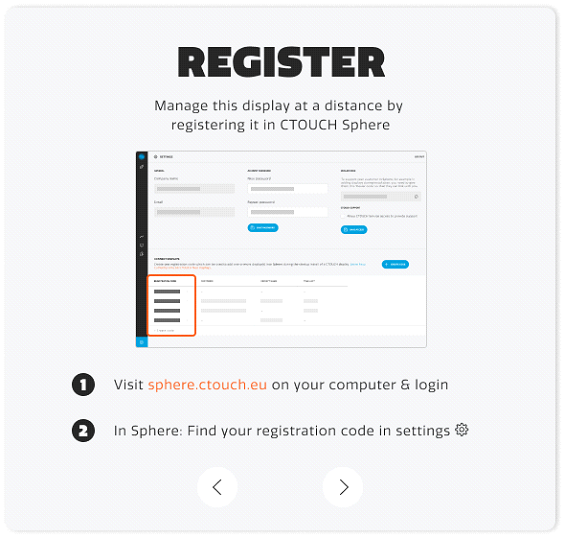
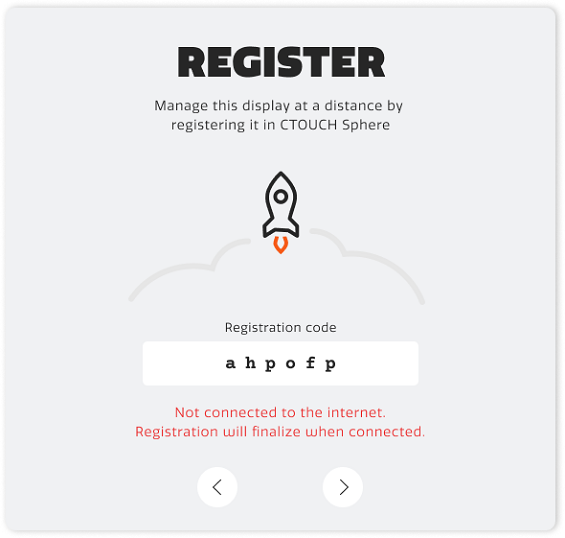
-
Enter display information: After entering, this information will be stored within your CTOUCH Sphere account. This can take up to a few seconds.
-
Fill in the display name.
-
Fill in the location / building
-
-
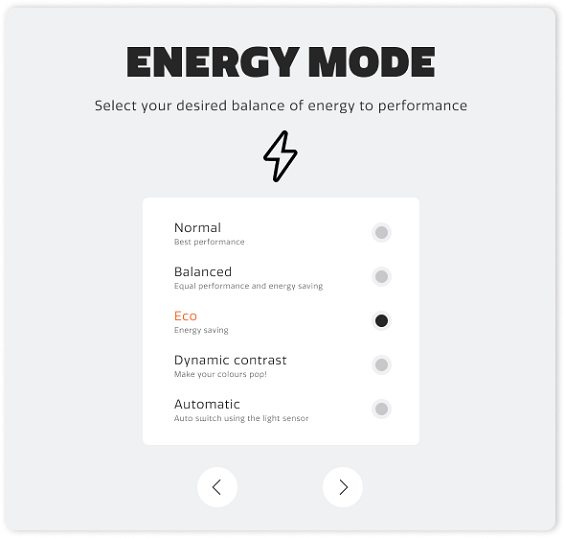
Select energy mode: Click the button next to the mode name to select which energy mode to use. This can be changed in the settings later if desired.
-
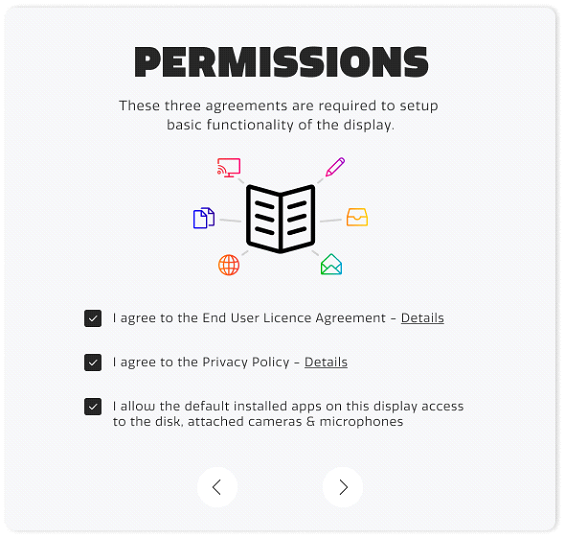
Select permissions: Click the check box to agree to all three permissions.
-
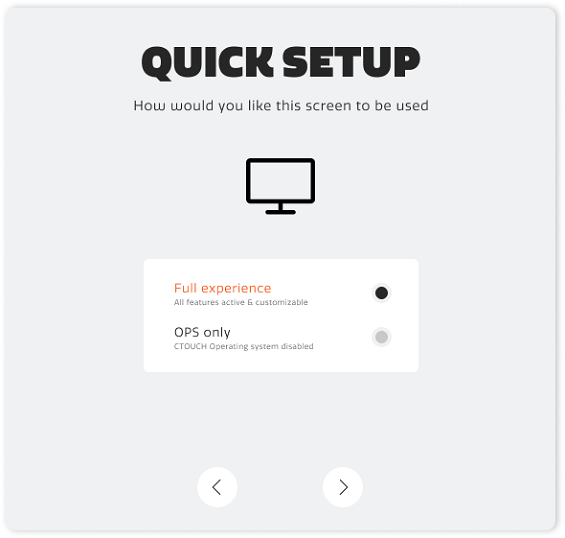
Enabling CTOUCH Operating System (COS): Select ‘Full Experience’ to be able to maintain your display through CTOUCH Sphere.
-
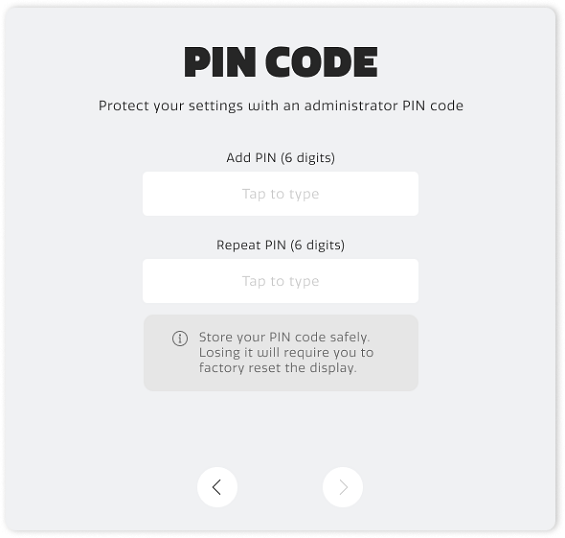
Set Pin Code: Set your confidential pin code consisting of 6 digits.
-
Perform update: The display will check if there is an update available. The update will be downloaded and performed automatically when the install button is selected (although not recommended, the update can be skipped when selecting Skip for now). After this step the installation is finished.