
Advanced user profiles will only be available to you of User Profiles was activated for this display in Cortex. For more information on how to activate User Profiles, consult the:
Log in screen
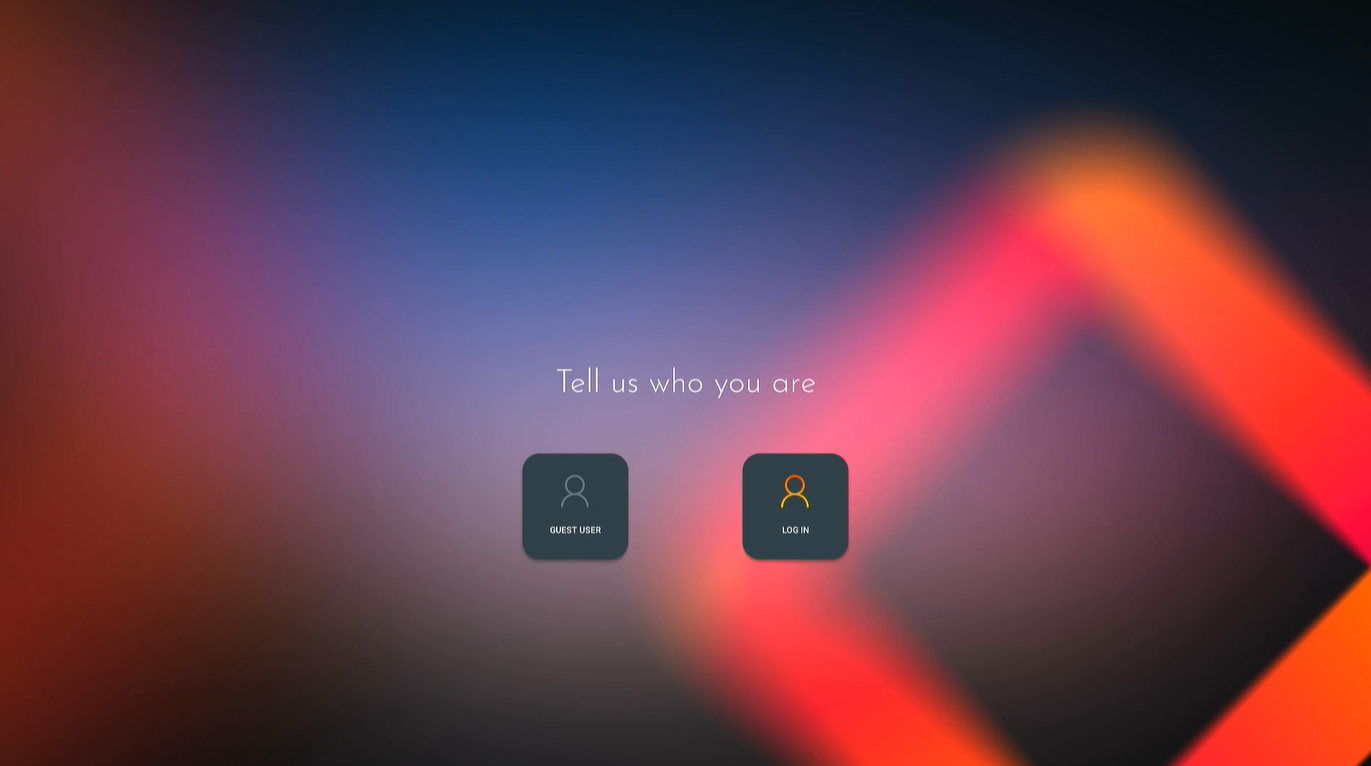
The Log in screen allows users to log in to an i3TOUCH display, using a personal user profile.
With your personal user profile, you will have more security over how you use the i3CONNECT display. Save your i3Whiteboard files to your personal cloud, which now only you can access. Once you log off, nobody will be able to access those files. What’s even better, if you work on more than one display, you can continue working on the same file on multiple displays!
In the future, expect a lot more updates because we are actively working on exciting ways to continue improve.
How do you log in?
There are two ways to use the display, by using the Guest user profile, or your personal user profile.
Guest user profile
The Guest user profile is for everyone who doesn’t have an activated user profile. Depending on security settings, it may require you to enter a PIN code to be able to use it. Guests can use the i3Whiteboard and other applications, but files that are stored on the display will be removed when the Guest logs out.
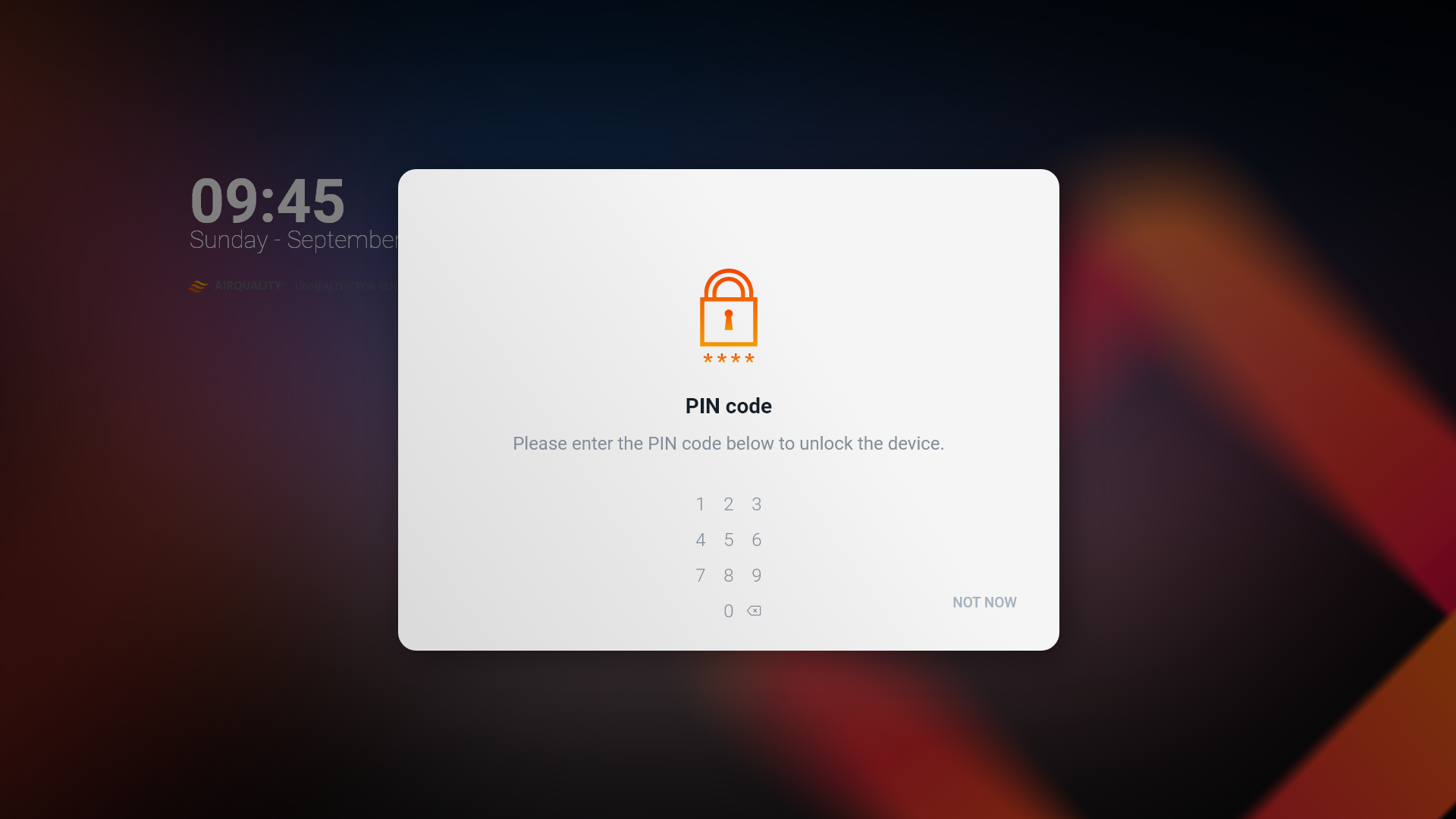
PIN lock screen
If you see this screen, this means that the Guest user profile was configured with a PIN lock. Please contact your IT administrator if you need to use this display. If you know the PIN code, you may enter it on this screen. The UI is discreet and the value will not be displayed on the screen, but if you want to avoid that people in the room can see you enter the code, try standing right in front of it.
Personal user profile
Logging in to your personal user profile is very easy. All you need is your mobile phone with a QR code scanner. Usually, the camera on your phone already has a QR code scanner built in, but if that’s not the case, you’ll find a lot of free apps in the Android Play Store or the Apple App Store.
Not a phone person? Don’t worry, you can also log in by surfing to a web site using your preferred web browser.
Before continuing, make sure that your user profile was created and activated. You should have received an e-mail with the necessary steps to register. Make sure to have completed that process first.
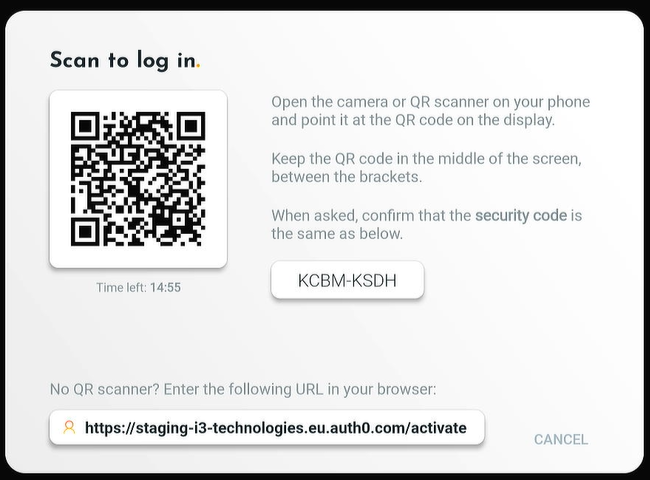
On the i3TOUCH display home page, select “Log in”. It will open a dialog with:
-
a QR code
-
a security code (a unique 8 digit code which adds an extra layer of security)
-
a URL link if scanning the QR code is not an option.
Connect, using your phone
Open the camera on your phone if it has an integrated QR code scanner. If it doesn’t, you can download one of the many free ones in your Android Play Store or Apple App Store. Point your camera at the QR code(1)that was generated, it will redirect you to a web page where you can log in with your credentials.
Once filled in, you will need to confirm the auto-generated security code (2) on the screen.
Connect, using a computer
Of course you don’t really need to log in with a QR code scanner. Simply enter the URL link (3) in your web browser. It will lead you to the same page, asking you to log in with your credentials. The only difference here is that you will need to enter the security code (2) manually.
Difficulties to connect
Below is a list of possible reasons why establishing a connection might have failed.
No internet found
If the i3CONNECT display is not connected to an internet connection, Studio won’t be able to establish a connection with a user profile. The home screen may look like this. Users can use the Guest profile but cannot log in to their profile.
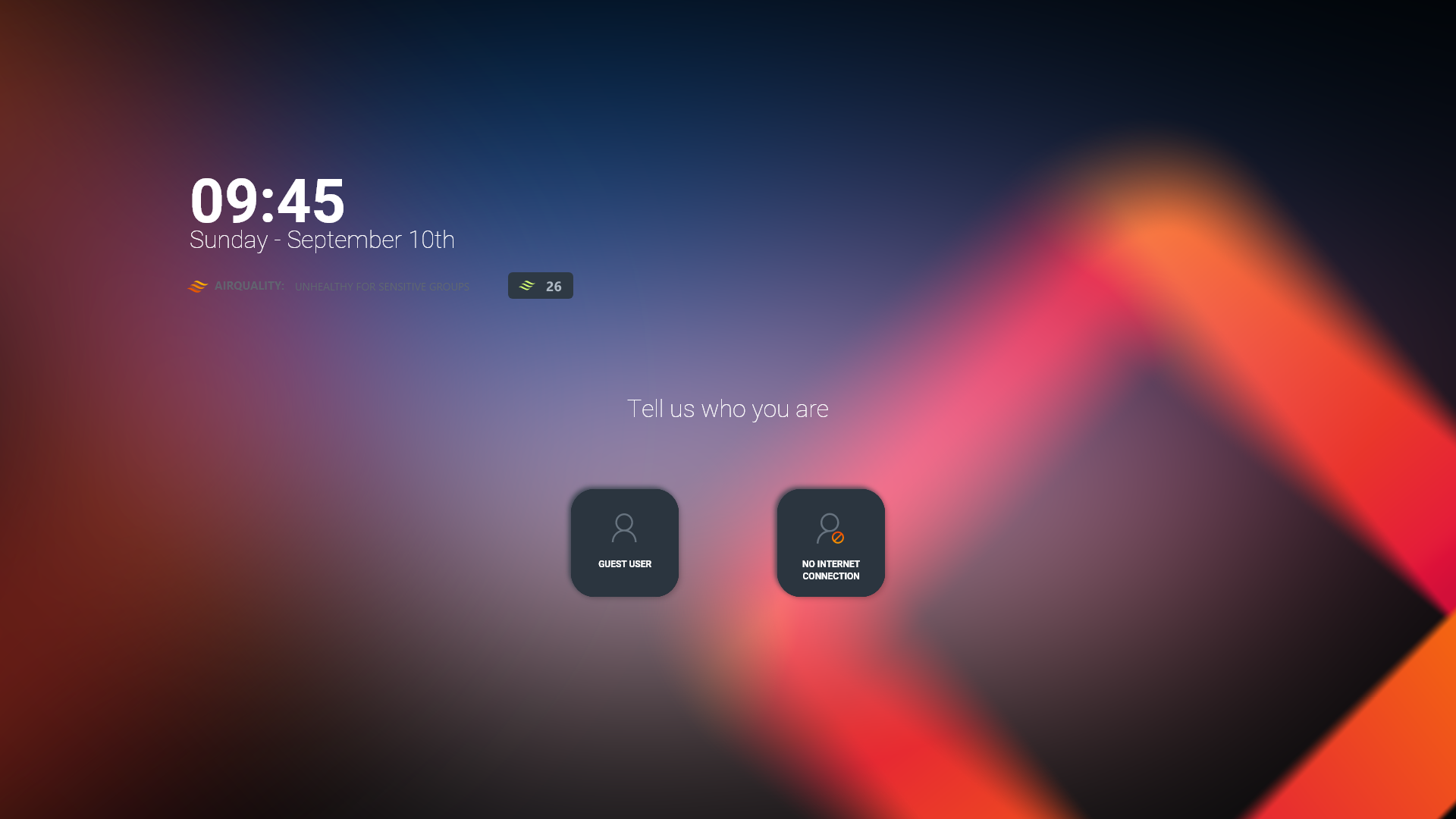
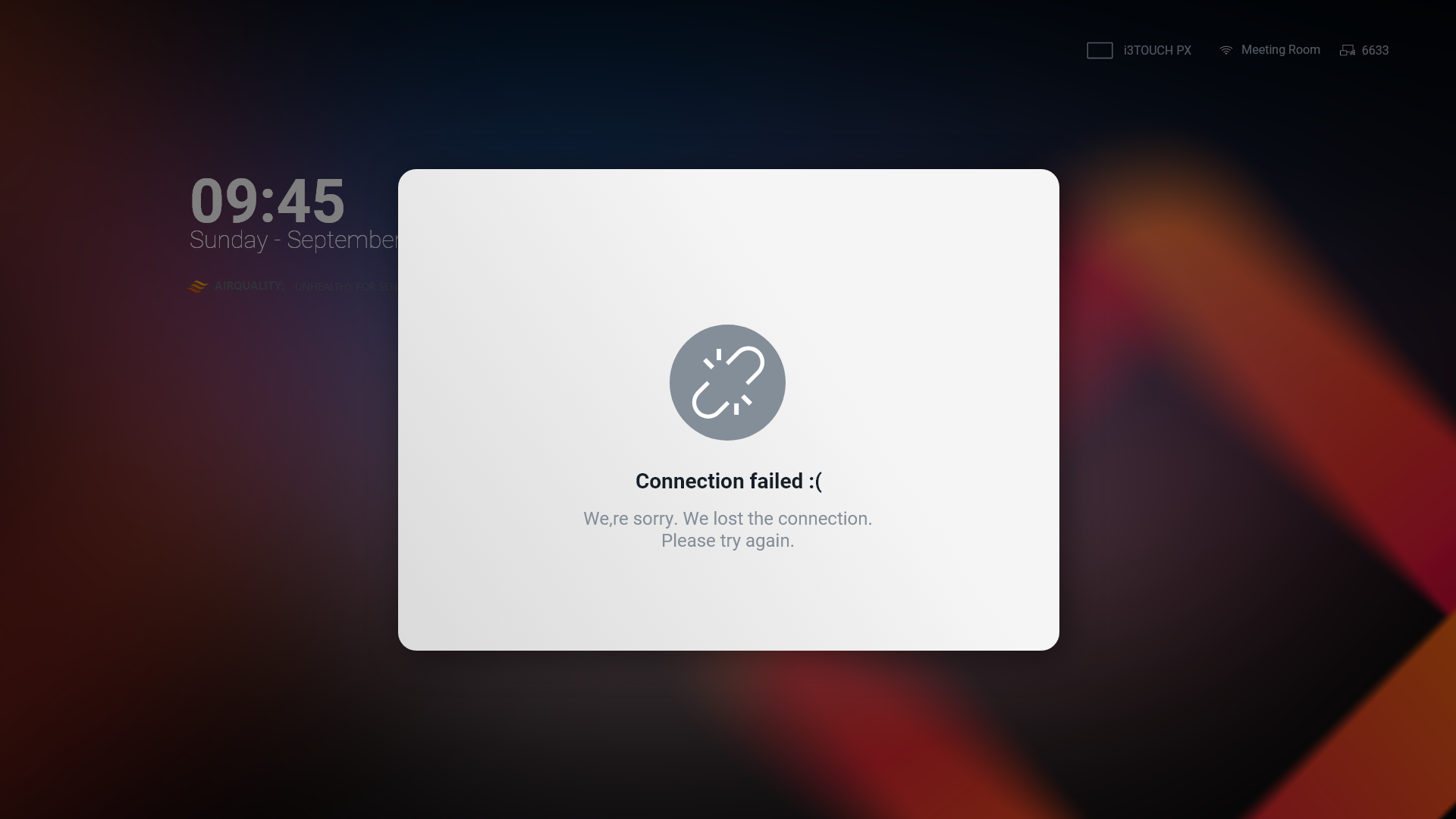
If there was an initial internet connection, but it was lost while the user was establishing a connection, they might see a screen that looks like this:
In this case, the loss of connection may have been temporarily. The user is advised to try establishing the connection again.
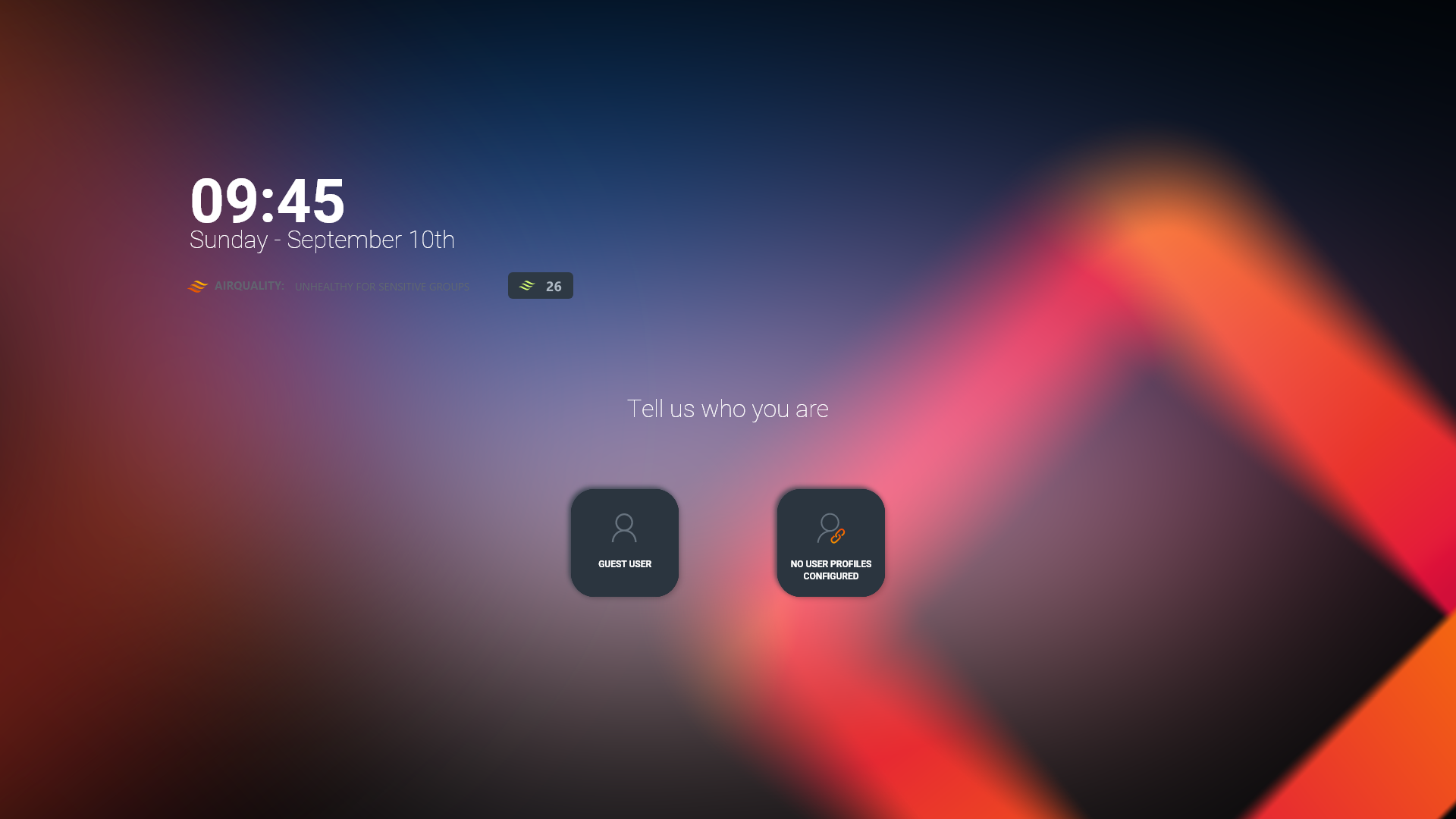
No user profiles configured
If you see this screen, it means that there are no user profiles configured to the i3CONNECT display. Contact your IT administrator if you want to use this display.
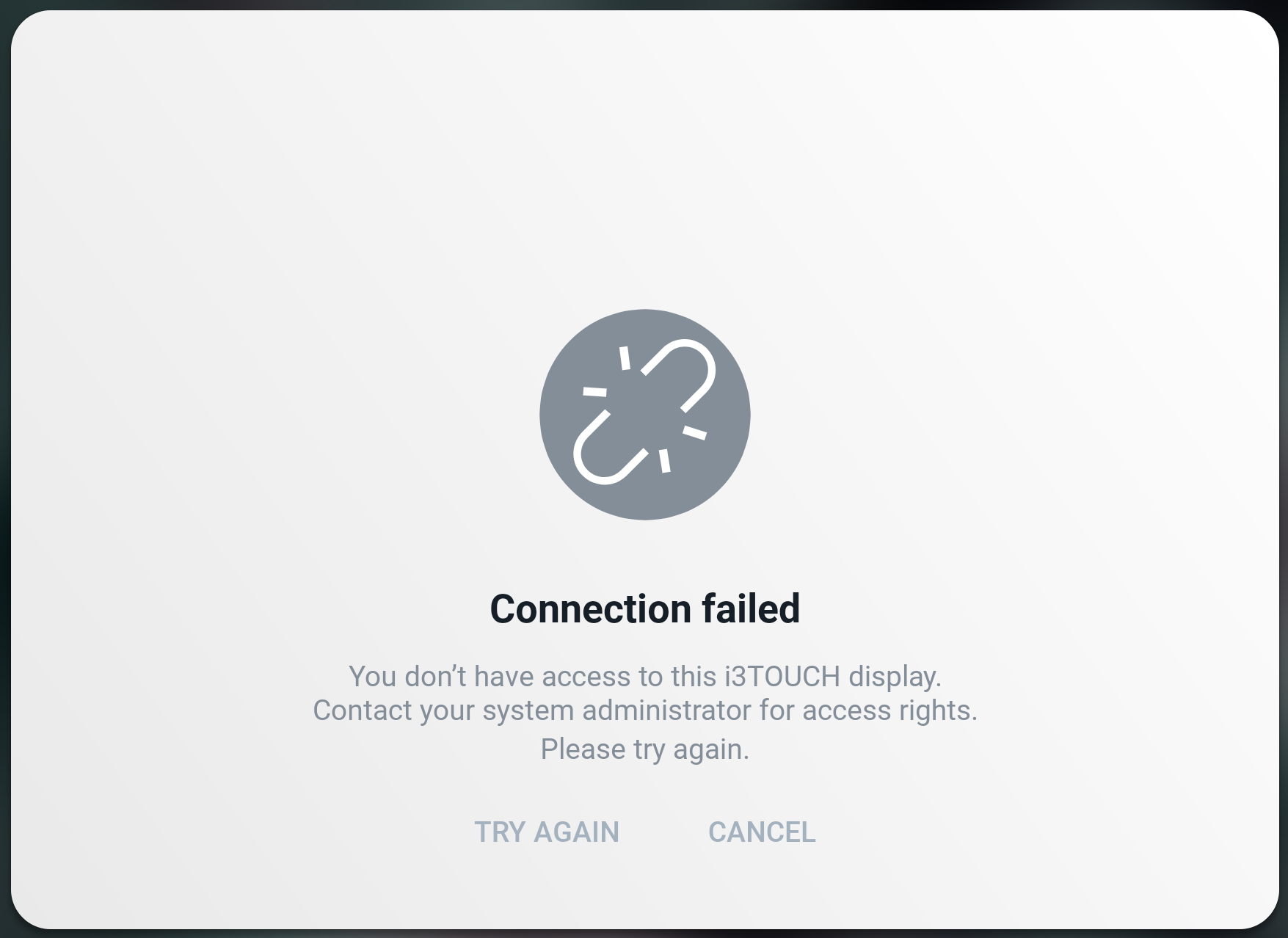
You don’t have access to the i3TOUCH display
Your IT administrator may not have connected your user profile with the i3CONNECT display (yet). Contact your IT administrator if you want to use the display.
You don’t have an active user profile
If you receive a message that you don’t have a user profile, but you wish to use the i3CONNECT display, please contact your IT administrator.