
This allows you to open previously saved i3WHITEBOARD files.
Instructions: open a whiteboard
-
Open the main menu of the whiteboard (see Main menu of the whiteboard)
-
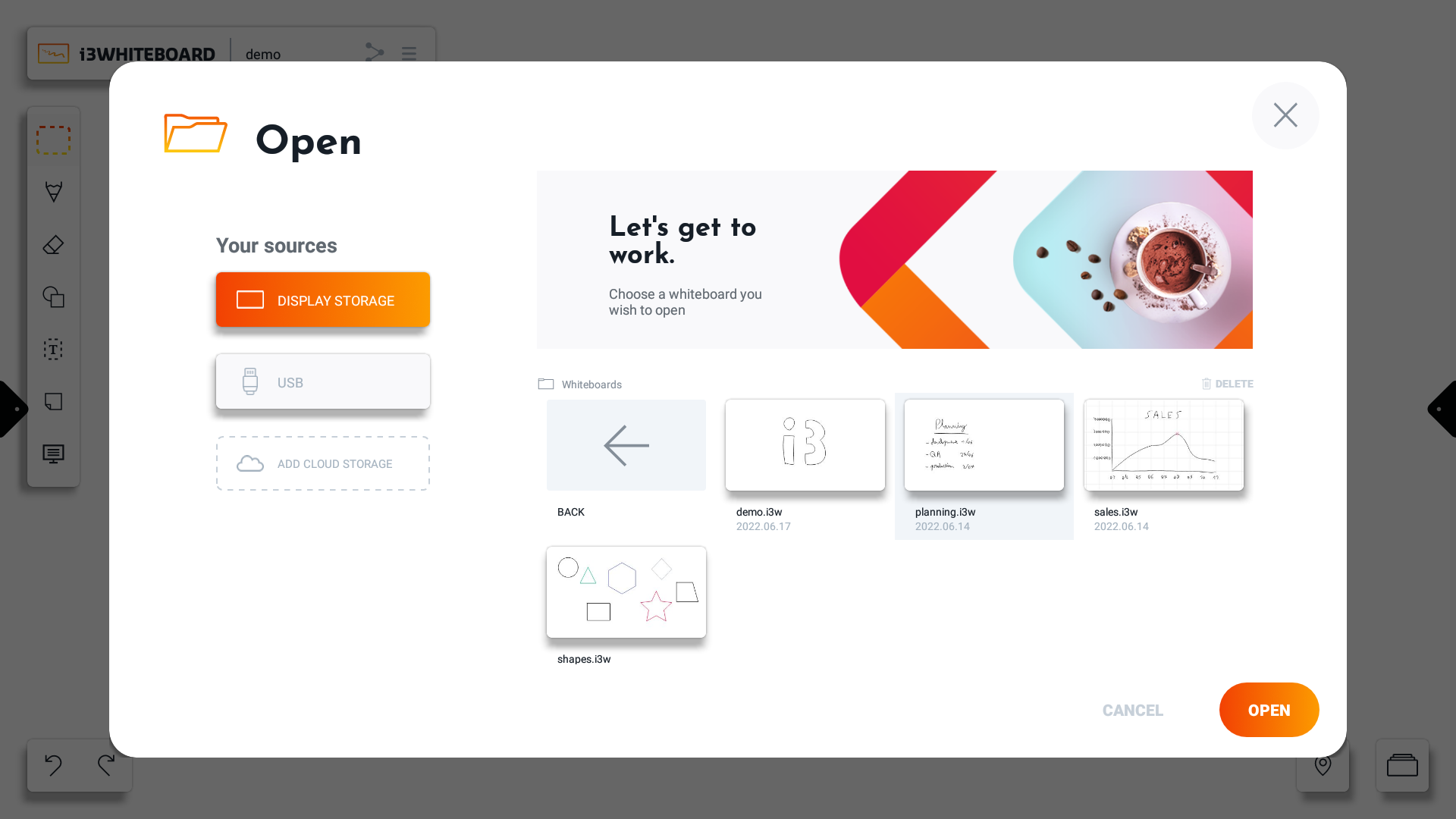
Select the file you want to open and press “Open.”
-
Choose the location where the whiteboard is saved
-
Display Storage: Here you can look for i3WHITEBOARD files that were saved to the i3TOUCH displays' internal storage.
-
USB: Connect a USB drive to the i3TOUCH display, and you can browse its content here.
-
Cloud storage: This is the preferred storage since it’ll allow you to use your i3WHITEBOARD files on multiple i3TOUCH displays. i3WHITEBOARD allows you to connect to:
-
Google Drive
-
OneDrive
-
-
-
The file will open!
If you have not added cloud storage yet, you may need to add it:
Instead of opening the file, you also have the option to delete a file here. Deleting a file will permanently erase it from the file system. This cannot be reverted or recovered.
Instructions: opening a password-protected whiteboard
When opening a password-protected file, a prompt to insert the password will appear. To continue opening the file, the correct password must be inserted. In cases where a file was left open, the prompt will appear as soon as the application is loaded. A new workspace will be created when pressing the cancel button while the file is already opened in the background. Otherwise, pressing unlock with the right password will open the file normally.
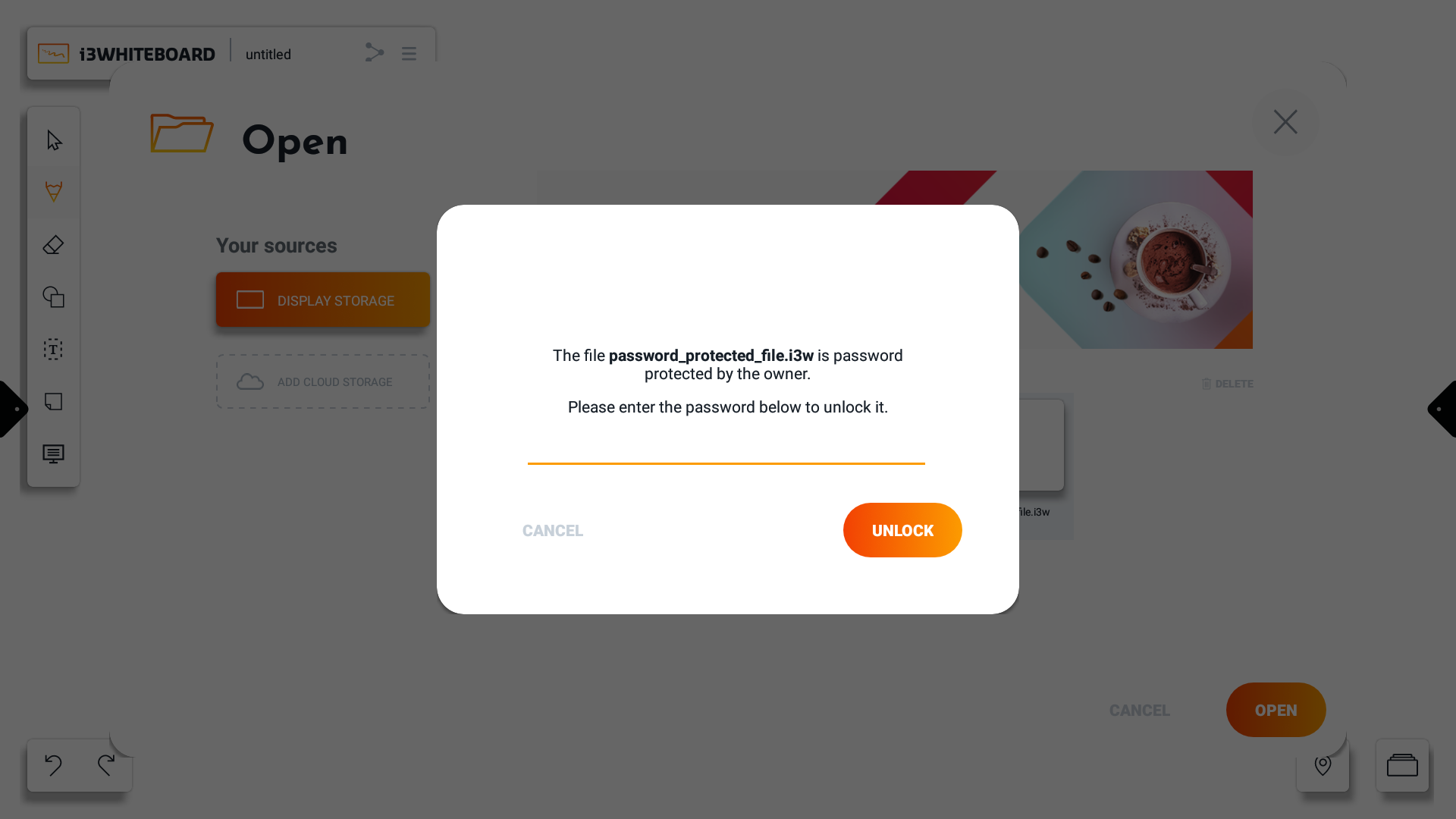
Password-protected files will not show a preview as they are to be kept private in order not to display the content.
Password-protected files can be deleted without asking for password input from the Open screen found in the hamburger menu. When saving with a password, it is recommended to save it into a private directory or cloud drive in order to prevent deletion of the file from other users.
A password is not recoverable, in case of a lost password, the file cannot be accessed anymore.