
The Select tool can be selected from the toolbar (Whiteboard tools: Overview)
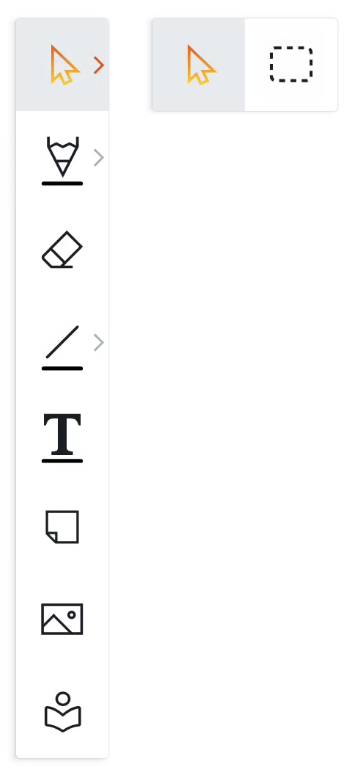
Whilst on the whiteboard, on the top left side you should see this menu. The first icon is the selection tool. There are two selection tools available:
-
Pointer select tool: to select single objects. You can also use the pointer to move the canvas around or zoom in and out with pinch gestures.
-
Box select tool: to select multiple objects by dragging a rectangle around the objects.
Selected object menu’s
When you select an object, a bounding box (1) with transformation handles will be visible, along with the Actions menu (2) and Features menu (3).
Jump to a section of this article:
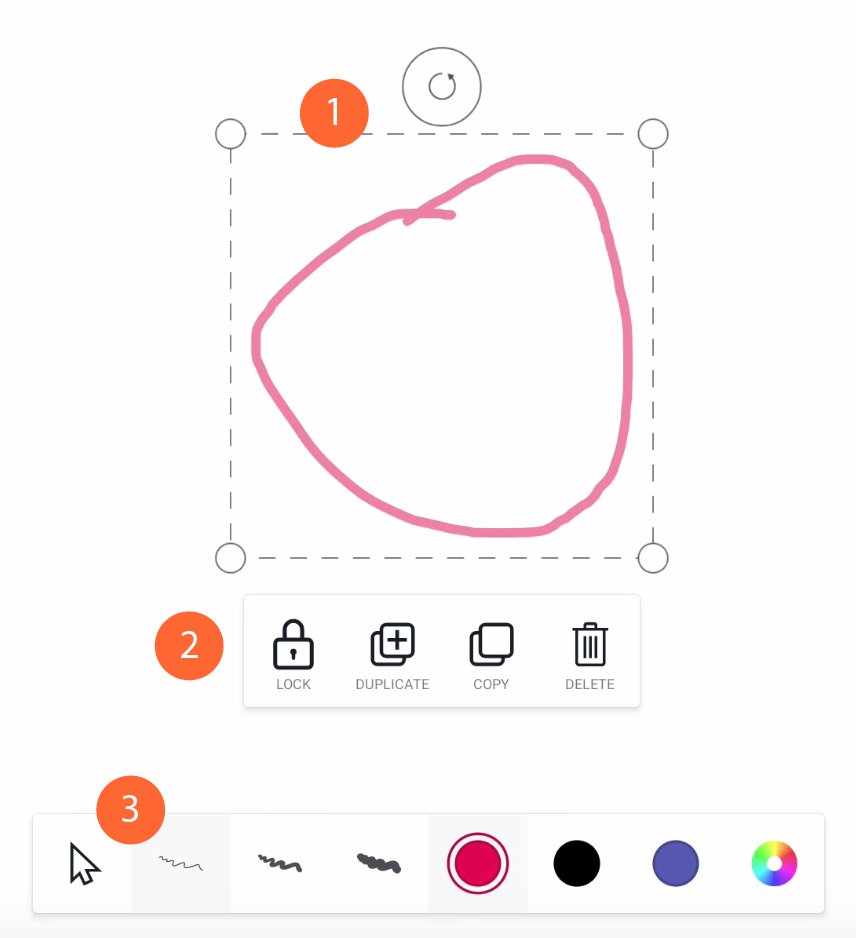
(1) Bounding box
The bounding box allows you to scale or transform the selected object(s). You can scale from any of the four corners. Rotating can be done by holding down and moving the rotation handle in the desired direction.
(2) Selection actions menu
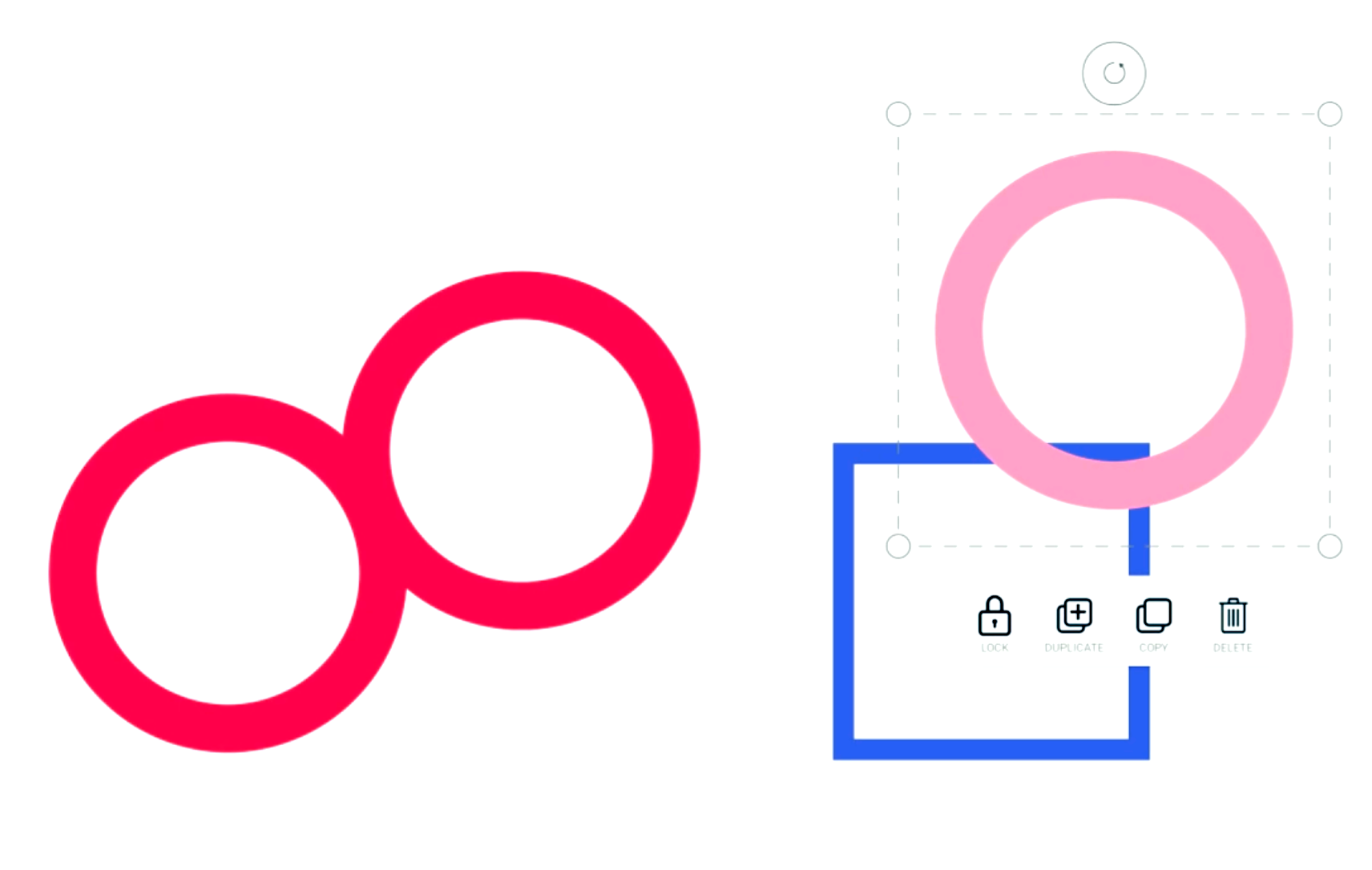
The Actions menu is visible once you select one or multiple objects on the canvas. The Actions menu helps you to lock, detect, edit, duplicate, copy-paste, and delete the selected object(s).
Actions menu: Lock (selection)
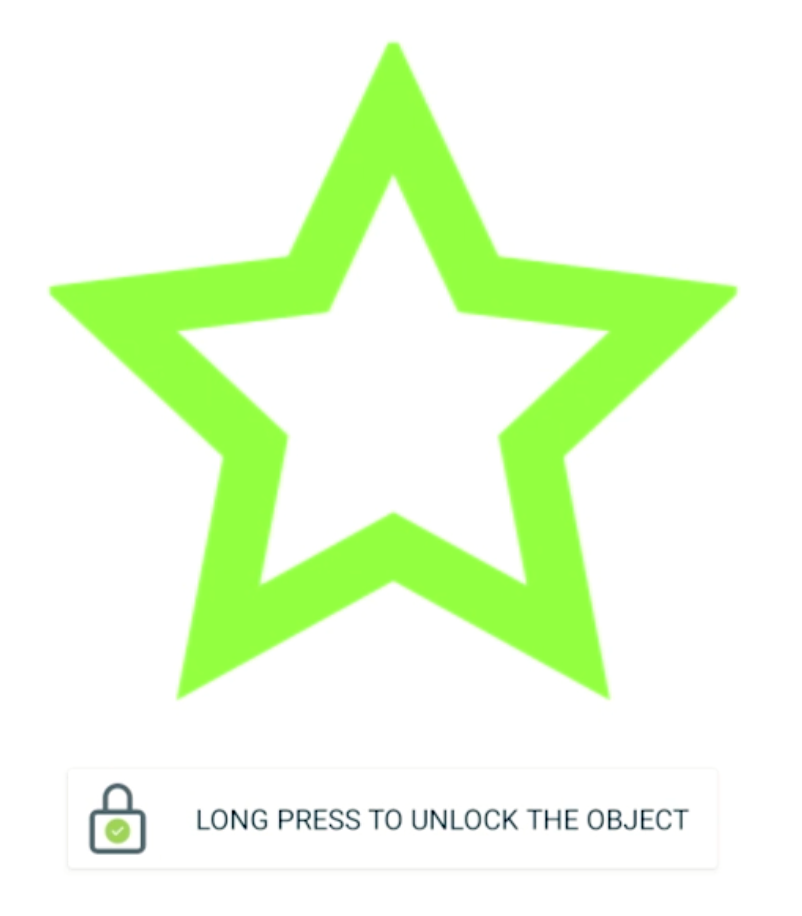
Locked objects cannot be selected or deleted, nor can their features be changed until they are unlocked again. The action is easy to perform. Select one or more objects, hit the Lock icon in the Actions menu, and the object is locked. It’ll show you visually by adding a small Lock icon at the corner of the object when you try to select it: 
When locking the object, you may also have noticed that the Actions menu informs you how to unlock it:
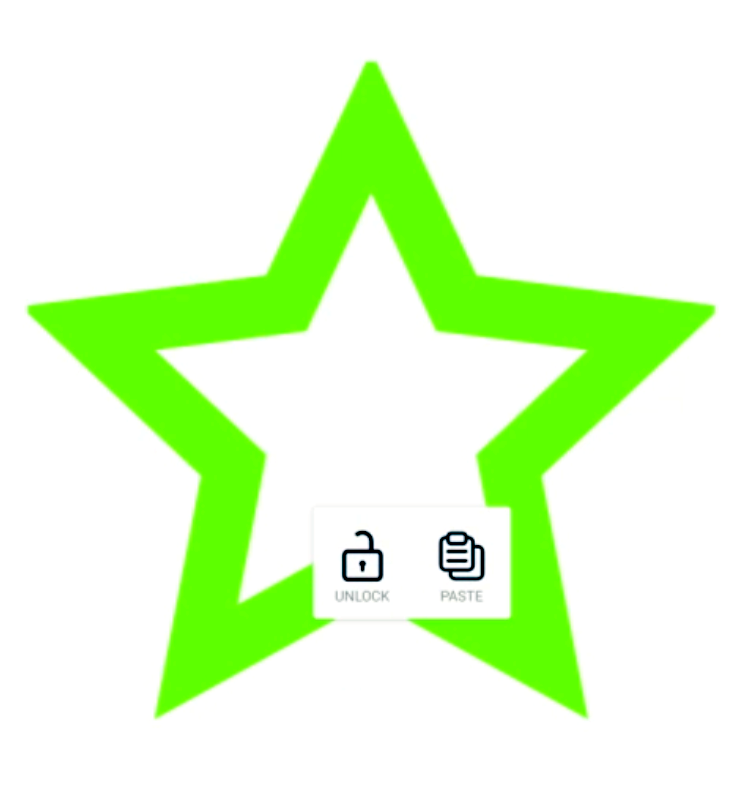
Long press the locked object, and you will see the action to unlock it:
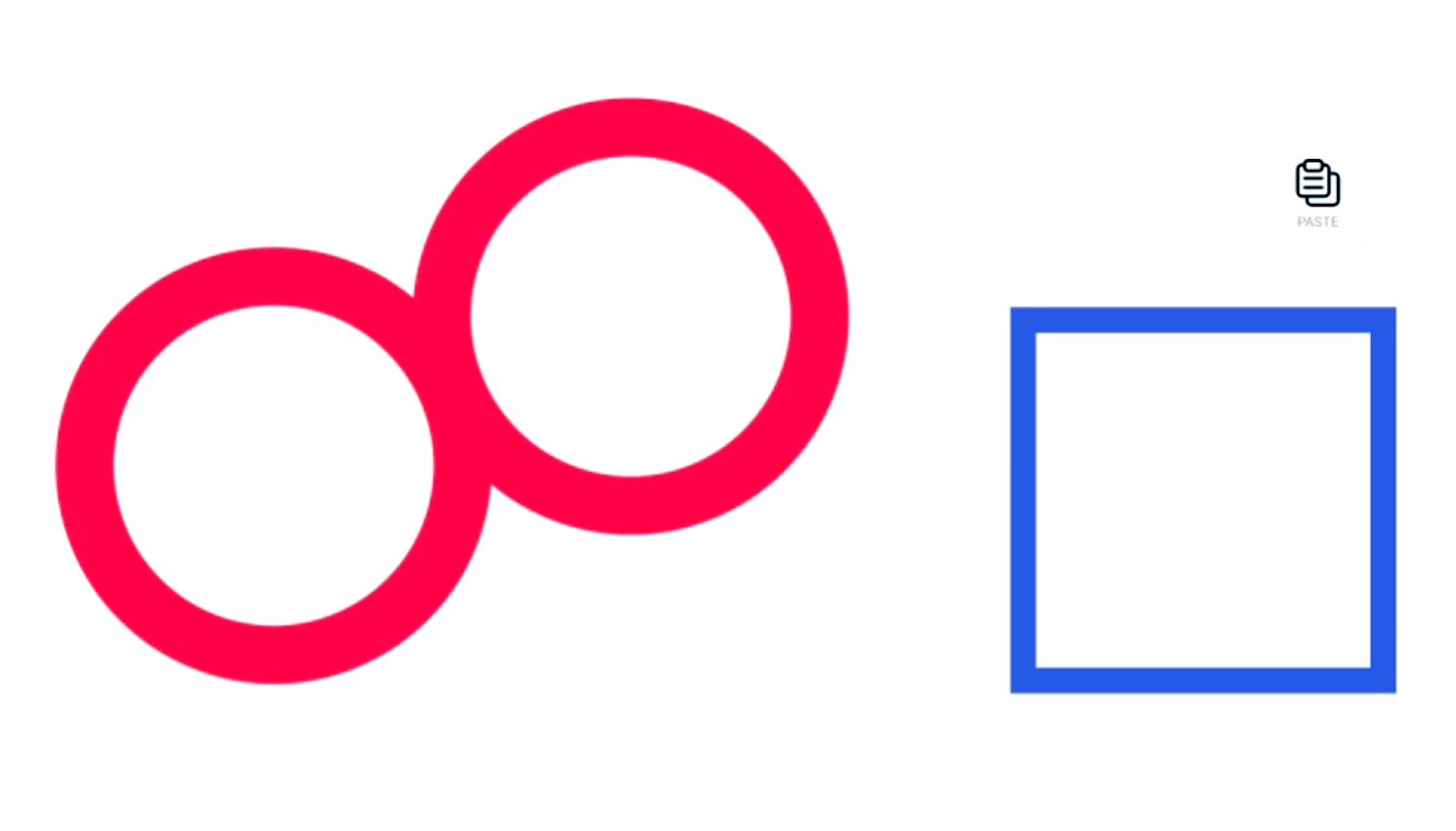
You might also see a Paste icon next to it if you previously copied an object.
Actions menu: detect (handwriting recognition)
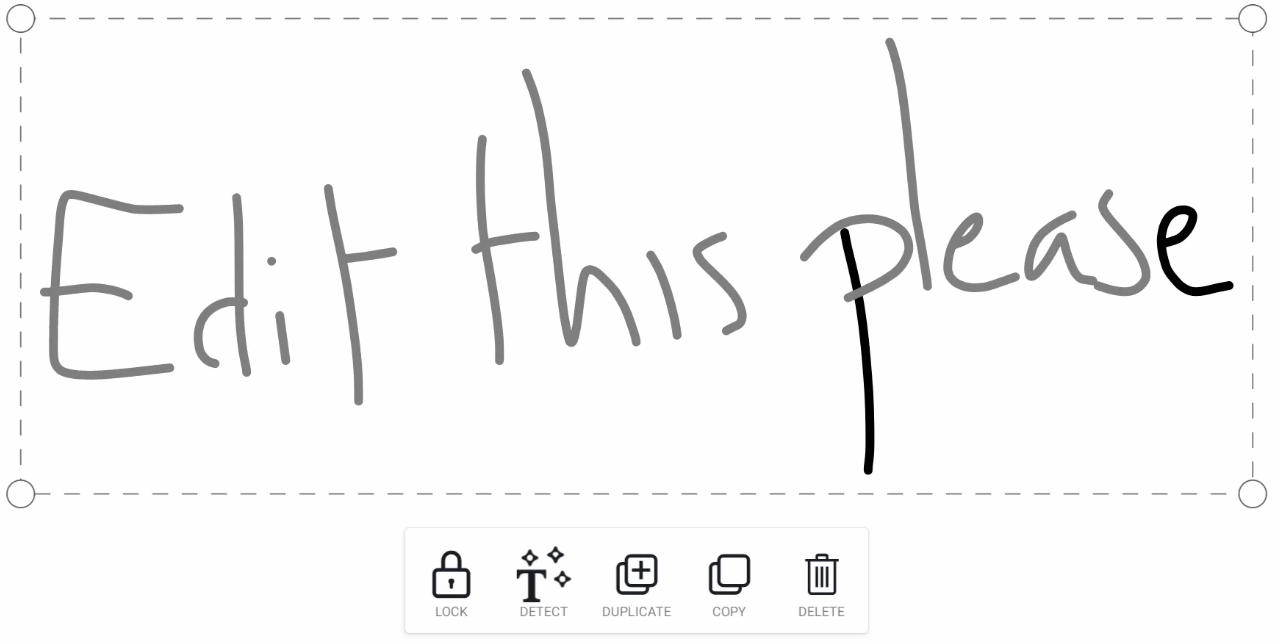
This feature is visible when a drawing is selected that can be converted to a text object which can still be edited.
-
Simply write something on the canvas, using the pen or your finger.
-
Draw a box selection field around the word or sentence that you wish to convert.
-
In the Actions menu, select “Detect”.
-
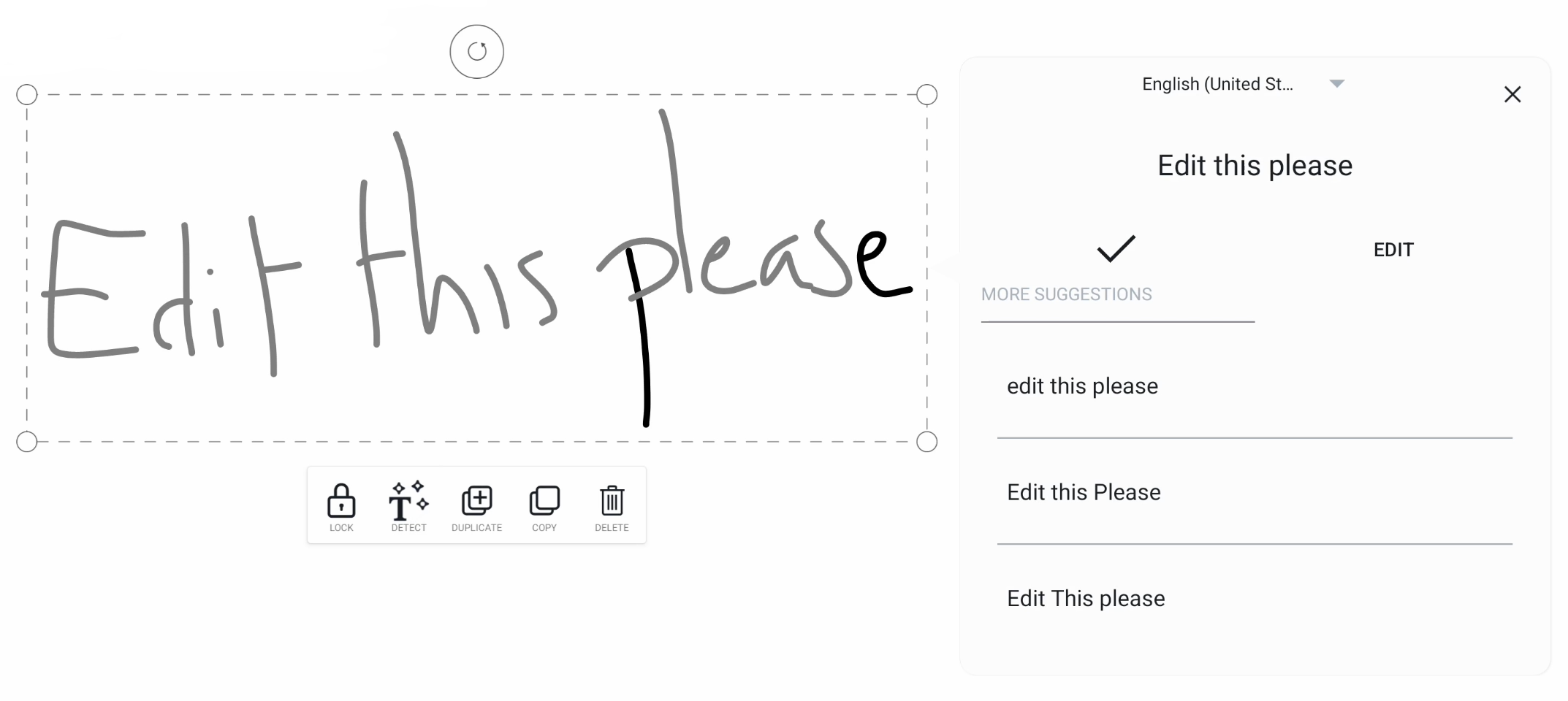
The suggestions menu will appear to the right of the selection in which you will see one main suggestion and three alternative suggestions.
-
The main suggestion can be accepted or, if necessary, edited from within the suggestions menu. If you choose any of the alternative suggestions, it will replace the main suggestion, allowing you to still edit that suggestion before accepting it.
Text recognition works best on words that were written in the same sequence. If you erase a word in a sentence to write another word in its place, it might not give the desired result.
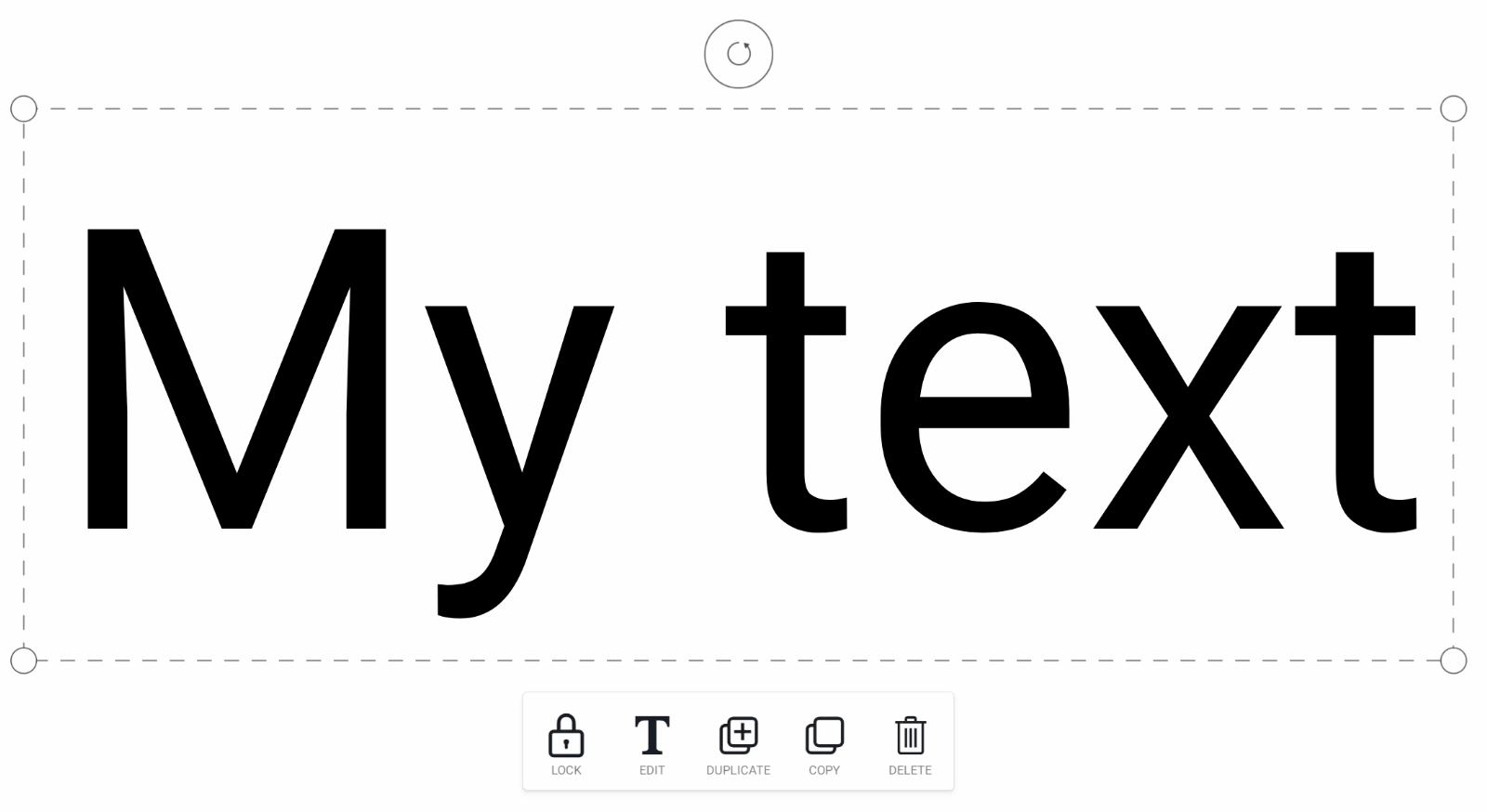
Actions menu: Edit (text)
This feature is only visible when a text object is selected. Select “Edit” and a modal will appear with a rich text editor. See Text tool below for more information on the rich text editor.
Actions menu: Duplicate (selection)
Duplicate instantly creates a new instance of the selected object(s) in front of them.
Actions menu: Copy (selection)
You can copy the selected object(s) and paste them later on the same or on a new page.
-
Select an object
-
Press the copy icon from the actions menu
Actions menu: Paste (selection)
-
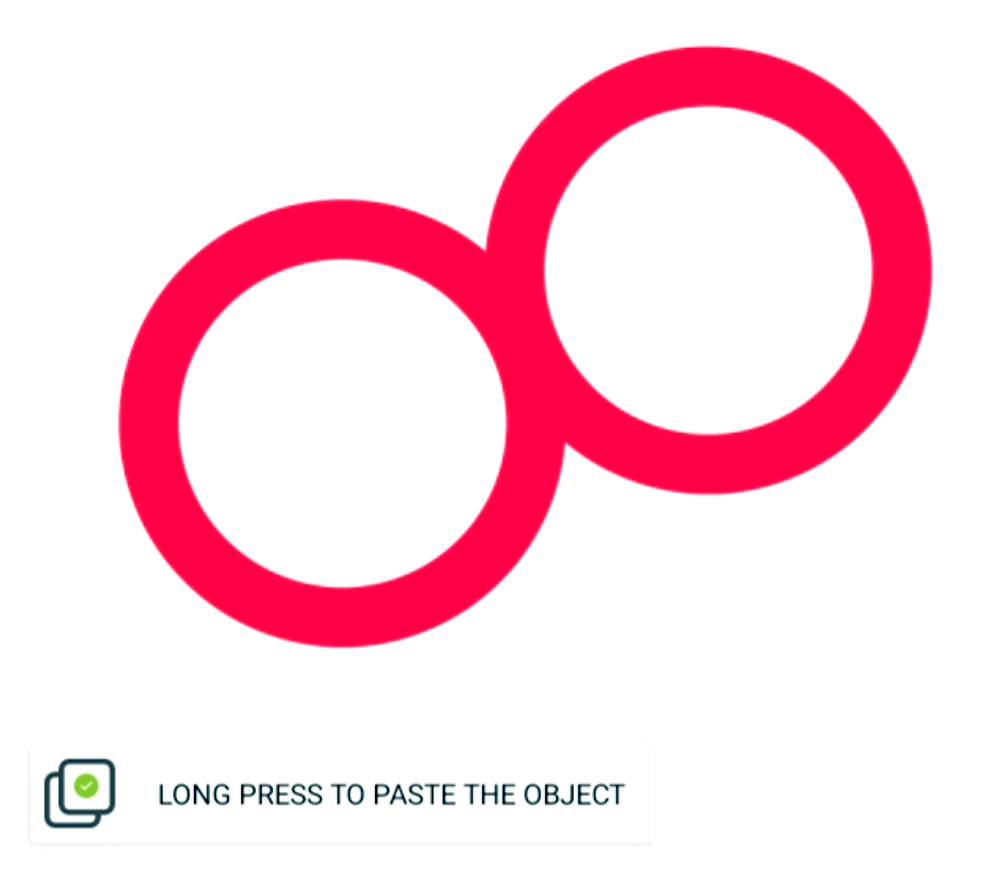
Copy an object (see above), an actions menu will briefly show you how to paste an object.
-
Long press anywhere on the canvas and a Paste icon will appear
-
Select Paste and a copy of the object will be pasted on that position.
Actions menu: Delete (selection)
This action deletes the selected object(s) from the canvas.
(3) Features menu: selection colour and line thickness
The Feature menu appears at the bottom of the canvas once an object is selected. It may indicate the color and line thickness features of the selected object(s), and also allow you to change them.
