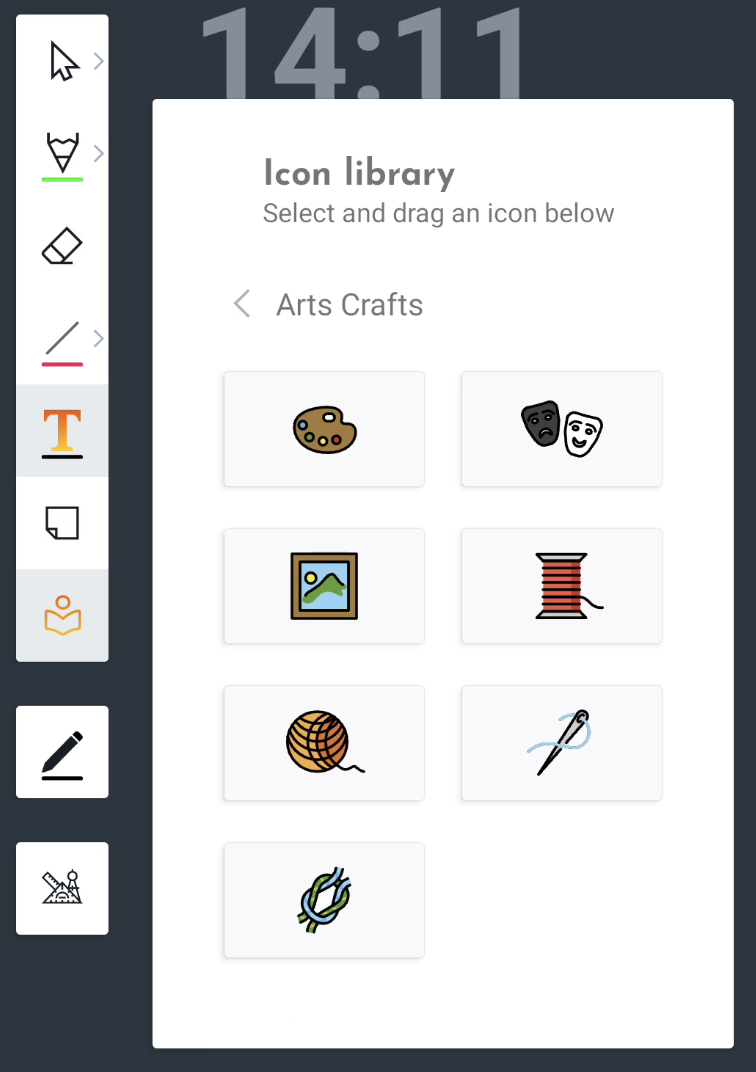
This is a detail page of the full annotation toolbar: Annotation: Overview
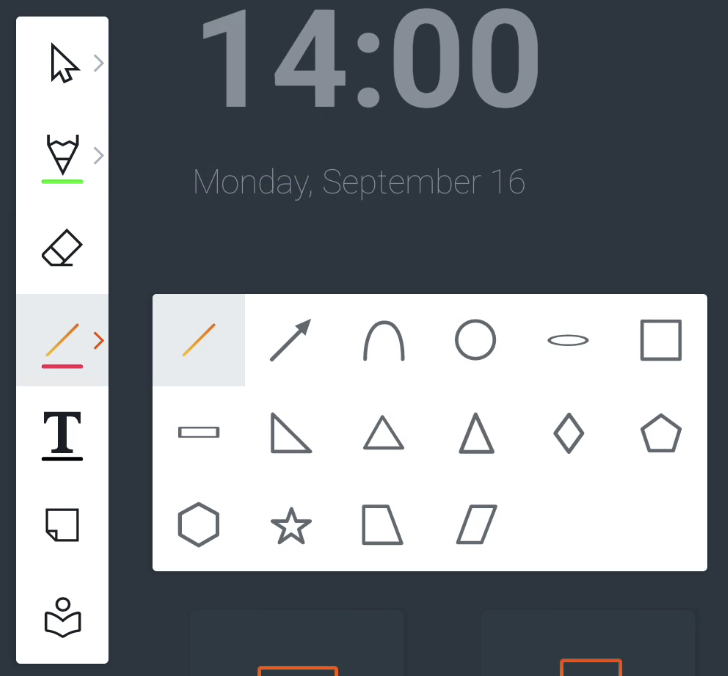
Shape tool
Use our shape presets to draw various shapes on the canvas.
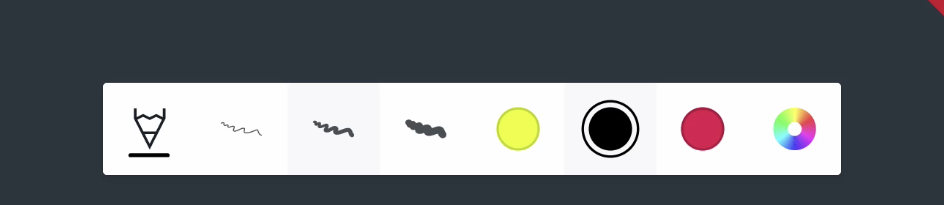
You can also customize the color, and line size with the color presets and color picker from the Features menu (below).
For more information consult:
Whiteboard tools: Shapes
Text tool
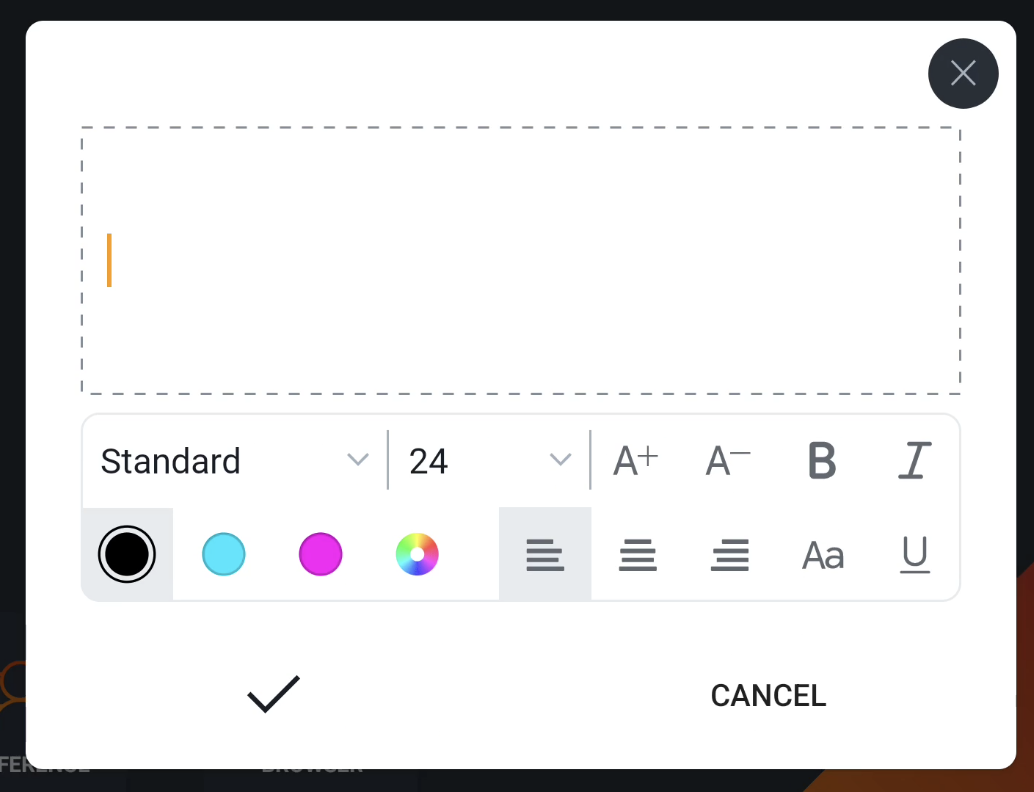
Use the text tool to type text on the canvas using the on-screen keyboard.
When you add a new text field, it’ll load a modal dialog with a rich text editor inside. This gives you the option to still edit your text afterwards.
For more information consult:
Whiteboard tools: Text editor
Sticky note
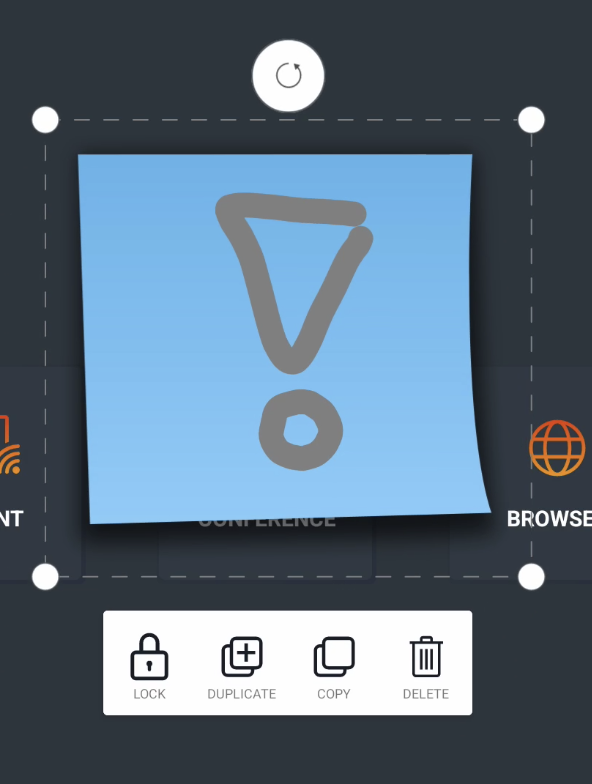
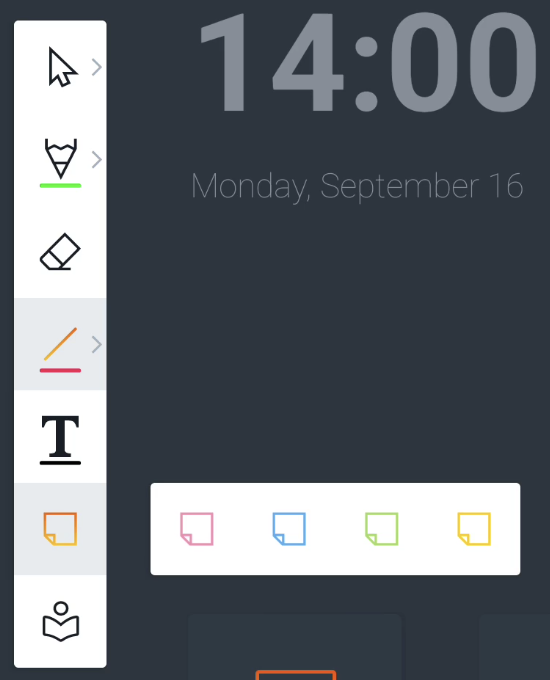
You can add 4 types of preset sticky notes to the canvas.
You can easily draw or write on top of the Sticky note. Objects within the boundaries of the sticky note will be merged with the sticky note. If you select them, you can scale or move both at the same time.
For more information consult: Whiteboard tools: Sticky notes
Icon library
The Icon library allows users to drag and drop icons on the canvas. We already added popular and extensive icon libraries that you can use right now, such as Material Icons, FontAwesome and OpenMoji, giving you immediate access to thousands of icons.
For more information consult:
Whiteboard tools: Icon library