
Registering your i3CONNECT display
Unlock the full potential of your i3CONNECT displays with i3CONNECT Cortex, our powerful remote display management solution. You can access i3CONNECT Cortex from any device or location, giving you complete control over your fleet of i3CONNECT displays. With i3CONNECT Cortex, you can easily configure, update, and troubleshoot your displays, saving you time and effort. i3CONNECT Cortex also provides advanced features such as user profiles and control over firmware updates.
Getting started with i3CONNECT Cortex is easy. All you need is an i3CONNECT display and your phone to scan the QR code on your i3CONNECT display.
If you don’t have an account yet, take advantage of our free full-featured trial to test out all of i3CONNECT Cortex’s capabilities and see if it's the right fit for you and your organization. See Creating an accountfor more info.
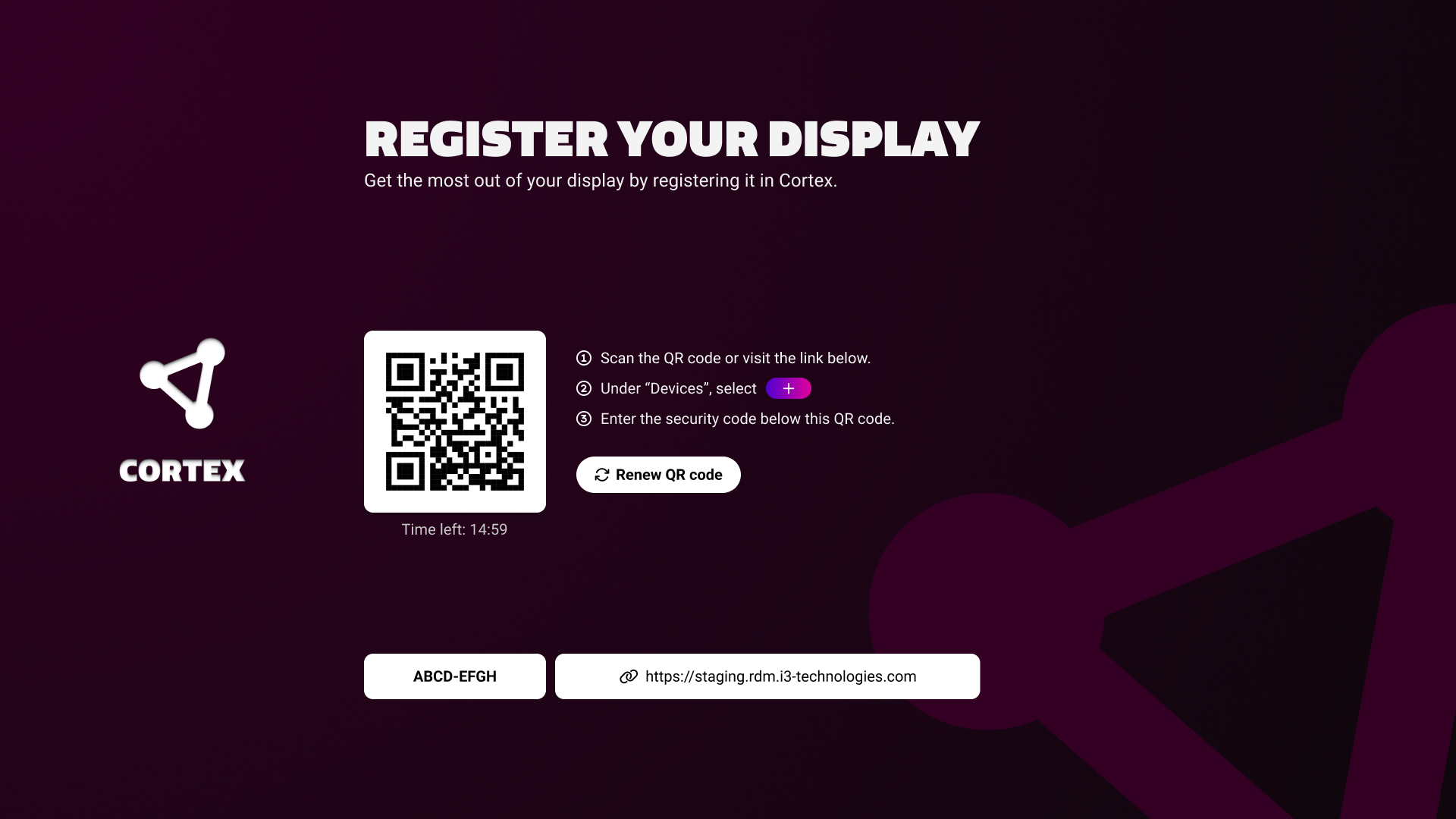
How to register?
You’ll find the necessary details to register the i3CONNECT display either:
-
During the initial Setup Wizard, or
-
In the i3CONNECT Cortex Client app in the App Tray.
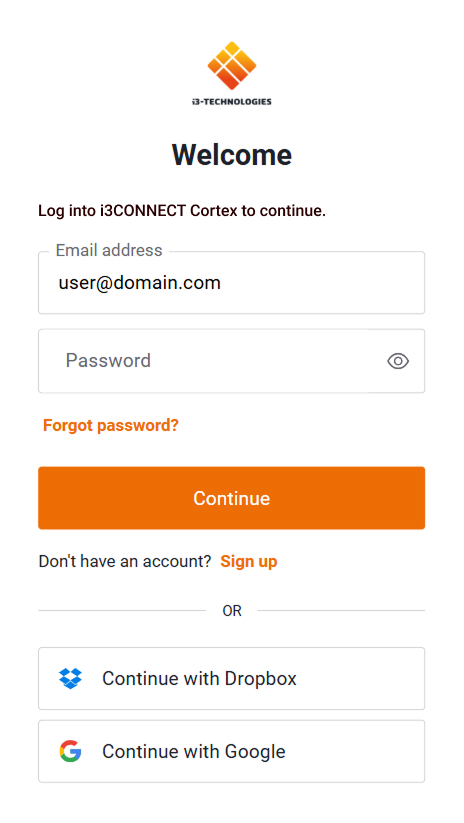
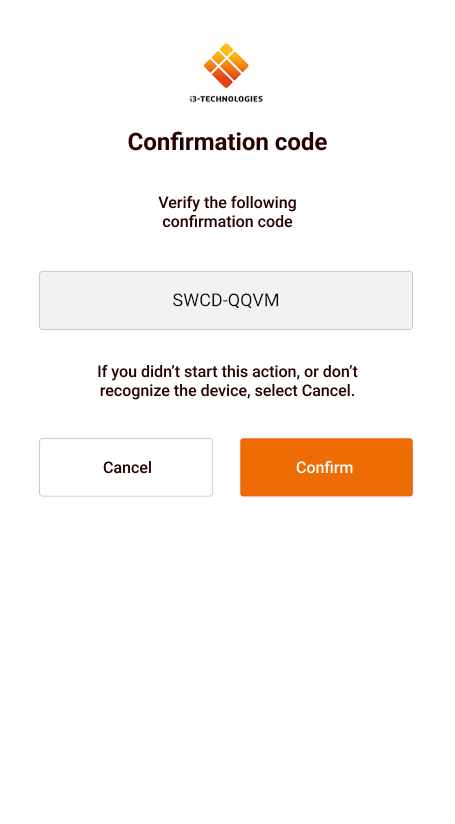
Scan the QR code with your mobile phone, or enter the given URI in your browser. You may be required to authenticate to Cortex.
You can sign in using Single Sign on authentication, provided by Auth0 or manually enter your credentials.
When successful, you can validate with the validation code to complete registration.
The Setup Wizard
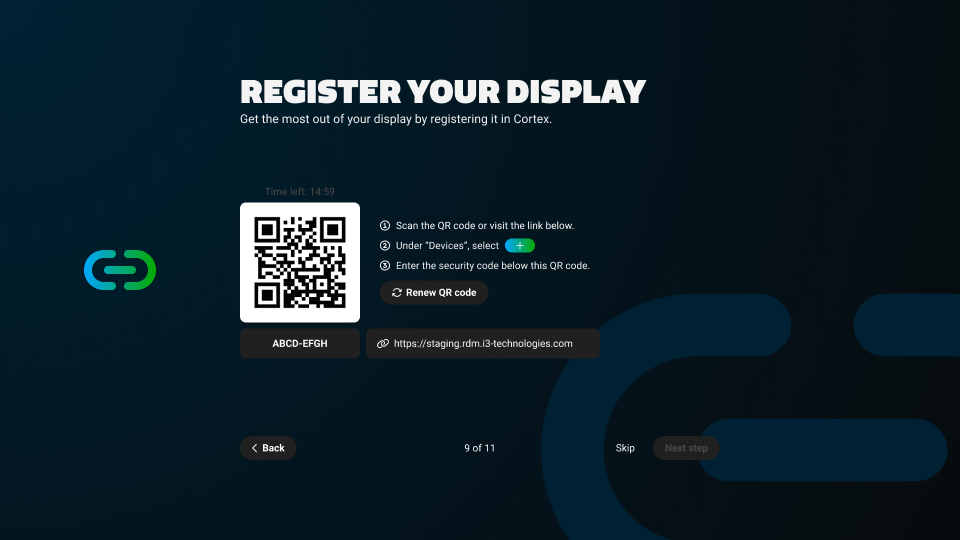
You can register your device into i3CONNECT Cortex from the Setup Wizard within i3CONNECT Studio, to find out more about the Setup Wizard, see Setup wizard
If the device you wish to register has already completed the setup wizard, you can still register with the following process.
The i3CONNECT Cortex Client app
You can also register through the i3CONNECT Cortex Client app. This client app can be loaded from the Apps view in the side menu of i3CONNECT Studio.
For more information, see Registering to i3CONNECT Cortex.