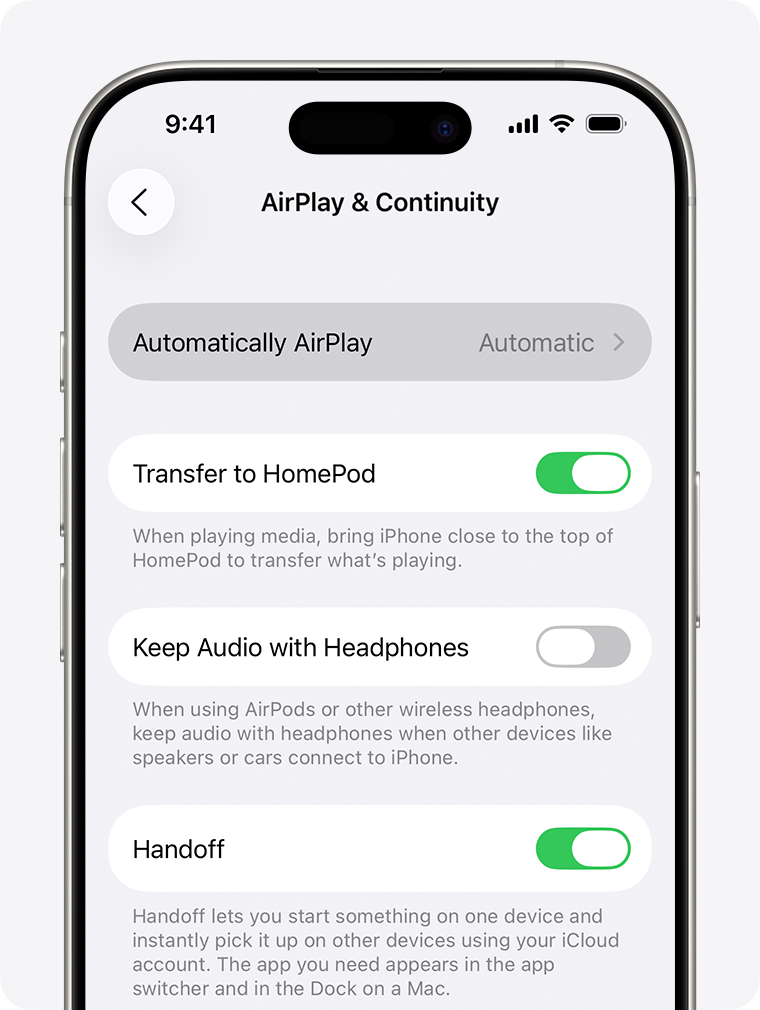
If your iPhone or iPad keeps automatically connecting to an i3CONNECT display using AirPlay, you can change your settings to control when connections happen. This guide is for anyone who wants to stop their Apple device from auto-connecting to i3CONNECT displays in classrooms, meeting rooms, or shared spaces. By the end, your device will only suggest AirPlay connections instead of connecting automatically.
Before you start
-
Make sure your iPhone or iPad is running the latest version of iOS.
Instructions
-
Open the Settings app on your iPhone or iPad.
-
Tap General.
-
Tap AirPlay & Continuity.
-
Tap Automatically AirPlay.
-
Select Ask to receive AirPlay connection suggestions instead of automatic connections. You’ll get a notification to connect, which you can accept or dismiss.
Troubleshooting
If your device still connects automatically after changing these settings, restart your device and try again. If the issue continues, check for iOS updates or contact support.