
This guide is for installing AllSync on MacOS 13.0 and newer (which was released in 2022). If you are using an older version of MacOS, please follow this guide:
Solve sound issues while wirelessly casting on MacOS 10.13–13.0 with AllSync
When installing AllSync on your mac you’ll need to grant permissions for the app to work properly. By the end of these steps, your Mac will allow AllSync to project both video and audio to your display.
Before you start
-
Make sure you have administrator rights on your Mac.
-
You’ll need the latest version of the AllSync app installed:
Download the AllSync screen sharing app
Instructions: permissions during installation
-
Install the AllSync app on your Mac.
-
When prompted to allow access to your folder, press “Allow”.
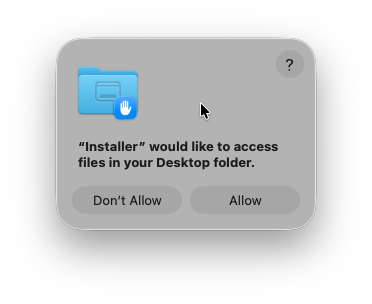
-
Allow installation to finish. Press on “Close” and then on “Move to Bin”. And you are done!
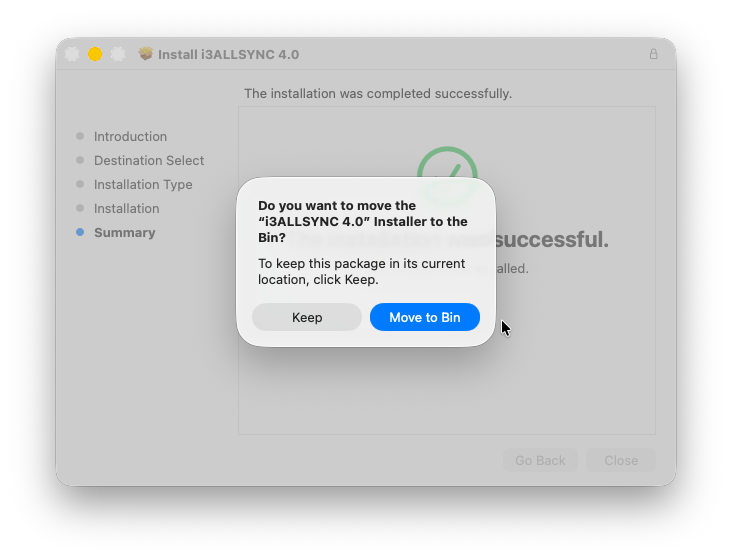
Enable permissions after installation
If you missed the prompt during installation or pressed on “Don’t allow”, follow these steps:
-
Open “System Preferences”.
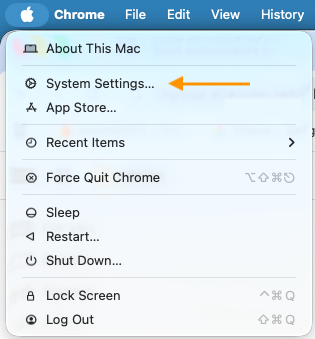
-
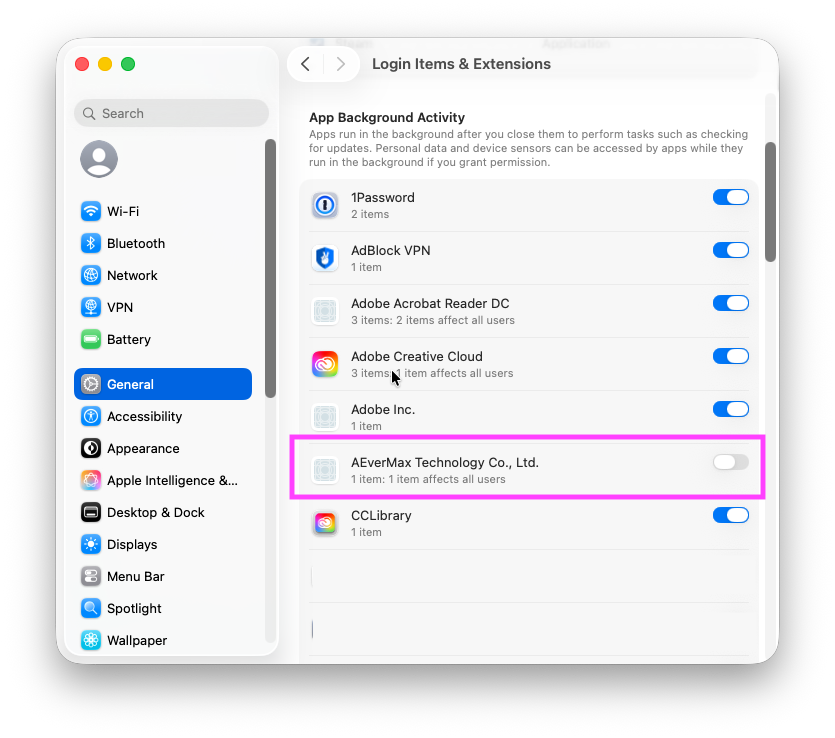
Select “General” and then “Login Items & Extensions”.
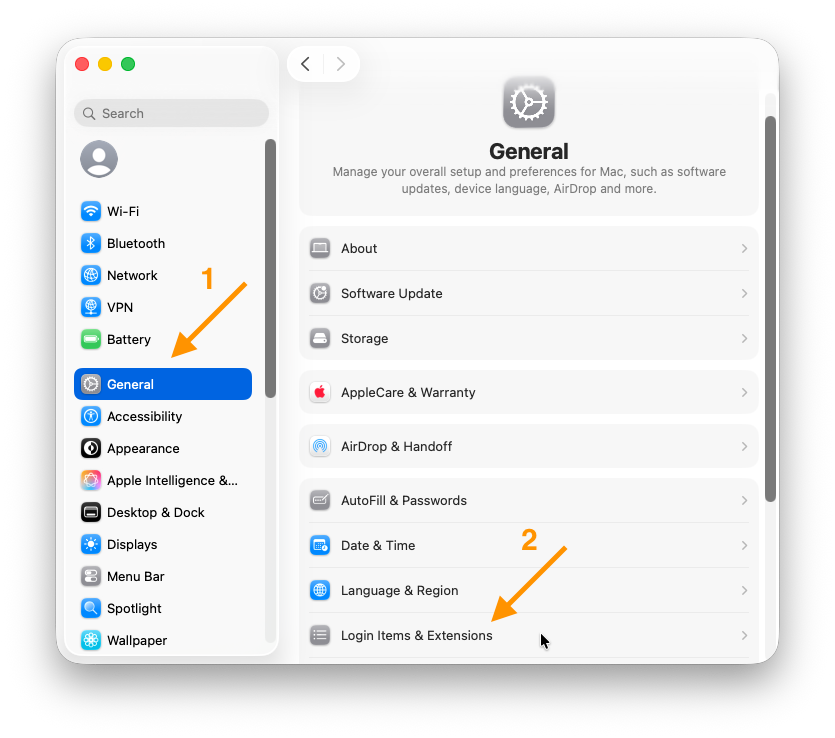
-
Scroll down until you see the header “App Background Activity” and ensure that “AEverMax Technology Co., Ltd.” is toggled on. That is the AllSync app. And you are ready!
Troubleshooting
If you still don’t hear audio when projecting, restart your Mac. If issues persist, reach out to i3CONNECT support.