
This guide walks you through finding and exporting the AllSync log files within the i3CONNECT Studio environment. These steps are for anyone asked by support to provide AllSync logs. If you’re not using an i3CONNECT display, or haven’t been asked for logs, this article isn’t for you.
By the end, you’ll have the AllSync log folder and PMPlayer.txt file ready to share with support. If you can’t find the files or run into errors, contact i3CONNECT support for help.
Before you start
-
Make sure you have a USB stick with enough free space (at least 100MB recommended).
-
Make sure you can access the display’s side menu and app list.
Do not delete or modify log files before copying them. Only share logs with i3CONNECT support contacts.
Instructions
-
Open the side menu. Tap on the gripper on the left, or right, of the screen.
-
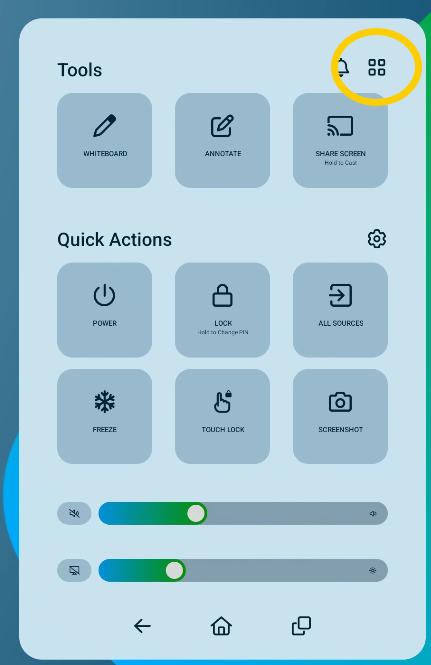
Tap the Application list. Look for the button highlighted in yellow.
-
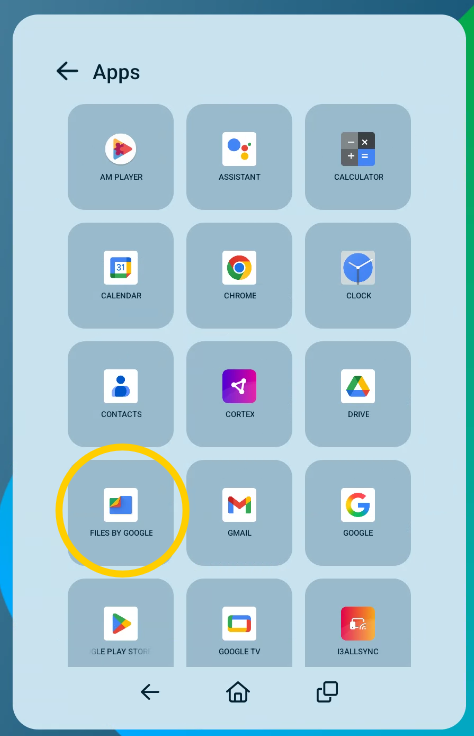
Find the Files by Google application and tap on it.
-
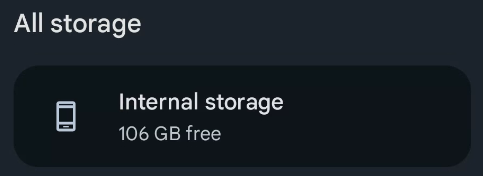
Once the Files app opens, scroll down in the left panel until you find All storage and tap on Internal storage.
-
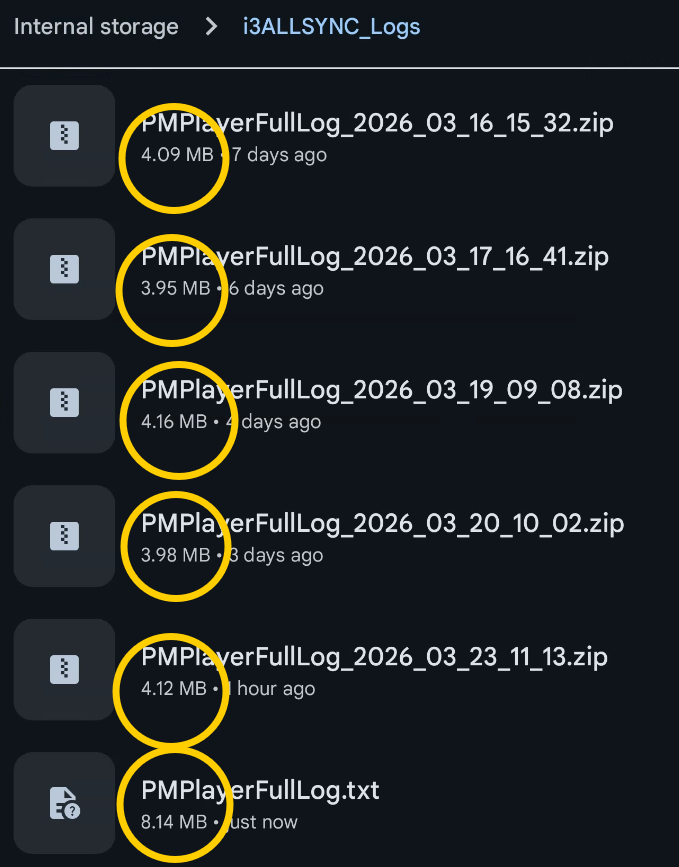
Open i3ALLSYNC_Logs. You will find a number of items. These files shouldn’t be larger than 50MB. Copy the entire folder on an usb-stick and provide us the files.
-
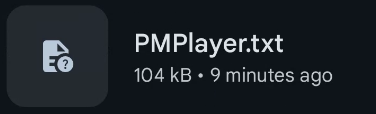
Go back to the Internal storage folder and scroll all the way down. Copy PMPlayer.txt as well on the usb-stick.
Troubleshooting
-
If you can’t find the i3ALLSYNC_Logs folder or PMPlayer.txt, or if you get an error copying files, double-check you are in Internal storage (not USB or SD card).
-
Still stuck? Reach out to i3CONNECT support with your display model and a description of the issue.