
Applies to: i3ALLSYNC 4.0 on macOS (Intel and Apple Silicon). Symptoms commonly stem from macOS privacy permissions for Screen Recording and Accessibility.
When using i3ALLSYNC 4.0 on a MacBook, you may encounter one or more of the following:
-
Black screen during projection
-
Unable to share the screen properly
-
Screen capture does not work
-
Permissions appear enabled, but the issue persists
These symptoms are typically related to abnormal macOS privacy permission status for Screen Recording or Accessibility, as macOS requires explicit user permission for applications to capture the screen and control certain accessibility features. Sometimes, even if i3ALLSYNC 4.0 appears in the permission lists, the authorization may be stale or not properly applied.
Refreshing the permission entries (remove, save, re-add, and enable) usually resolves the issue.
Troubleshooting
-
Completely close i3ALLSYNC 4.0 before changing permission settings.
-
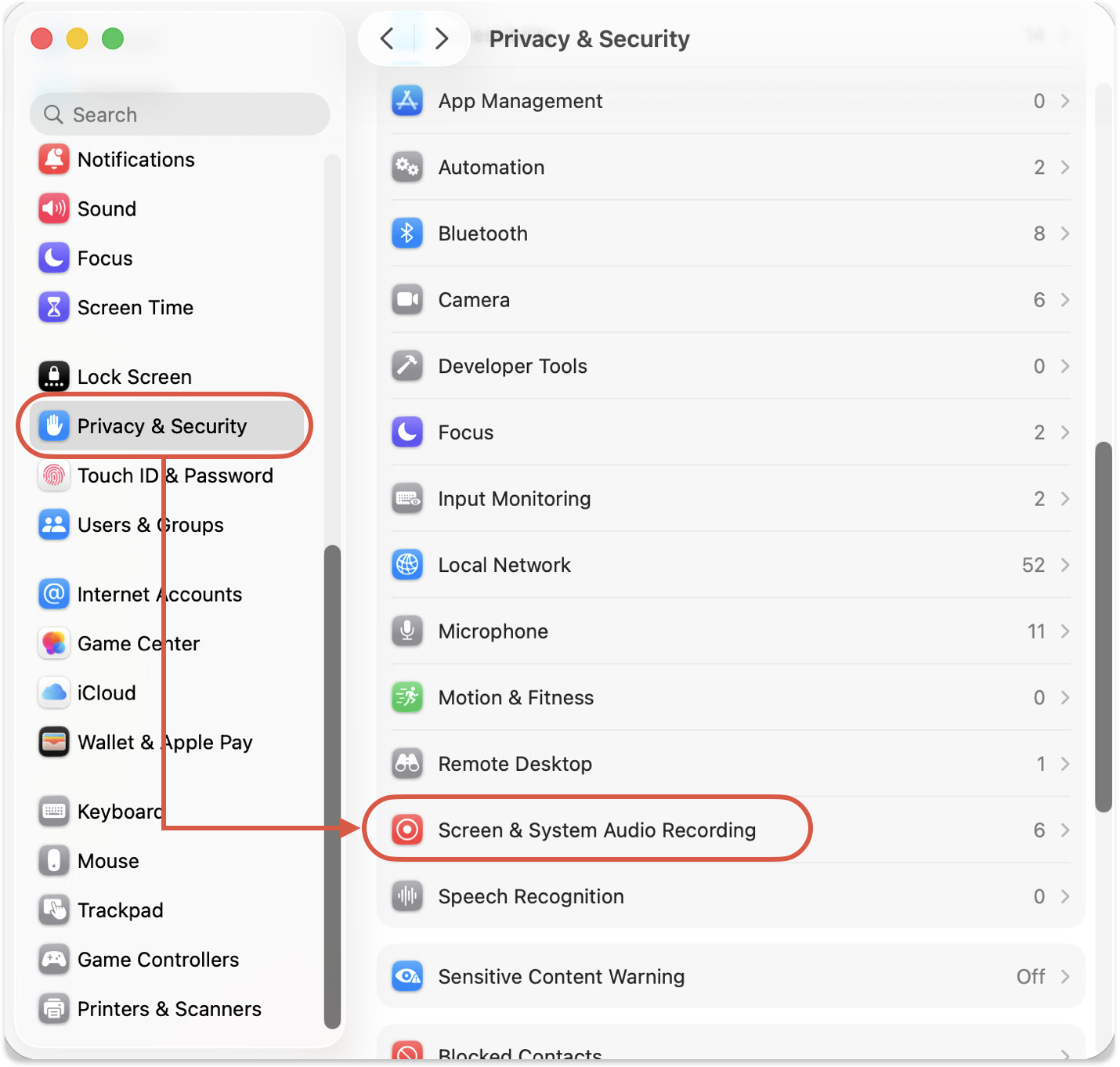
Navigate to Go to Apple Menu → System Settings (or System Preferences on older macOS) → Privacy & Security and search for Screen Recording (the name may vary from macOS versions)
-
Select i3ALLSYNC 4.0 and press the - to remove i3ALLSYNC 4.0 from the Screen Recoding permission list. After pressing -, you will need to enter your password to allow macOS removing i3ALLSYNC 4.0.
Once removed, please close the Privacy & Security settings.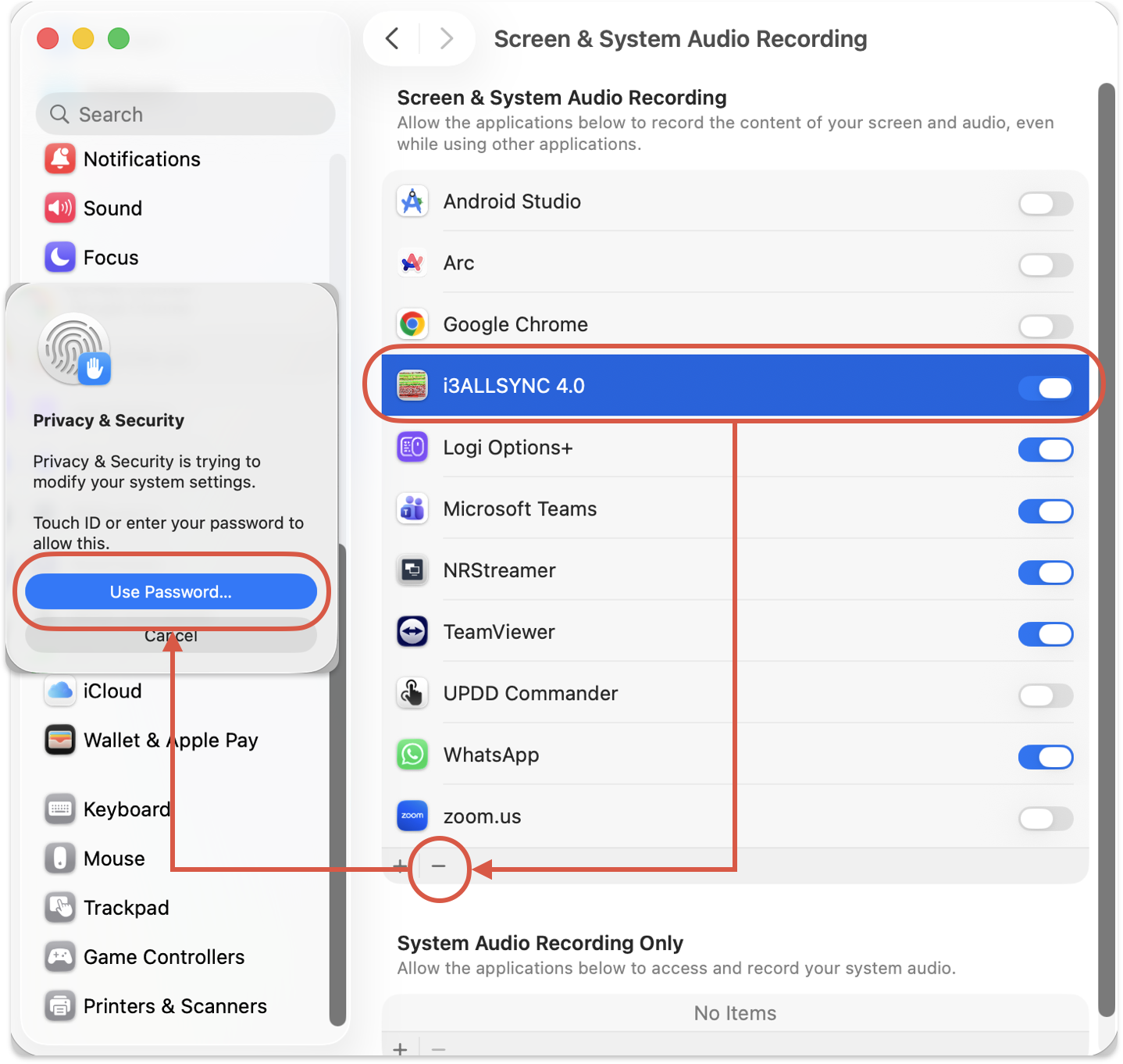
-
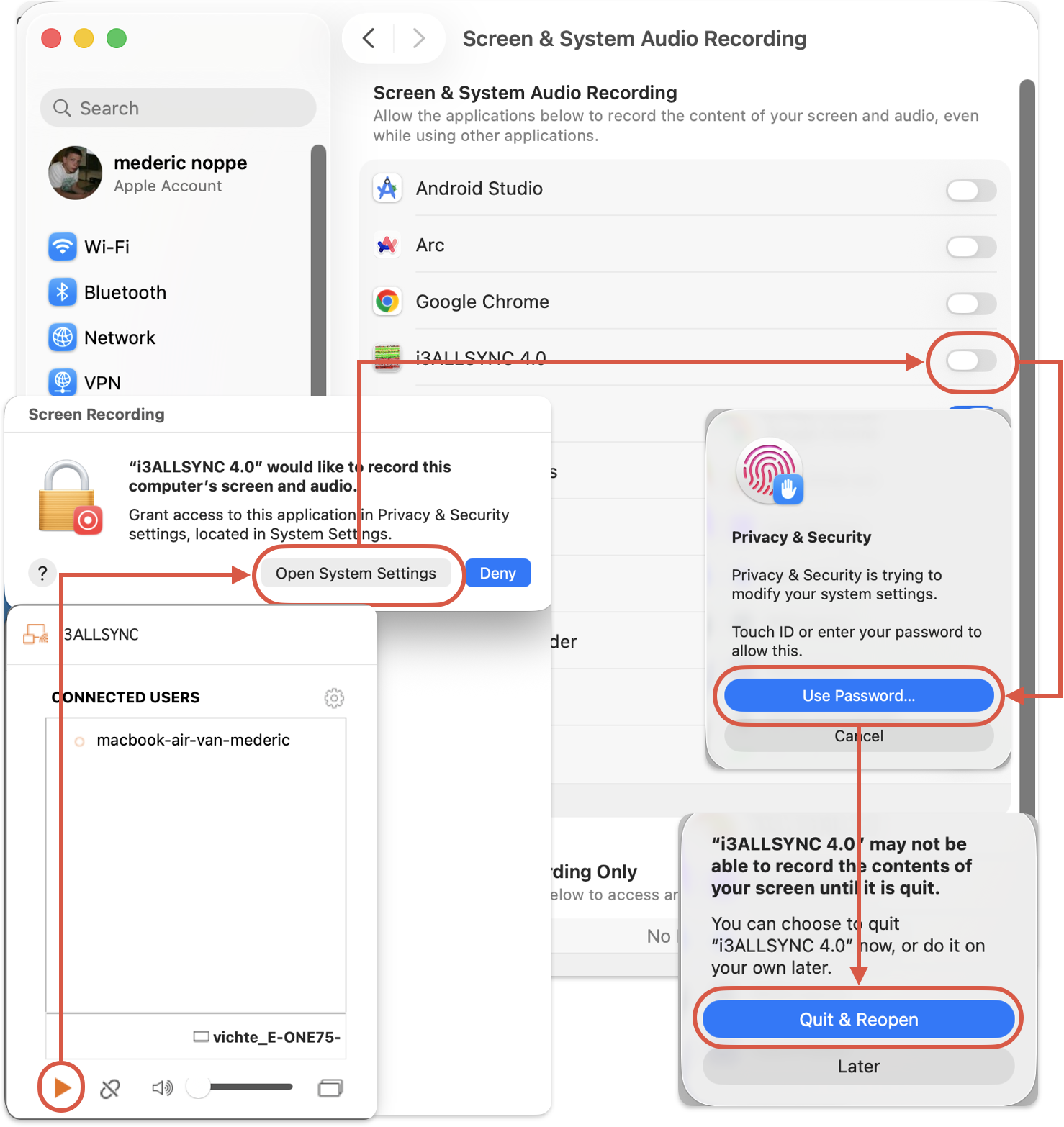
You can now restart i3ALLSYNC 4.0 again and start projection/sharing and if prompted by macOS to grant permissions, click Open System Settings and enable the toggles and restart the app i3ALLSYNC 4.0.
Additional Notes and Tips
If the app remains greyed out in Screen Recording or Accessibility, ensure i3ALLSYNC 4.0 is placed in the main Applications folder and not running from a disk image (DMG) or quarantined location.
-
If you use multiple user accounts, set permissions for the account running i3ALLSYNC 4.0.
-
Keeping macOS up to date can resolve underlying privacy database inconsistencies.