
If you’re experiencing audio issues when using AllSync on your Mac, reinstalling the audio drivers can help restore sound sharing and device compatibility. This guide is for users who notice missing audio output or errors after installing or updating AllSync.
Before you start
-
Make sure you have administrator access on your Mac.
-
Save your work, as you’ll need to restart your device.
Instructions
-
Open Finder and select Go > Go to Folder from the menu bar.
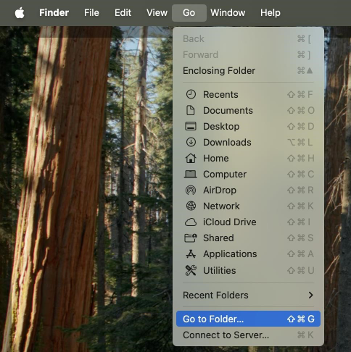
-
Enter the path:
/Library/Audio/Plug-Ins/HAL/ -
Find and delete the file:
SCVCAPlugin.driver -
Open Go > Go to Folder again.
-
Enter the path:
/Library/LaunchDaemons/ -
Find and delete the file:
com.syncast.vvd.hub.plist -
Restart your Mac.
Troubleshooting
If AllSync audio still doesn’t work after reinstalling:
-
Double-check that both files were deleted before reinstalling.
-
Ensure you’re using the latest version of AllSync.
-
If you see permission errors, try running the steps as an administrator.