
This guide is for installing AllSync on MacOS 10.13 to 13.0. If you are using a newer version of MacOS, please follow this guide:
Solve sound issues when wirelessly casting from MacOS 13.0+ with AllSync
If you’re using the AllSync app on a Mac running macOS 10.13 to 13.0, you’ll need to grant special permissions for the app to work properly. By the end of these steps, your Mac will allow AllSync to project both video and audio to your i3CONNECT display.
Before you start
-
Make sure you have administrator rights on your Mac.
-
You’ll need the latest version of the AllSync app installed:
Download the AllSync screen sharing app
Instructions: permissions during installation
-
Install the AllSync app on your Mac.
-
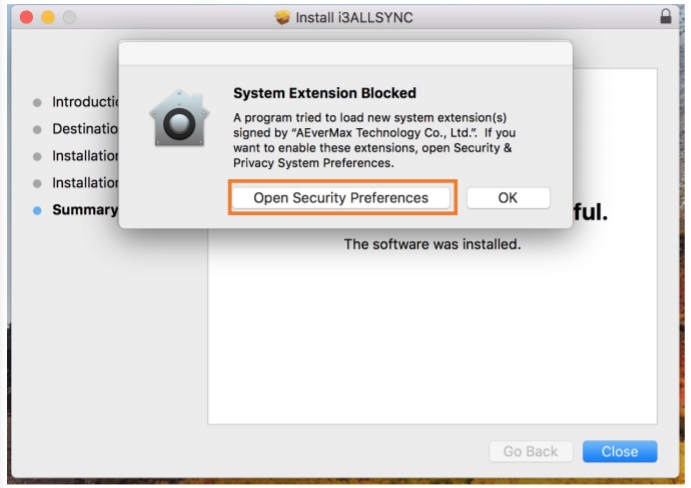
When prompted, click “Open Security Preferences.”
-
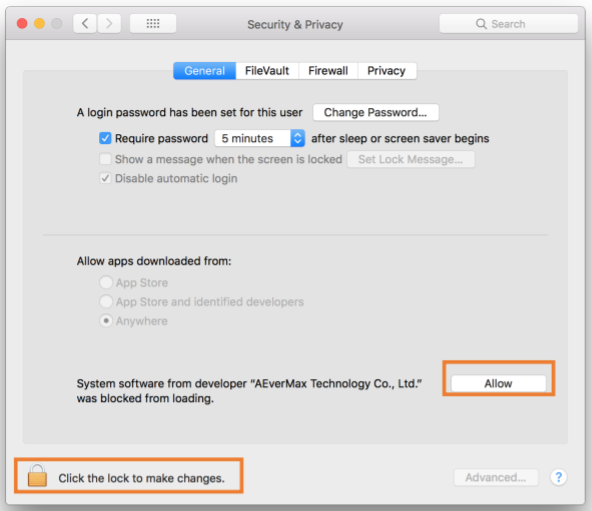
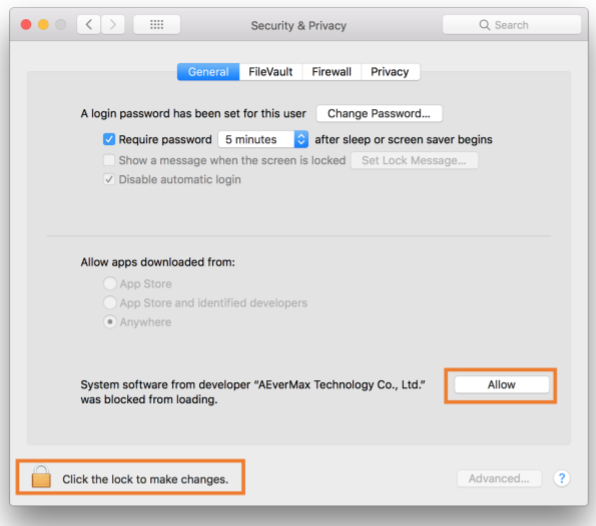
Click the lock icon in the bottom left to unlock settings (enter your Mac password if needed).
-
Click “Allow” next to the message about AllSync or i3ALLSYNC.
Enable permissions after installation
If you missed the prompt during installation, follow these steps:
-
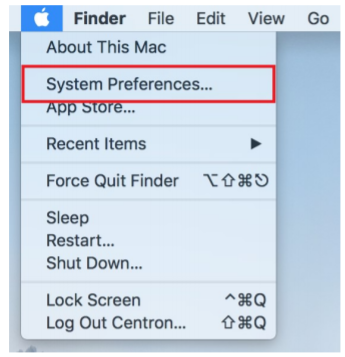
Open “System Preferences.”
-
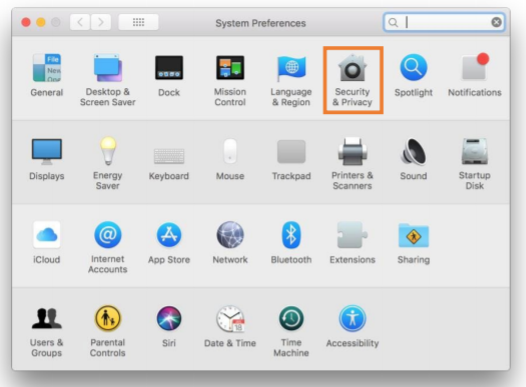
Select “Security & Privacy.”
-
Go to the “General” tab.
-
Click the lock icon to unlock settings.
-
Click “Allow” next to the AllSync app message.
Troubleshooting
If you still don’t hear audio when projecting, double-check that AllSync is listed as allowed in your Security & Privacy settings. Restart your Mac after making changes. If issues persist, reach out to your IT support or i3CONNECT support.