
Pairing your AllSync Transmitter Dongle lets you wirelessly share content from your device to your i3CONNECT display; no drivers or software needed. This guide is for anyone setting up an AllSync Dongle for the first time or re-pairing it to a new display. By the end of these instructions, your AllSync Dongle will be paired and ready to use with your display.
Before you start
-
Make sure your i3CONNECT display is powered on and running i3CONNECT Studio.
-
Have your WiFi credentials ready if your display is not already connected to the network.
-
The dongle must be plugged into a powered device (laptop or display) during pairing.
Wireless sharing requires your display and your sharing device (e.g. your laptop or mobile phone) to have a connection to the same WiFi network. Without Wi-Fi you cannot share.
Instructions
Access the AllSync pairing menu
-
Go to the home screen of i3CONNECT Studio by tapping the grippers


-
Tap the ‘Present’ tile

-
Open AllSync settings by tapping the cogwheel icon

-
Select “AllSync Dongle” from the settings sidebar.
-
Tap “+ Pair AllSync Dongle” on the right side of the window and then follow the pairing steps.
Pair the dongle
Follow the on-screen pairing steps:
-
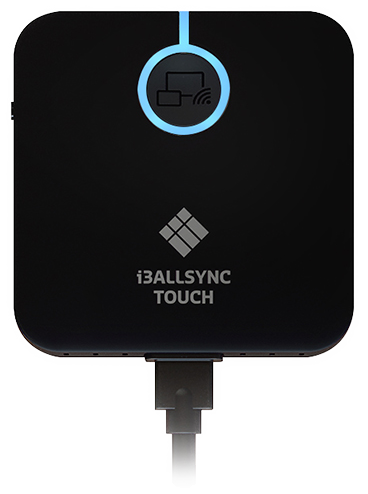
Plug the dongle into a laptop or the display to power it on. The LED on the dongle will light up.
-
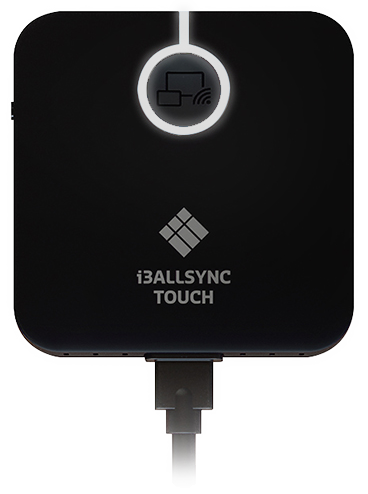
Continue following prompts. When asked, press and hold the button on the front of the dongle until the LED flashes white, then tap Next.
-
Enter your display’s WiFi credentials if prompted, or confirm the auto-filled details if your display is already connected.
-
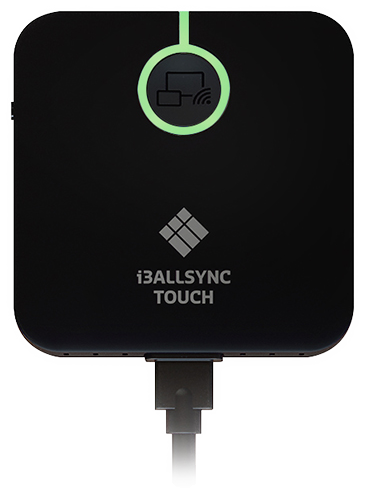
Wait for pairing to complete. The pop-up will confirm success. Tap Done.
Troubleshooting
-
If the dongle does not enter pairing mode, unplug and replug it, then try again.
-
If pairing fails, double-check your WiFi name (SSID) and password, and ensure the display is connected to the same network.
-
If the dongle’s LED does not flash white, hold the button longer or try a different USB port.
-
For persistent issues, contact i3CONNECT support.