
AllSync Share-To is a feature built into the advanced casting controls menu of AllSync. This allows you to wirelessly share the screen of your current i3CONNECT display to another i3CONNECT display using the AllSync display apps.
Before you start
-
Ensure both displays are cabled to a power supply, and on.
-
Ensure both displays are running the most recent version of i3CONNECT Studio
Instructions
-
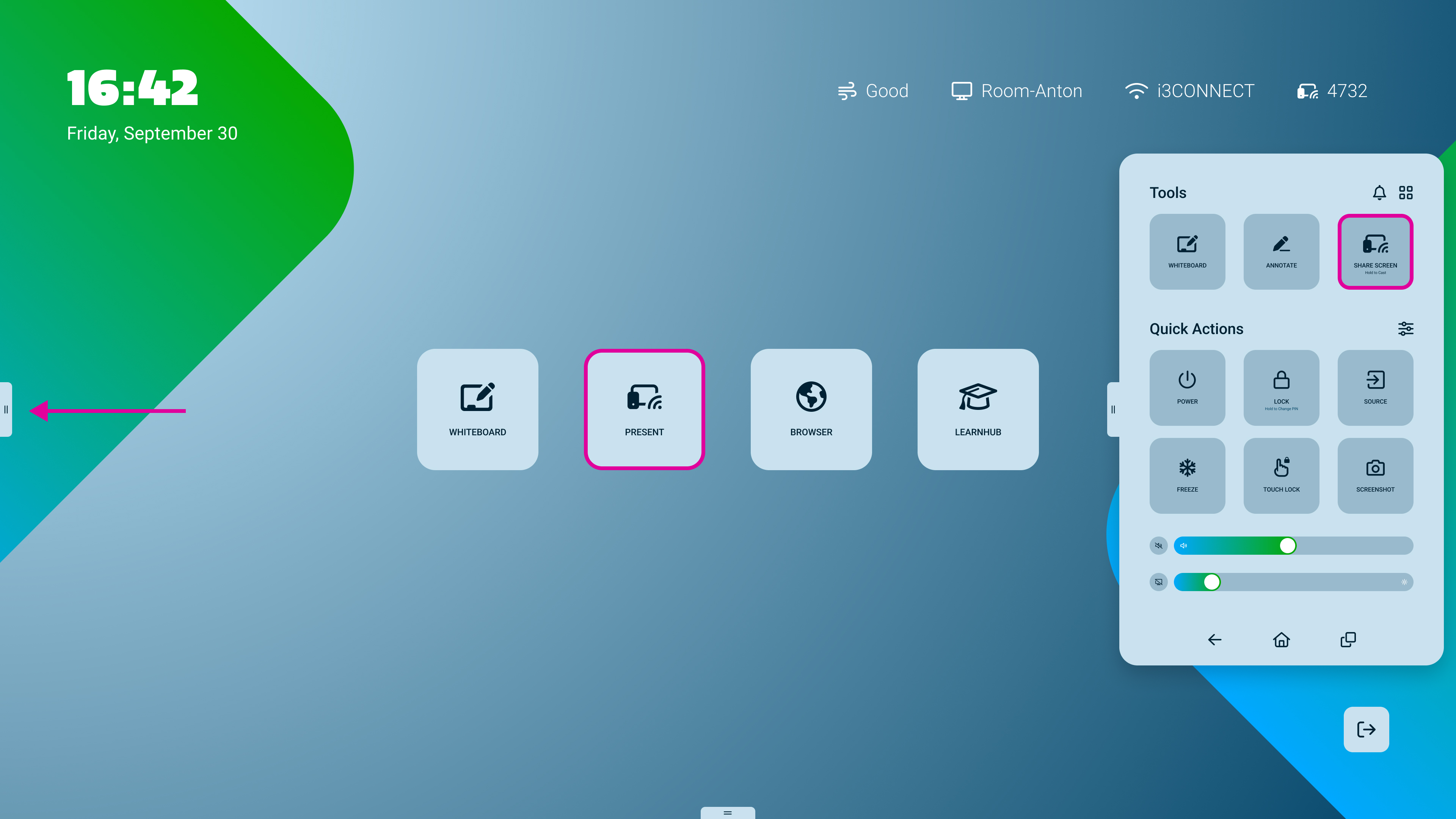
Open AllSync on the display by pressing on the

-
Tap on the


-
Press on the

-
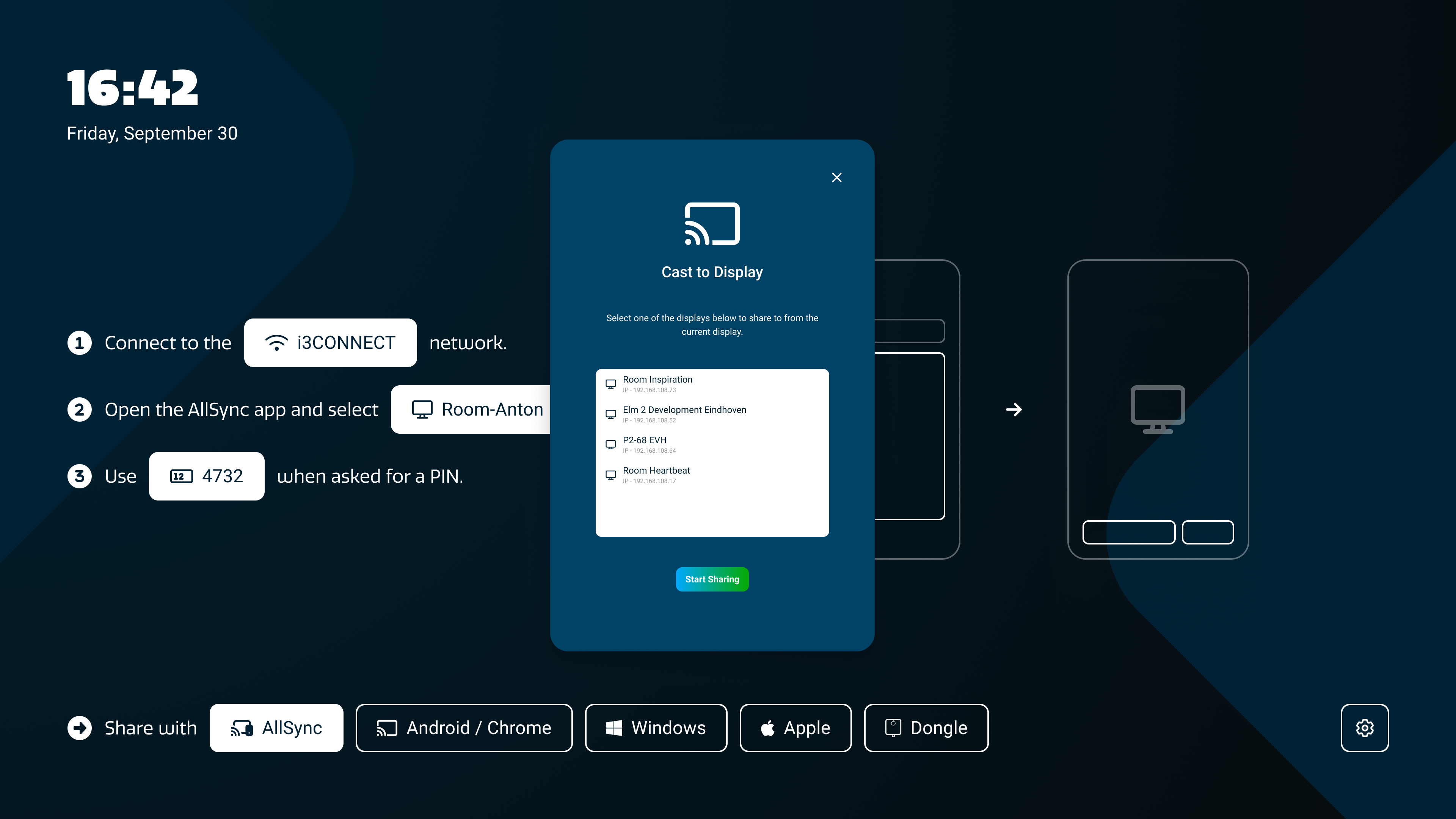
From here select the other display from the list.
-
Press on the green

-
Enter the pairing PIN code.
-
And then press on the green Cast to display button.
-
To stop pairing, press on the red

Troubleshooting
-
If the target display doesn’t appear, ensure both displays are on the same network and running the latest i3CONNECT Studio.
-
If the PIN code is rejected, double-check you’re entering the code shown on the target display.