
Restricted mode blocks device users from accessing the settings menus and app drawer on the display, essentially creating a limited sandbox that only provides access to the tiles on the home screen. It can be used in addition to, or independently from user profiles and guest mode.
You can find it under settings → Admin Settings → Access Management → Access Restrictions
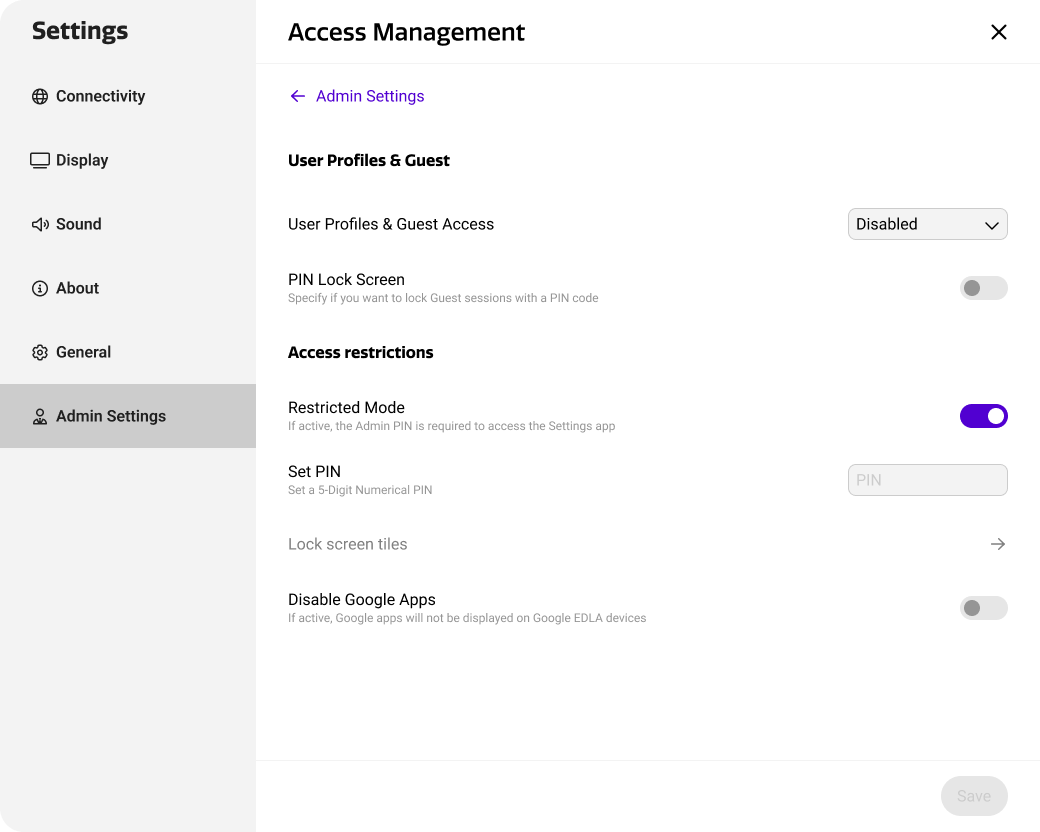
Configuring restricted mode
When you enable restricted mode, the display will actively monitor app launches and block certain areas of the Studio experience. This ensures display users can freely use allowed applications without the risk of accessing unwanted apps and settings.
Restricted mode cannot see what users are doing inside any app on the display. It only monitors which applications are launched.
The list of allowed apps is called the whitelist. This is based on the tiles on the home screen. Any apps that are present here will be ignored by the restricted mode mechanism. If an application outside of the whitelist is launcher, restricted mode will instantly stop the process and block further access to the app.
|
Item |
Restricted Mode Action |
|---|---|
|
Display Settings |
Blocked |
|
Side Menu Settings |
Blocked |
|
App List |
Blocked |
|
Apps Outside Whitelist |
Blocked (Even when accessed through a workaround or remote) |
Restricted mode PIN
When enabling restricted mode, an administrator PIN must be set. This PIN can be used by administrators to temporarily disable restricted mode on the display. This can be useful for changing settings, opening blocked apps, or performing any other restricted actions. The PIN can be remotely changed through Cortex, to comply with any time-based password policies within your organization.
Side menu restrictions
Although the settings and app drawer in the side menu are already blocked by default using restricted mode, administrators may want to apply additional security measures. For example, you might not want users to be able to take screenshots.
Therefore, all buttons in the main side menu can be disabled to block access to certain features. You can find it under settings → Admin Settings → Side Menu.
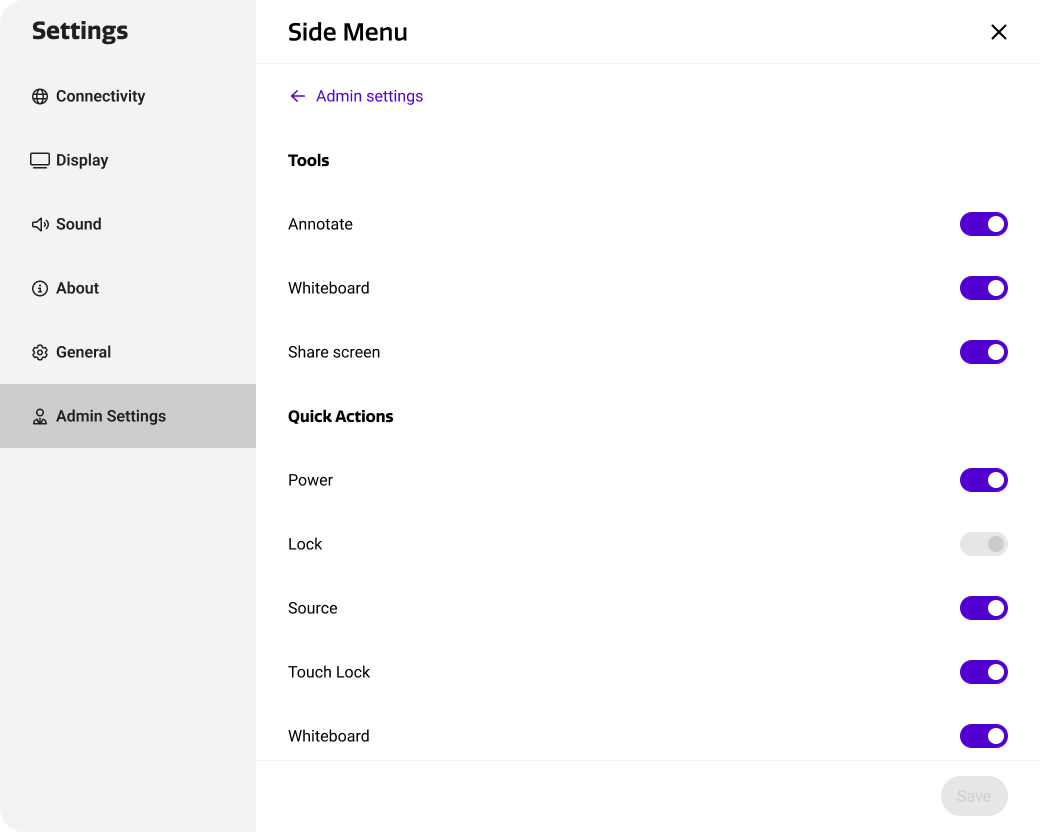
The side menu settings can also be used without restricted mode when desired.