
Using the Cortex messages page, you can send messages to one or multiple displays at the same time. This can be useful for multiple scenarios, for example for room changes, incoming firmware updates, and more.
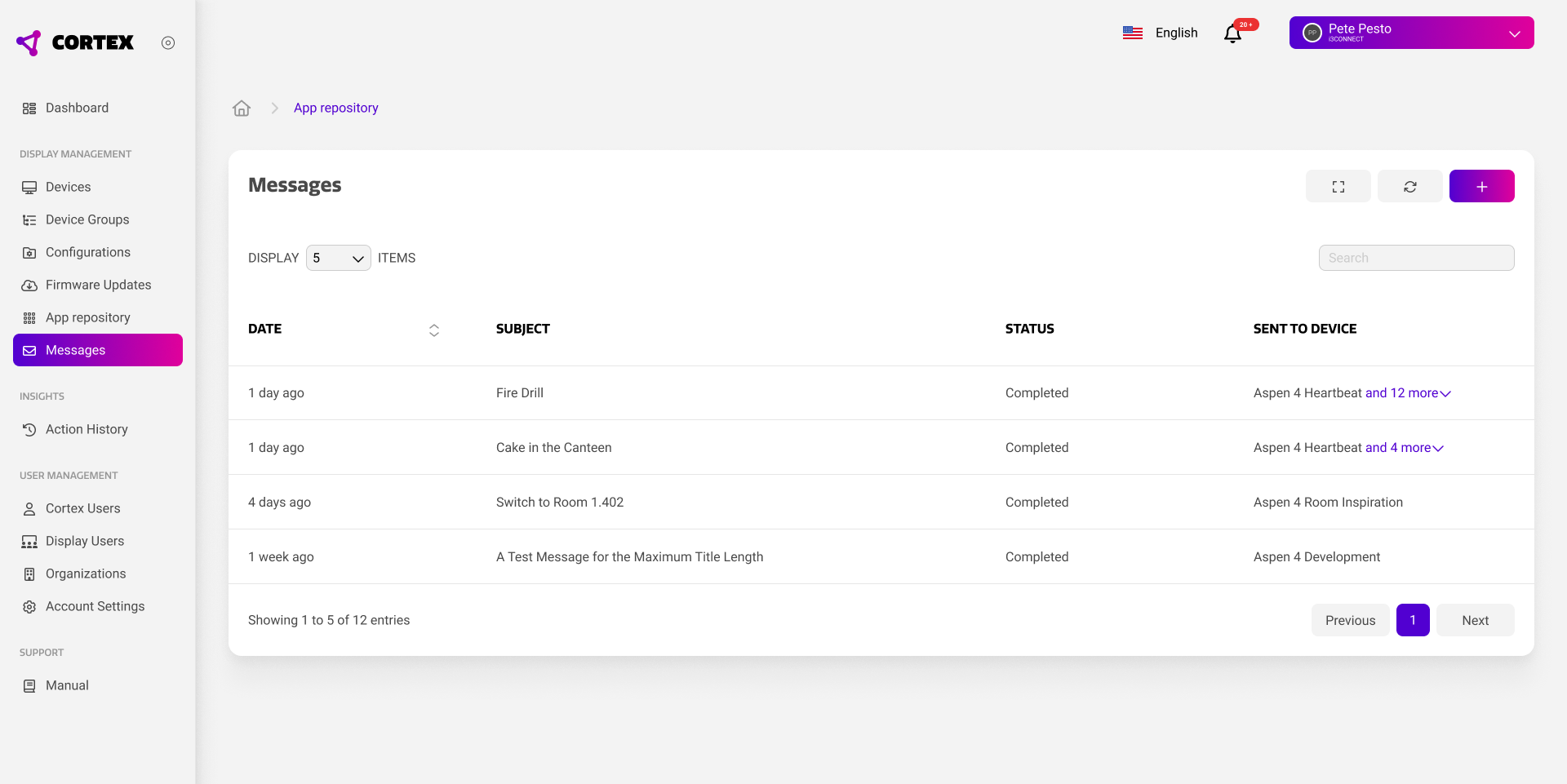
Message Overview
The messages overview shows all past messages sent from your Cortex organization. You can view the message subject, date, delivery status, and receiving devices. For privacy reasons, you cannot view the message content.
Composing and sending a message
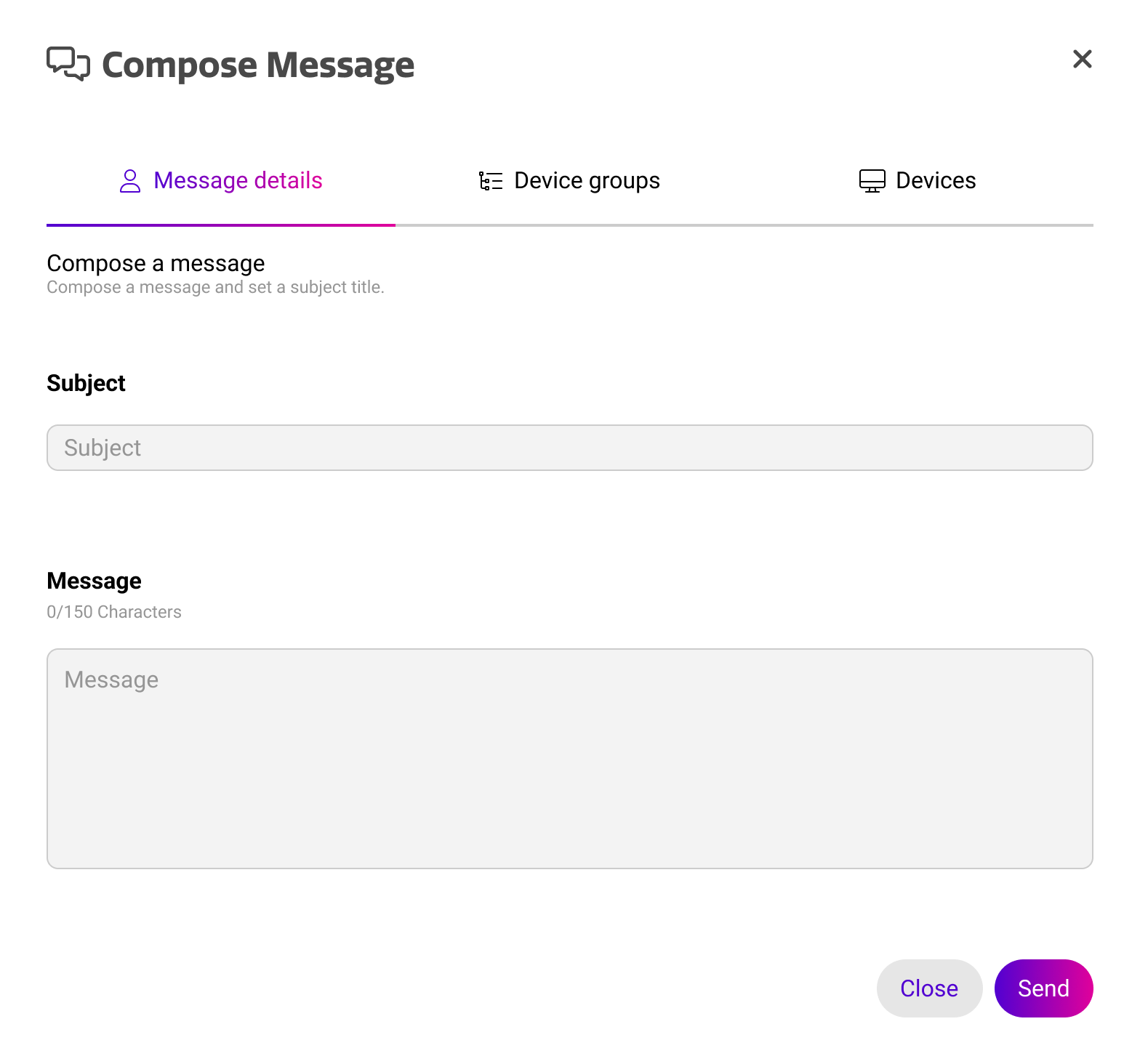
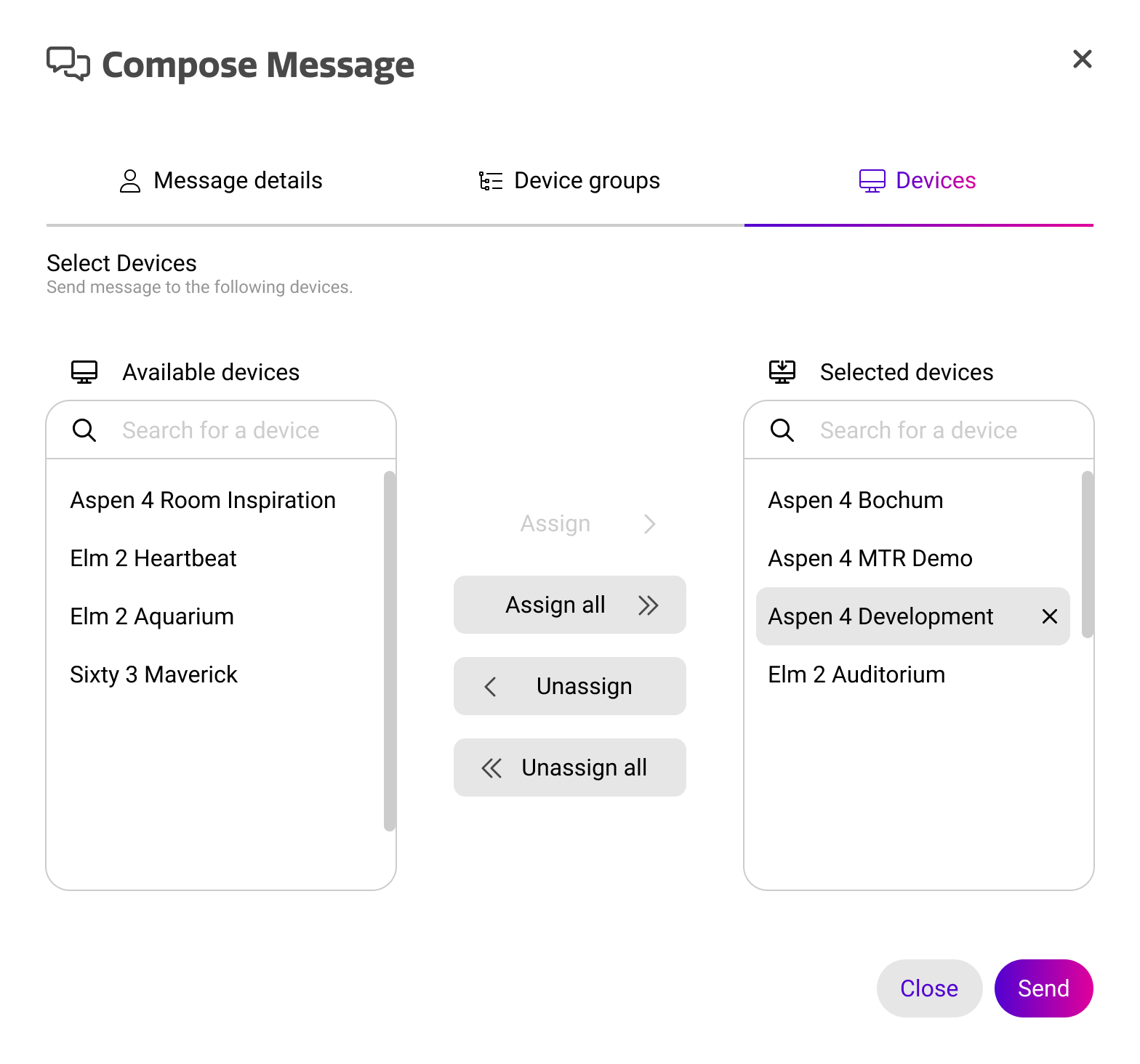
By pressing the plus icon in the top right, you can compose a new message. A message always consists of a title and message body. The message body has a maximum length of 150 characters. Once your message is composed, you can choose the devices or device groups you want to send your message to.
Receiving a message
Users on the display will receive your message from Cortex as an overlay over all existing content. This means that it will interrupt the current activity in the room, as seen below.
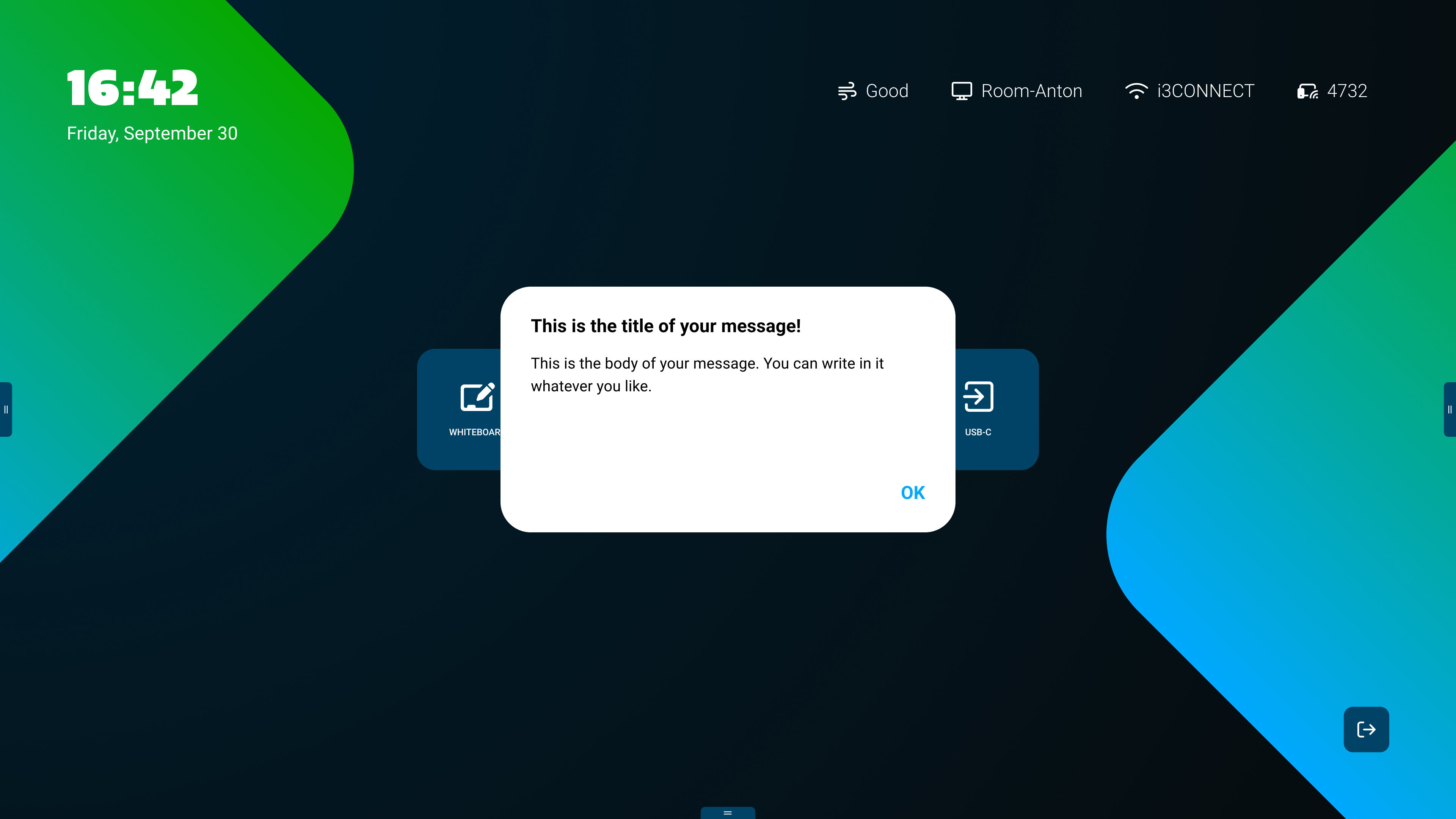
The message will stay on screen until the user manually presses ‘ok’. This ensures that users see the message and it is not accidentally ignored.