
Cortex allows you to manage your devices with multiple administrators. This can be setup from the cortex users page. There, you can determine the user roles and device access, allowing you to provide access on multiple levels.
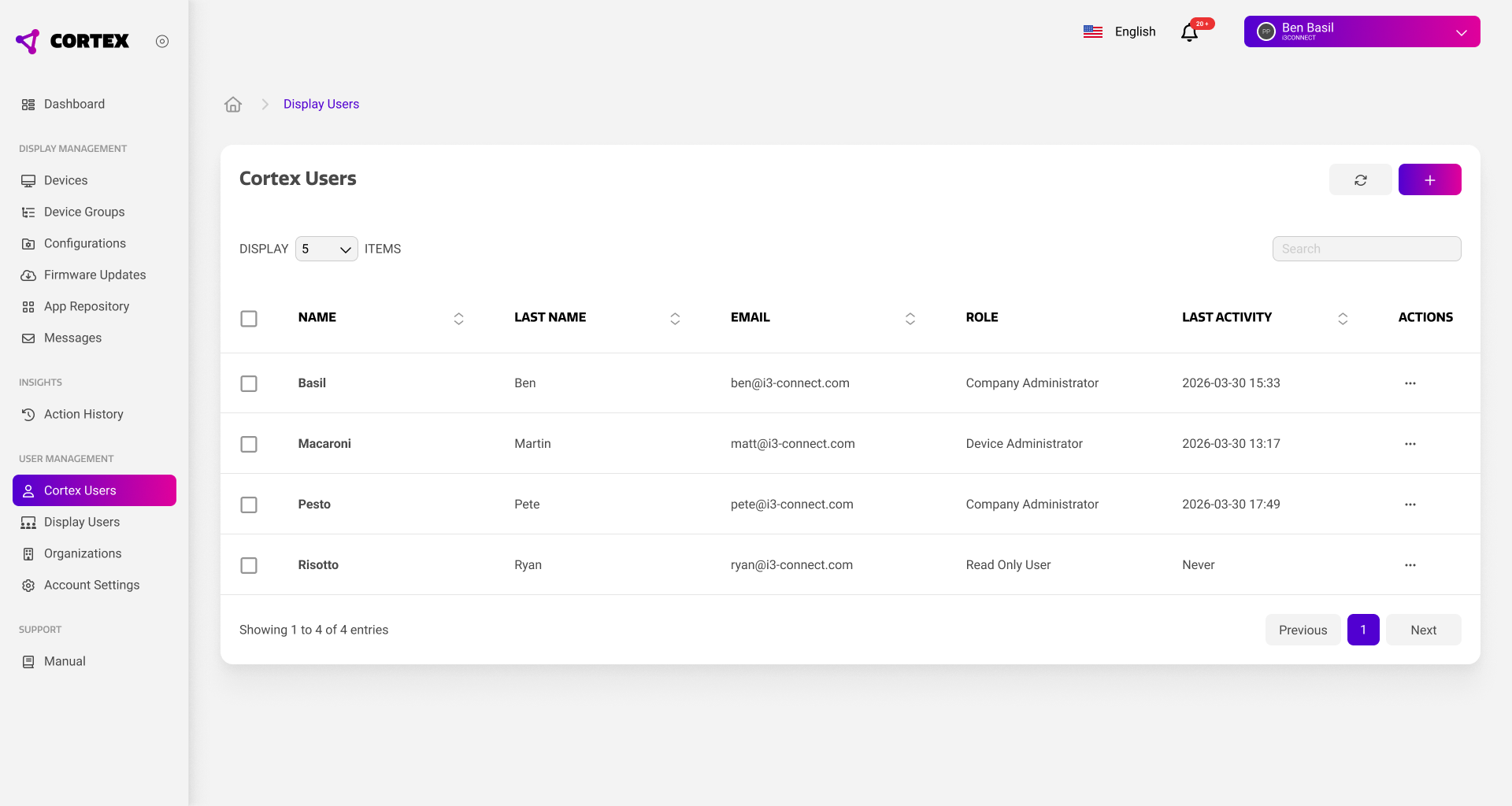
Cortex user overview
The cortex users overview shows all users that have access to your organization. Apart from the user details like name and email address, the overview also shows the user’s role and last date of activity. This allows you to gauge who has which level of access, and whether they actually use their account.
Adding or editing users
To add a new user to your organization, you can use the plus button on the top right. To edit an existing user, use the actions menu on the far right of the specific users. Both actions will open the user details dialog below.
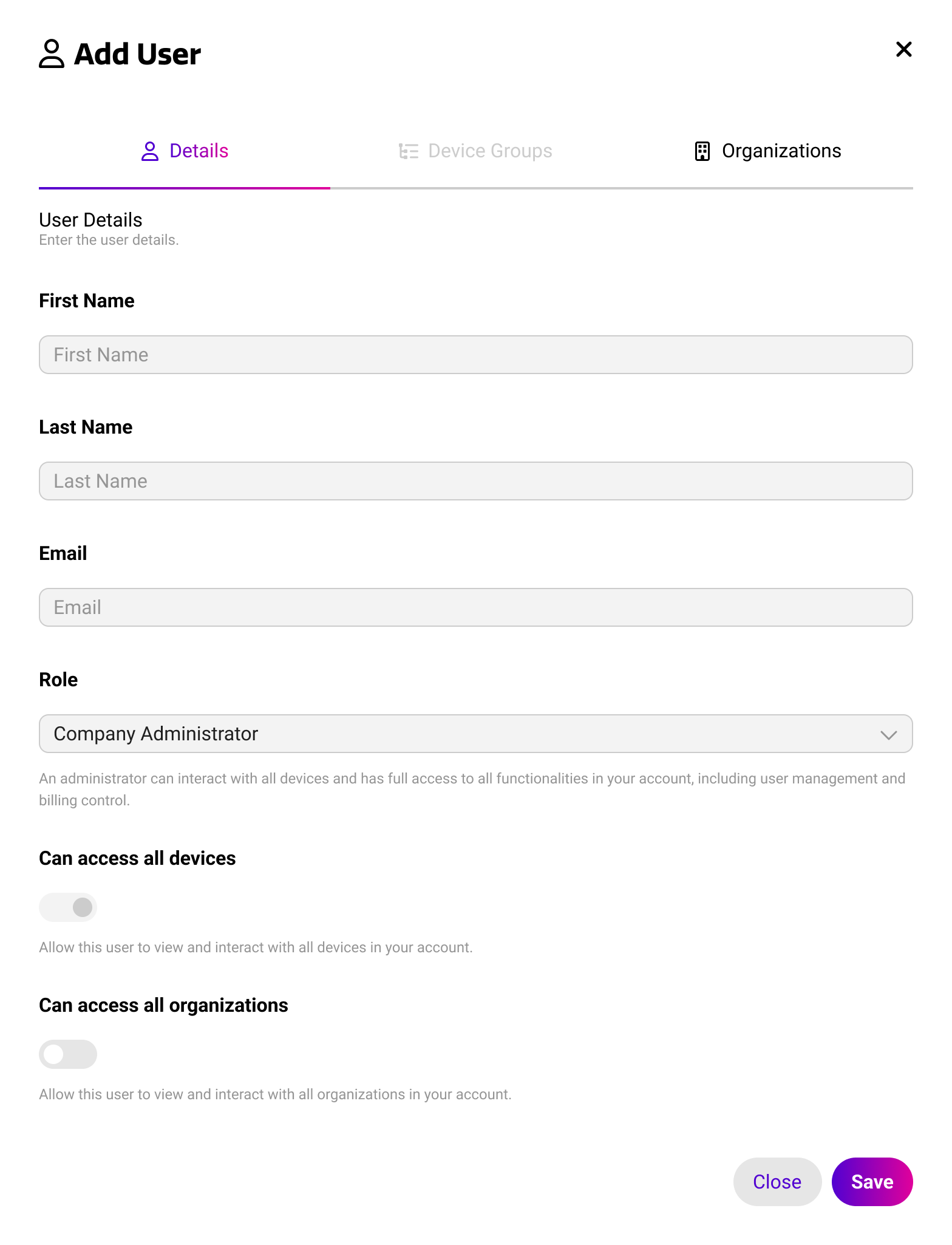
This dialog can be used to enter or adjust the user’s details and setting their access role. When you add a new user, they will receive an email invitation to join your organization. They can then login to Cortex to automatically accept the invite and complete their account. The table below describes all user values and settings, as well as their purpose.
|
Value / Setting |
Purpose |
|---|---|
|
First Name |
Used to identify the user within the platform. |
|
Last Name |
Used to identify the user within the platform. |
|
|
Used to send the invitation email and loggin into the Cortex platform. |
|
Role |
This is used to determine the user's access level within Cortex. Company Administrators have full access to your Cortex organization, including all devices, users, and billing information. Device Administrators only have access to some / all devices, but not to user accounts and billing information. Read Only Users have device administrators without editing rights. They cannot make any changes within the platform. |
|
Access all Devices |
When enabled, the user can access all devices within the Cortex organization. When disabled, the user can only access devices within their assigned device groups. |
|
Access all Organizations |
When enabled, the user can access all external organizations linked to your Cortex organization. When disabled, the user can only access external organizations that are specifically assigned to them. |
Device and organization access
You can set and limit the access to devices and external organizations for each user in your organization. When the access-all options described above are not used, the ‘device groups’ and ‘organizations’ tabs in the user dialog can be used to set specific access.
Device Groups
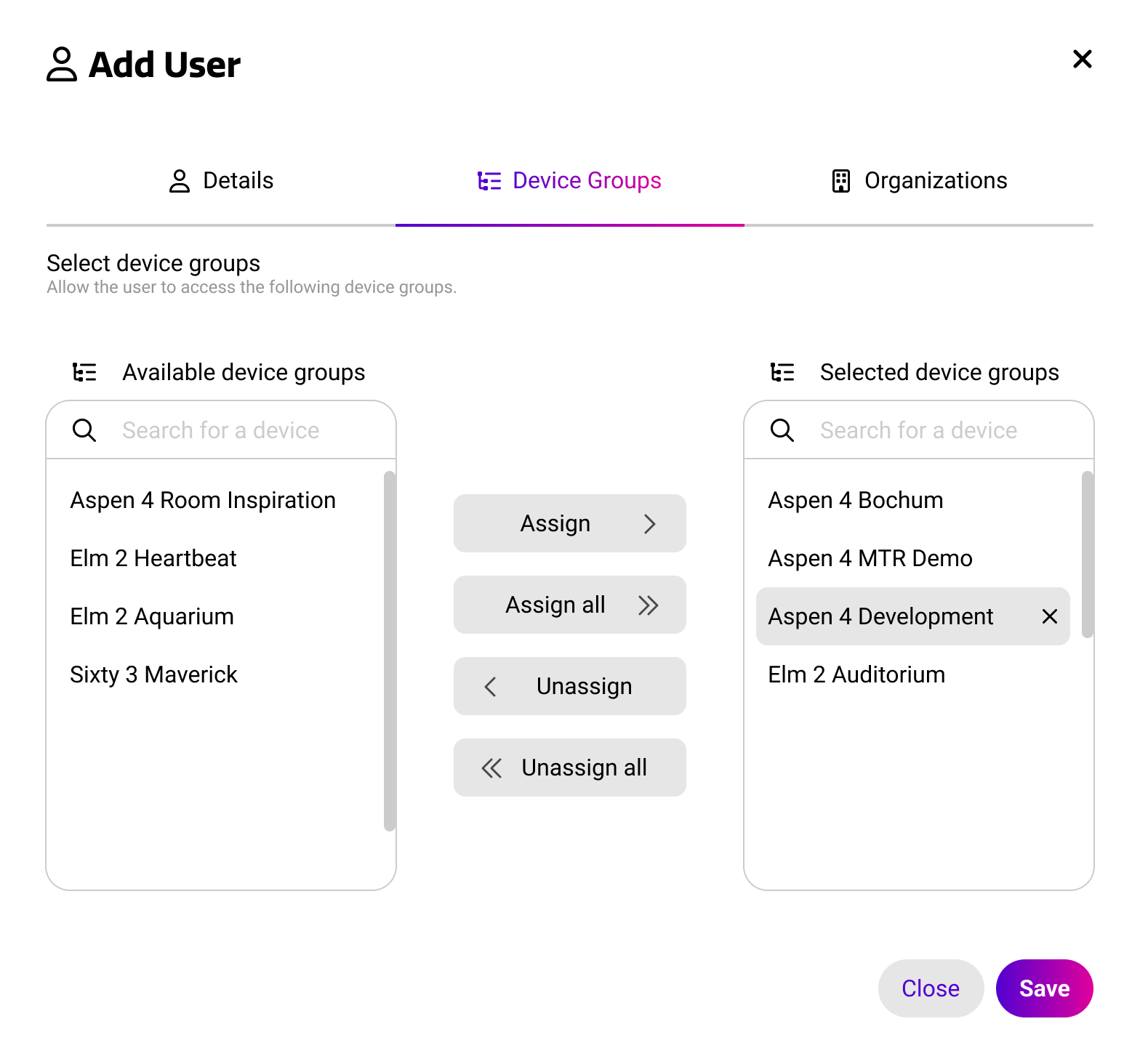
The device groups tab can be used to assign specific device groups to the user. They will only be able to access devices that are part of these groups.
Organizations
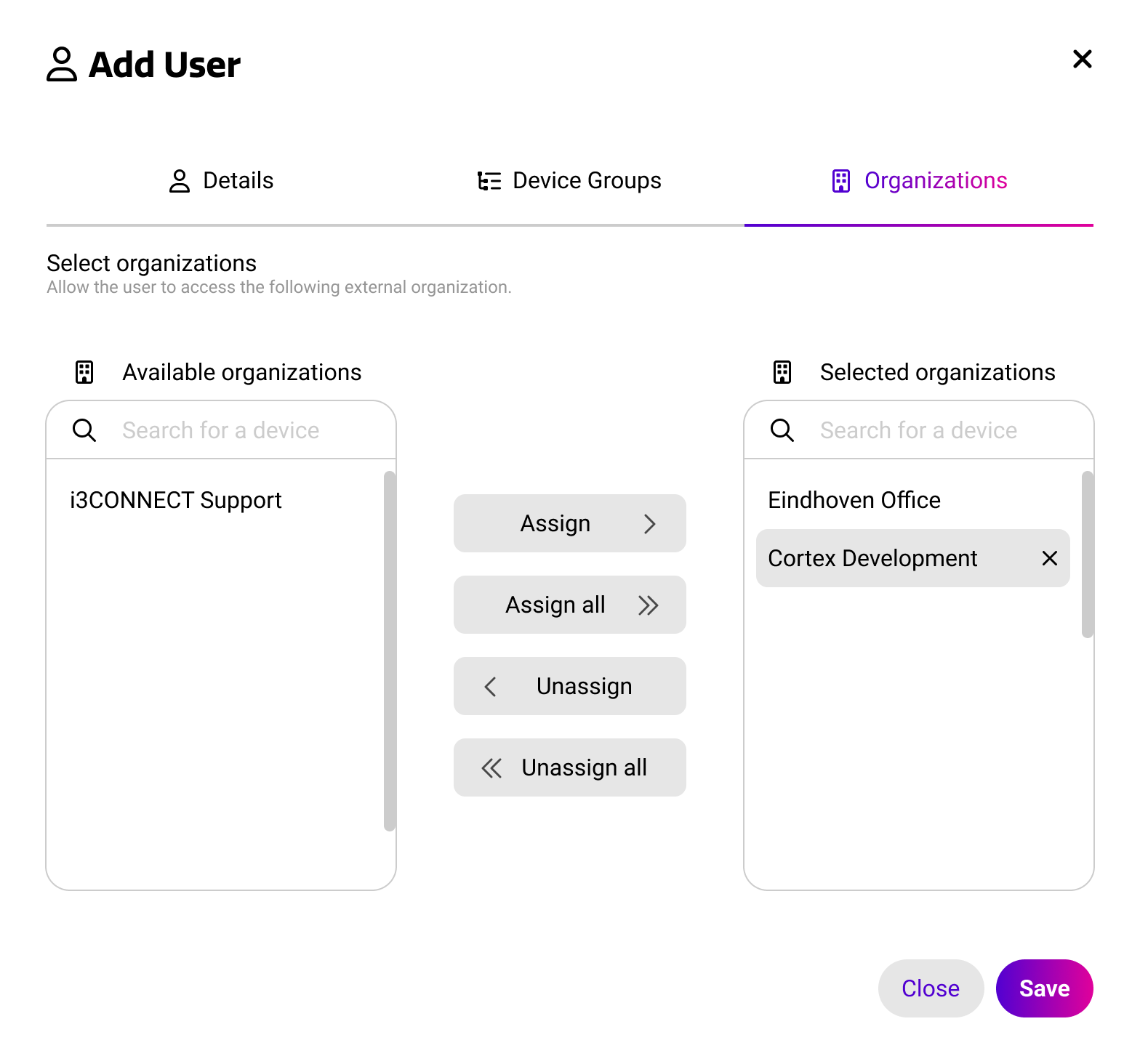
The organizations tab can be used to only give this user access to specific organizations. You can learn more about organizations below.