
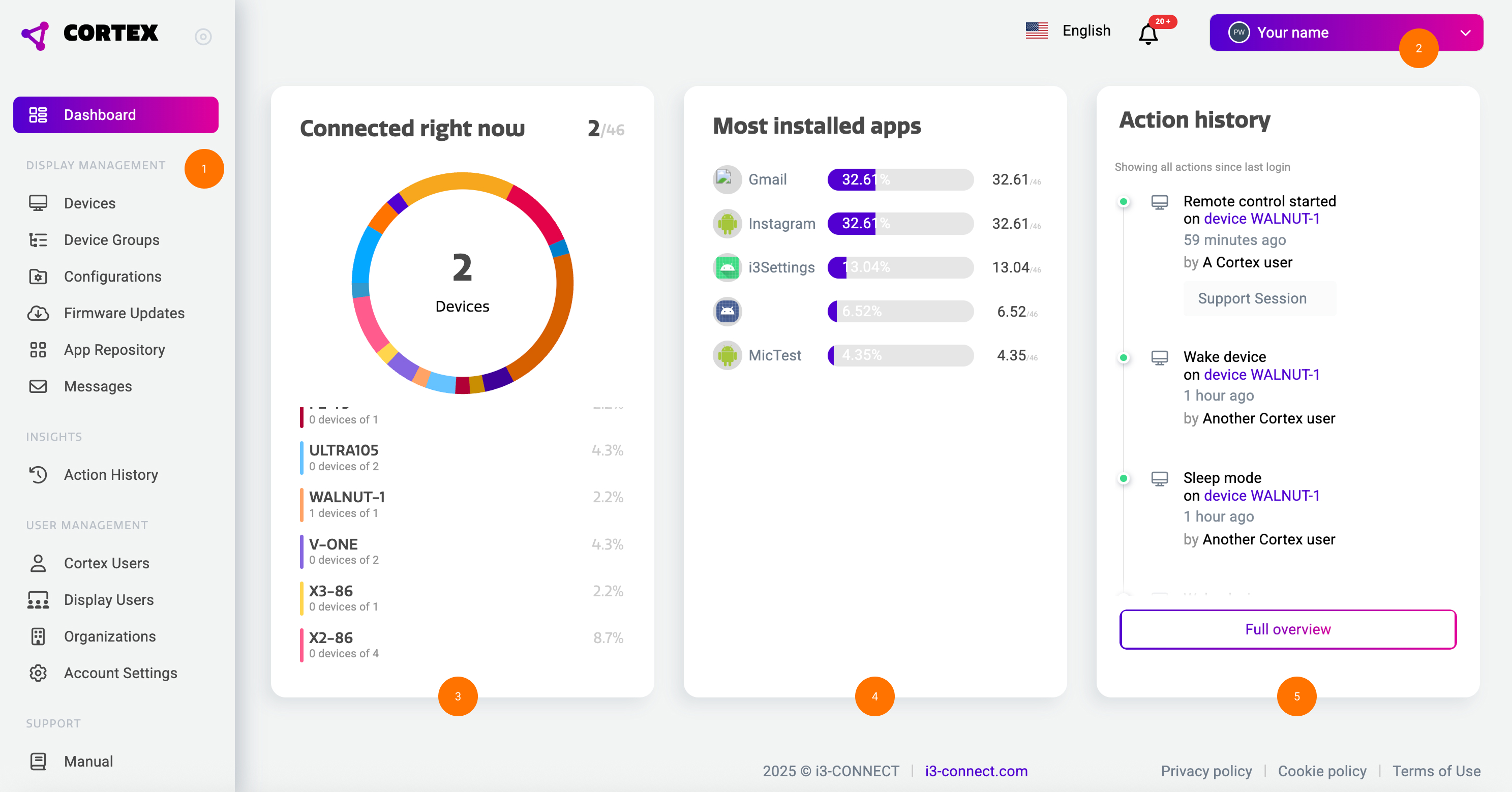
When you open i3CONNECT Cortex, you will land on the main dashboard page. Here, you will find basic information regarding your registered i3CONNECT displays and the navigation.
-
Main menu: this menu allows you to navigate i3CONNECT Cortex, see all your displays, apps, user lists etc.
-
Profile drop down: this allows you to sign out or switch organization, if activated. See Organizations for more information. Next to the drop down, you can also select your preferred language and review notifications.
-
Connected right now widget: this widget shows the displays that are online and connected right now.
-
Most installed apps widget: this widget gives a quick overview of the most installed apps on your displays.
-
Action history widget: get a quick view on the last actions performed on your fleet of i3CONNECT displays.
-
CAIR widget: If your i3CONNECT display comes with a CAIR module, you may see this displayed at the bottom of your dashboard.
Manage your account
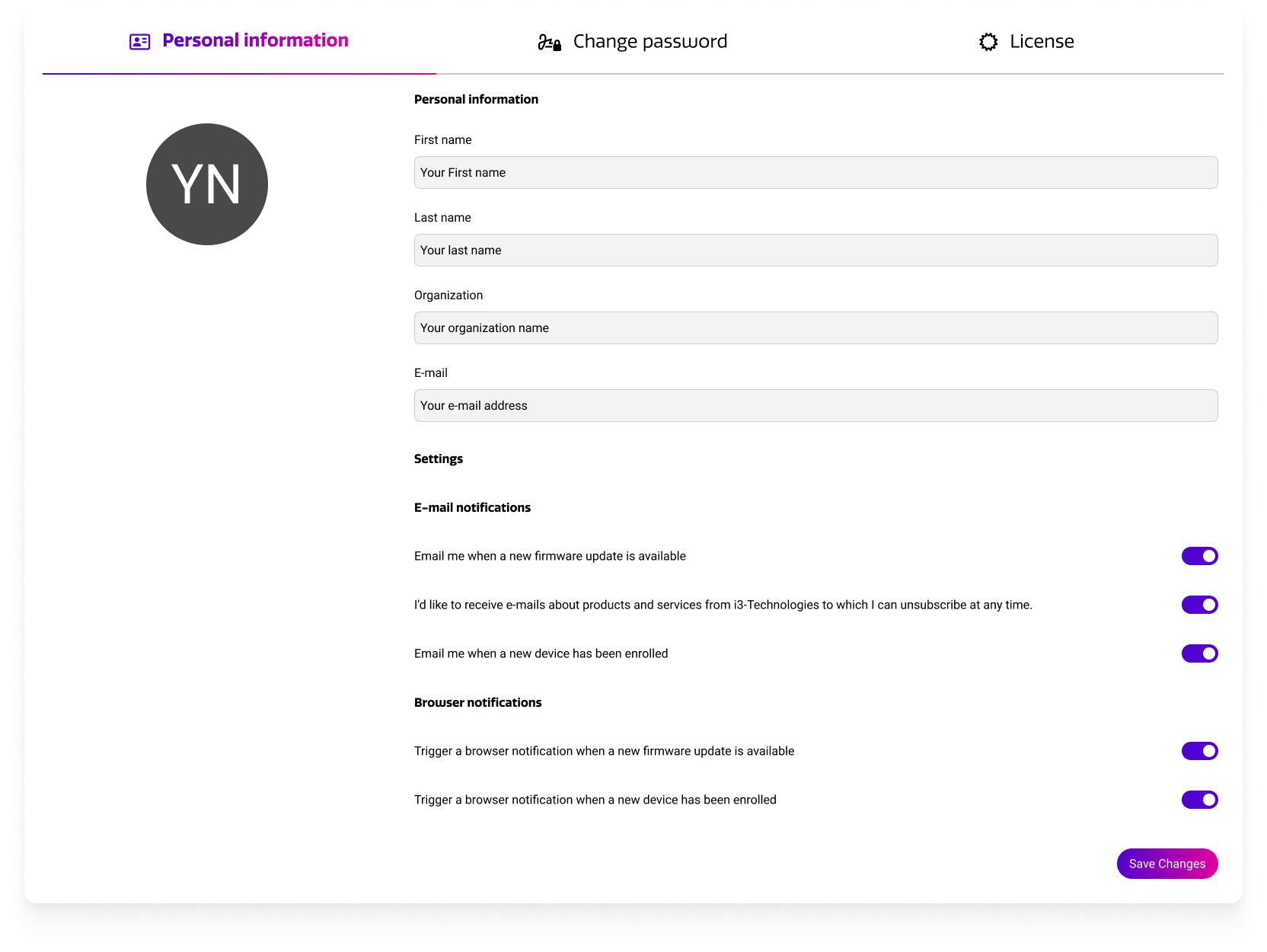
Go to “Your account” from the main menu to manage:
-
Personal information and notification settings
-
your password. If you signed up using Microsoft or Google, this feature is not available.
-
License: manage the available device licenses in your account and/ or cancel your subscription.
Set Notifications
At the bottom of the “Personal Information” tab, you can configure how you wish to receive notifications.
You can configure E-mail and browser notifications. Browser notifications are browser based messages that can appear in your browser when an action is complete.
Change your license information
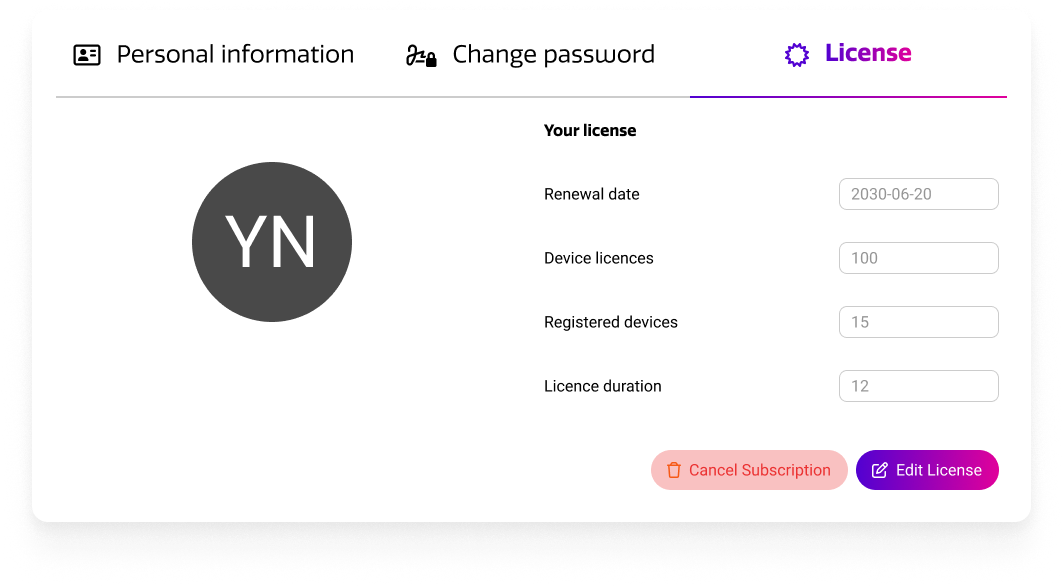
In the License tab, you can find an overview of the available device licenses and duration.
Select “Edit license” if you want to make changes to it.
Select “Cancel subscription” if you no longer wish to use i3CONNECT Cortex.