
Cortex makes many of your device’s settings available remotely. This allows you to take full control of your device’s behavior, both in terms of hardware and software. You can open the device settings from the device details page. In this article, we’ll explain how the settings work.
You can always change the device settings through Cortex, even when it is offline.
Settings menu
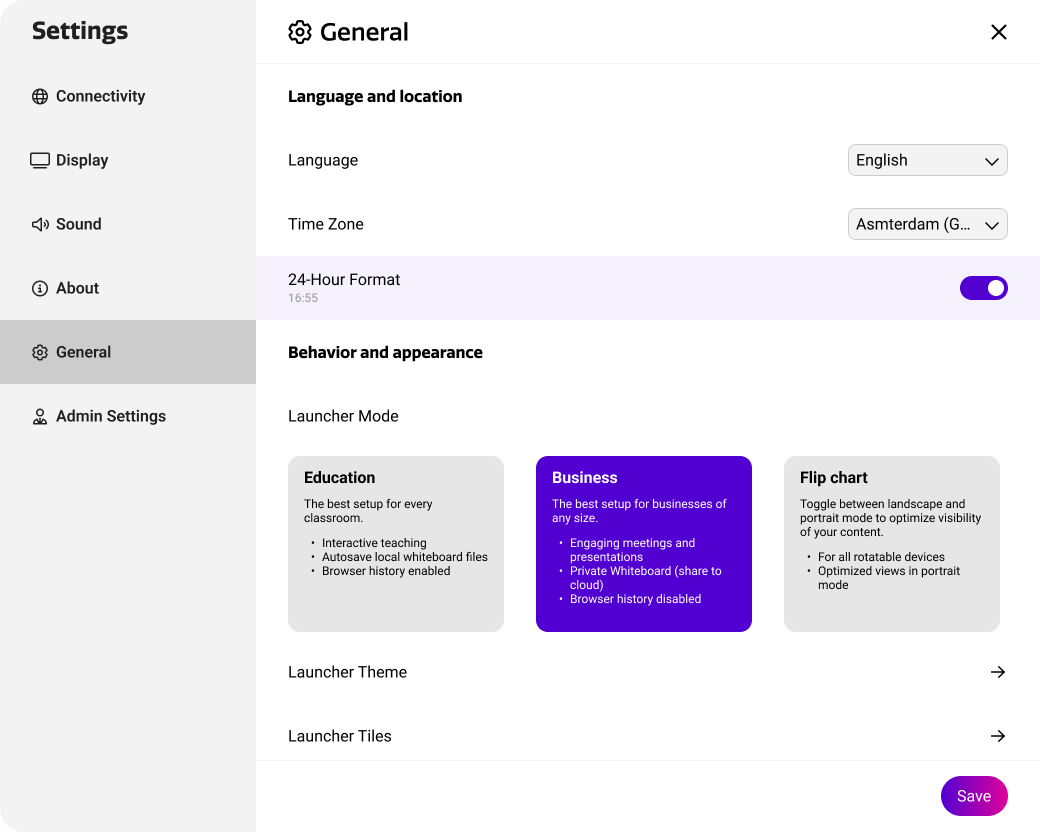
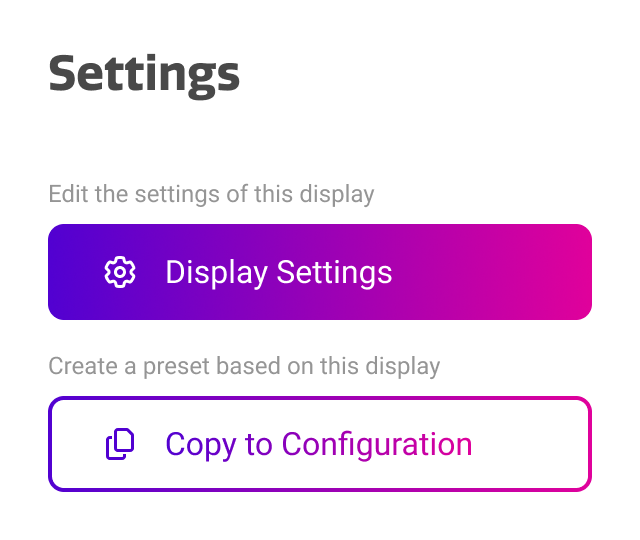
From the device details page, you can press the ‘device settings’ button to open the settings menu. This will open the window shown below. From this settings menu, you can navigate to all settings categories and adjust their values.
|
Item |
Purpose |
|---|---|
|
Sidebar |
This left section shows the different categories of settings that are available. These largely match the settings menu of devices featuring the i3CONNECT settings menu. |
|
Settings Content |
This right section shows all availble settings within this category. The title on top shows in which sub-menu you are working. |
|
Save Button |
The save button is used to send your adjusted settings to the device. Unsaved changes are shown with a slight purple overlay, meaning that the value has not been sent to the device yet. |
The available settings depend on your specific device. Generally, devices with the i3CONNECT Settings app support more settings than devices that rely on the Android Settings menu.
Applying settings
Communication between Cortex and your device goes both ways. Once you press save, Cortex will send all changed settings to the display. Once applied, the device will confirm its changes back to the Cortex platform. This is shown by a notification next to the save button, saying “save successful”.

Offline display settings
Settings that are adjusted while the device is offline will be performed when the device comes back online. These actions can be viewed through the device’s ‘pending actions’ section. Offline devices will show a banner in their settings menu explaining this behavior.

Copy to configuration
You can use your device’s settings as a starting point for a new configuration. You can learn more about configurations in this article:
To create a configuration from your device’s settings, press the ‘copy to configuration’ button on the device details page.
This will add the device’s setup to your list of configurations, which can be reused across your other devices or device groups.
Common settings
Although most settings speak for itself, some settings are more commonly used or slightly more complicated to use. Below is an overview of those settings and a clear guide on how to use them.