
From the Cortex display settings, you can configure the device’s startup behavior. This can be useful to optimize the device for specific use cases, resulting in a setup that is ready to go when you start it up.
You can find it under Settings → Admin Settings → Power → Power On Behavior
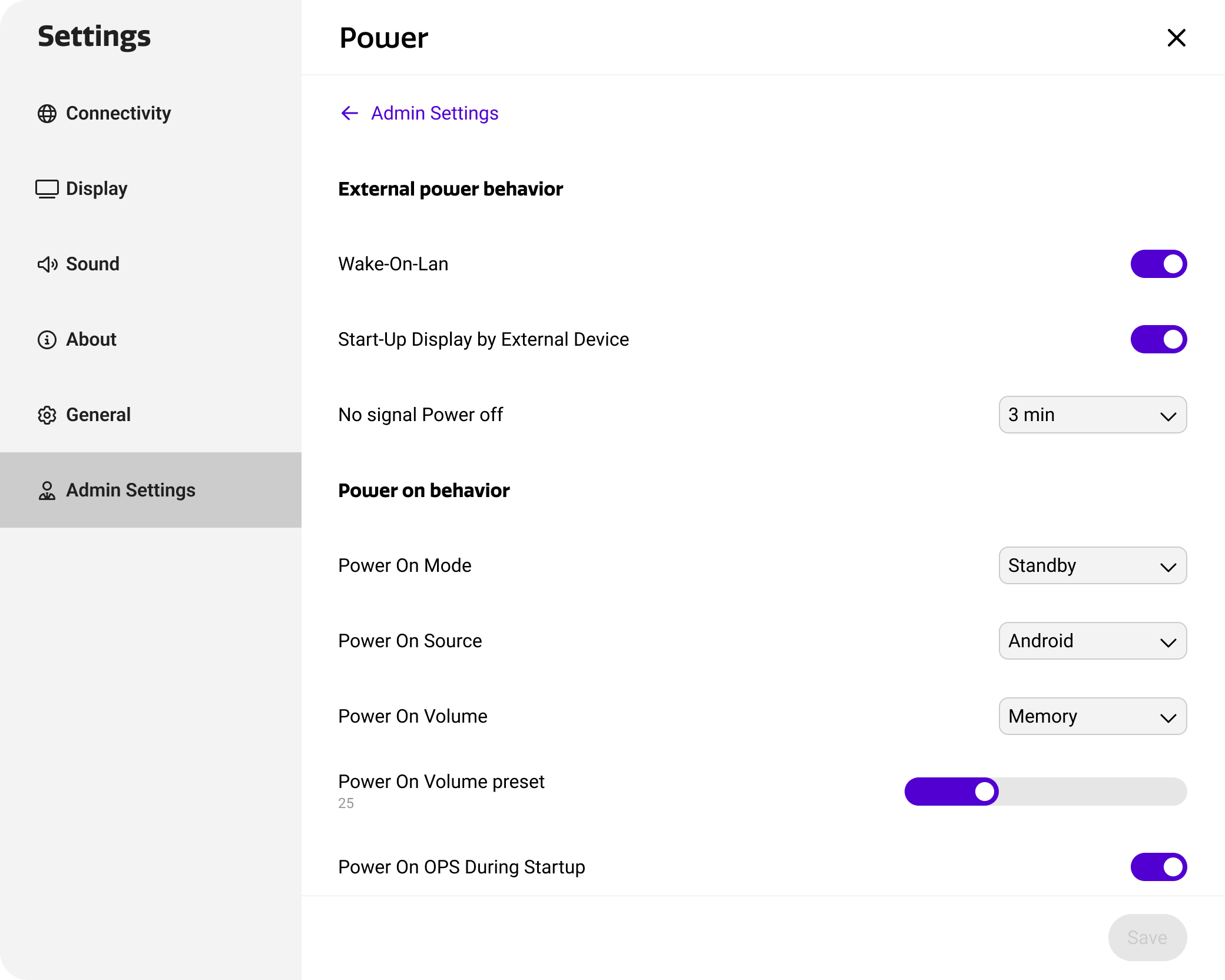
Configuring power on behavior
The i3CONNECT displays serve many different use cases. Although the default settings serve most users, Cortex offers some customization options so your display is always ready to go. This way, you can for example optimize your device for working on an OPS PC, or an external source like an MTR system for example. The tables below describes the power on behavior settings.
|
Setting |
Purpose |
Options |
|---|---|---|
|
Power On Mode |
Sets the power behavior of the device when it is switched on using the main power switch next to the power plug. |
Standby keeps the display turned off / standby when it gets power again. Boot automatically turns the display on when it gets power. Previous State uses the last state before the device lost power (boot or standby). |
|
Power On Source |
Sets the source that the device should automatically switch to when it is turned on. By default, it will launch the Studio environment in Android. |
Android will start up the Studio environment, showing the home screen. External sources will switch the display to the selected external source. Studio is still launched in the background. |
|
Power On Volume |
Determines which volume level should be used when starting up the device. |
Preset will use a preset volume value when starting up the device. It can be configured from the settings. Memory will use the volume value that the display was set to when it was turned off. |
|
Power On Volume Preset |
Sets the startup display volume when ‘preset’ is used in the ‘power on volume’ setting. |
|
|
Power On OPS During Startup |
Determines whether an inserted OPS PC is automatically started up when the device is turned on. |
|