
Cortex allows users to remotely view and control the device from anywhere, as long as the device has an active internet connection. This can be useful to troubleshoot issues, or to assist users in performing certain actions on the display. In this article, we’ll guide you through the process.
Initiating remote control
From the quick actions menu on the device details page, you can find the remote control button. This will send a request to the display to provide remote access.
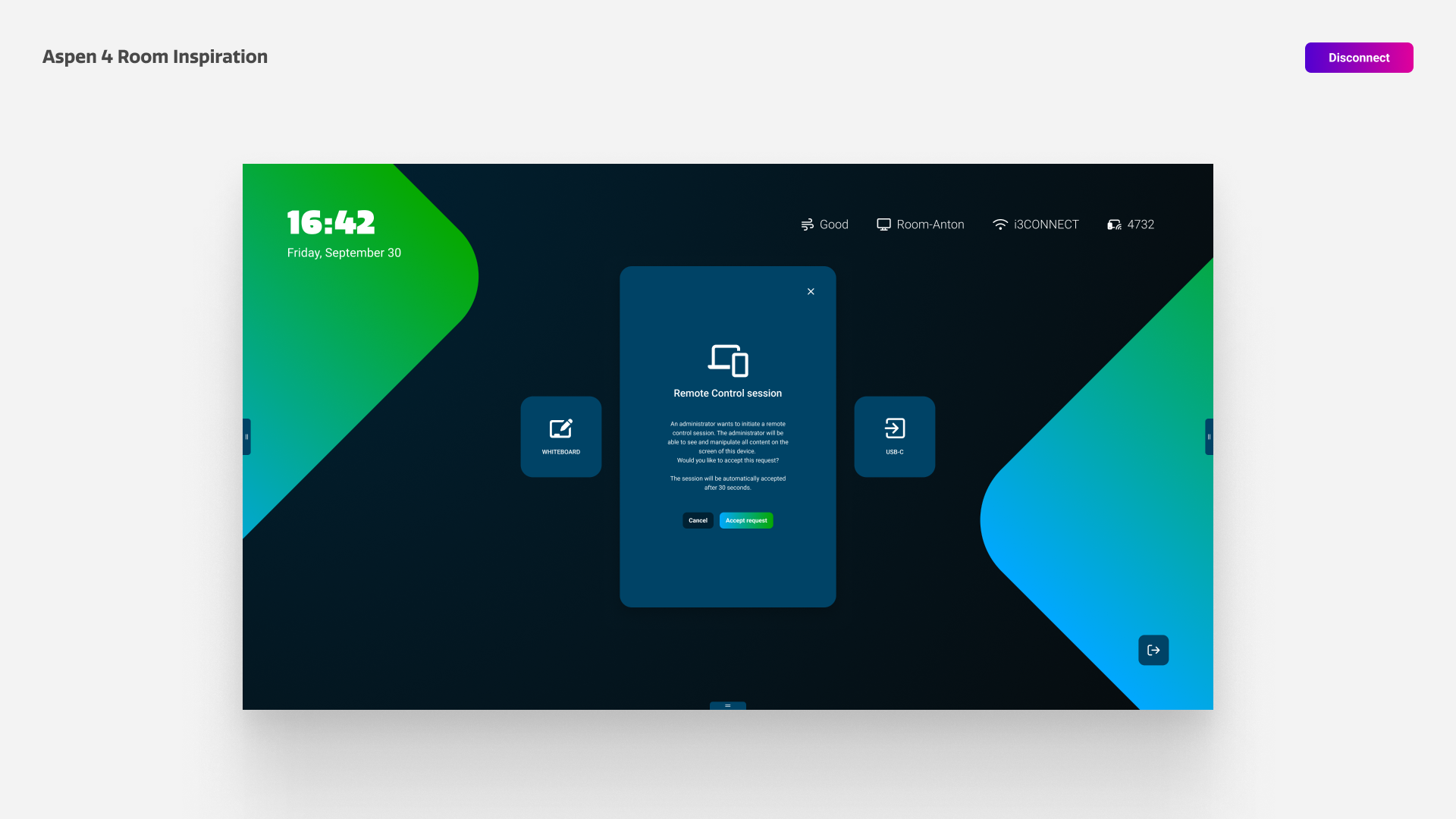
As seen in the image above, the device will display a message that someone would like to initiate a remote control session. Until this message is (auto-)accepted, users in Cortex will not have any remote control. Below are thee possible actions.
|
Action |
Result |
|---|---|
|
Accept |
When the user presses accept, the user in Cortex will gain remote view and control over the device. |
|
Cancel |
When the user presses cancel, the request is denied and the user in Cortex will not be able to view or control the device. |
|
Auto-Accept |
When no response is given within 30 seconds, the request is automatically accepted. This ensures that devices remain accessible, even when no user is present in the room. |
Using remote Control
When a remote control session is (auto-)accepted, the Cortex user will be able to view and control the device. Control with the mouse pointer can be used to emulate touch events on the device.
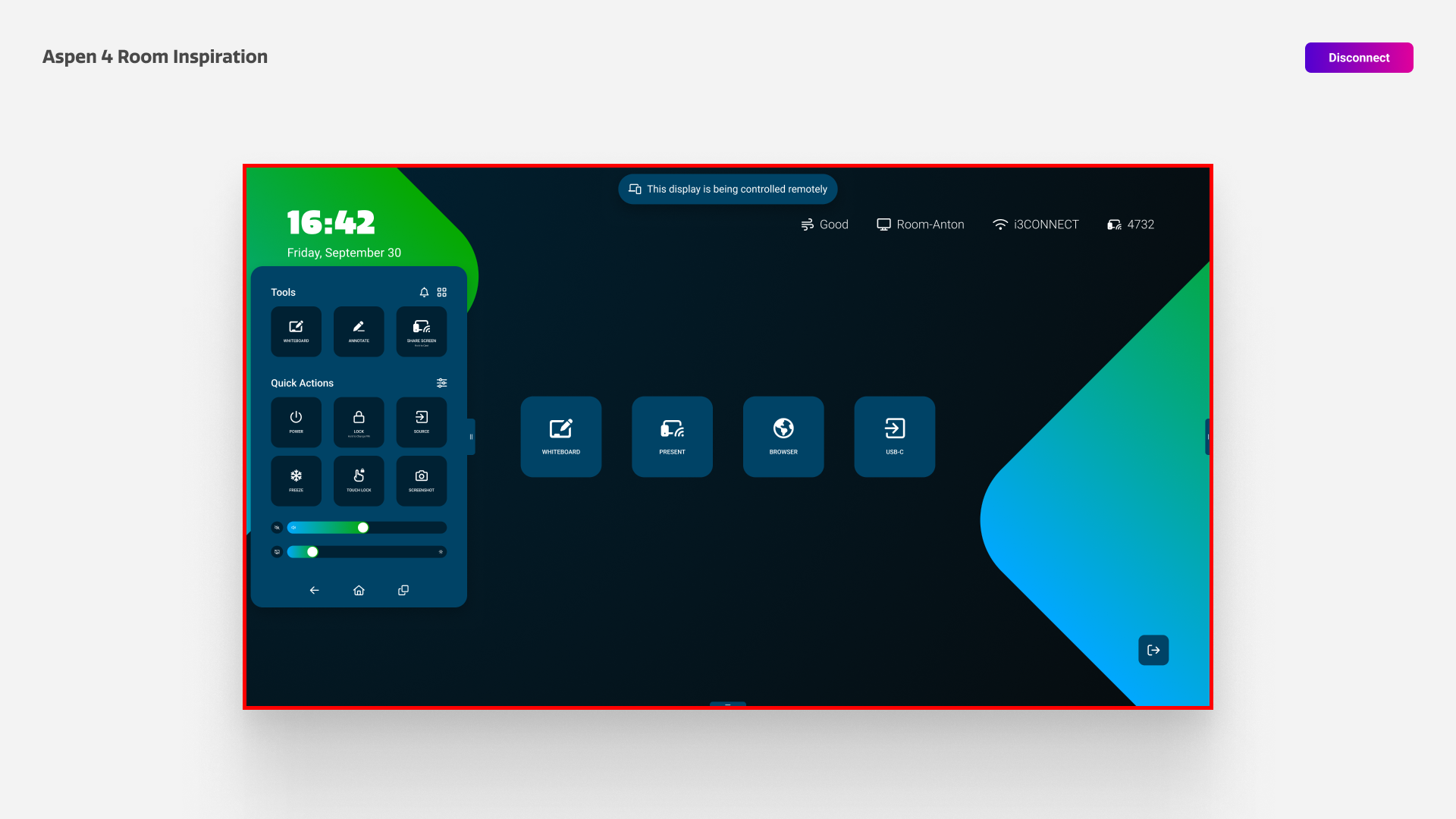
While a device is remotely controlled, a push notification and red border around the edges is always visible. This is to ensure that device users are always aware that someone might be watching along remotely.
Ending remote control
Remote control sessions cannot be ended from the device itself. Instead, the session can only be ended by clicking the disconnect button in the top right of the Cortex interface.