
Cortex configurations can be used to send a collection of settings to one or multiple displays at a time. This significantly speeds up device configuration and allows you to distribute and maintain a uniform setup for your entire fleet.
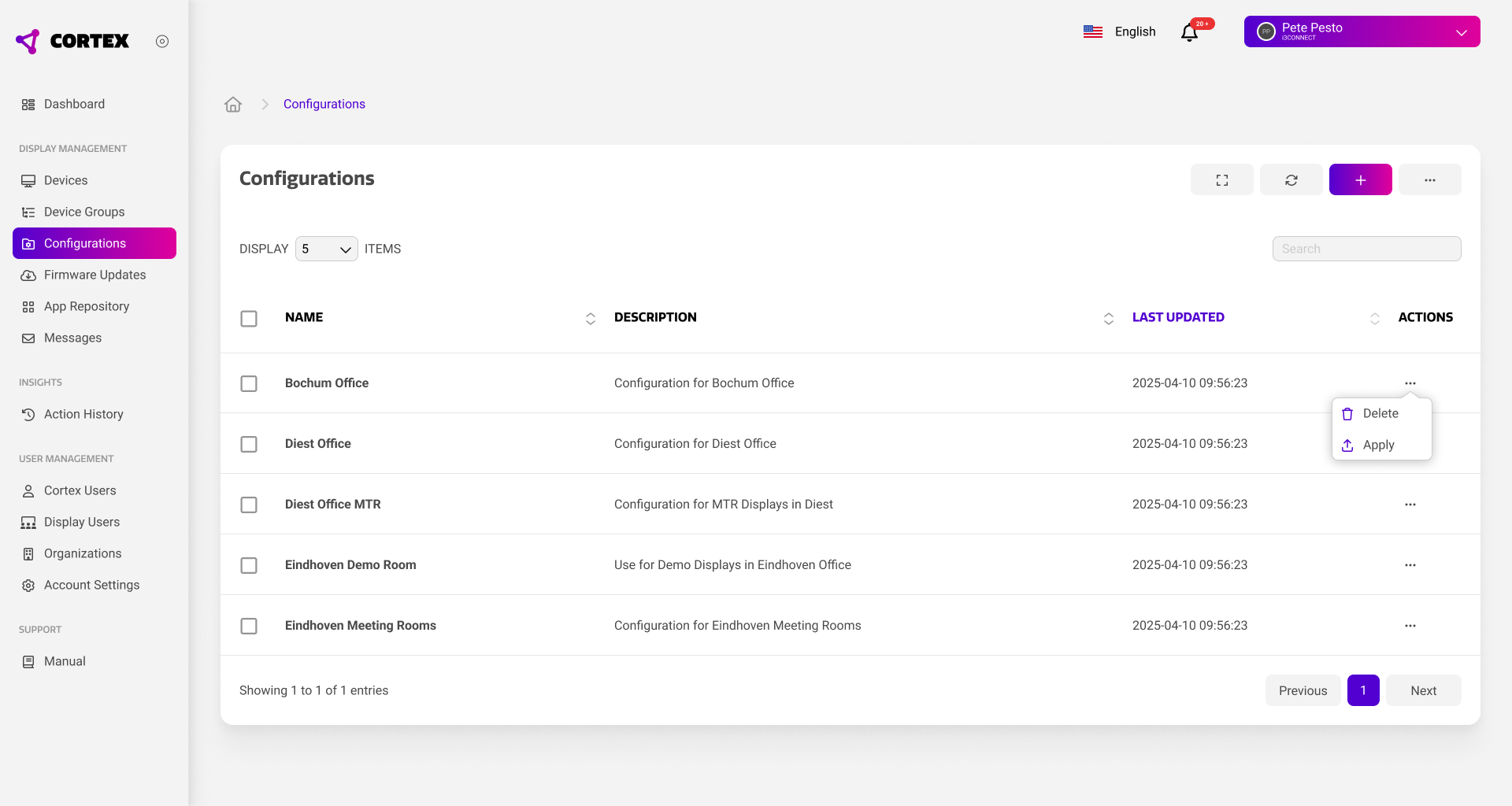
The configuration overview shows a summary of all configurations within your organization. For each configuration, you can quickly view a short custom description and when the contents of the configuration were last updated.
Applying a configuration
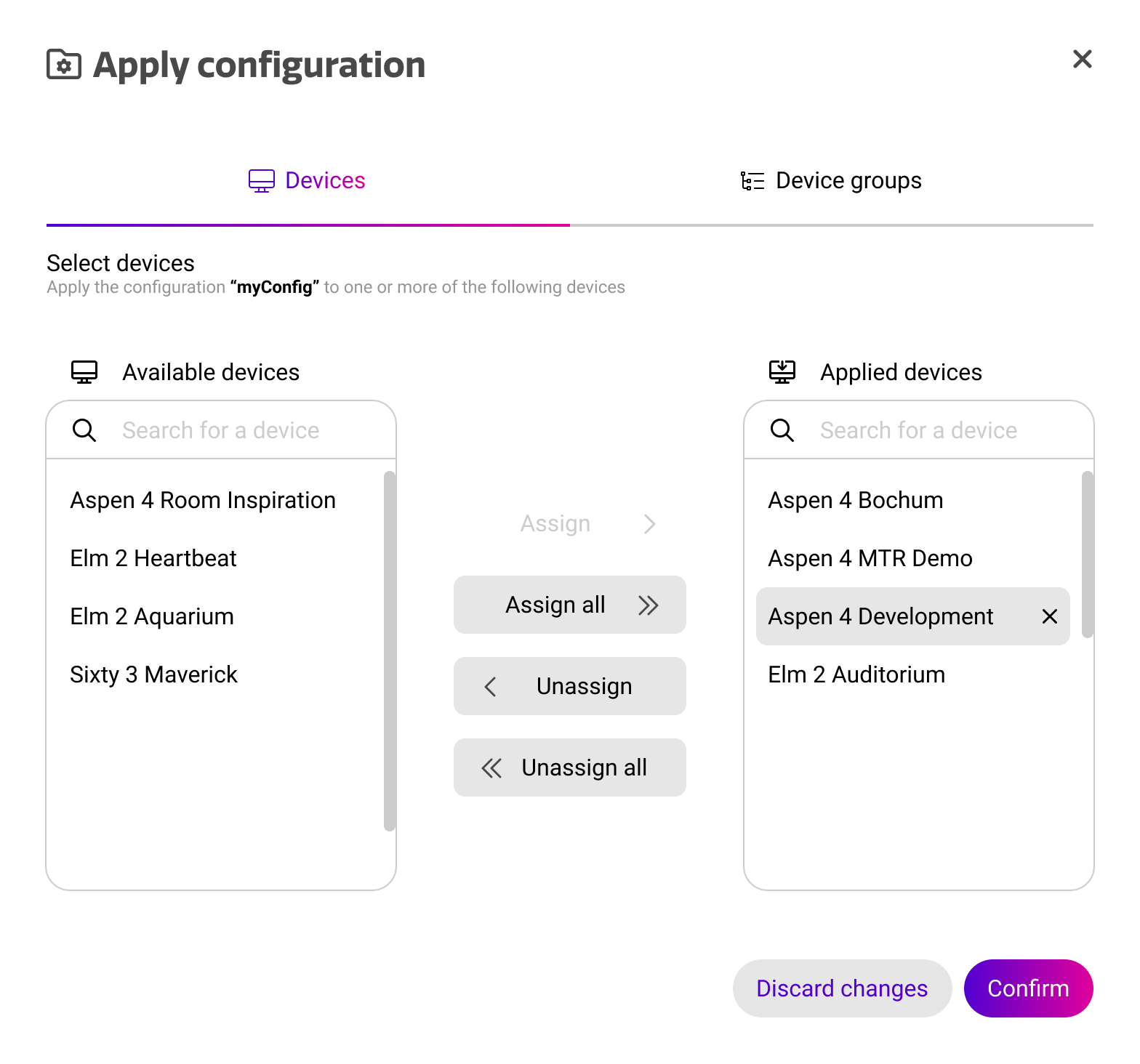
Each configuration can be applied by opening the actions menu on the far right, and pressing ‘apply’. This will open the dialog below, allowing you to select the devices and/or device groups that you want to apply the configuration to.
Applying to single devices
In the single device view, you can assign multiple devices to apply the configuration to. You can do this one by one, or by holding CMD/CTRL and selecting multiple devices from the list before assigning.
The configuration will be applied to all the selected devices.
Applying to Device Groups
In the device group view, you can assign multiple groups to apply the configuration to. You can do this one by one, or by holding CMD/CTRL and selecting multiple groups from the list before assigning.
The configuration will be applied to all the devices that are part of the selected groups.
Configurations will be applied instantly to devices that are online. For offline devices, the application will be placed pending actions, until the device comes back online.
Setting incompatibility
Configurations are designed to be one-size-fits-all, meaning that they can be applied to multiple device families. Although most real-world configurations consists of mostly one device family, a mixed setup can cause unexpected results.
As newer and older devices do not always support the same settings, Cortex will automatically check for any incompatibilities when applying a configuration. If this is the case, the incompatible settings are displayed in the dialog below, along with the applicable devices.
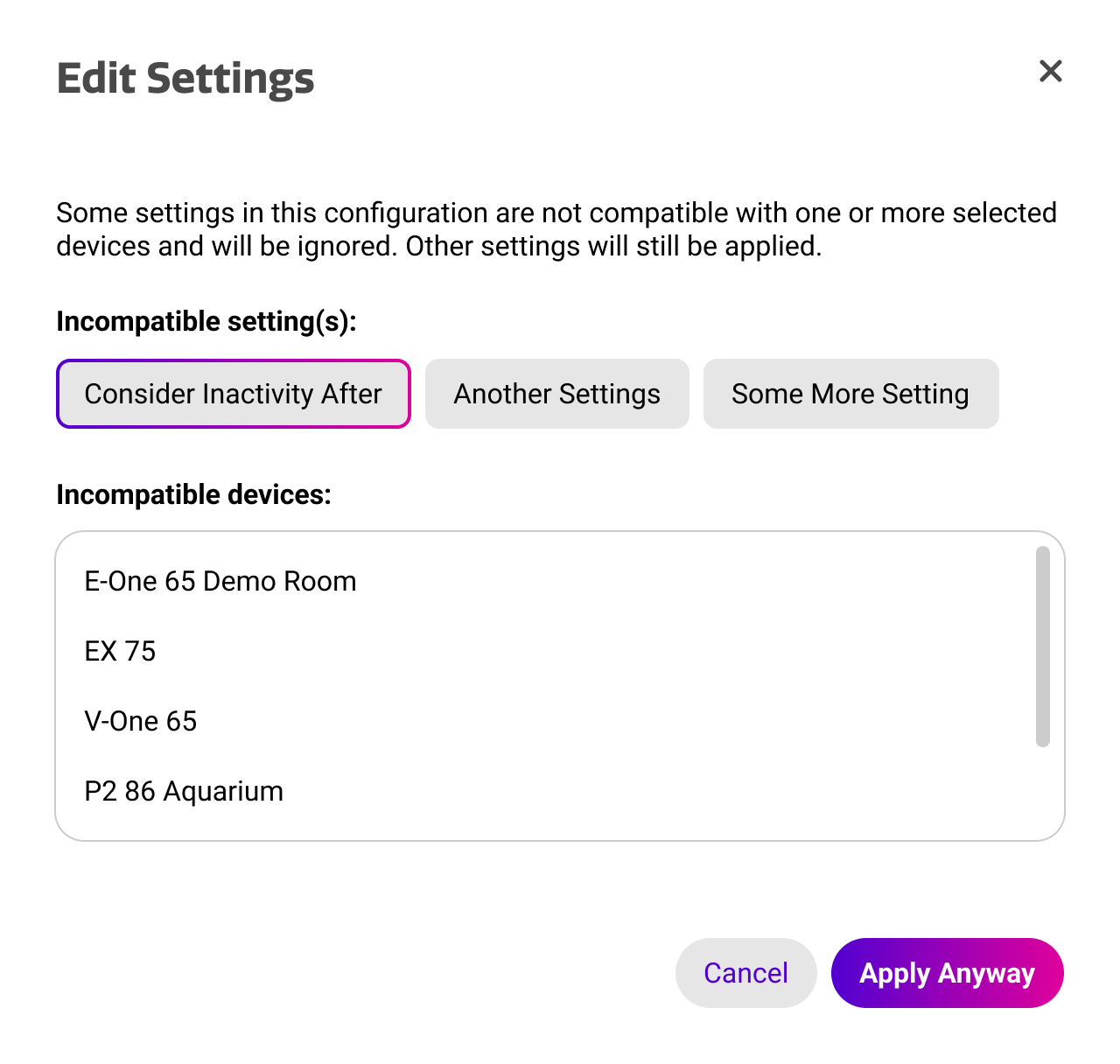
You can choose to apply the configuration anyway, which will cause incompatible settings to be ignored on the applicable devices. This way, all other settings are still applied to maintain a setup that is as uniform as possible.