
You can group devices in Cortex to maintain an organized overview and perform actions on multiple devices at the same time. This makes device management more efficient and consistent across your devices.
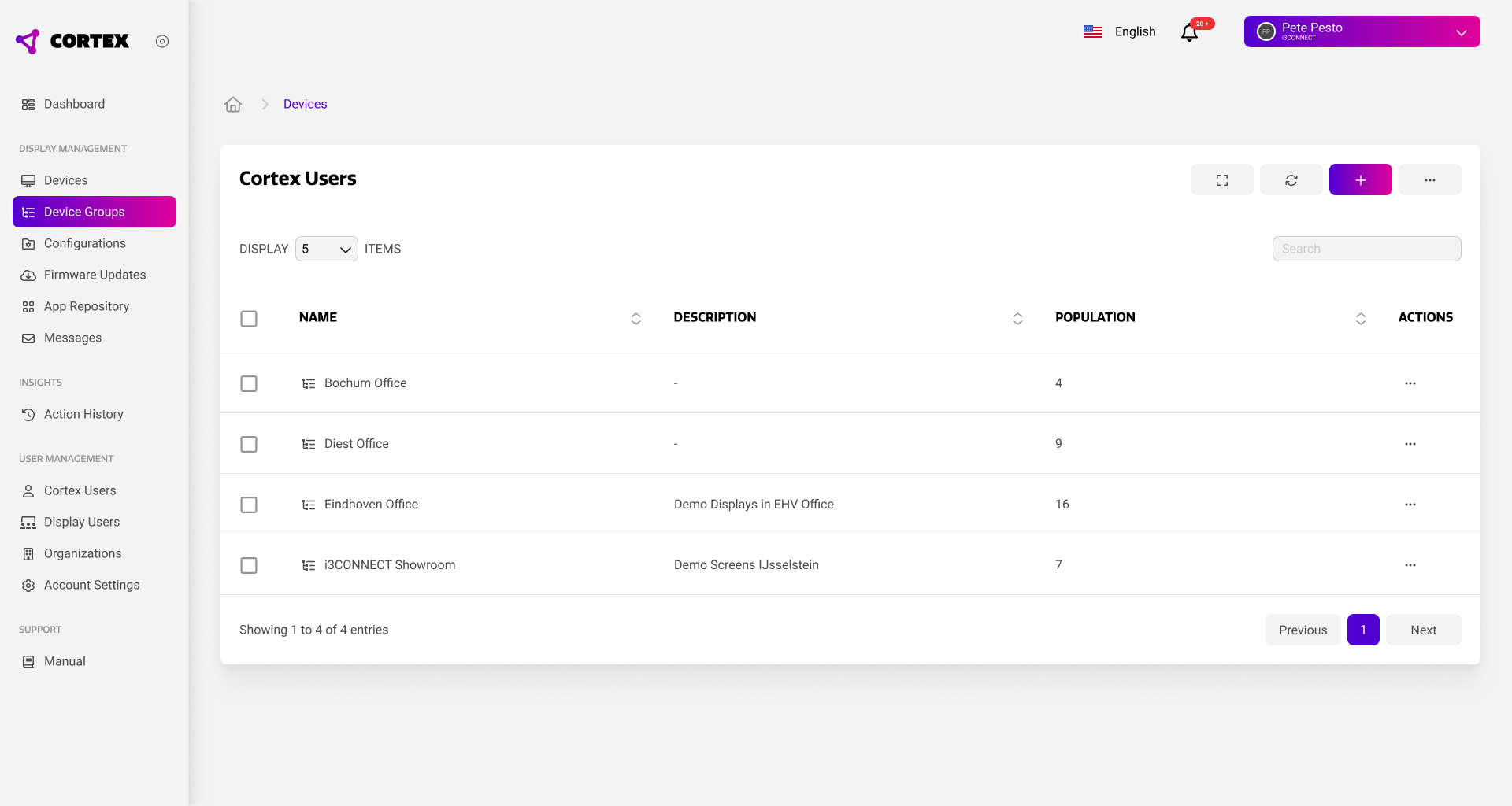
The group overview shows a summary of all device groups within your organization. For each group, you can quickly view a short custom description and the amount of devices (population) in the group. The total sum of population may not equal your total amount of devices, as not all devices may be part of a group, or because devices can be part of multiple groups at the same time.
Group actions
Using the action menu on the right of the display, you can perform certain actions on all devices in a group at the same time. Below is an overview of the available actions.
Delete
The delete command will remove the group from your organization. Note that this will not remove the devices themselves. This action cannot be undone.
Manage boot and shutdown times
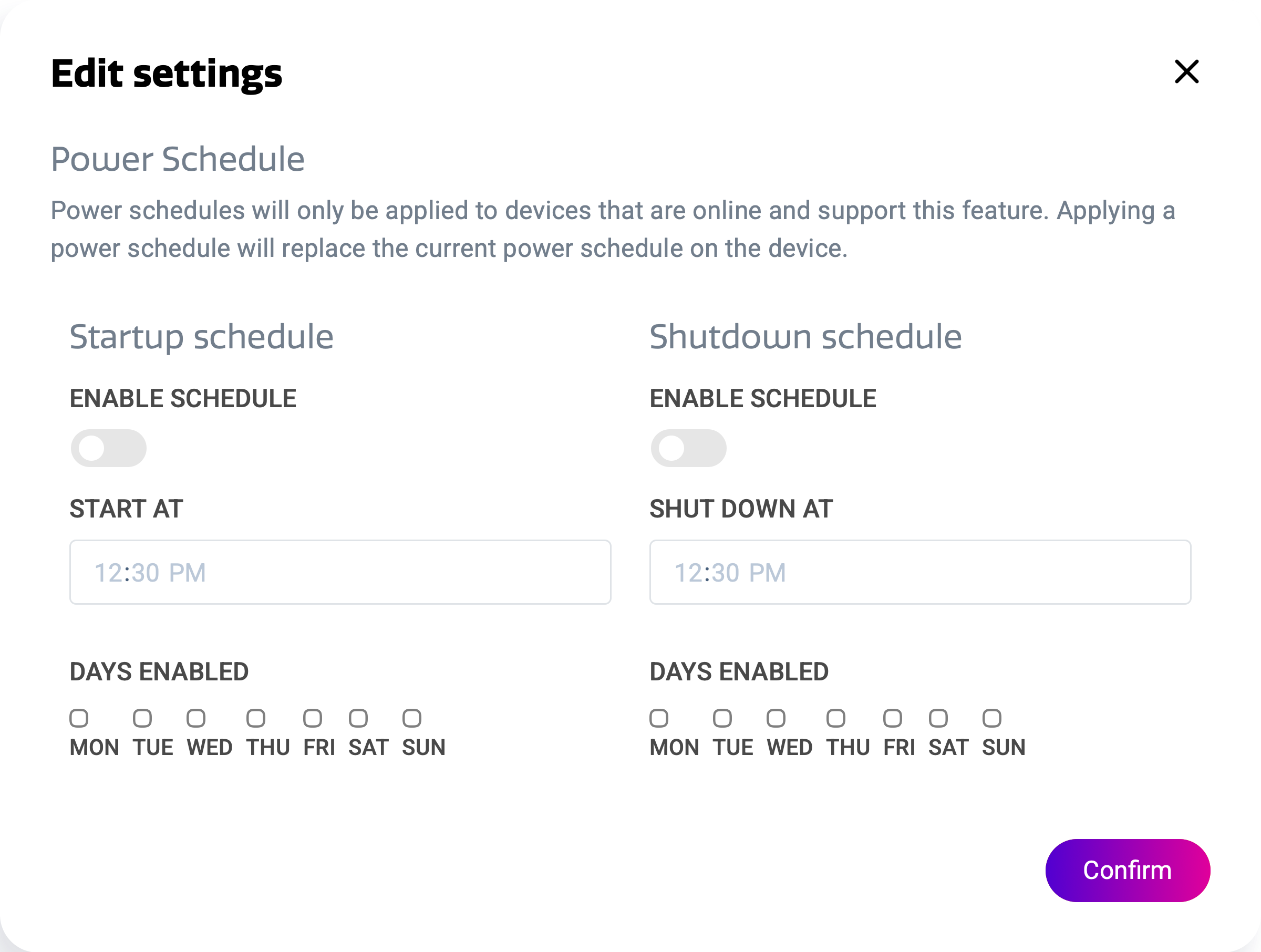
You can set the startup and shutdown times of a group to configure the operating hours of your devices.
You can enable a schedule, and set its corresponding time and weekdays.
For full documentation on power schedules, see the Power schedule settings in Cortex page.
Toggle Restricted Mode
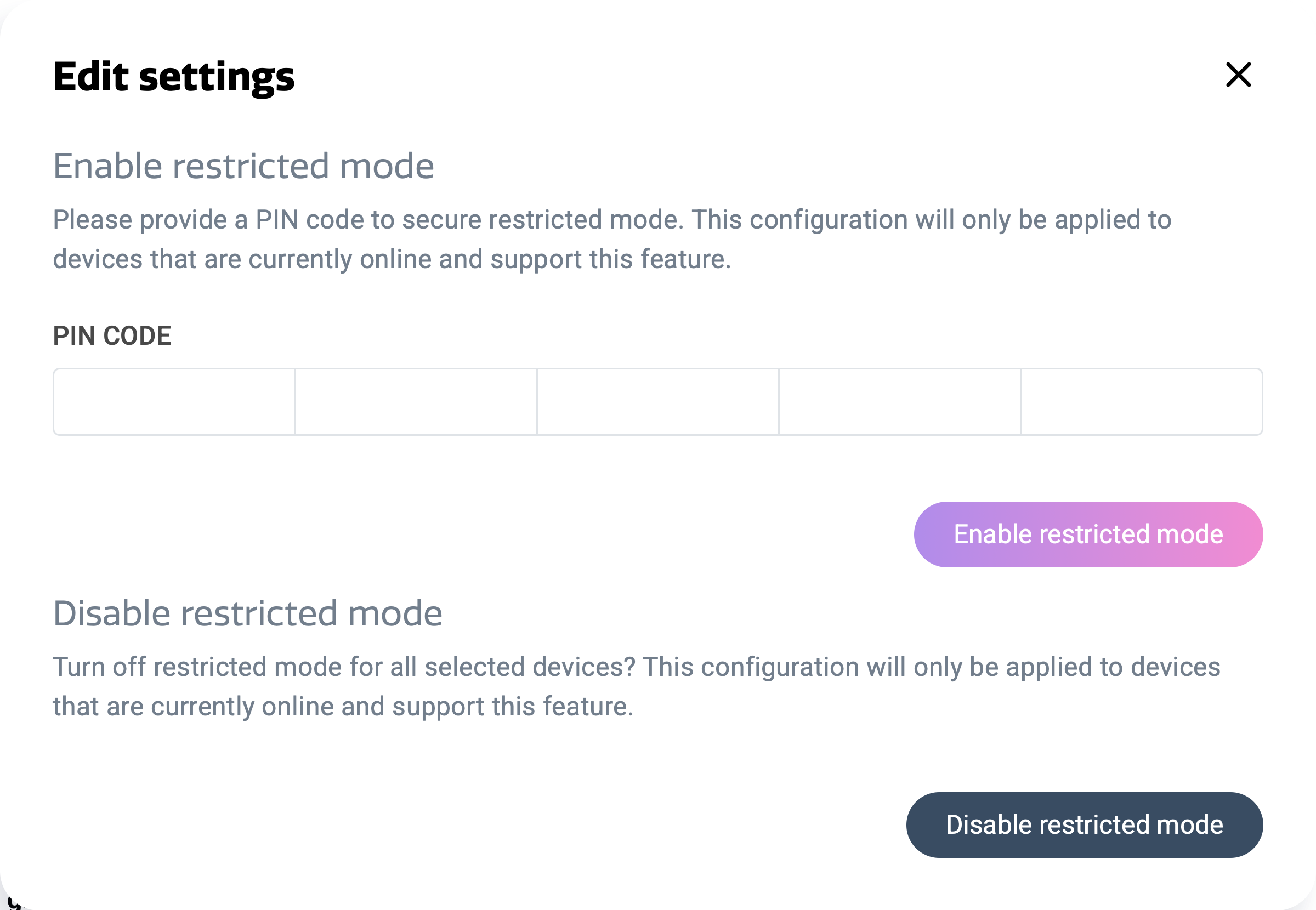
You can restrict access to critical areas of your devices by enabling restricted mode.
To enable it, a PIN must be set that can be used to bypass restricted mode on the device.
For full documentation on restricted mode, see the Restricted mode settings in Cortex page.
Apply configuration
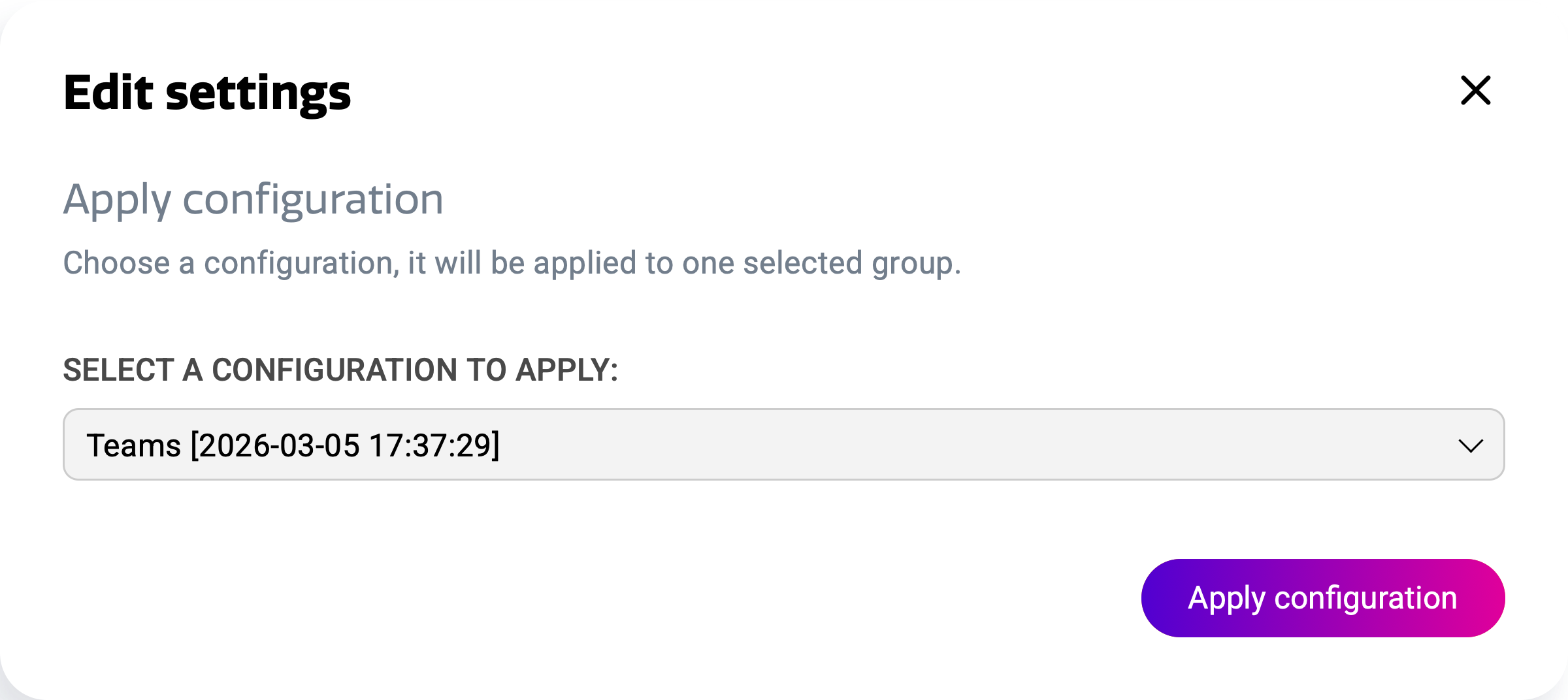
You can apply multiple settings to your devices at the same time. This is done through a configuration.
For full documentation on configurations, see the Configurations in Cortex page.
Set automatic firmware updates
You can set the firmware update policy to determine whether you want to receive automatic firmware updates.
Automatic firmware updates means that the latest firmware will automatically be installed on your device when it is available.
Optional firmware updates means that you also want to receive incremental updates / fixes.
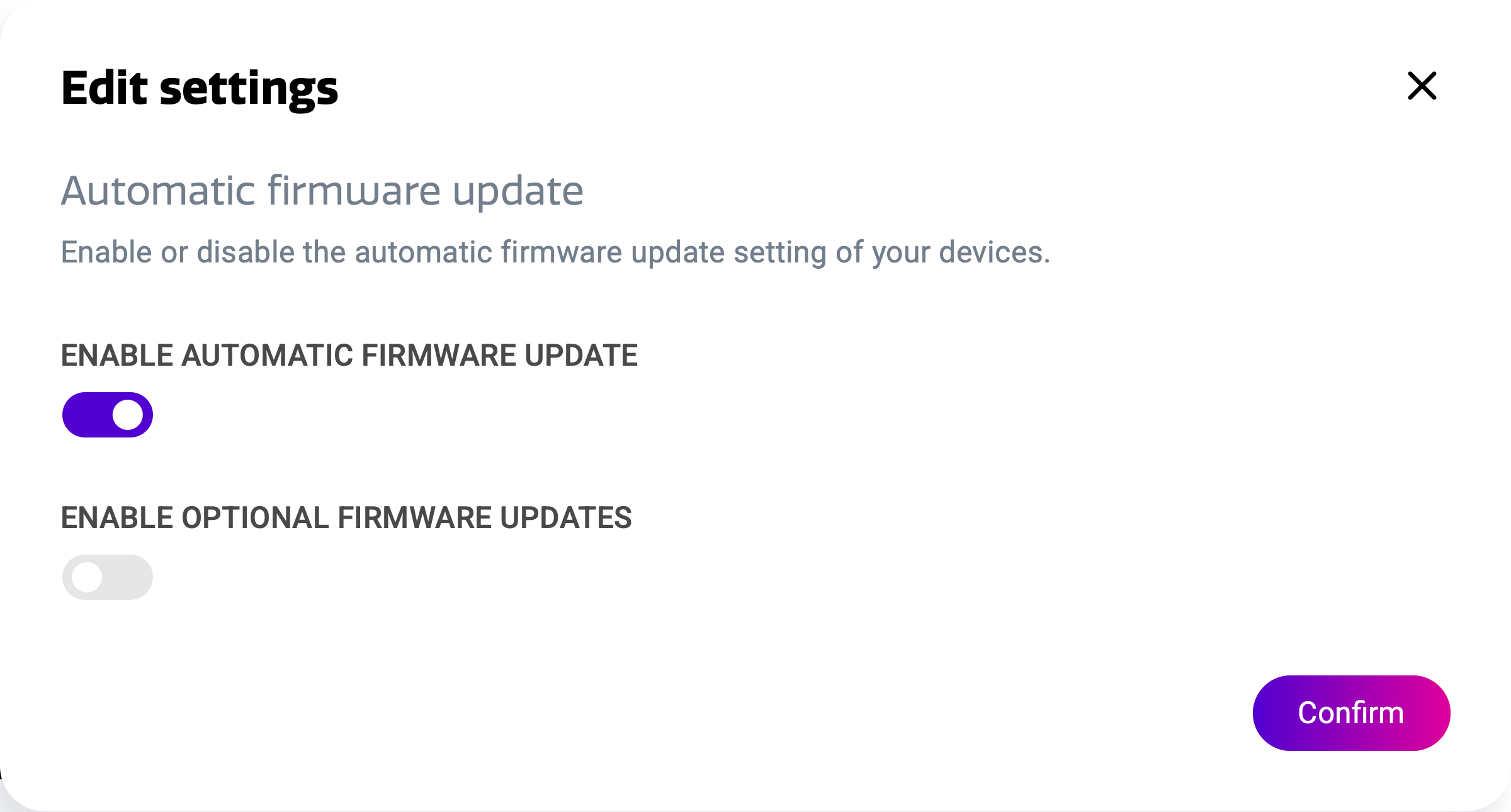
Full firmware updates will always include the content included in optional updates. Optional updates might include changes for specific cases, and will increase the update interval of your device.