
The organizations feature in Cortex allows you to link to external Cortex organizations using a parent-child structure, providing external access without adding individual users. This allows the parent to manage multiple external organizations in a secure and flexible manner, while the child enjoys hassle-free support without managing external users accounts.
This is a setup often seen between resellers (parent) and end customers (child), or between school trusts (parent) and individual schools (child).
Organization structure
Links between Cortex organizations are non-inheriting. This means that parent organizations cannot access the child of a child. The example below describes a commonly found setup:
-
Layer 1 - Reseller
-
Layer 2 - School trusts that manage displays for small schools
-
Layer 3 - Larger individual schools that manage their own displays.
In this case, the reseller (layer 1) is linked to multiple school trusts (layer 2), which in turn are parent organizations to the individual schools (layer 3) in the trust.
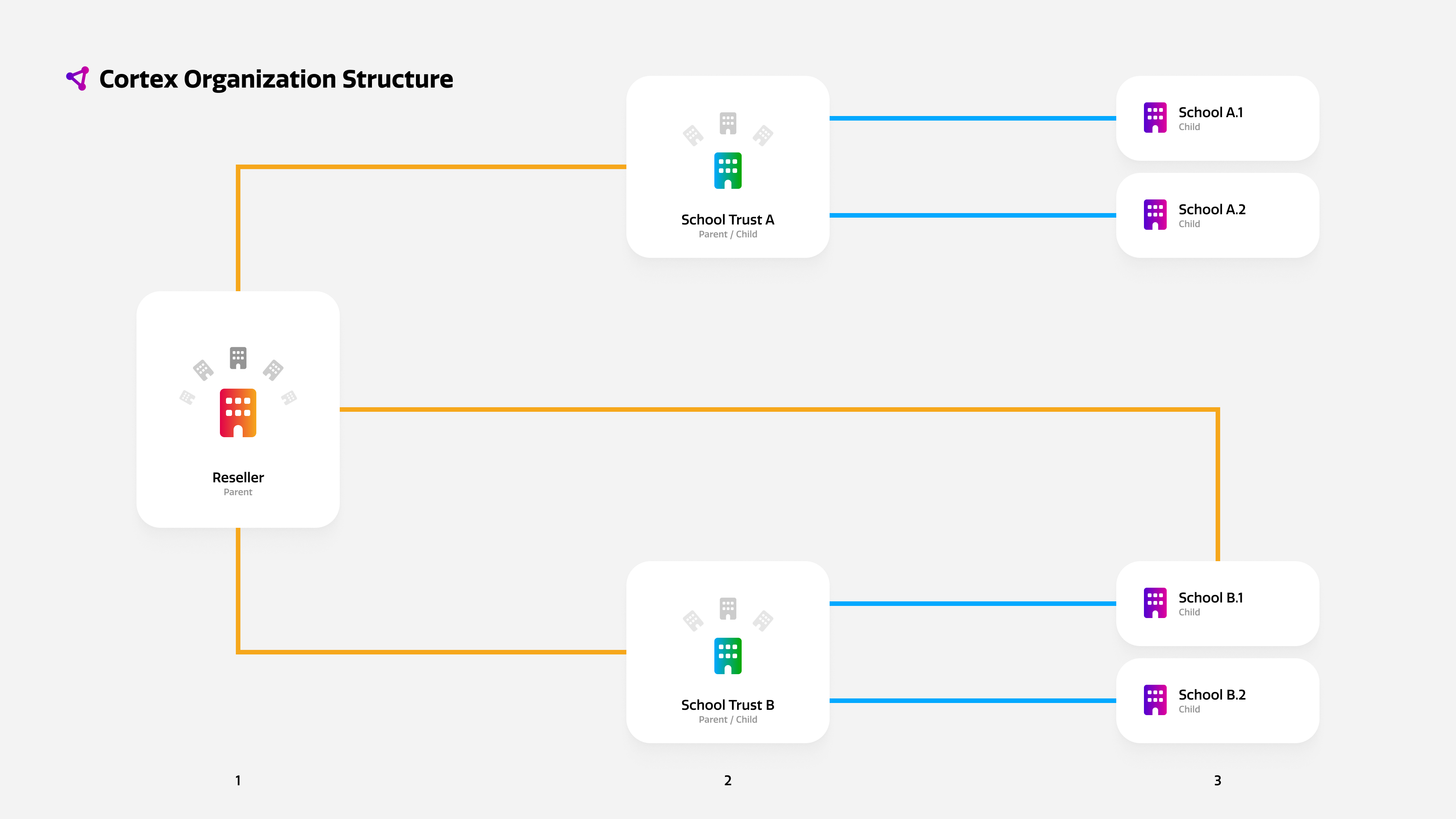
In the example, the reseller can only access school B.1 because they are directly linked. The existing link between school trust B and school B.2 is not inherited, so the reseller does not have access.
Organizations overview
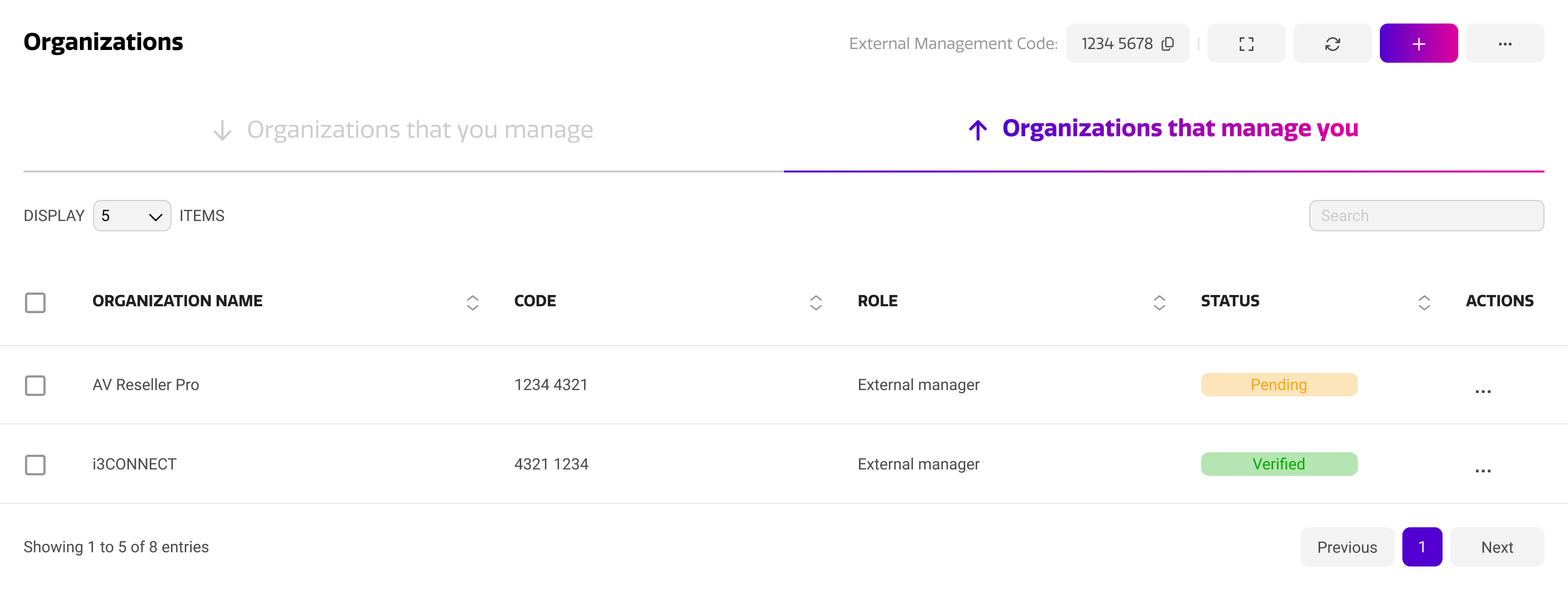
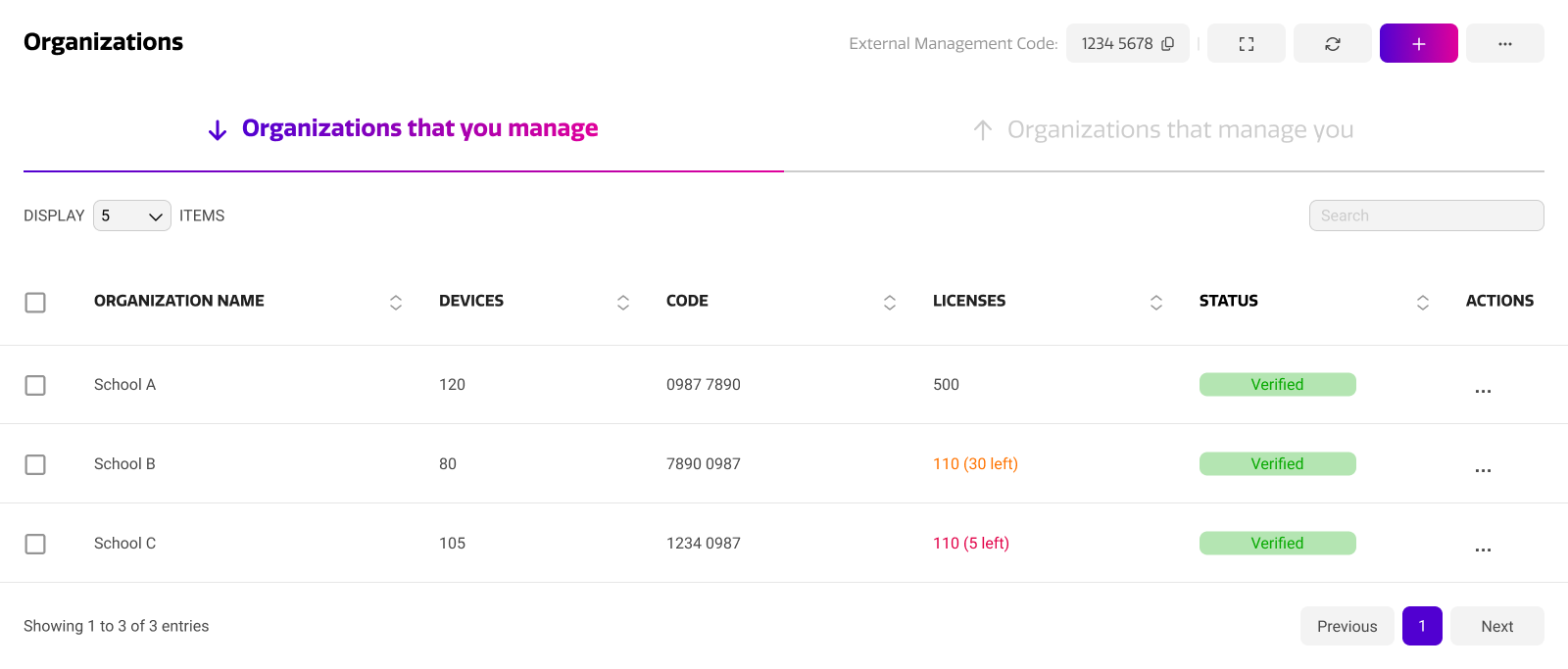
The organizations overview shows all external organizations that are linked to your Cortex organization. The page features two separate tabs, for parent and child organizations. The tables below describe the information that is available for both types of external organizations.
Organizations that manage you (Parent)
|
Info Type |
Purpose |
|---|---|
|
Organization Name |
The name of the parent organization. |
|
Code |
The external management code of the parent organization. This code is used to link two organizations in Cortex. Shown here for reference. |
|
Role |
The role that the parent organizations has in your Cortex organization. These roles are the same as internal user roles. |
|
Status |
The connection status with this parent organization. Statuses are further described below. Verified organizations are successfully linked. They can access your organization externally. Pending organizations are linked but not verified. Either the parent or child organization must accept the invite, depending on who sent it. |
Organizations that you manage (Child)
|
Info Type |
Purpose |
|---|---|
|
Organization Name |
The name of the child organization. |
|
Devices |
The amount of devices that are registered to the child organization. |
|
Code |
The external management code of the child organization. This code is used to link two organizations in Cortex. Shown here for reference. |
|
Licenses |
How many device licenses the child organization has available in their account. |
|
Status |
The connection status with this parent organization. Statuses are further described below. |
Organization status
To check whether an external organization is successfully linked, each organization is assigned a status that is updated in real time. The table below describes all the possible action statuses.
|
Status |
Purpose |
Expiration |
|---|---|---|
|
Verified |
Successfully connected to your organization. |
N/A |
|
Linked |
Same as verified, but the original owner of the organization has never accessed their Cortex account. |
N/A |
|
Pending |
Waiting for the organization to accept the invite to connect. |
After 7 days. Returns ‘expired’ state. |
|
Expired |
The invite to connect has not been accepted by the external organizations within 7 days. |
N/A |
|
Denied |
The invite to connect was denied by the external organization. |
N/A |
Organization actions
From the organization overview, you can perform multiple convenient actions to make multi-organization setups even more efficient. These can be accessed through the action menu on the far right of the organizations panel. The table below describes the available actions, including the availability in parent and child situations.
|
Action |
Purpose |
Available As |
|---|---|---|
|
Assign Managers |
Determine which Cortex users are allowed to access the child organization. |
Parent |
|
Transfer Devices |
Transfer devices to an external organization. Parent organizations must accept incoming devices. |
Parent & Child |
|
Copy Configurations |
Copy configurations to a child organization. This requires the child organization’s license to support configurations. |
Parent |
|
Edit Organization |
Change the external management role of a parent organization. |
Child |
|
Unlink Organization |
Unlink the external organization. |
Parent & Child |
Connecting with an External Organization
You can easily send a connection request to an external organization with their external management code. The external management code can be found on the top of the organizations panel. It should be 8 characters long. The invitation can be send both ways, either parent → child or child → parent, using the steps below.
Inviting a parent organization
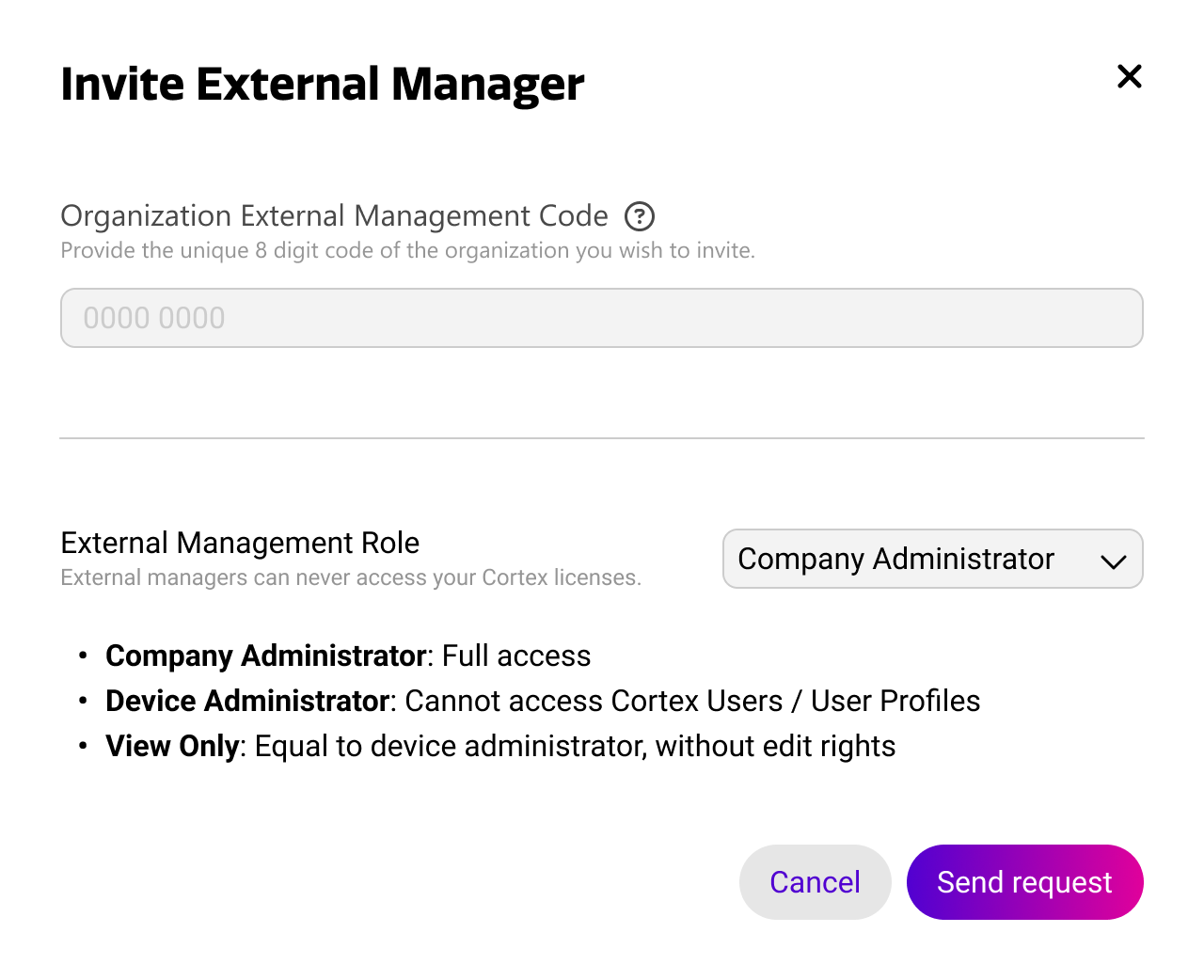
To invite a parent organization, press the plus icon in the top right of the parent tab.
Enter the external management code and set the external management role. This determines how much access the parent organization has.
Inviting a child organization
To invite a child organization, press the plus icon in the top right of the child tab.
Enter the external management code to send the invite. The child organization can set the external management role when they accept.
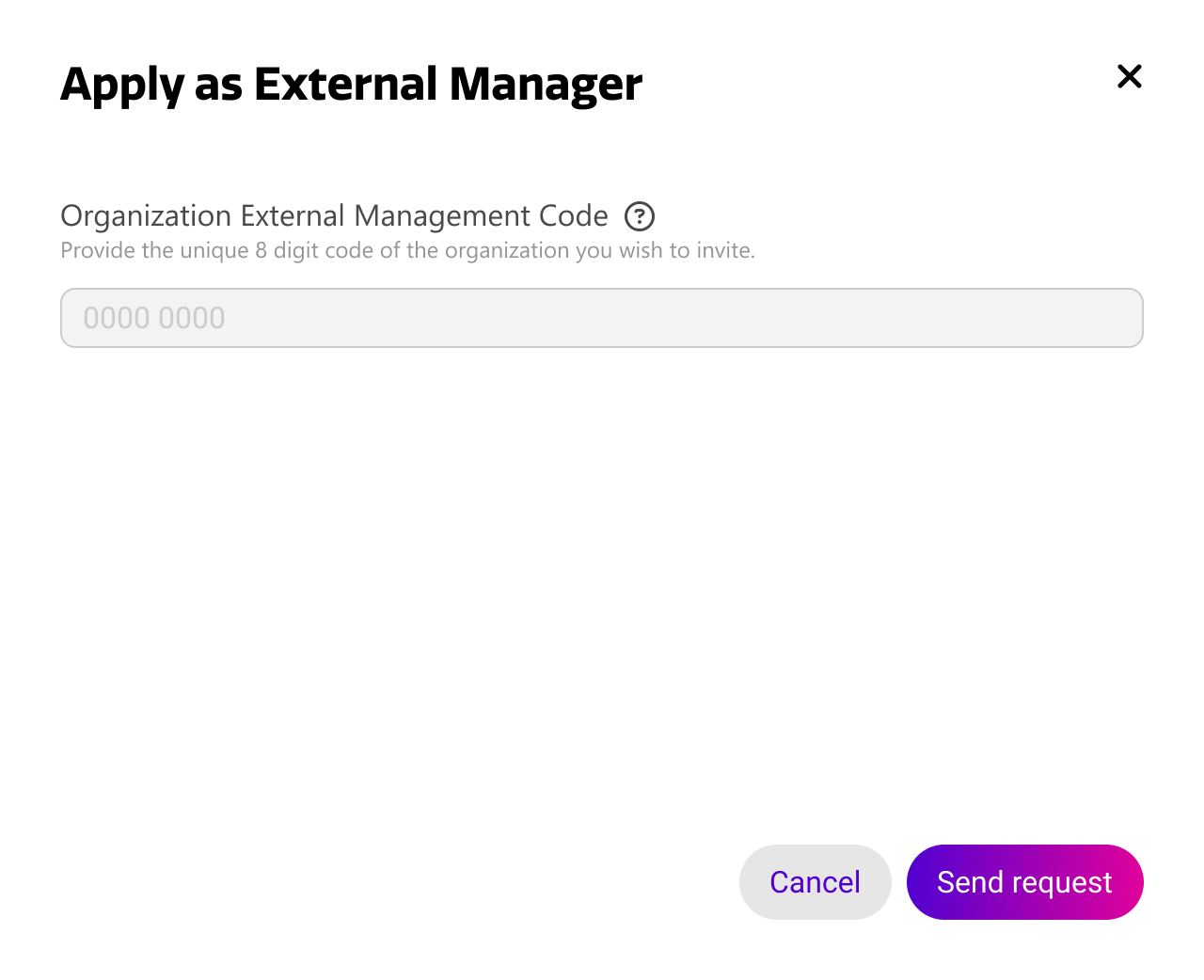
Company administrators of the invited organization will receive a notification of your invitation through the Cortex platform and their email.
Creating an organization
Cortex organizations marked as reseller have the ability to create organizations on behalf of their customers. This allows them to quickly setup and account and register/configure devices.
Press the plus icon on the top of the organizations panel, select ‘create organization’, and fill out the details. This will create a new organization and automatically invite the end user on the registered email address.
The new organization is automatically linked, and devices can immediately be registered after creation.
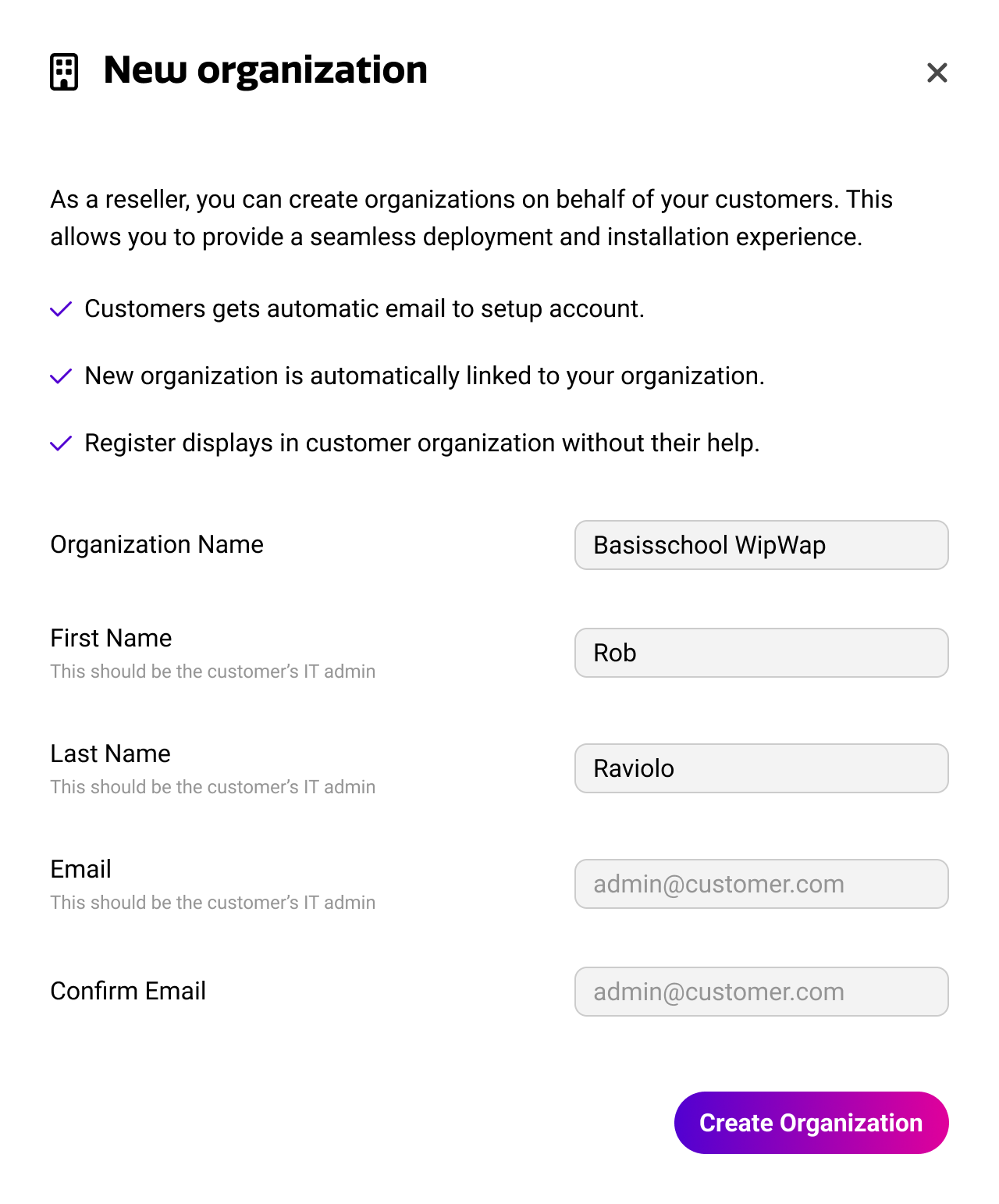
Reseller accounts are only available upon request for official i3CONNECT partners. A pre-existing Cortex account is required. Requests can be sent to pm@i3-connect.com.
Accessing a child organization
Before a child organization can be accessed, the proper access rights need to be configured. Cortex users that have their ‘can access all external organizations’ setting enabled, can immediately access newly connected organizations. For other users, access must be specifically setup. You can learn how to do this here: Cortex users.
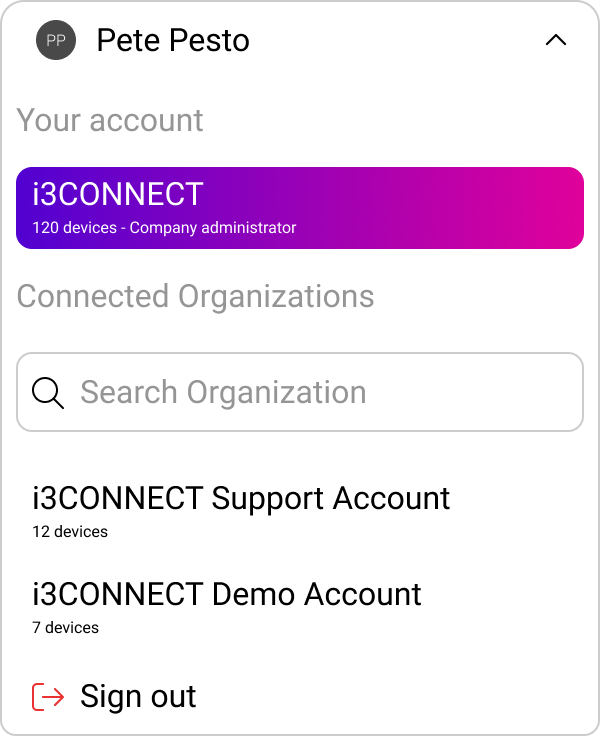
Once access is properly configured, you can access child organizations using the account dropdown on the to right of the Cortex interface. Here, you can scroll through your available organizations, or use the search field to speed up your search.
When you select a child organization here, you will switch accounts and get access to their Cortex environment and devices.
You can easily switch back to your organization in the same way. It is always visible on the top of the list.
The Cortex licenses of parent and child organizations are independent. This means that when you switch organizations, the license and features of the external organization apply.