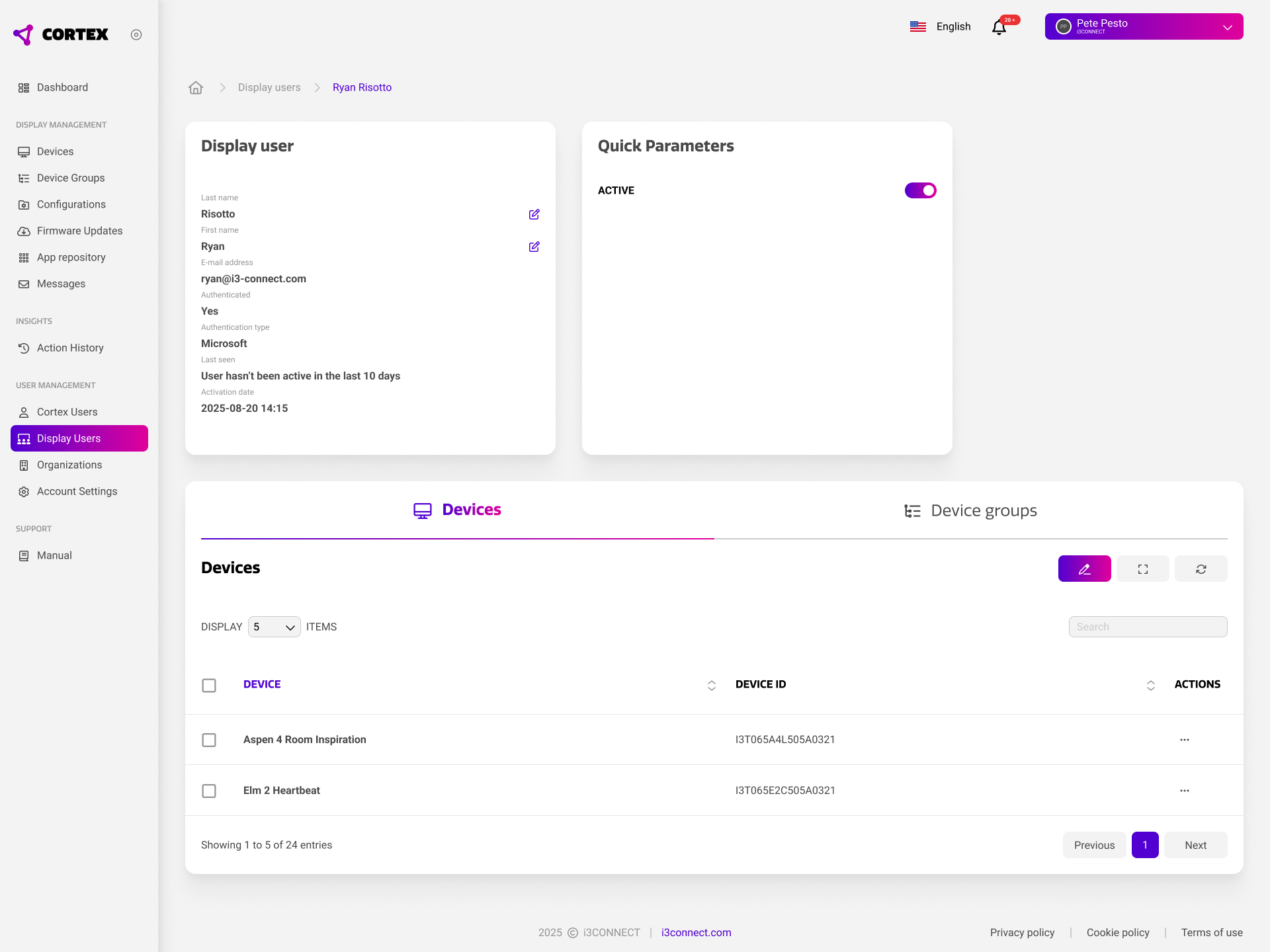
User profiles offer individual access to i3CONNECT displays, supporting two-factor authentication that is managed in a centralized way. From Cortex, you can configure these personal profiles from the display users page. From there, you can give display users access to specific displays or display groups.
User profiles must be registered through Cortex and assigned to specific displays or display groups to be used. Unregistered users will not be able to sign into displays.
You can learn more about user profiles through Access management in Cortex.
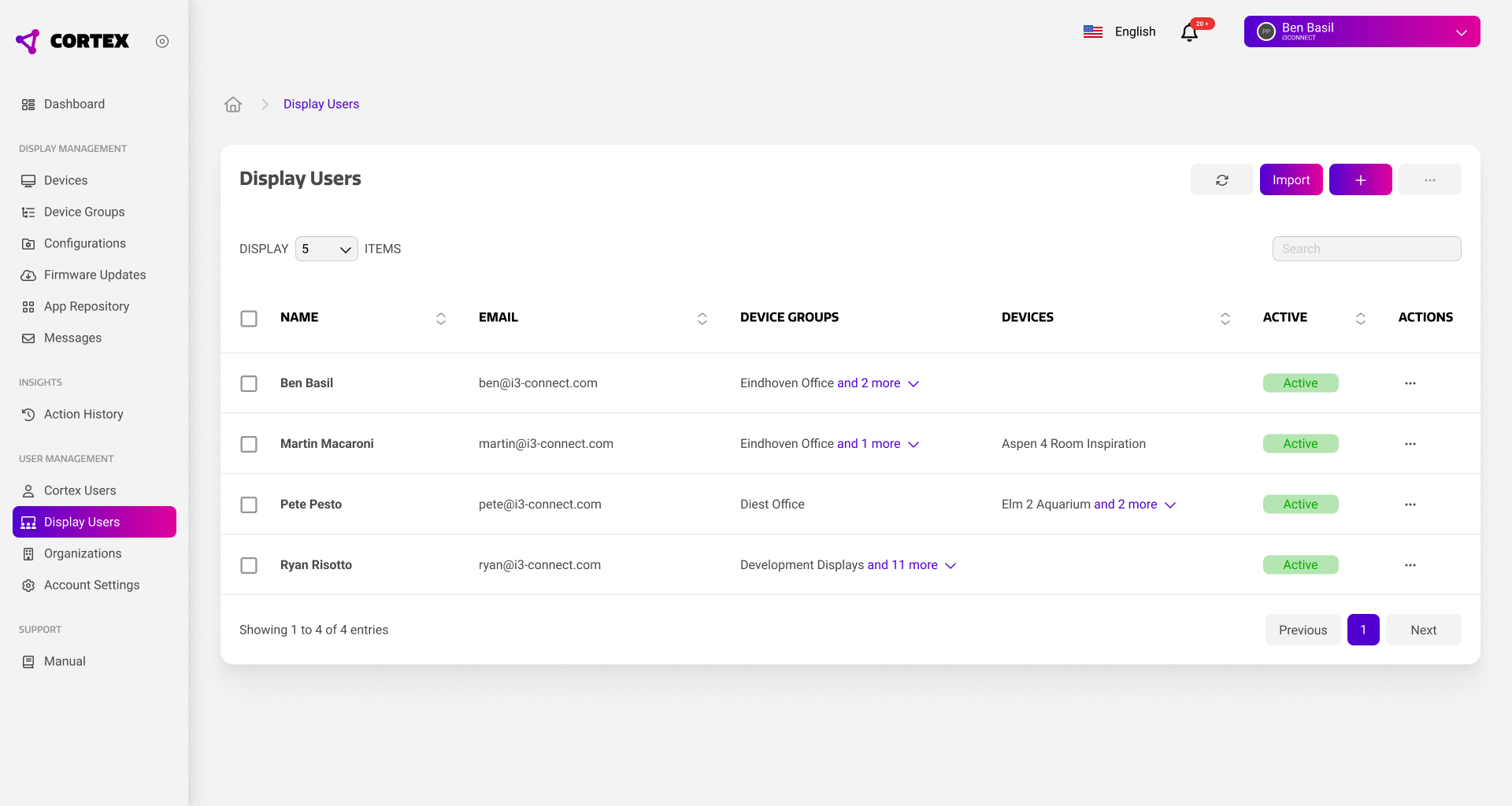
Display User Overview
The display user overview shows all user profiles in your Cortex organization. Apart from the user information such as their name and email, it shows which devices and device groups each user has access to.
Finally, you can see whether the user profile is active, as profiles can be temporarily disabled when they are not in use. You can quickly do this using the action menu on the far right of the specific user.
Creating User Profiles
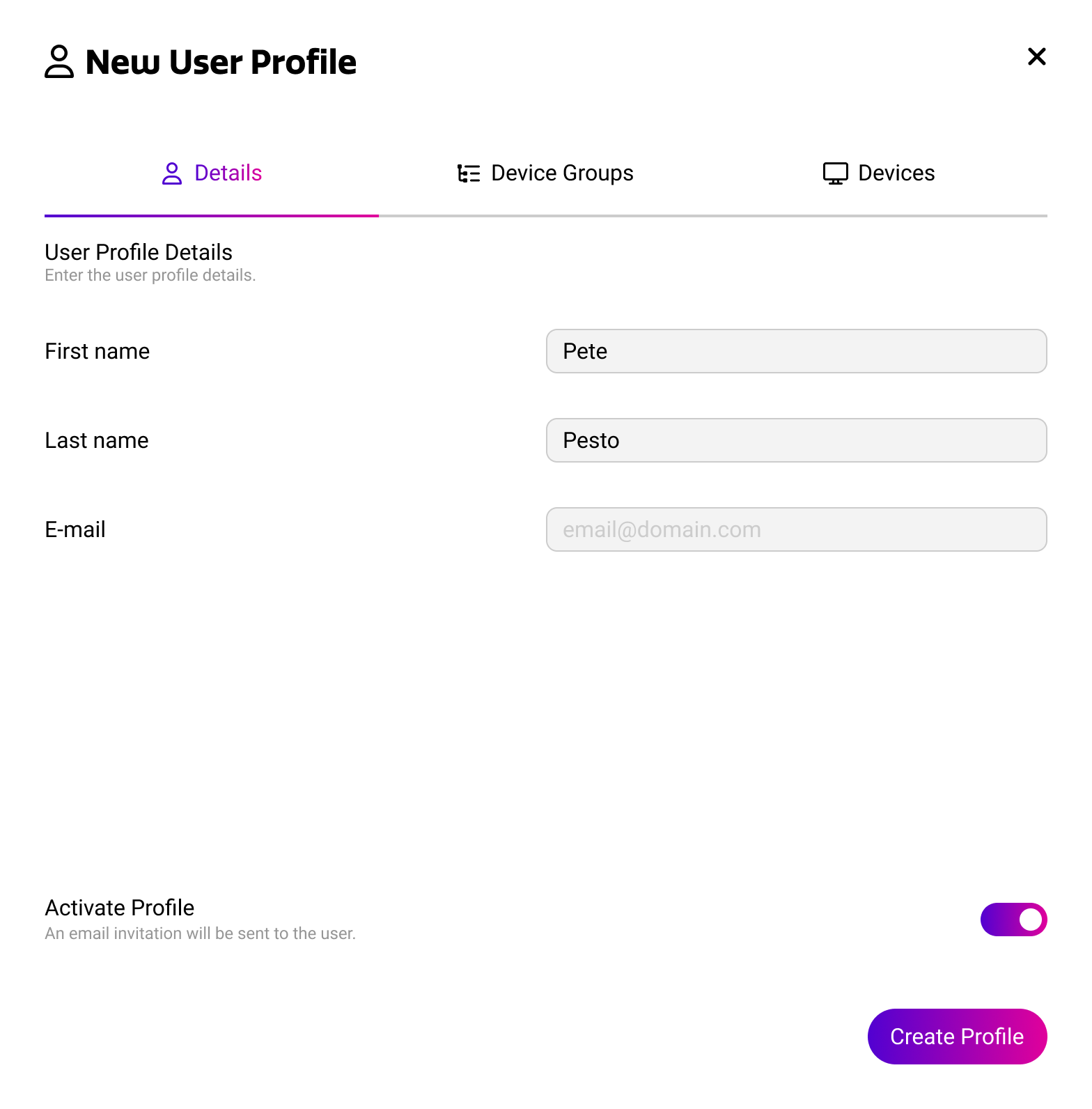
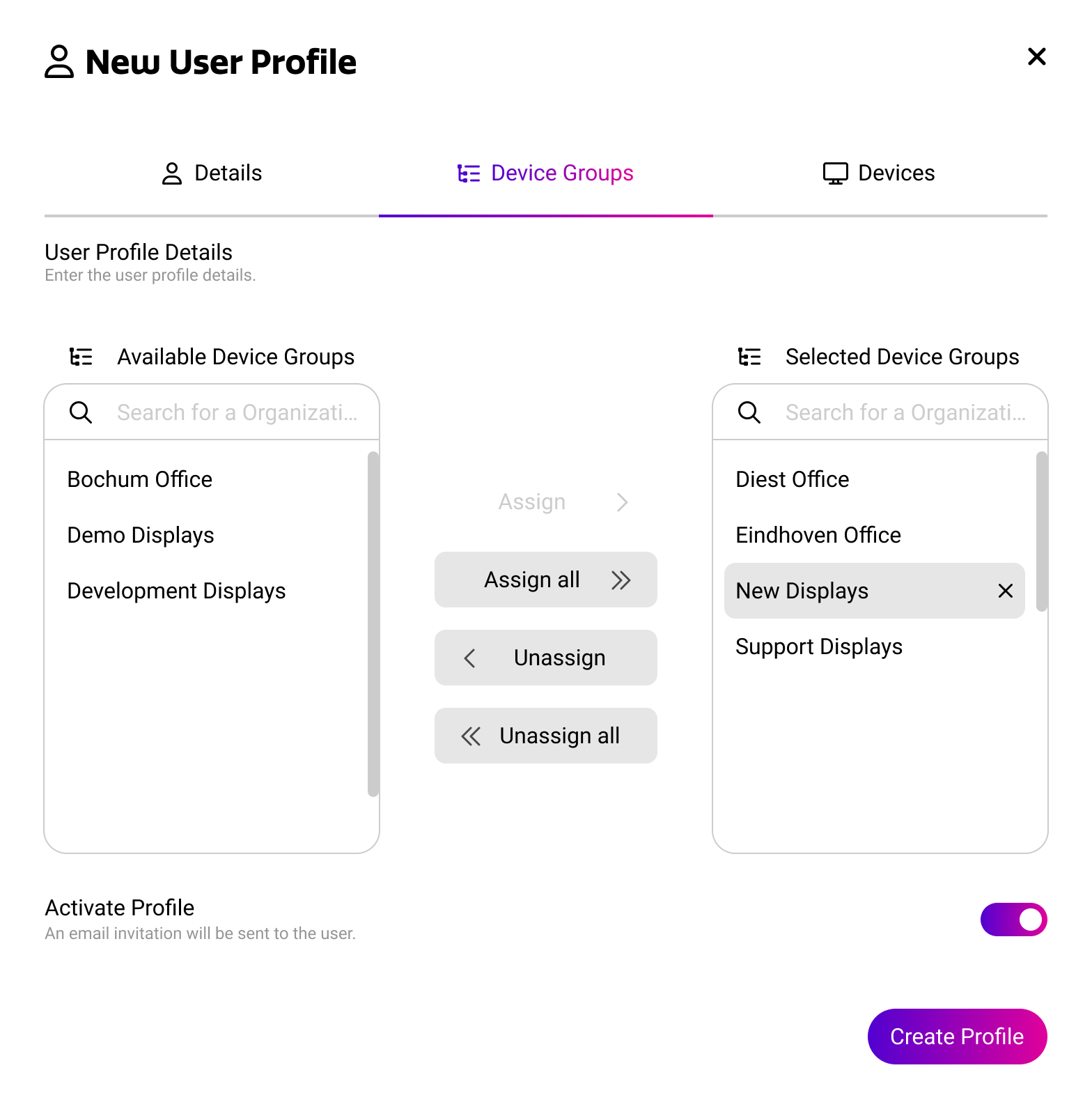
You can create a new user profile by pressing the plus icon in the top right. When creating a new user profile, you can specify the user details and configure which displays the new user has access to. When you activate the profile through this dialog, the user will receive an invitation email with a link to activate their account.
Users can also be uploaded in bulk using the import feature. The import dialog will provide you with an Excel / CSV template that you can use to register multiple user profiles at the same time.
When users activate their user profile through the invitation email, we recommend to use an account provider like Microsoft or Google to complete the profile setup. User that complete setup with an email/password combination will not be able to authenticate on the display using an external account provider.
Editing User Profiles
You can edit user profiles by clicking any of the users in the overview. This will take you to the user profile’s details page. From there, you can edit the user profile’s details, and view the devices and device groups this user profile has access to.
The assigned devices and device groups can be edited using the pen icon in the top right of the list, which will open the same dialog as while creating a user profile.