
You can access your devices through the ‘Devices' page. From there, you can view some simple status information for all of your devices, perform simple actions, or click to open a device details page. In this article, we’ll guide you through all possibilities.
Device overview page
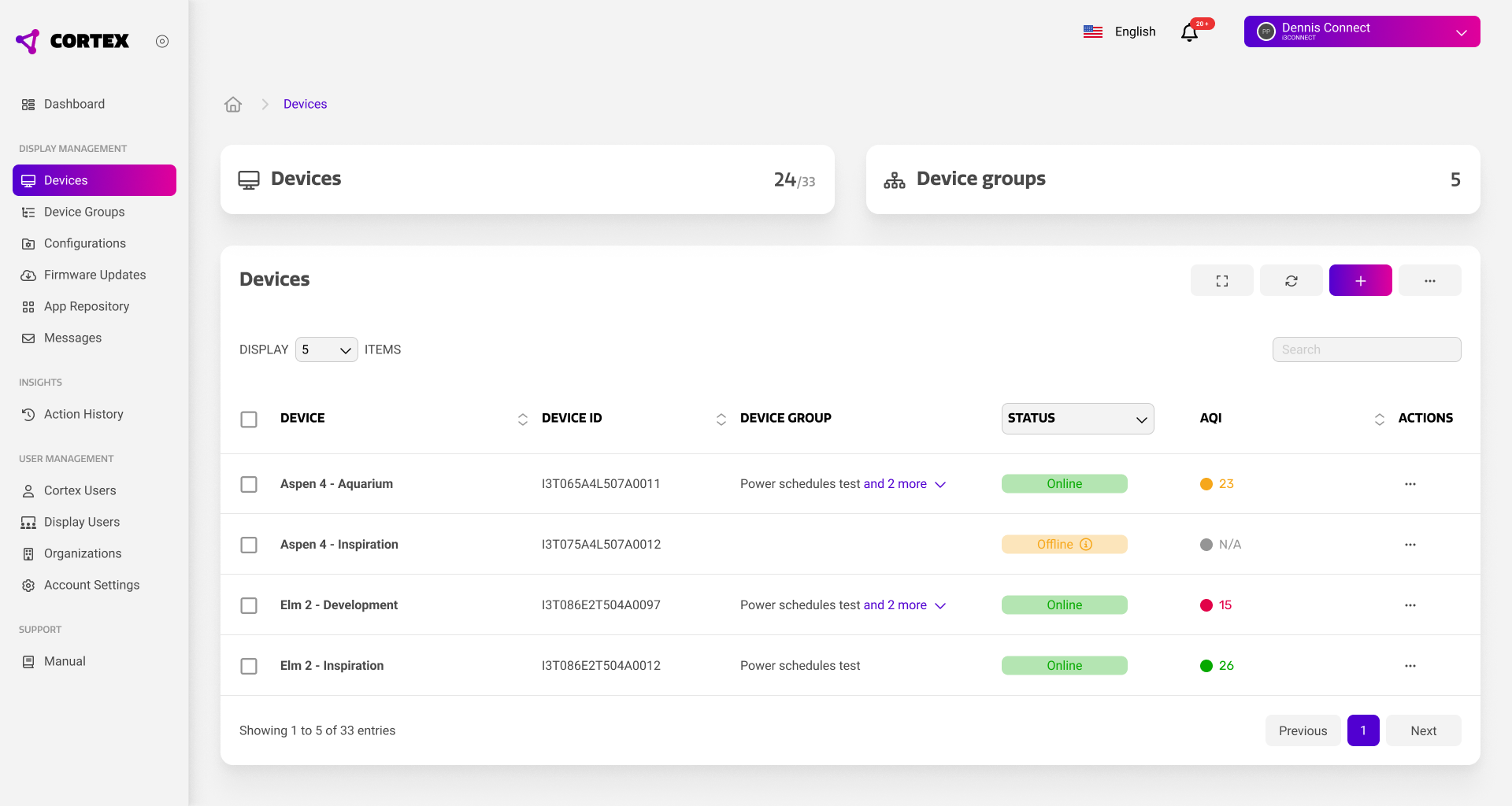
The device overview shows a list of all your devices. Through this list, you can view some basic information, as well as perform some basic actions.
|
Item |
Purpose |
|---|---|
|
Device Name |
This is the name you have given your device. We always recommend naming your devices based on their physical location. |
|
Device ID |
This is the device’s serial number. |
|
Device Group |
This shows whether a device is part of a device group. If so, it also shows which groups the device is assigned to. |
|
Status |
This shows the online / offline status for the device. Not that this does not equal the device’s on / off status, but whether the Cortex platform can reach the device. You can hover over the Offline devices can still be managed, but changes will apply once the device comes online. |
|
AQI |
For devices equipped with an i3CONNECT Air Sensor, this value shows the air quality index. |
|
Actions |
This menu lets you perform simple actions on the device. For more information, see the chapter below. |

Device actions
From the device overview, you can perform some simple quick actions to one or more devices at the same time.
-
Single Device → Press the three dots

-
Multiple Devices → Select your devices using their checkboxes


Both actions will open the quick actions menu for these specific devices.
From this menu, you can perform the actions that are further described below.
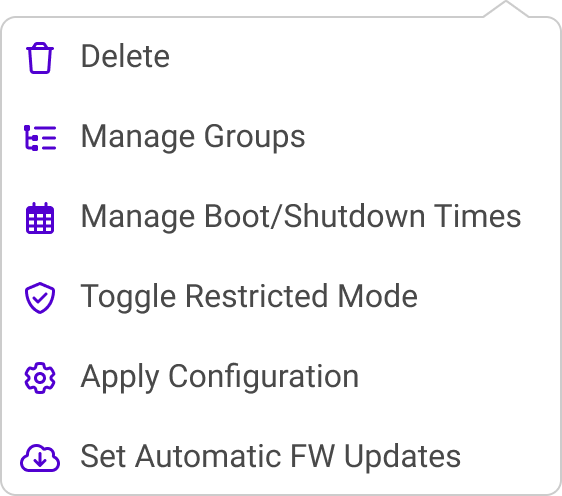
Delete device
This action will delete your device indefinitely. Deleted device will have to be re-registered to regain access to them through your Cortex account.
It may take a few minutes for the Cortex app on your device to allow re-registration.
Manage groups
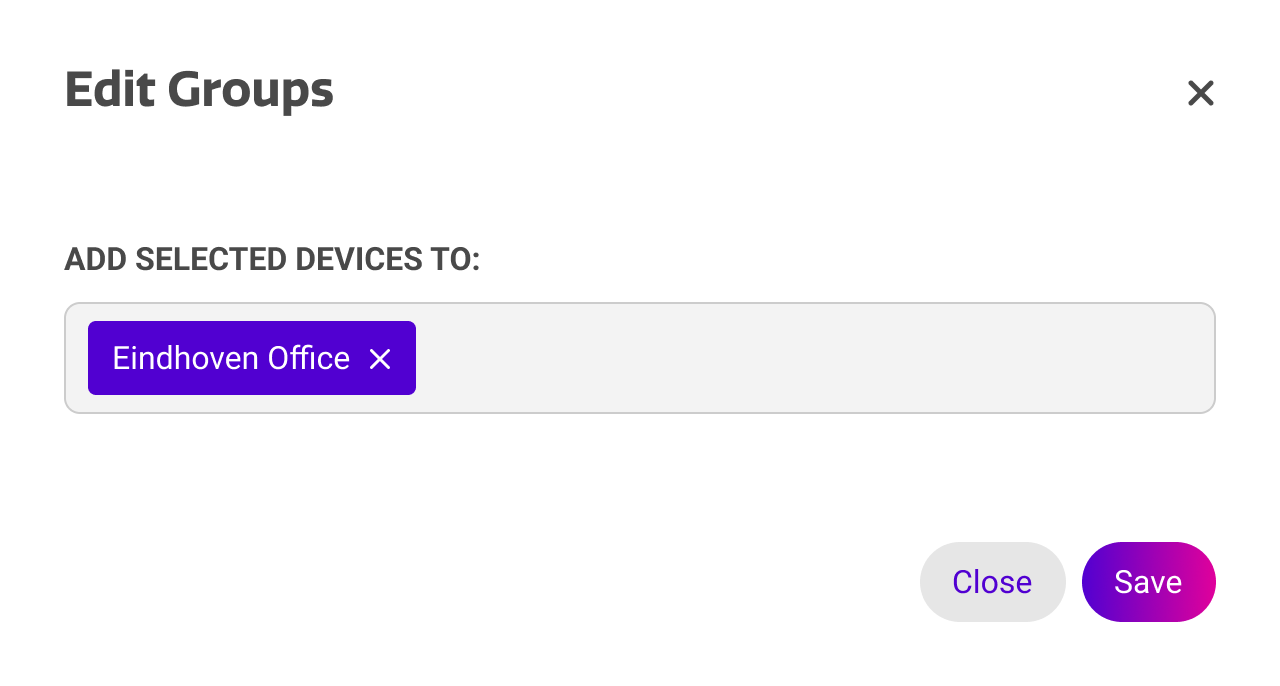
This action allows you to quickly manage to which groups your devices are assigned.
You can search for groups using the input field, and select them from the dropdown to assign it to the device.
Assigned groups can be removed using the x.
Manage boot / shutdown times
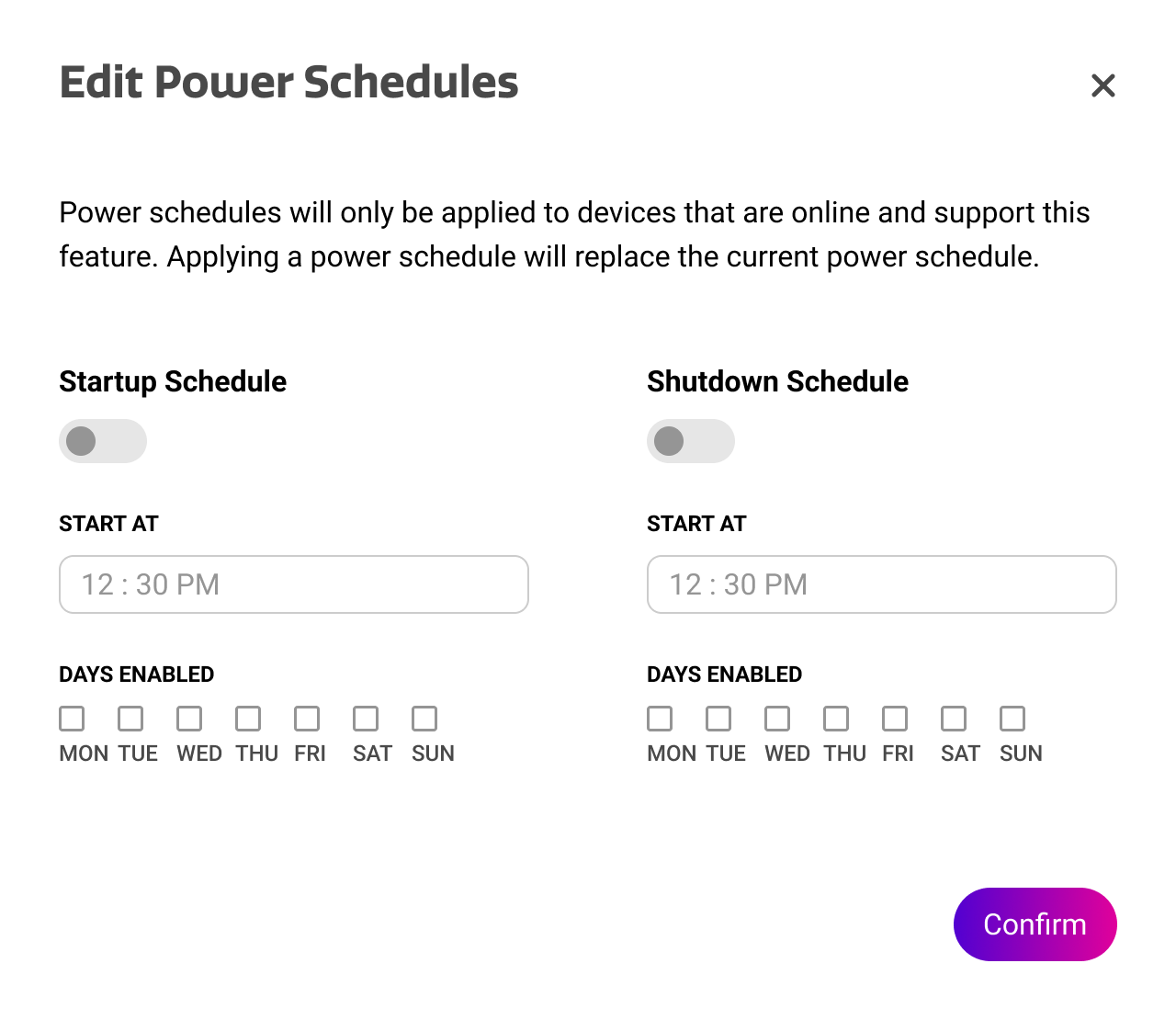
This action allows you to let the display automatically start up or shutdown and specific times during the day.
You dan set independent start up or shut down schedules and repeat them throughout multiple days of the week.
For more options, access the device settings.
This action will overwrite any existing power schedules on the display.
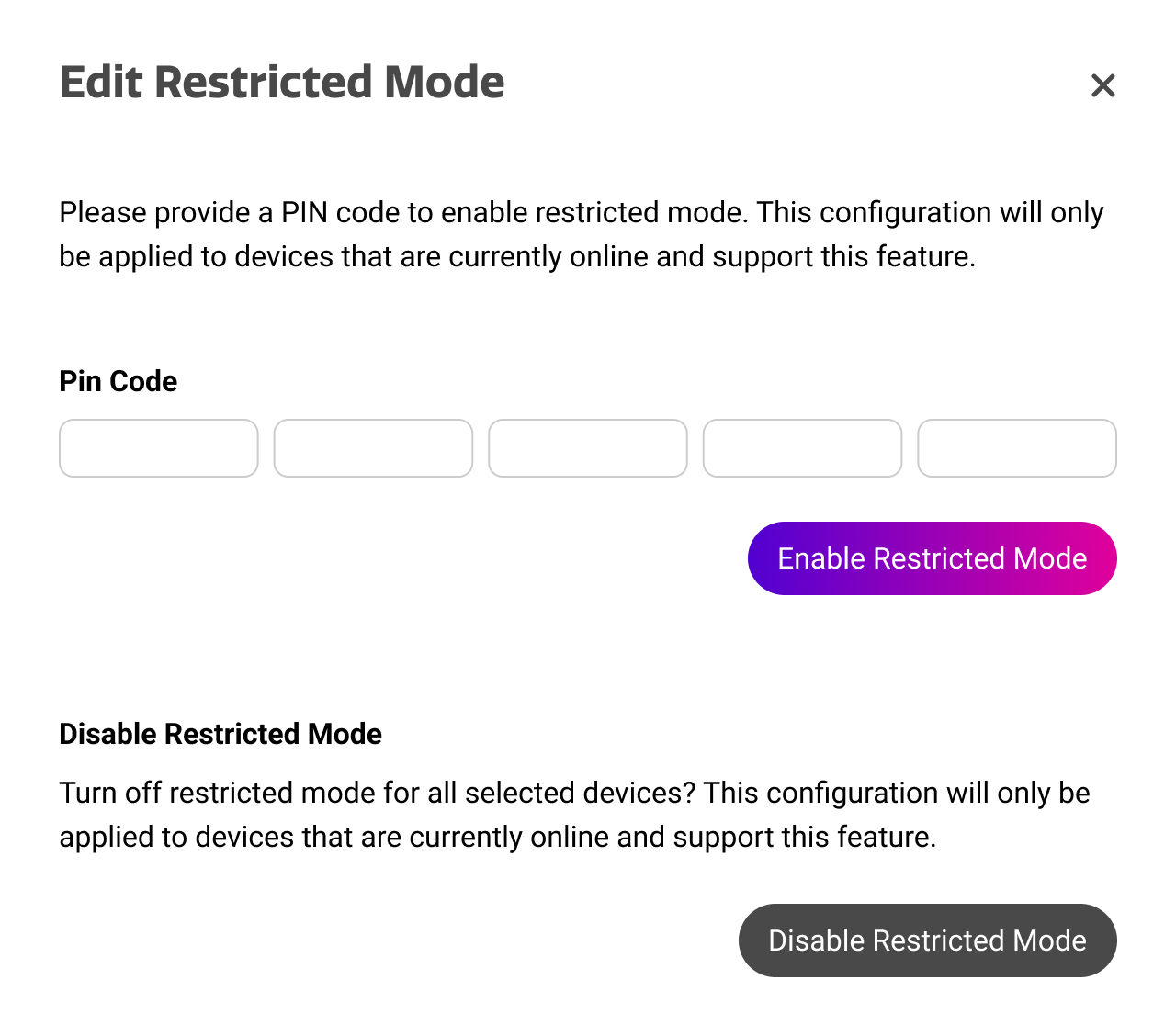
Toggle restricted mode
This action allows you to enable or disable restricted mode. You can learn more about restricted mode in the article below.
Restricted mode settings in Cortex
To enable restricted mode, a PIN code must be set to prevent unauthorized access. This PIN can always be changed later.
Enabling restricted mode may interrupt ongoing activities on the device.
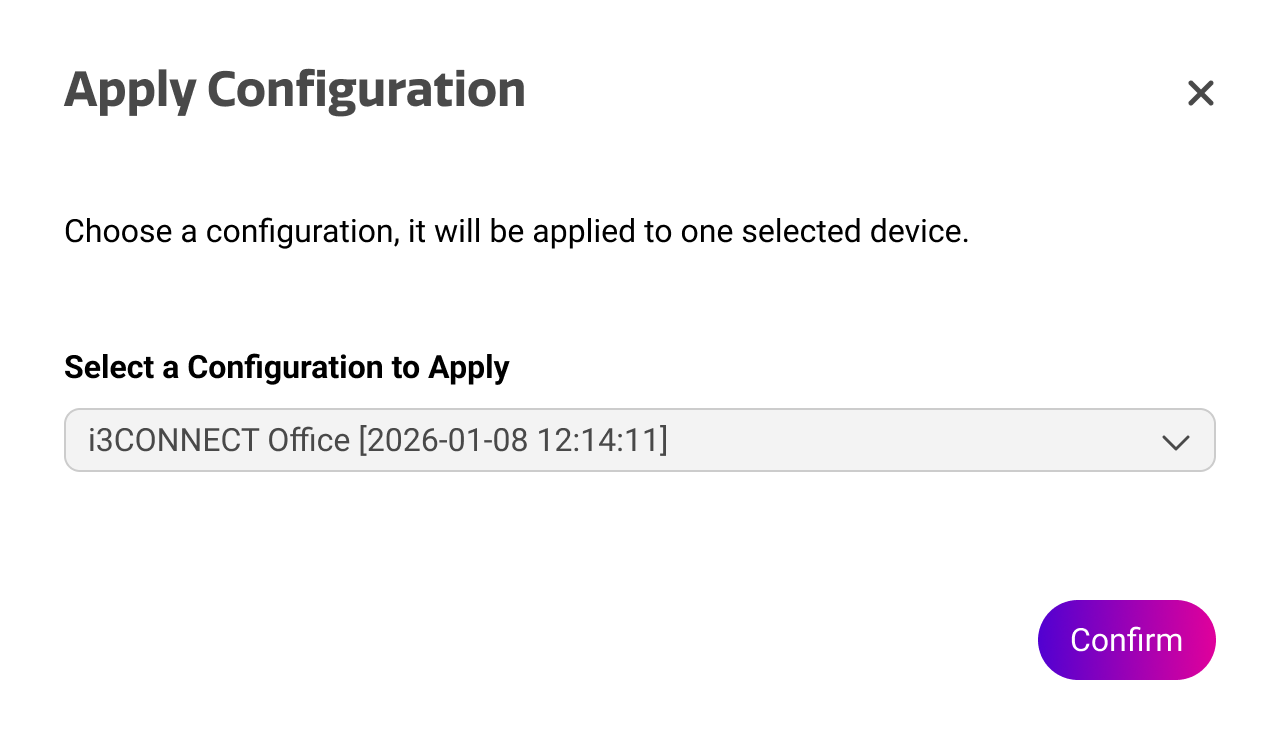
Apply configuration
This action allows you to quickly apply a configuration to your device. You can learn more about configurations in the article below.
A configuration will overwrite the existing settings on the display.
Set automatic firmware updates
This action allows you to set the automatic update policies for our firmwares.
Full / Automatic Firmware Updates are firmwares that introduce new features and security updates.
Optional Firmware Updates are firmwares with optional improvements, for example for specific bug fixes or small improvements.
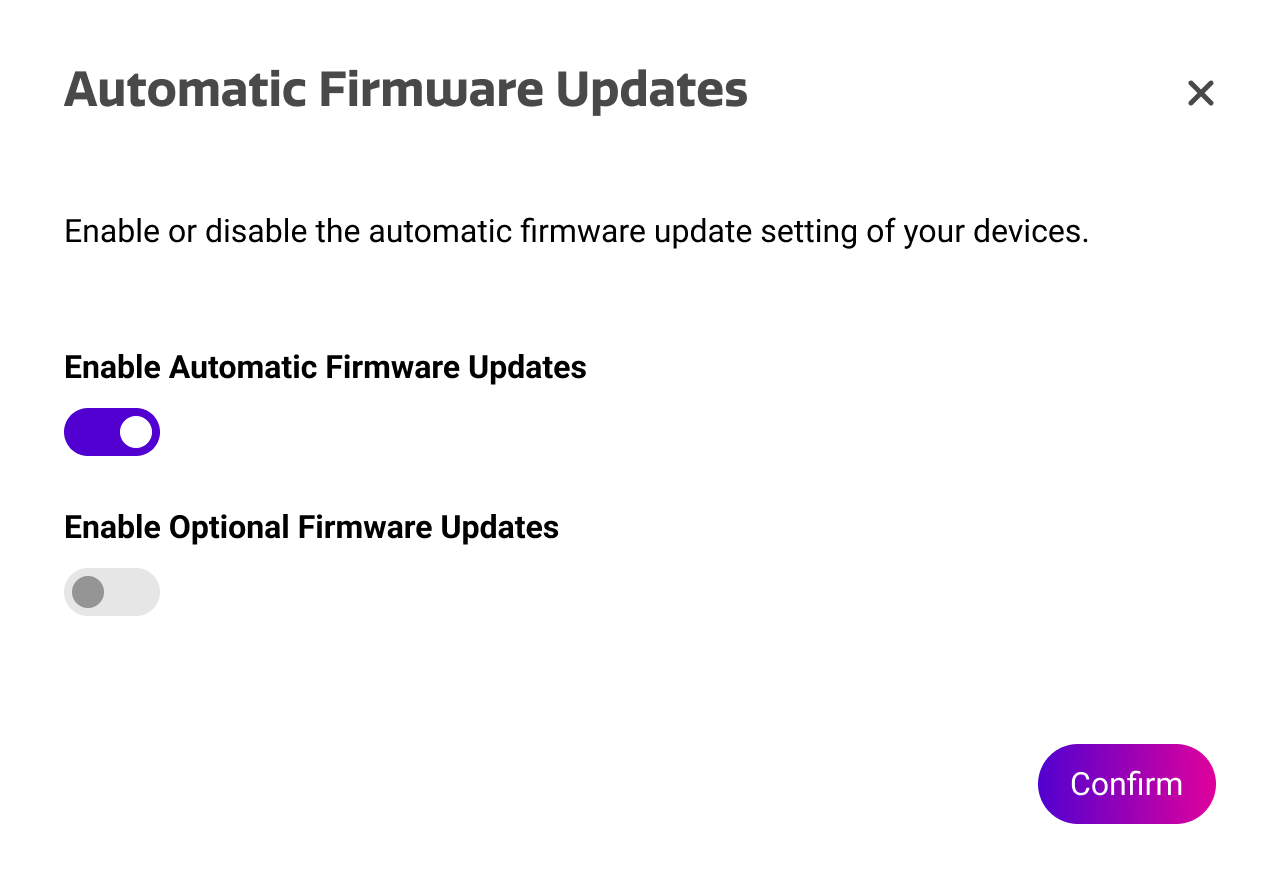
All optional firmware updates are always included in the following full update. Turning off optional updates will reduce the amount of periodic firmwares you receive, but your device will still remain fully up to date using our full firmware updates.