# You can open and view the details of any group in the device groups overview. This will take you to the device group details. From this page, you can view and adjust the group properties, as well as view the action history of the group’s devices.
Device group info
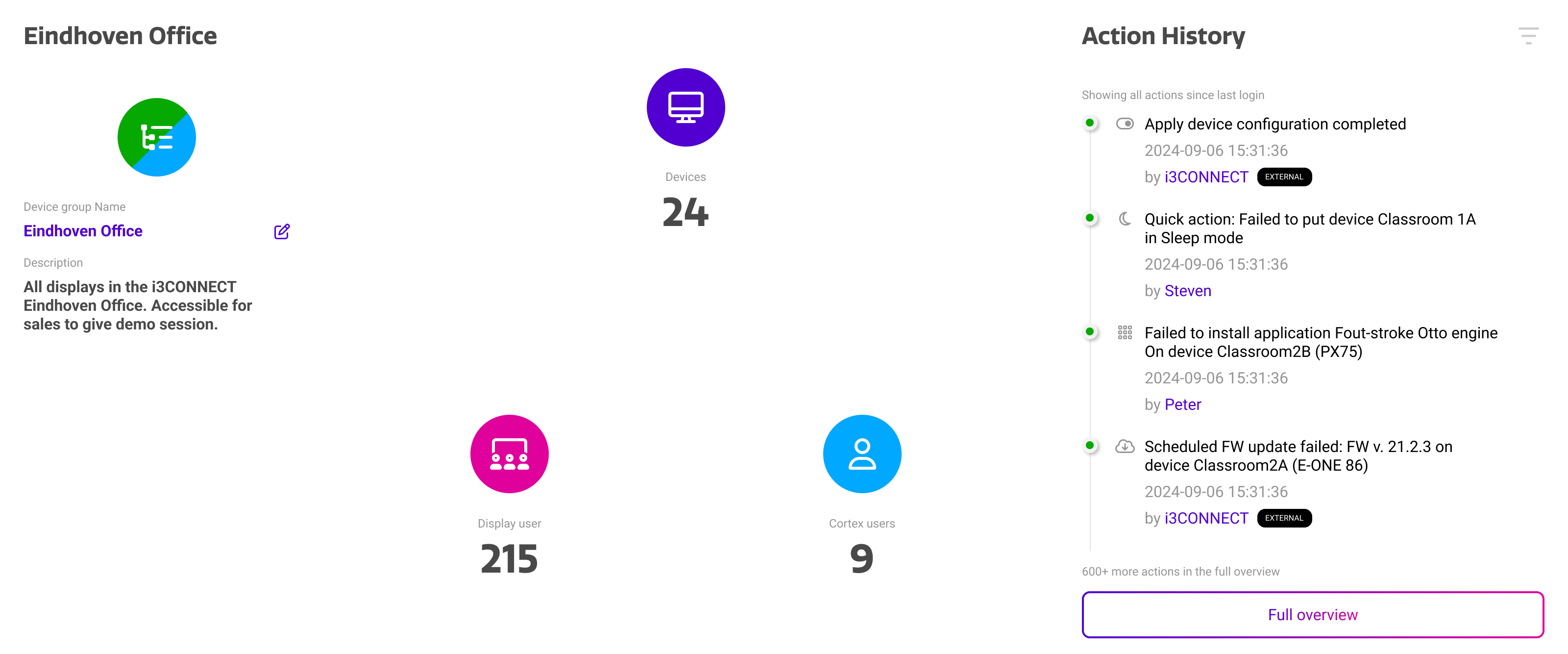
The top of the device group details page shows some basic information about the group at a glance.
|
Widget |
Purpose |
|---|---|
|
Group Info |
This widget shows the group name and description. Both can be customized by pressing the edit icon next to the group name. The name and description are also visible in the device group overview. |
|
Devices |
Shows the amount of devices in the group. |
|
Display Users |
Shows the amount of user profiles associated with the device group. You can learn more about user profiles here: |
|
Cortex Users |
Shows the amount of administrators in your Cortex organization that have access to this group. These can be device administrators or view only users. You can learn more about Cortex users here: [ARTICLE]. |
|
Action History |
The action history keeps track of the actions performed in Cortex related to the devices in this group. This can range from settings changes, reboots, remote control sessions, and more. It tracks the action type, date, the user that performed the action, and the specific device. |
From the device group details page, you can also manage which devices are assigned to the group. In addition, this is the place to assign user profiles to a device, and give device administrators in Cortex access to the devices in this group.
Devices
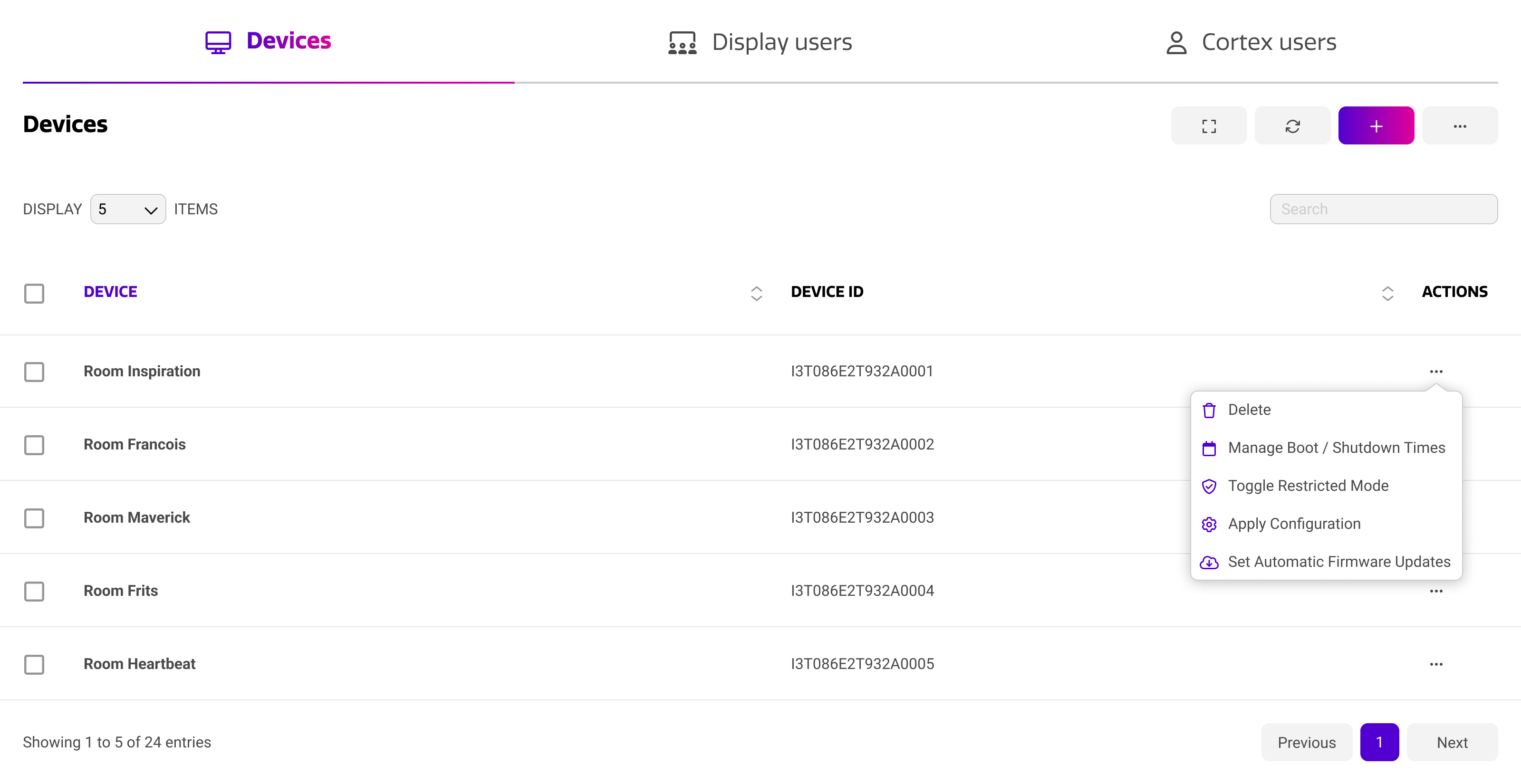
From the devices tab, you can view and edit the devices assigned to the display group. The action menu on the right side gives you access to the same options as in the device groups overview, but for a single device.
In the top right, you can use the plus button to add additional devices to the device group.
Display users
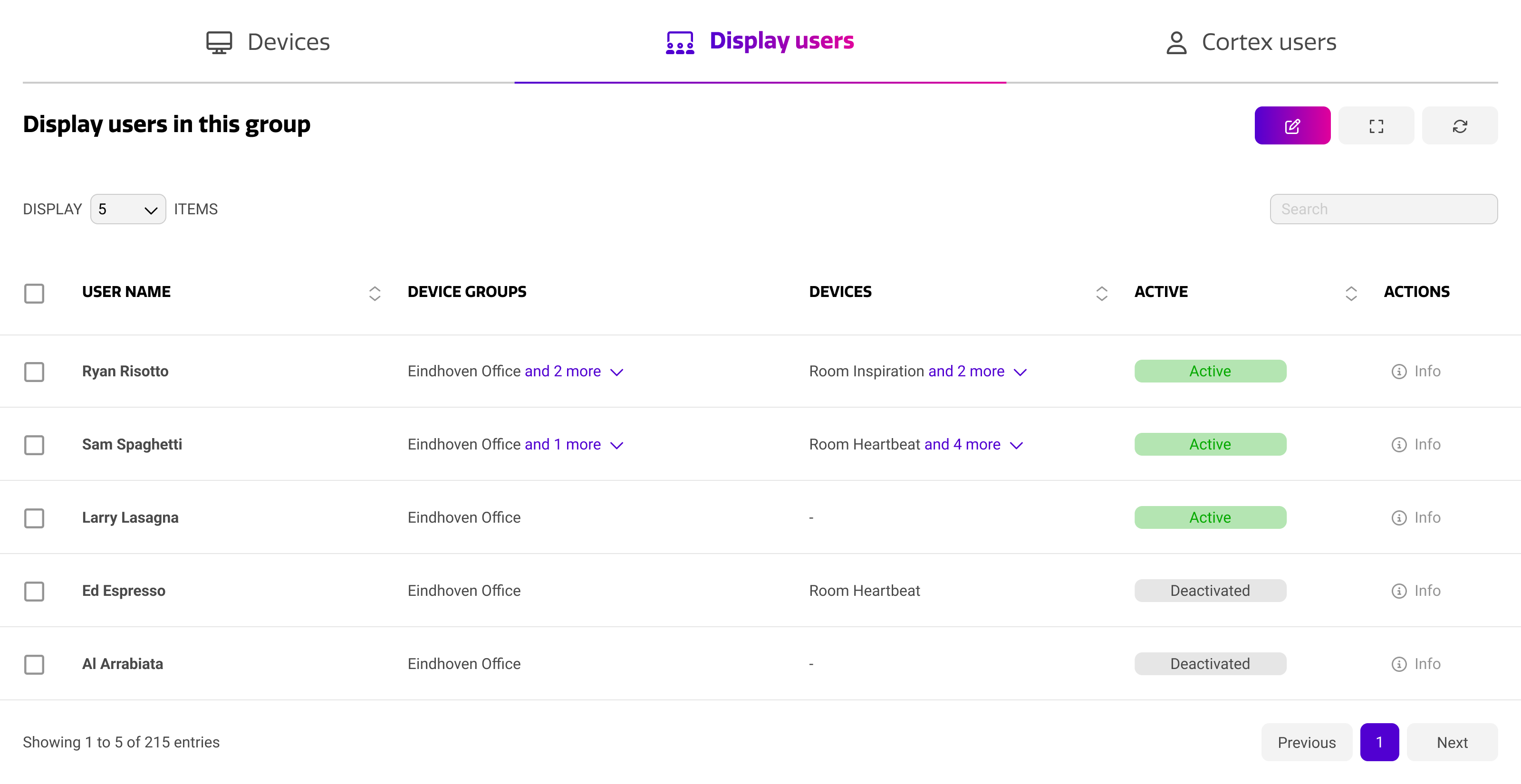
From the display users tab, you can view and edit the users profiles that have access to the devices in this group. In addition, you can also view the additional groups and devices that these user profiles have access to. The status indicates whether the user profile is active and can be used to authenticate on a device.
Using the edit icon in the top right, you can assign and un-assign user profiles from the group. This can be done for multiple users at a time.
You can learn more about user profiles here: User profiles and guest settings in Cortex
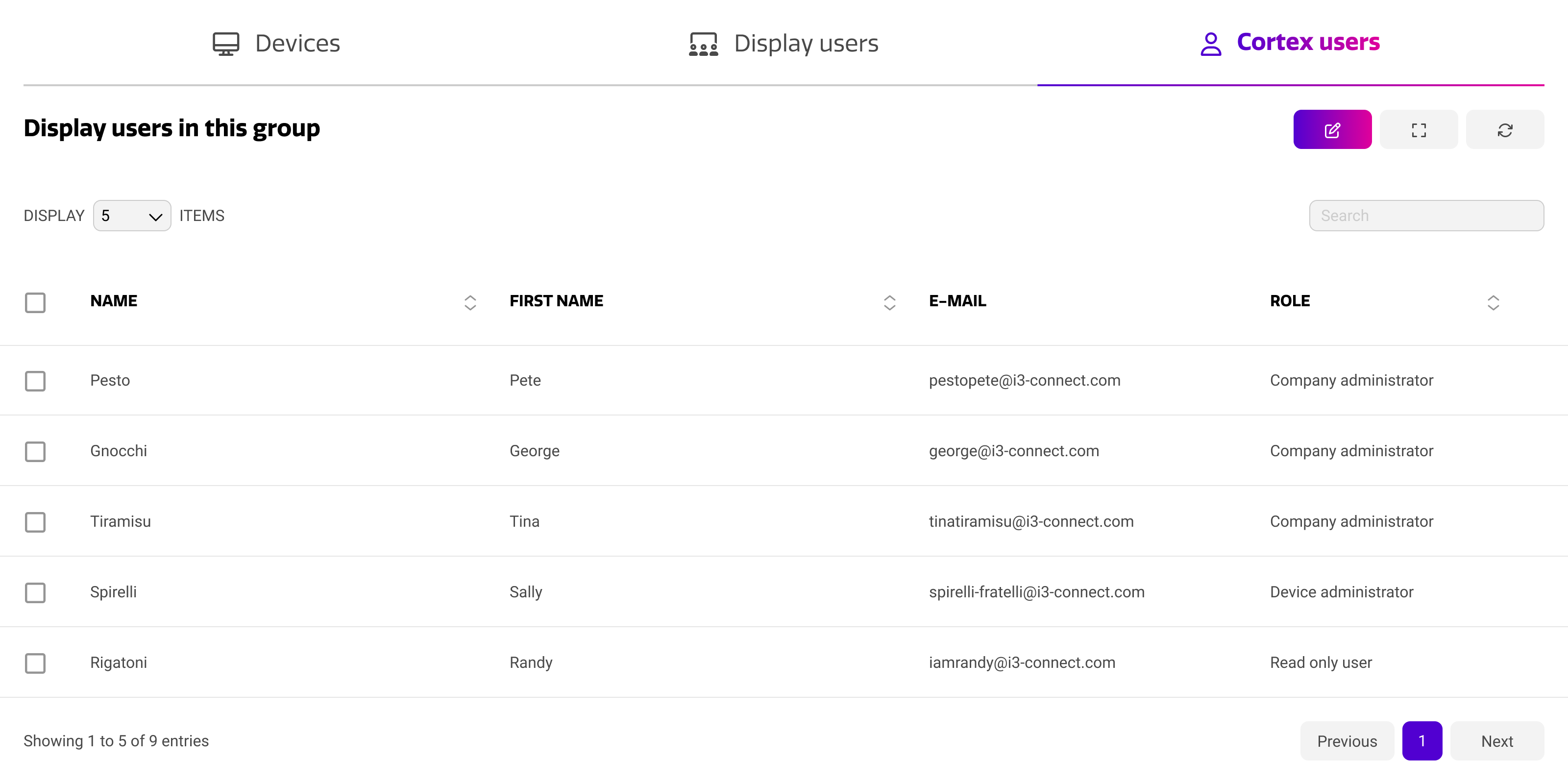
Cortex Users
From the Cortex users tab, you can view and edit which device administrators and view only users in Cortex have access to the devices in this group. Apart from the user details, it will also show the respective role of the Cortex user within your organization.
Using the edit icon in the top right, you can assign and un-assign Cortex users from the group. This can be done for multiple users at a time.
You can learn more about Cortex users here: Cortex users.