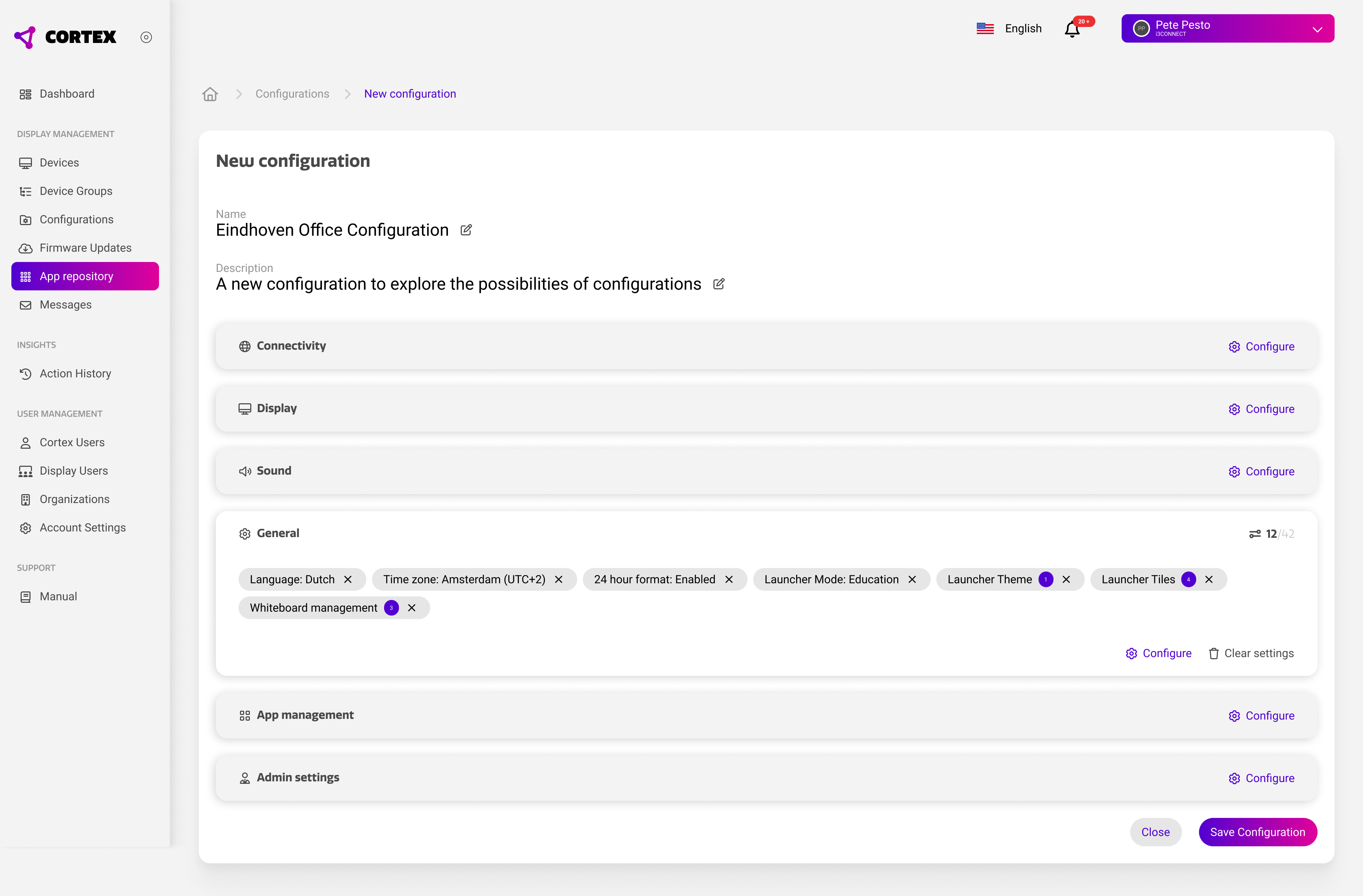
When you open an exisiting configuration, or when you create a new one, you will land on the configuration details page. From here, you can give your configuration a name and description, and adjust the settings that you want your configuration to contain.
Setting up a configuration
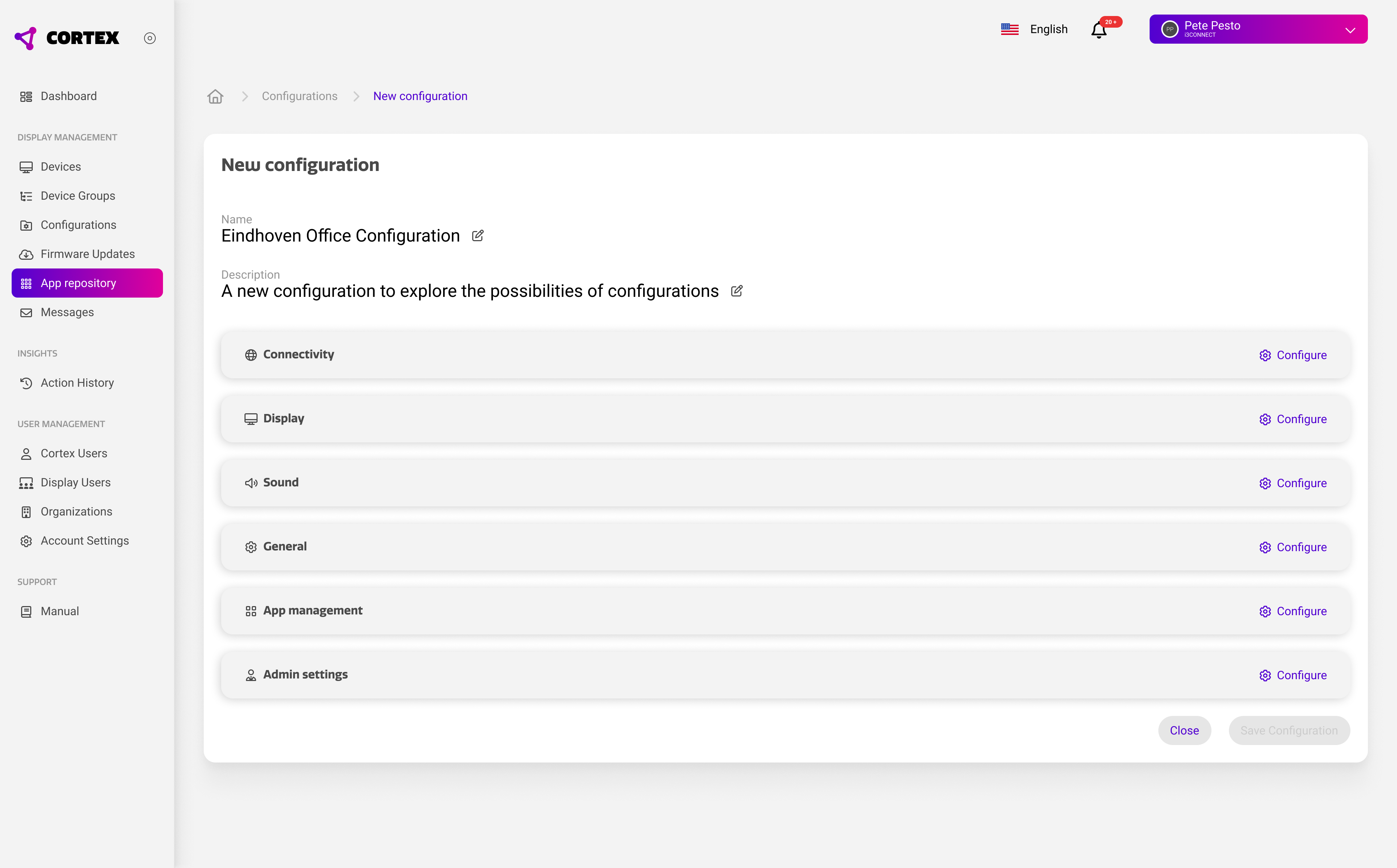
The configuration details page shows the same settings categories as can be found in the settings menu. Each section shows the settings that are applied within each corresponding category. For new configurations, all sections will be empty.

By pressing ‘configure’ on the far right of any of the categories, the corresponding section of the settings menu is opened.
Adjusting Settings
The settings menu used to adjust your configuration does not reflect the current state of a device. Instead, it is a template where all settings show a default or undefined value until you manually set them. This means that settings that are not manually set are also not stored in your configuration.
This allows you to be very precise in defining your configuration, and determining which settings are actually adjusted when applying a configuration. These settings are indicated with a slight purple overlay, as seen in the example below.
Example: You can create a configuration that only defines the home screen tiles. When this configuration is applied, only the home screen tiles are adjusted, while all other settings are left untouched.
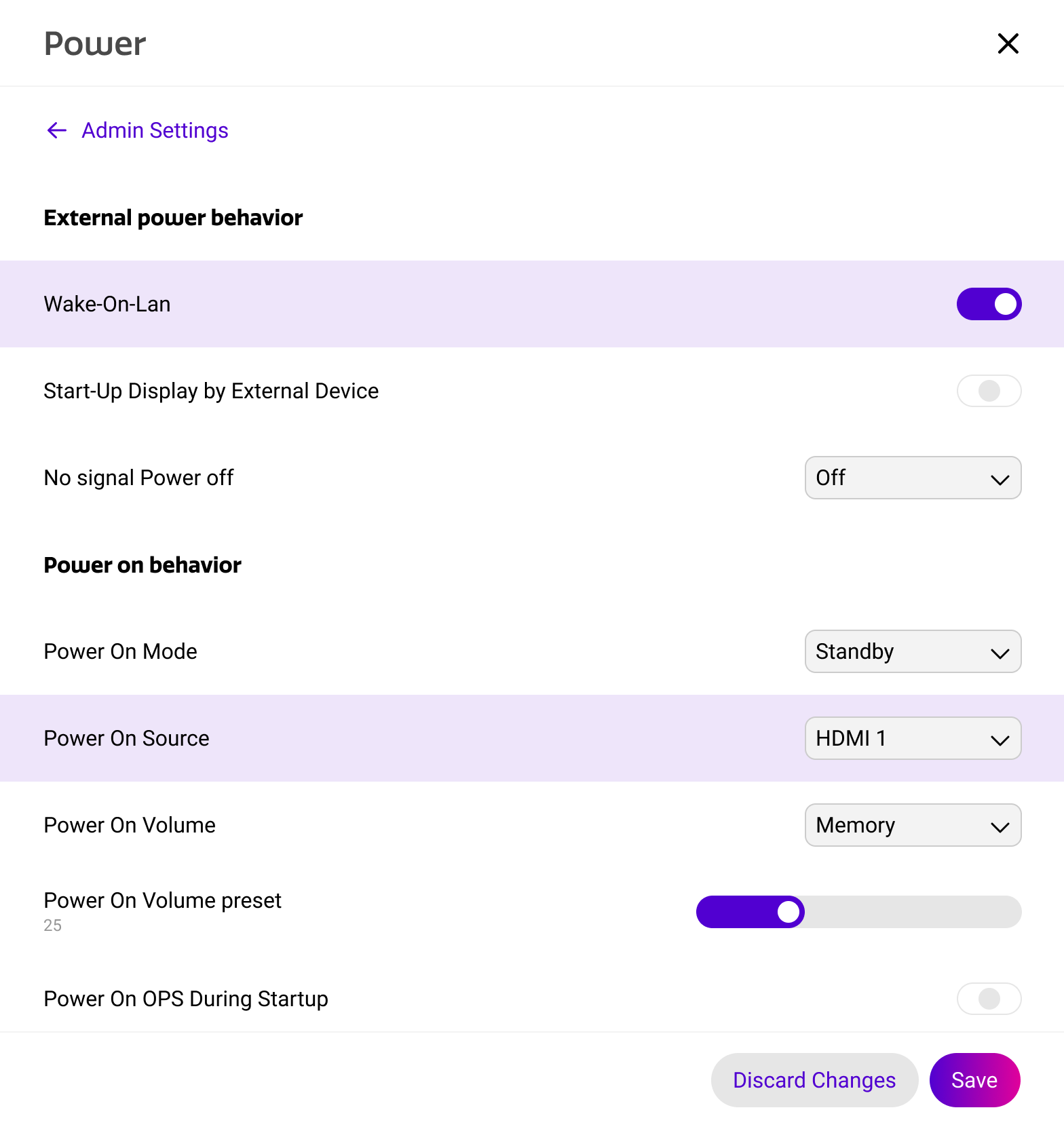
When you are done configuring your settings, you can press ‘save’ button in the bottom right corner. This will store the highlighted settings inside the configuration.
Settings overview
After adjusting and saving your settings, the configuration details page will give you an overview of the settings that are stored for each category. Below is an example for the ‘general' category.
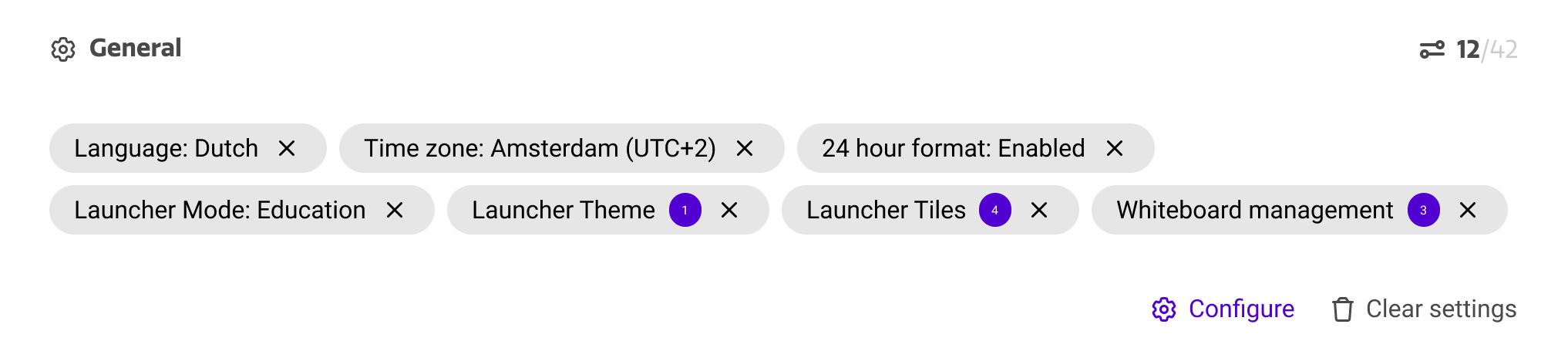
The adjusted settings are conveniently displayed so that the effect of a configuration can be viewed at a glance.
You can adjust settings by pressing the corresponding item, or by pressing the general ‘configure’ button for the entire category.
You can remove settings from a configuration by pressing the ‘x' icon of the corresponding item, or by pressing the 'clear settings’ button for the entire category.
Saving a configuration
When you are done setting up your configuration, you can save it on the bottom right corner of the screen. This will add your configuration to your existing list of configurations, where you can apply it to a device of device group.