
You can easily send messages to your devices in Cortex from the device details page. This allows you to display a custom message on a specific device that overlays all current content on the screen. In this article, we’ll guide you through the process.
Setting up a message
From the quick actions menu on the device details page, you can select ‘show message on display’. This opens a dialog to compose your message as seen below.
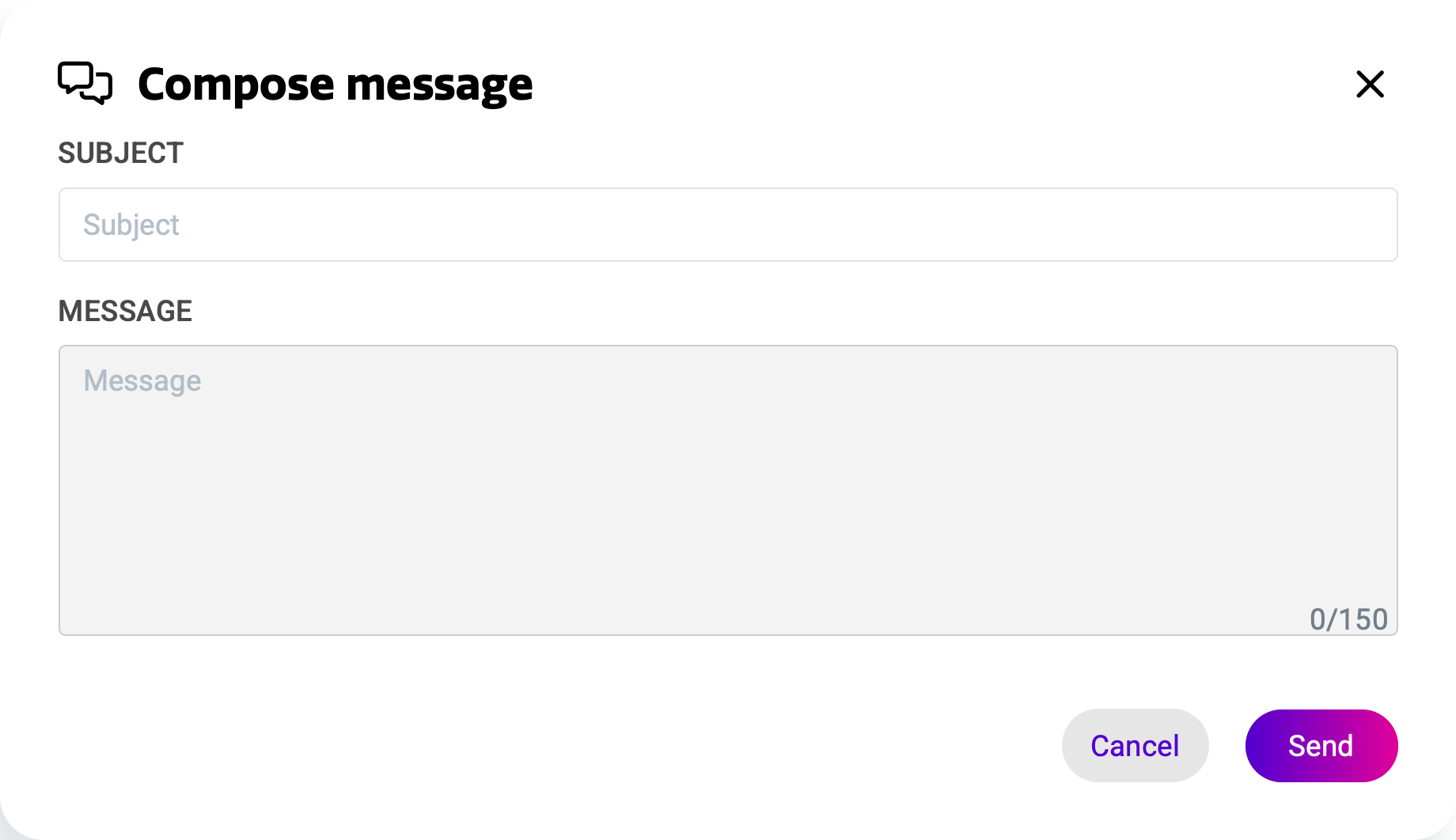
A message consists out of two components; a subject and a message body. The subject will be displayed as the title of your message. By pressing send, the message will immediately be sent to the device.
Messages can only be sent to displays that are currently online.
Messages can also be sent to multiple displays at the same time. You can learn more about this feature in Message broadcast in Cortex.
Receiving a message
Users on the display will receive your message from Cortex as an overlay over all existing content. This means that it will interrupt the current activity in the room, as seen below.
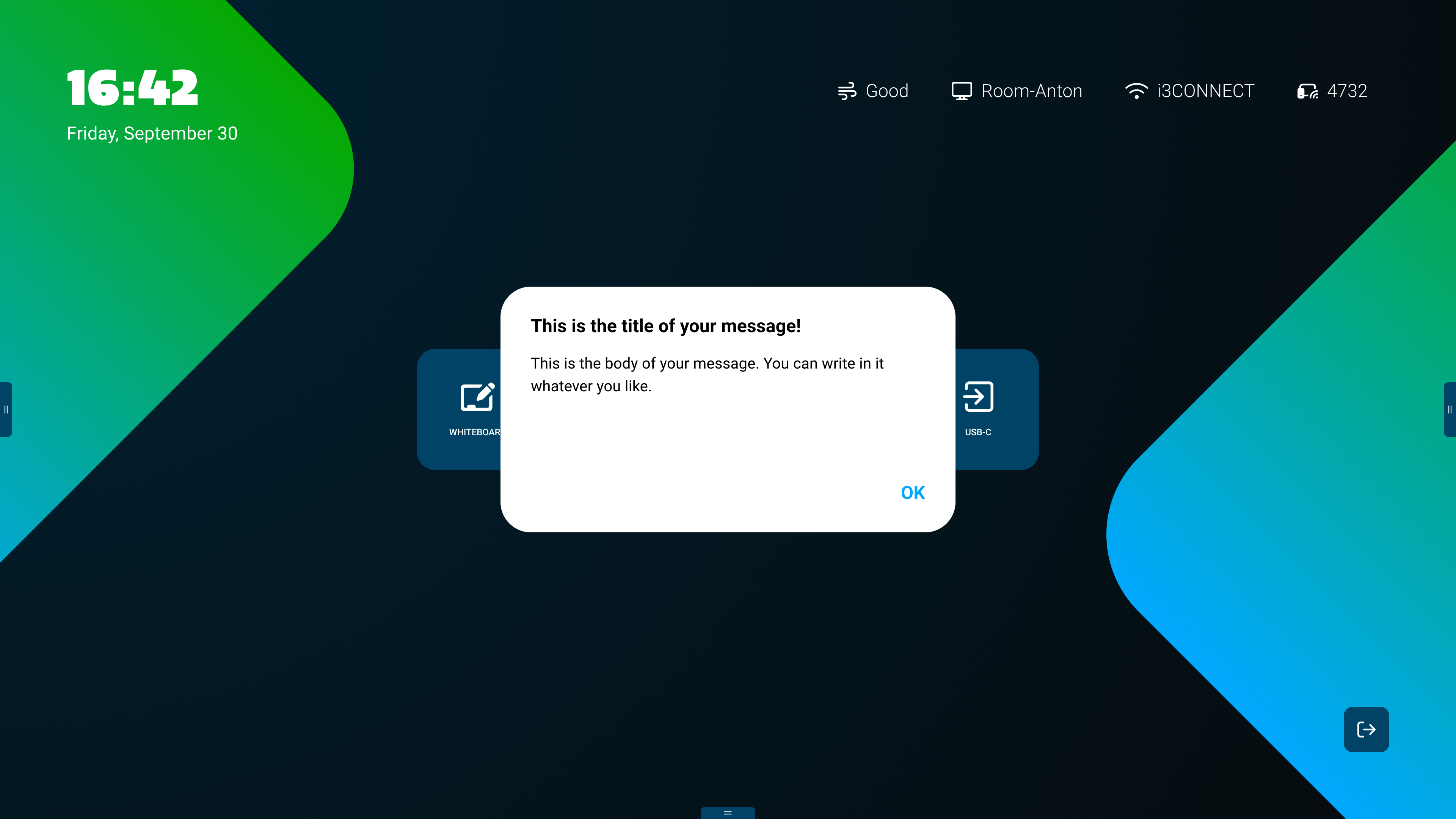
The message will stay on screen until the user manually presses ‘ok’. This ensures that users see the message and it is not accidentally ignored.