
From the Cortex display settings, you can configure the behavior of the device’s HDMI ports. This can be useful, as signal issues over HDMI can often be resolved by changing these settings.
You can find it under settings → General → HDMI
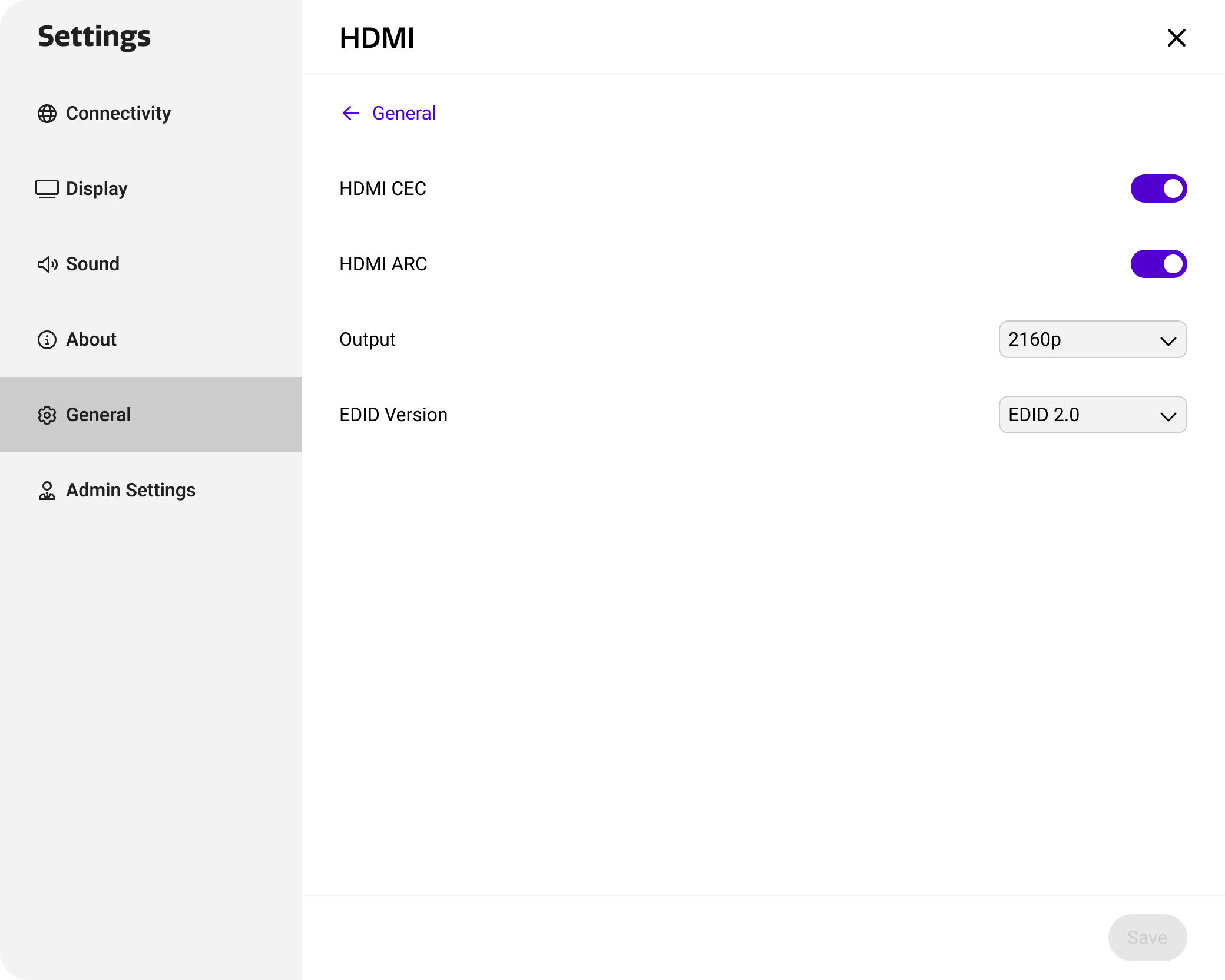
Purposes of each setting
Each setting provides a different purpose, and may resolve different issues that you might encounter while connecting devices over HDMI. The table below describes each settings and it’s use cases.
|
Setting |
Effect |
Usecase |
|---|---|---|
|
CEC |
Short for Consumer Electronics Control, this setting allows the display and an external device to communicate settings and commands. |
For example, this setting can be used to automatically start up soundbar, or let your device start up by an external media player. |
|
ARC |
Short for Audio Return Channel, this setting allows sound to be sent from the display to an external audio device. |
For example, this settings can be used to playback your display audio over an external soundbar over HDMI. |
|
Output |
This sets the output resolution and refresh rate of your HDMI port. |
Some HDMI cables have a limited bandwidth. Lowering the resolution might improve the stability of the image. |
|
EDID |
Short for Extended Display Identification Data, this setting communicates the HDMI specifications to a connected device. |
Some HDMI cables have a limited bandwidth. Lowering the EDID version might improve the stability of the image. |