
From the Cortex display settings, you can configure the tiles used on the homescreen. They can refer to Android apps, input sources, or web links to fully personalize your experience. You can configure up to eight homescreen tiles.
You can find it under settings → General → Launcher Tiles
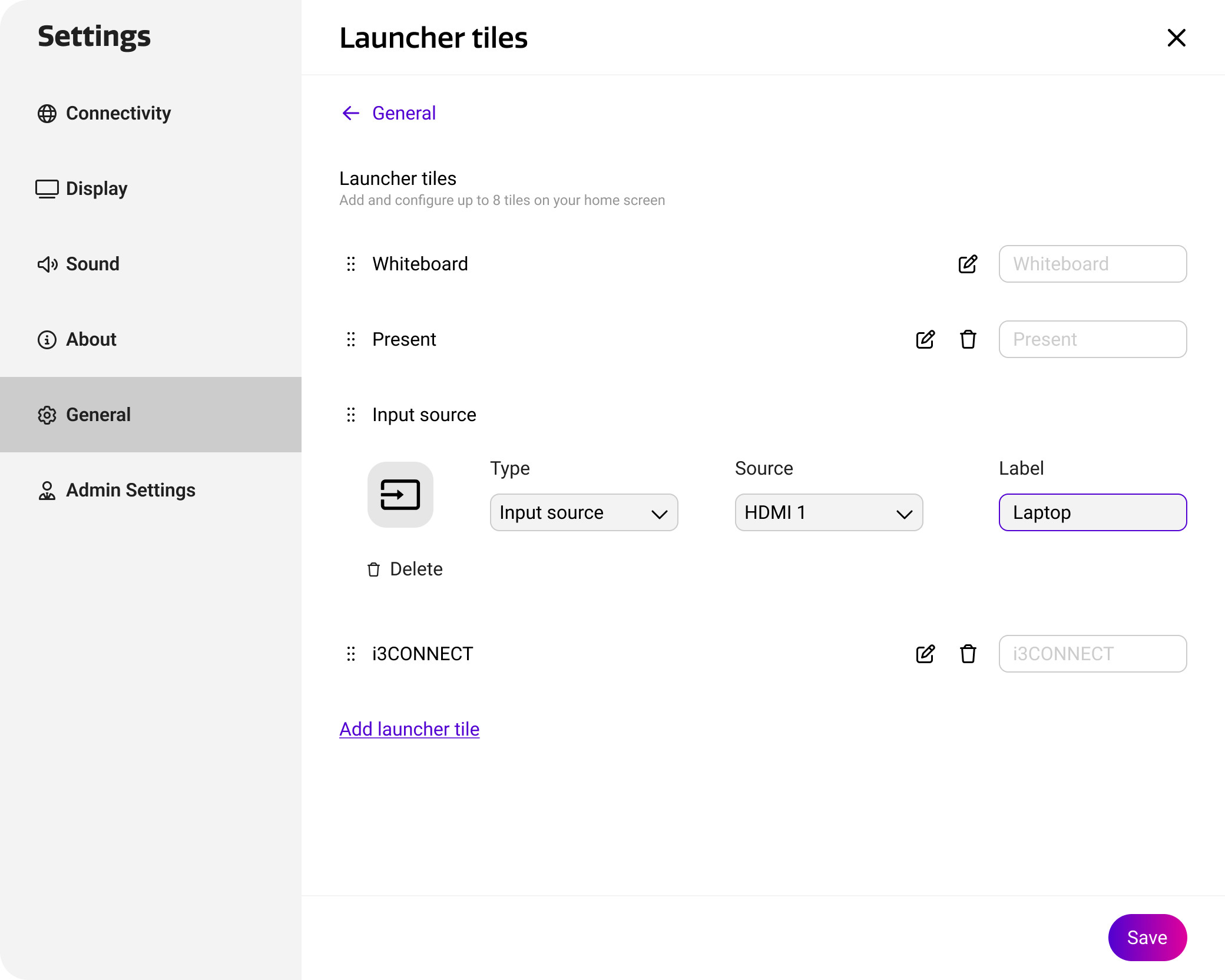
Adjusting Home Screen Tiles
You can add, remove, or adjust home screen tiles from this view, by using the on-screen controls.
-
Add. To add a new tile, simply press ‘add launcher tile' on the bottom of the list. You will need to set its type, content (the app, source, or URL), and a label. The label is used as the text that users see displayed on the tile itself.
-
Adjust. Press the edit (pen) icon on the right to adjust an existing tile. You can change the same properties as when adding a new tile.
-
Remove. Press the trash icon on the right hand side to remove an existing tile.
When pressing save, the existing tiles on the device will be replaced by the list in Cortex. Therefore, please always ensure you send your complete desired set of tiles to the device.