
This guide is for IT admins or anyone onboarding new i3CONNECT displays using Cortex. After registering, your display will be visible in your Cortex device list and ready for remote management. The fastest way to register your device is by using a mobile device. When this method properly used, it takes less than 10 seconds to register per device. In this article, we’ll guide you through the process.
Prerequisites
To use mobile registration in Cortex, you’ll need a mobile device that is capable of scanning QR codes and has an active internet connection. For example, a smartphone or a tablet.
You will need physical access to your device to perform the registration. To start, you will need to navigate to one of the locations shown below on the device.
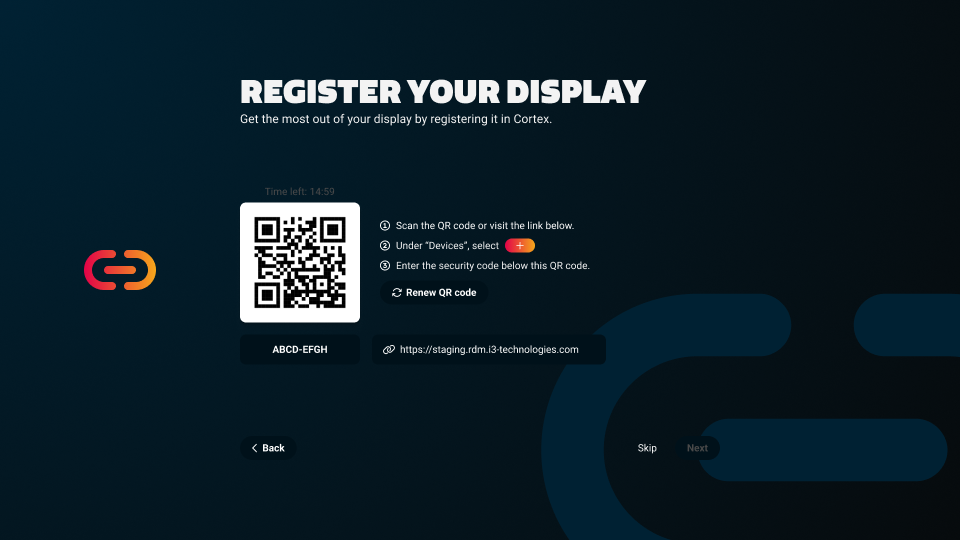
Setup Wizard. The device’s setup wizard will automatically show this registration page during the initial setup.
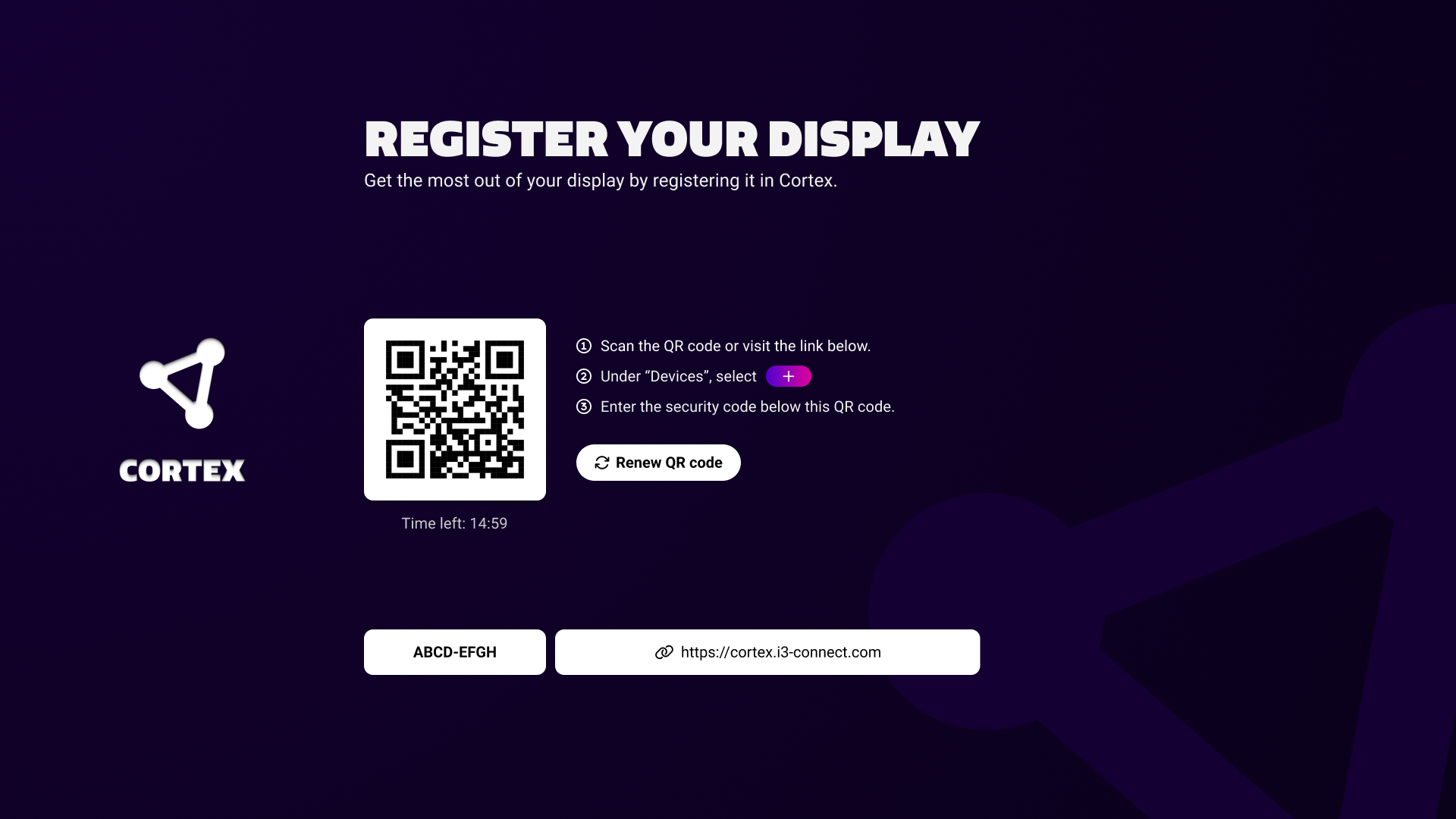
Cortex App. If not performed during setup, registration can be done through the Cortex app. Go to side menu → apps → Cortex.
We recommend you already login to Cortex on your mobile device through the browser. This will speed up the registration process. Do not use an incognito tab.
Registration Steps
-
Scan QR Code
Scan the QR code shown on the display and open the resulting link.
-
Login to Cortex
When not logged into Cortex, please enter your login credentials.
-
Select Organization
When you have access to multiple organizations in Cortex, select the organization to enroll the device into.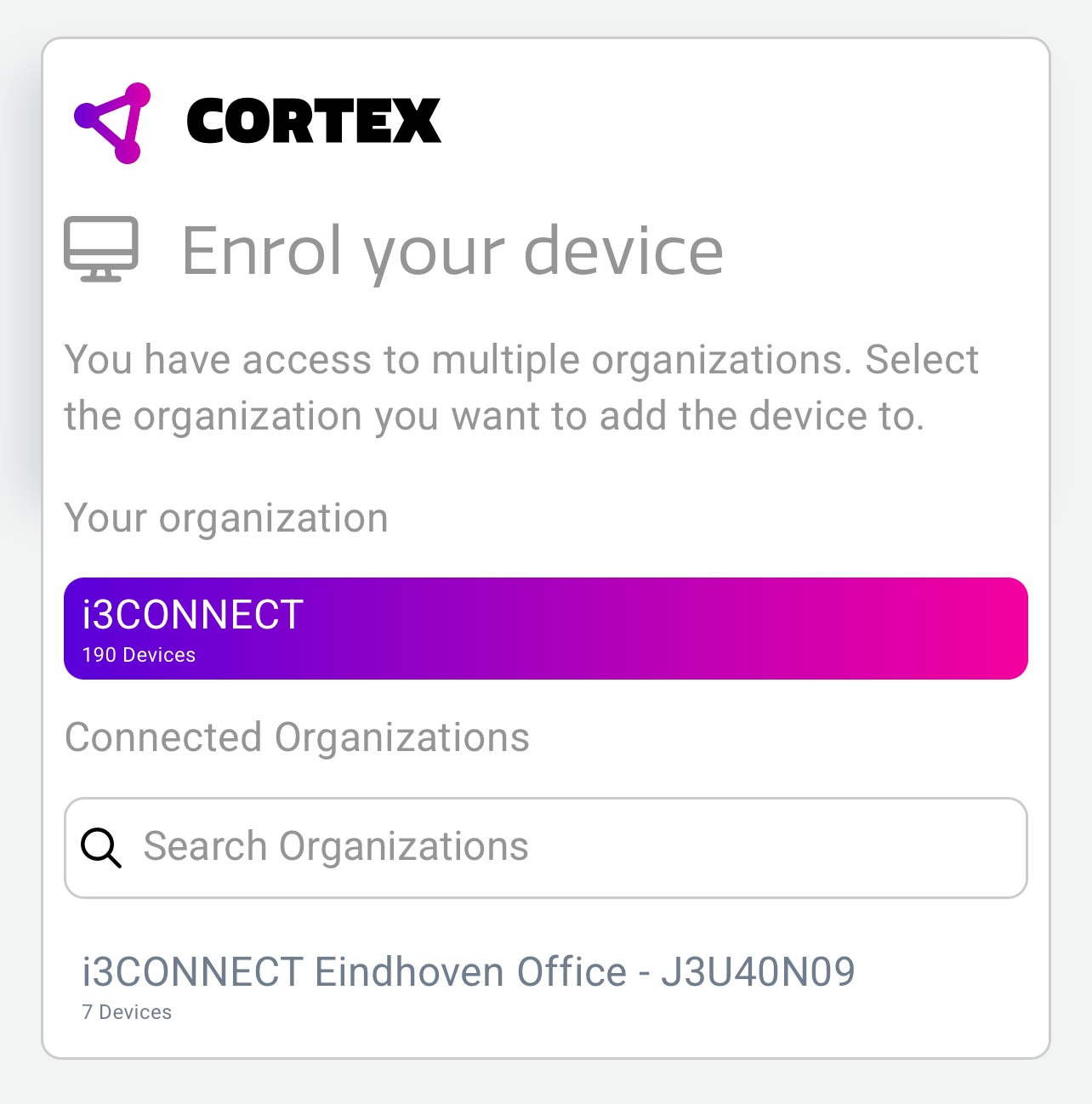
-
Confirm Code
Confirm that the code shown on the mobile device matches the code shown on the display. You can find it below the QR code.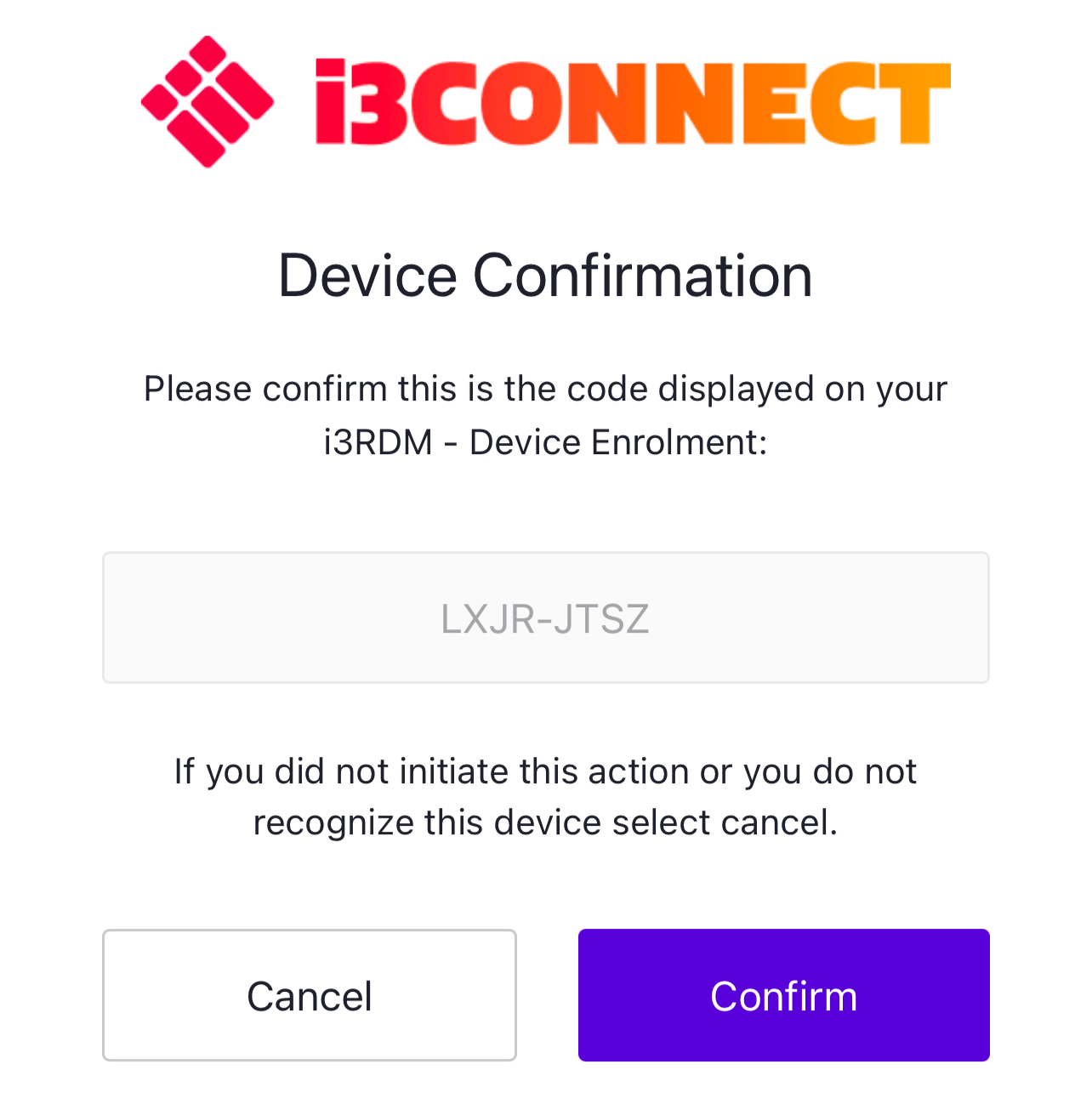
-
Name Device
Give your device a recognizable name. We recommend using a name that represents its location.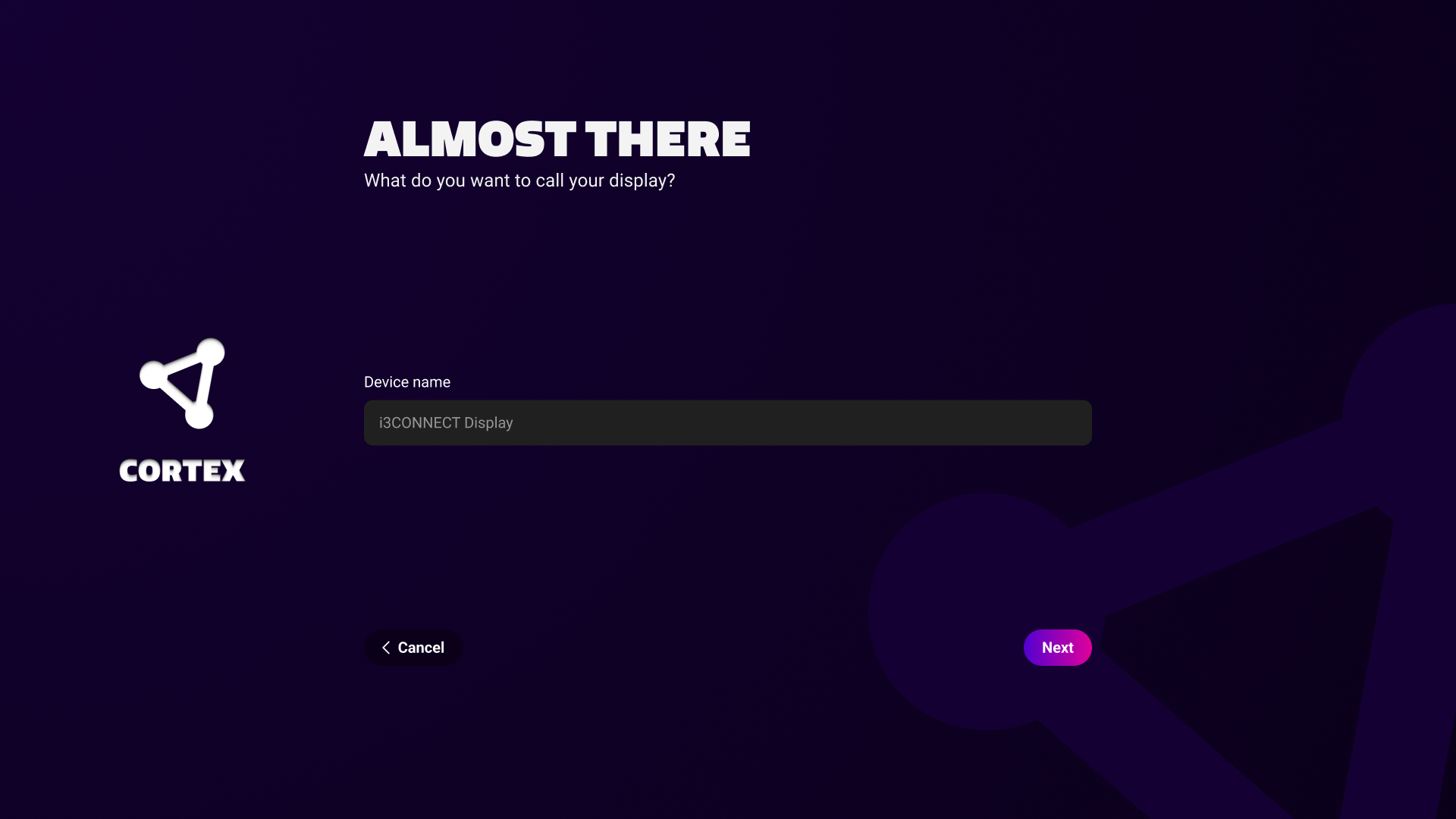
Your device should now be registered and a confirmation is shown on the mobile device. You can find and access it through the device list in your Cortex account.
Troubleshooting
-
If the QR code doesn’t scan, check your camera focus or try a different device.
-
If you don’t see the registration screen, restart the display or open the Cortex app manually.
-
If the device doesn’t appear in Cortex after registration, refresh your device list or log out and back in.