
The firmware update details page shows all relevant information about a specific firmware update, and allows you to apply the update to your devices.
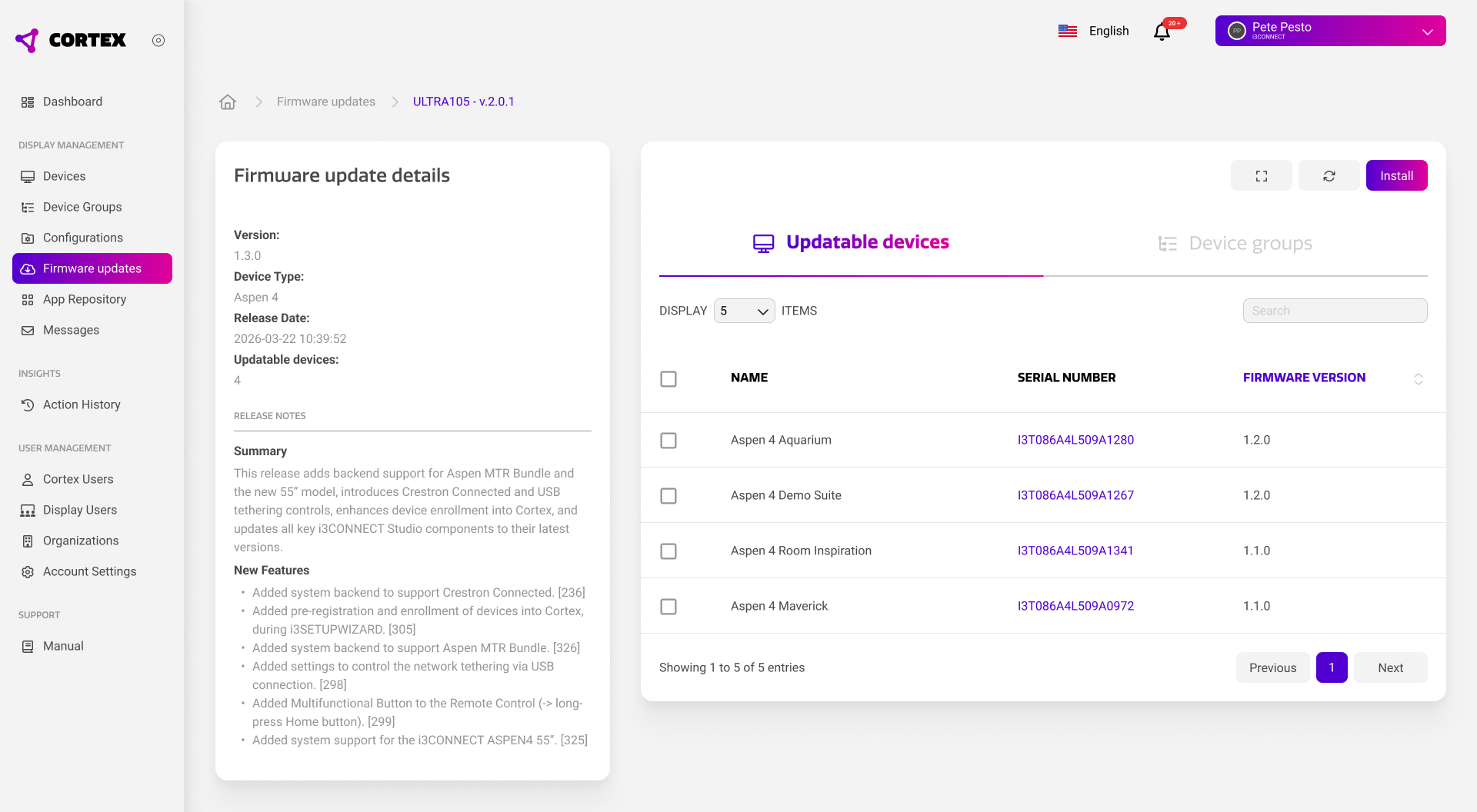
Firmware update details
The details section of the firmware update details shows all relevant information about the specific update. Apart from standard information like the version number, release date, and device model, it also shows a clear overview of the release notes.
Using the release notes, you always know what changes a firmware update will bring to your devices, including new features, bug fixes, and other improvements.
We recommend to always test a new firmware on one or two displays, before releasing it to your entire fleet. This minimizes the risk of incompatibility issues with external devices or interruption of your daily workflows.
A firmware update cannot be undone without factory resetting your device.
Updating devices
To update your devices, select the desired devices or device groups using the check boxes and press the ‘install’ button on the top right. This will open a dialog that provides two methods of installation as described below.
Direct installation
A direct installation will interrupt all ongoing activities on the device and immediately start the update process.
To perform a direct installation, simply press the ‘confirm’ button in the install dialog. The command will be sent to the display.
Scheduled installation
A scheduled installation delays the installation until a pre-set date and time. Once this time is reached, it will behave like a direct installation.
To perform a scheduled installation, enable ‘schedule installation', pick a date and time, and press confirm.
Firmware updates are only installed when the device is online. For offline devices, the update command will be placed in the pending actions list. It will be commenced as soon as the device comes back online.