
Keeping your display up to date ensures you have the latest features and the best security from day one. This guide is for installers and IT specialists setting up a new i3CONNECT display for the first time. By following these steps, your display will be running the latest firmware before you even finish the setup wizard.
This article is not for updating displays that are already in use; for those, please use the Settings menu or i3CONNECT Cortex. If the update fails to start, please check your internet connection or contact our support team.
Before you start
-
Ensure the display is connected to the internet via Wired/LAN or Wi-Fi.
-
The display must be in its Out of Box state (showing the Installation Wizard).
WARNING!
An improper or incomplete upgrade can cause unexpected behavior and could permanently damage your device which will require repair by an i3CONNECT authorized service center. Please perform the update procedure by following exactly the instructions below. After the USB update, the display settings will be reset to factory default. Updating via OTA (Over The Air), does not reset the display to factory default.
Instructions
-
Navigate through the installation wizard until you reach the firmware update screen.
-
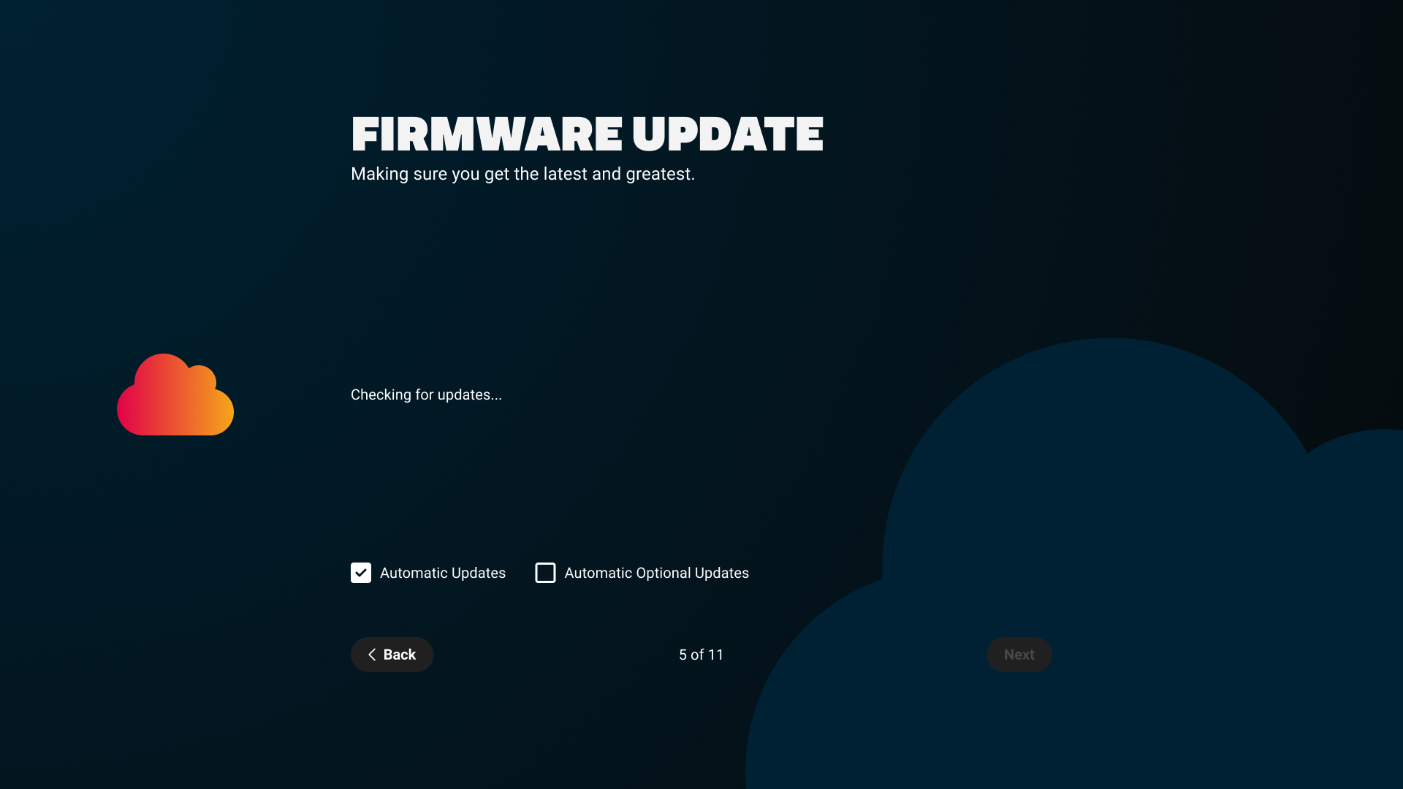
Allow the display to check for updates. The system will automatically look for the latest version on our secure servers.
-
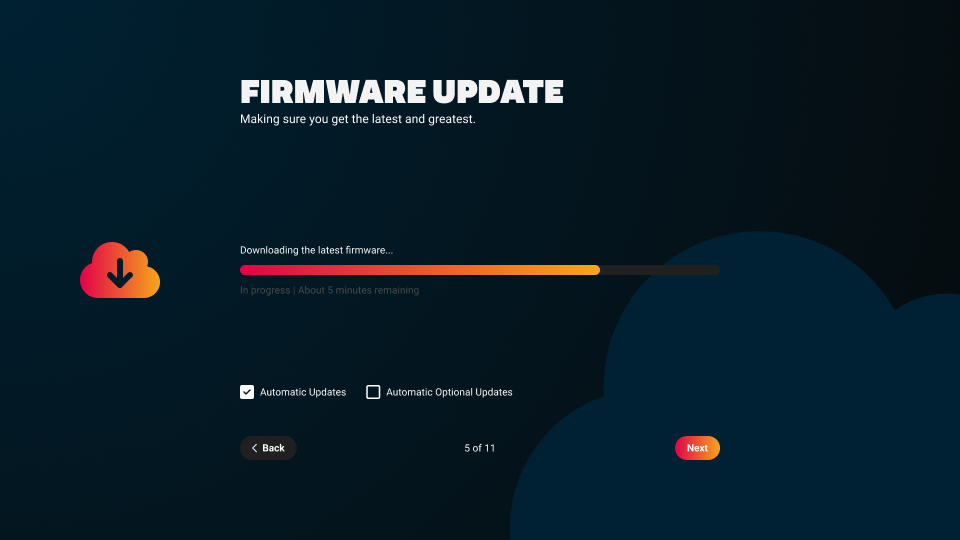
Wait for the download to complete. The [Next] button will change to [Install] once the file is ready.
Due to the size of the EDLA firmware, this can take up to 20 minutes depending on your internet speed. Please be patient and do not interrupt the process.
-
Select Install to begin the update. The display will automatically reboot once the installation is finished.
-
Complete the remaining steps in the wizard to finish your setup.
Troubleshooting
-
Update not found: Ensure your network firewall allows connections to i3CONNECT update servers.
-
Download is slow: If possible, switch to a wired Ethernet connection for faster speeds.
-
Display doesn't reboot: If the screen remains black for more than 10 minutes after the installation finishes, power cycle the display using the physical power switch.