
Stay up to date with the latest features, security patches, and performance improvements by checking for firmware updates in i3CONNECT Studio on your i3TOUCH X3 display.
This guide is for IT admins, tech leads, or anyone responsible for maintaining i3TOUCH X3 panels running i3CONNECT Studio (the new version of i3STUDIO). If your display is running a different interface or you’re updating a different i3CONNECT product, please refer to the relevant product guide.
By the end of these steps, you’ll know if a new firmware update is available for your i3TOUCH X3 and how to access it. If no update appears or you encounter errors, see the troubleshooting section below.
Before you start
-
Make sure your i3TOUCH X3 is connected to the internet.
-
You’ll need admin access to the display’s settings.
Instructions
-
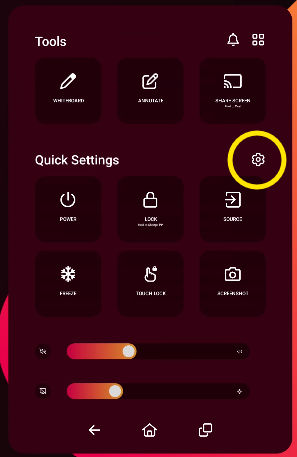
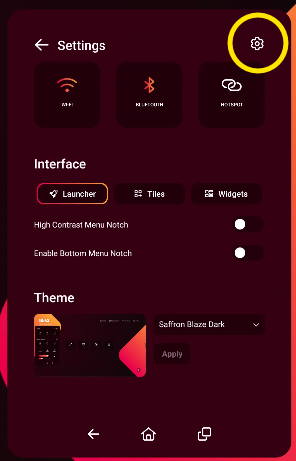
Open Android settings: Tap the side menu, select the settings cogwheel twice to enter the settings menu, then choose “Android”.
-
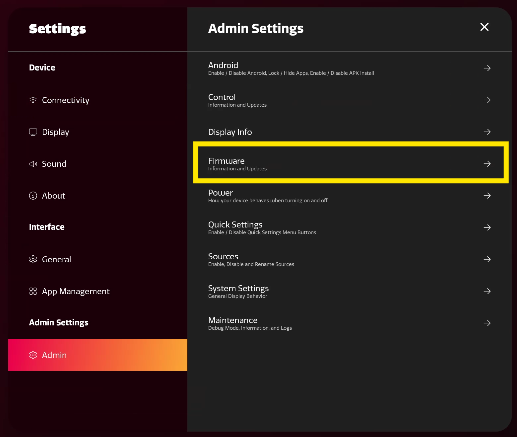
Go to Admin: In the Android settings, select “Admin”.
-
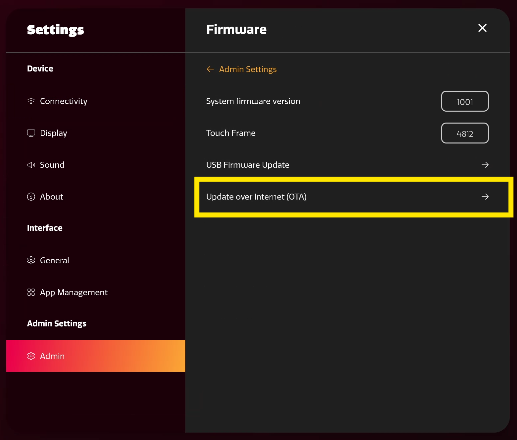
Select Firmware: Tap on “Firmware” to check for available updates.
-
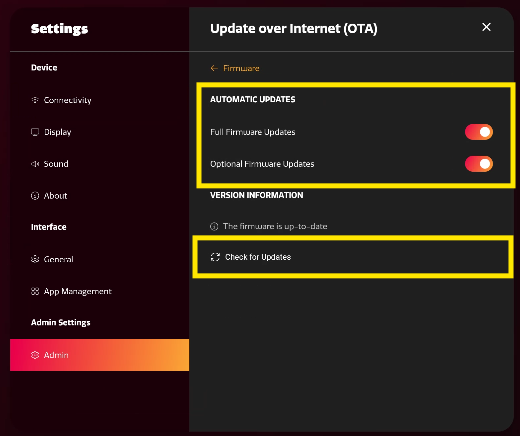
Check for updates: If a new firmware version is available, it will be displayed on this screen. Follow the on-screen prompts to start the update.
Opening the Settings menu (Step 1)
Over the Internet (OTA) updates
Troubleshooting
-
If no update appears, your device may already be up to date or not connected to the internet.
-
If you see an error or the update fails, restart your display and try again.
-
For persistent issues, contact i3CONNECT support with your device’s serial number and current firmware version.