
If your i3TOUCH X3 is still running the older i3STUDIO interface, this guide will help you check for and install the latest firmware updates.
For the best experience and newest features, we recommend updating to the new i3CONNECT Studio interface. If your display already uses i3CONNECT Studio, please follow the latest update instructions here.
This article is for IT admins, support staff, or anyone responsible for keeping i3TOUCH X3 displays up to date. If your display is already running i3CONNECT Studio, these steps do not apply.
By the end of these steps, you’ll know how to check for and install firmware updates on your i3TOUCH X3 with i3STUDIO. If you run into issues, see the troubleshooting section below.
Before you start
-
Make sure your i3TOUCH X3 is connected to the internet.
-
You’ll need admin access to the display settings.
Instructions
-
Open Android settings.
Tap the side menu, select the Settings cogwheel, then choose Android.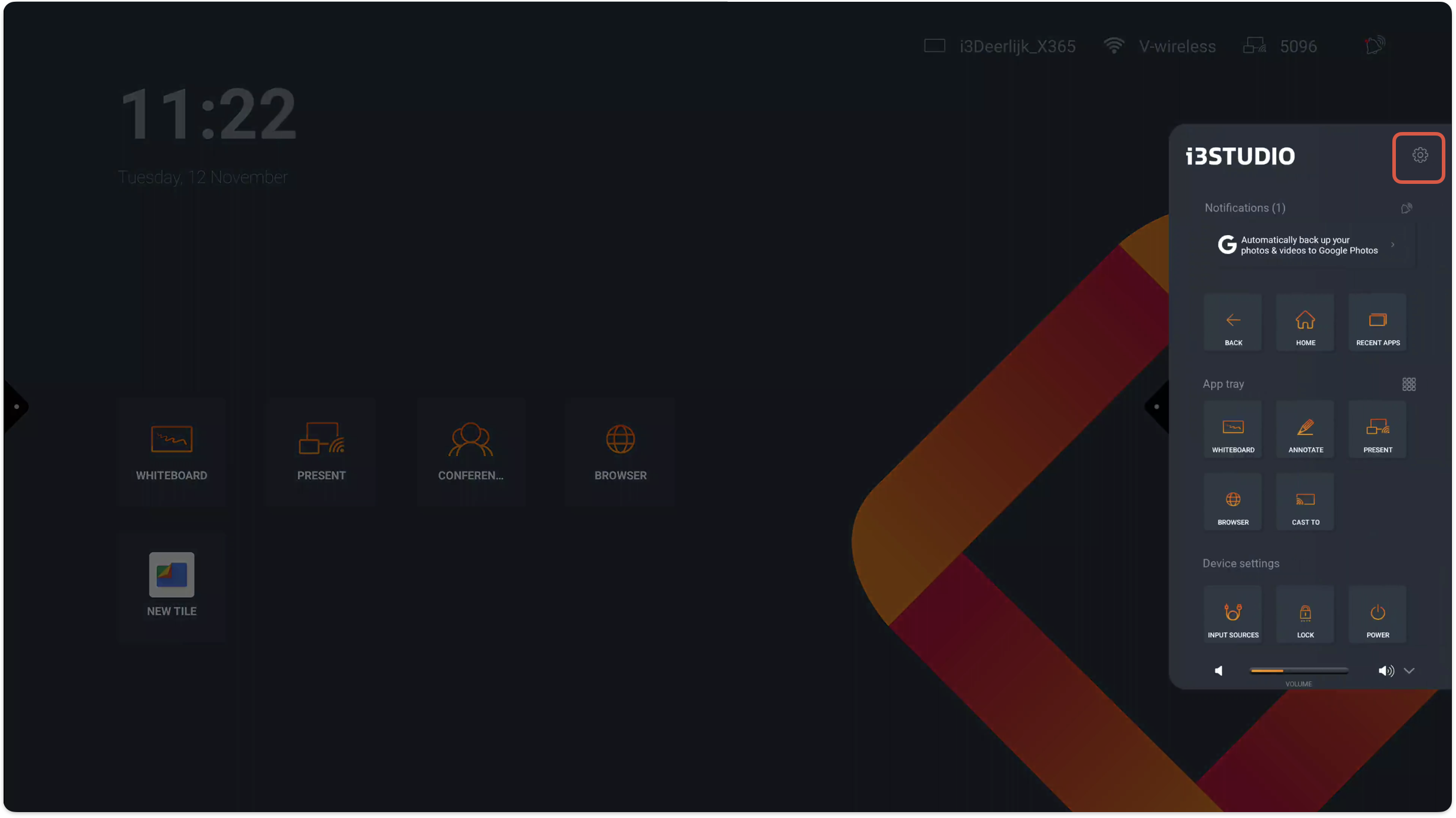
-
Go to System updates.
In the Android settings, tap System and then System updates.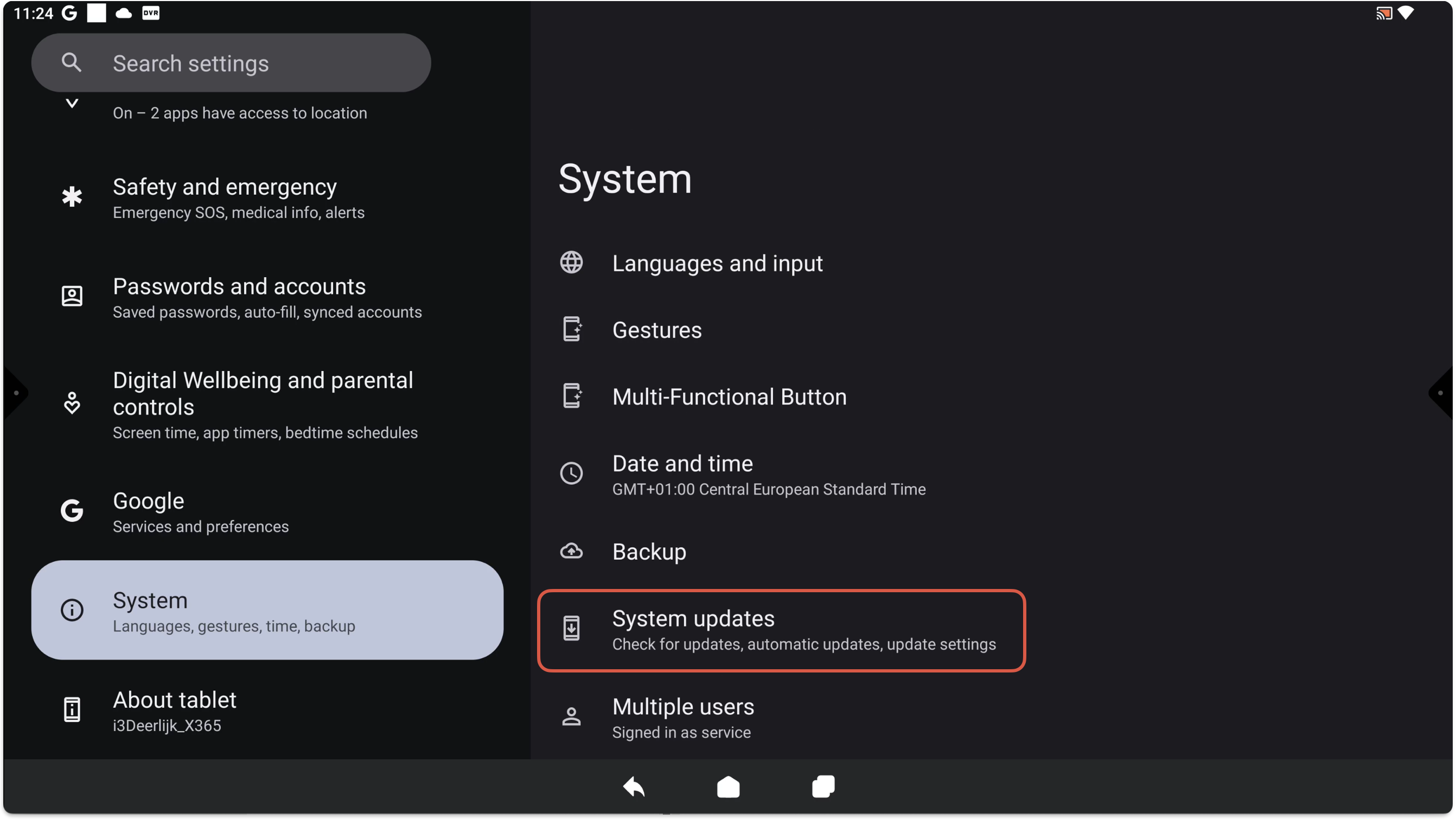
-
Check for available updates.
If a firmware update is available, it will be shown on this screen. Follow the on-screen prompts to download and install.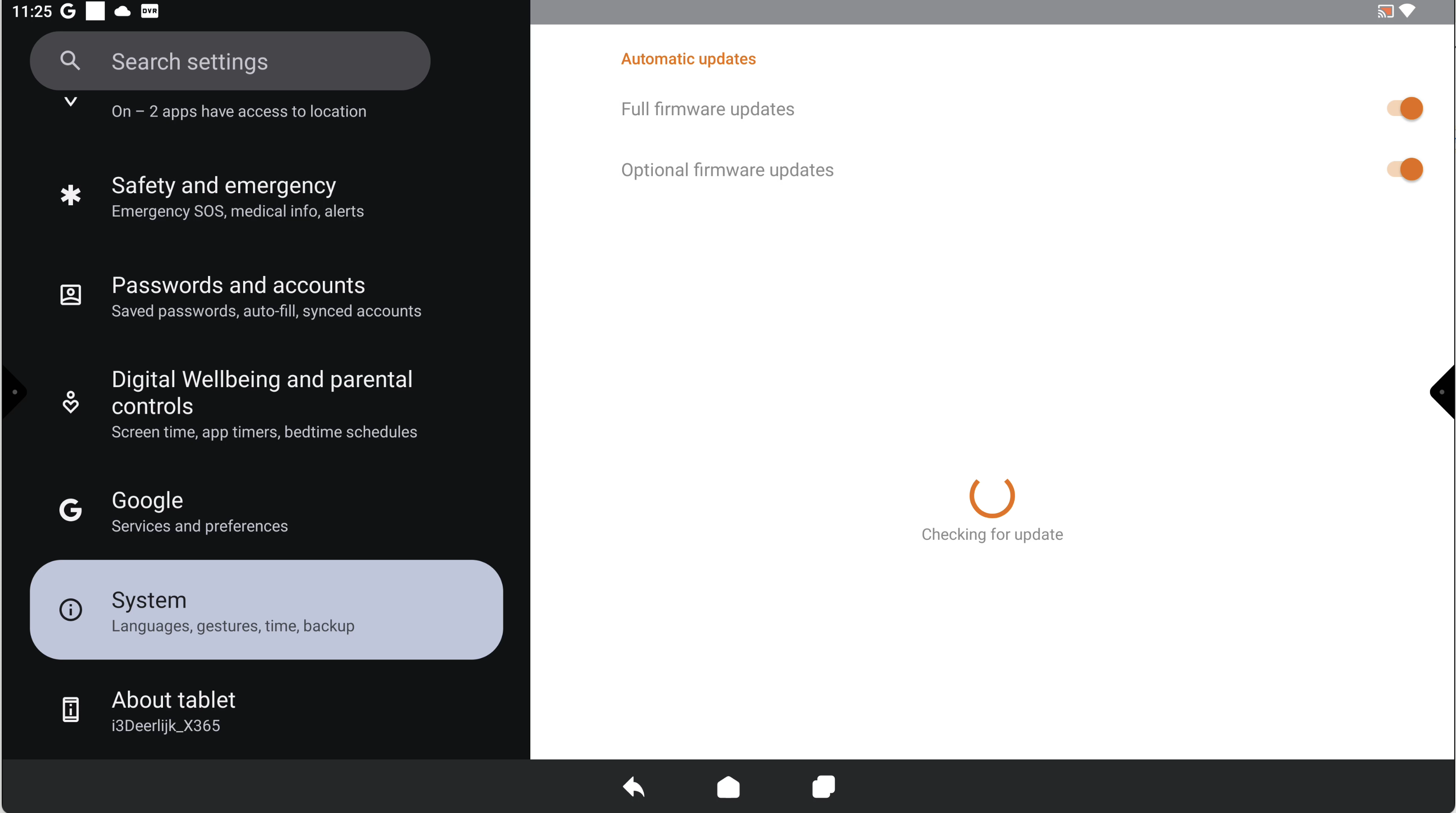
Do not power off or disconnect the display during the update process. This may cause system errors.
Watch the video guide
The attached video demonstrates how to navigate the i3STUDIO interface to access and install firmware updates.
Troubleshooting
-
No update appears:
-
Check your internet connection.
-
Restart the display and try again.
-
Make sure you are in the correct menu (System > System updates).
-
-
Update fails to install:
-
Keep the display powered on and connected to the internet during the update.
-
Restart the display and repeat the process.
-
-
Still having trouble?
Contact i3CONNECT support for further assistance.
If your display is running i3CONNECT Studio, follow the latest update instructions here.
Labels
how-to, x3, firmware-update, i3studio
📘 Instructions
-
Open the Android settings by selecting the “side menu - Settings cogwheel - Android”
-
Go to System and select System updates
-
An update will be shown when a firmware update is available
See the video below for more information.