
Need to check if your i3TOUCH X3’s touch is working as it should? This guide walks you through running a touch test using the official tools. Use this when you’re troubleshooting touch issues or need to provide test results to support. This article is for IT admins, installers, or anyone asked by support to verify touch functionality on an i3TOUCH X3.
By the end, you’ll have a screenshot of your touch test results, ready to send to i3CONNECT support.
If the tool doesn’t run or you can’t get a result, see the troubleshooting section below.
Before you start
-
You’ll need a Windows PC with HDMI and USB-A ports.
-
Have your i3TOUCH X3’s serial number handy (to pick the right tool).
-
Download the correct tool from the links below.
-
If your serial number contains “UC” (e.g., I3TX365UC41H007),
download HXIntegrationTools-C.exe -
If your serial number contains “TC” (e.g., I3TX365TC41H007),
download TimeLinkTools.exe
-
|
HXIntegrationTools-C.exe (TOOL 1) |
TimeLinkTools.exe (TOOL 2) |
|---|---|
Instructions TOOL 1
-
Connect your Windows PC using both HDMI and USB-A to USB-B cables.
-
Switch to the correct HDMI input so your PC’s screen is visible.
-
Run the downloaded tool on your PC.
-
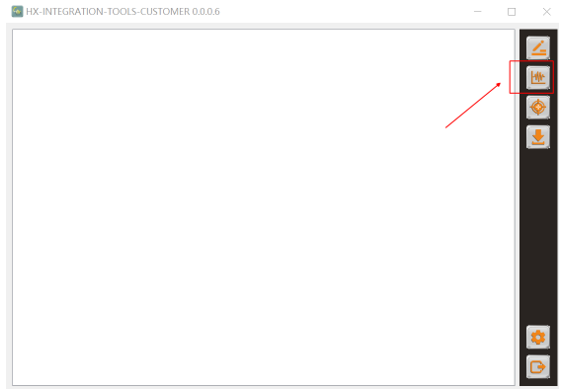
Click the button with the graph icon in the tool. The touch test will start automatically.
-
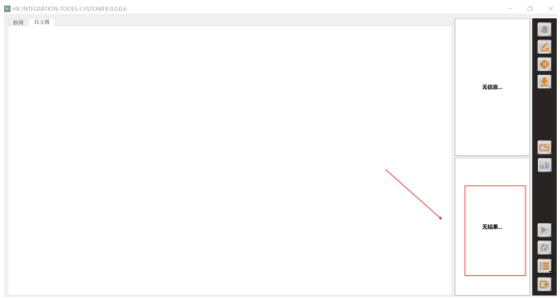
Take a screenshot or photo of the test result.
-
Send the result to i3CONNECT support for analysis: https://support.i3-connect.com/
Instructions TOOL 2
-
Connect your Windows PC using both HDMI and USB-A to USB-B cables.
-
Switch to the correct HDMI input so your PC’s screen is visible.
-
Run the downloaded tool on your PC.
-
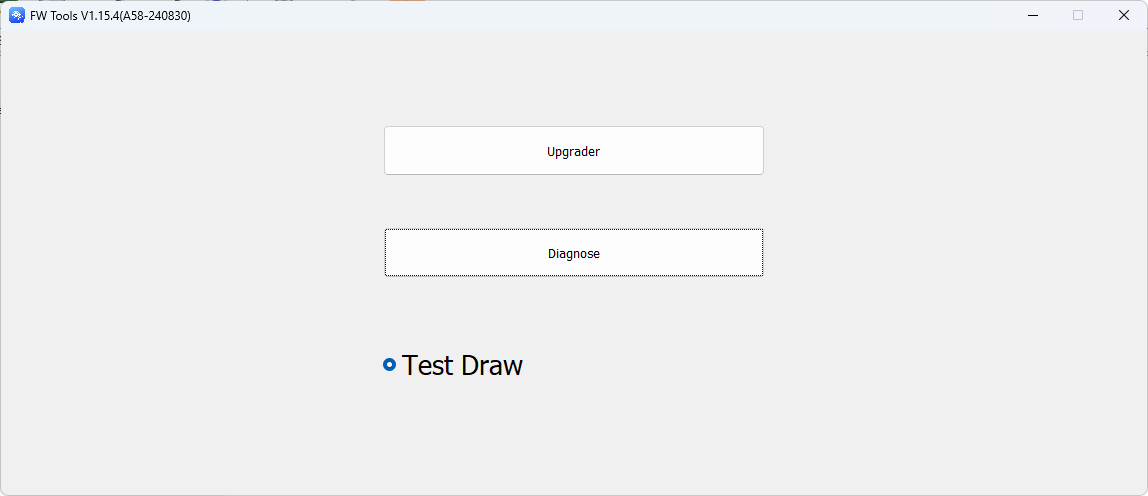
Click the Diagnose button in the tool. The touch test will start automatically.
-
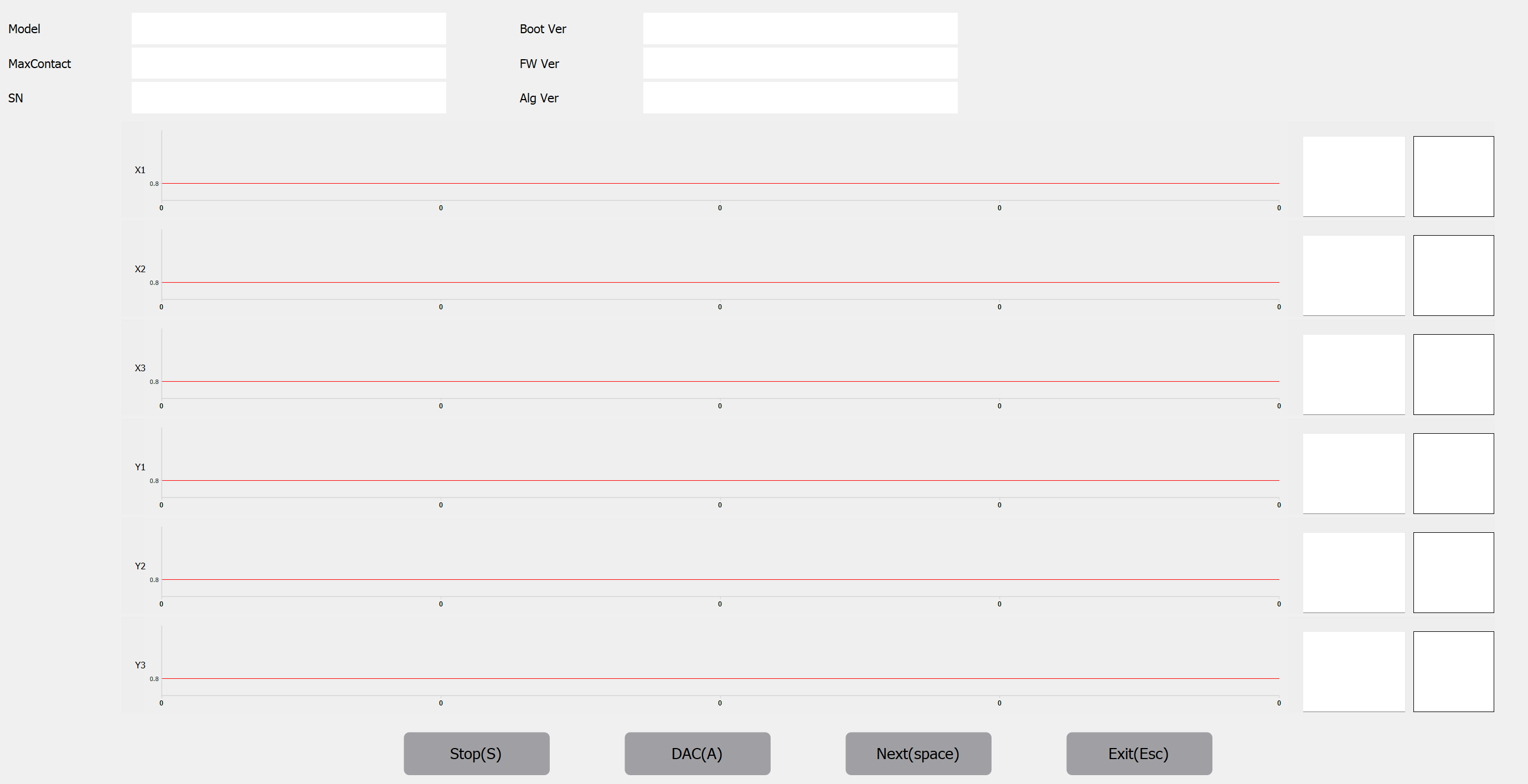
Take a screenshot or photo of the test result.
-
Send the result to i3CONNECT support for analysis: https://support.i3-connect.com/
Troubleshooting
-
If the tool doesn’t start, double-check you’ve downloaded the correct version for your serial number.
-
If your PC doesn’t detect the display, ensure both HDMI and USB cables are securely connected and the correct input is selected.
-
If you can’t capture a result, try restarting both the PC and the display.
-
For persistent issues, contact i3CONNECT support and include your serial number and a description of the problem.