
Do not use these steps if you only want to restart or update your display. A factory reset will permanently erase all apps, files, and settings!
Use this guide if you need to resolve persistent software issues, prepare the display for a new user, or clear personal data. This article is for IT administrators or users who need to fully reset their i3TOUCH X3.
By the end of these instructions, your i3TOUCH X3 will be restored to factory settings and ready for setup. If the display does not restart or complete the reset, see the troubleshooting section below.
Before you start
-
Back up any important files or settings. All data will be erased.
-
Ensure the display is plugged in and will not lose power during the reset.
Instructions
-
Open Android settings
-
Select “System” from the menu.
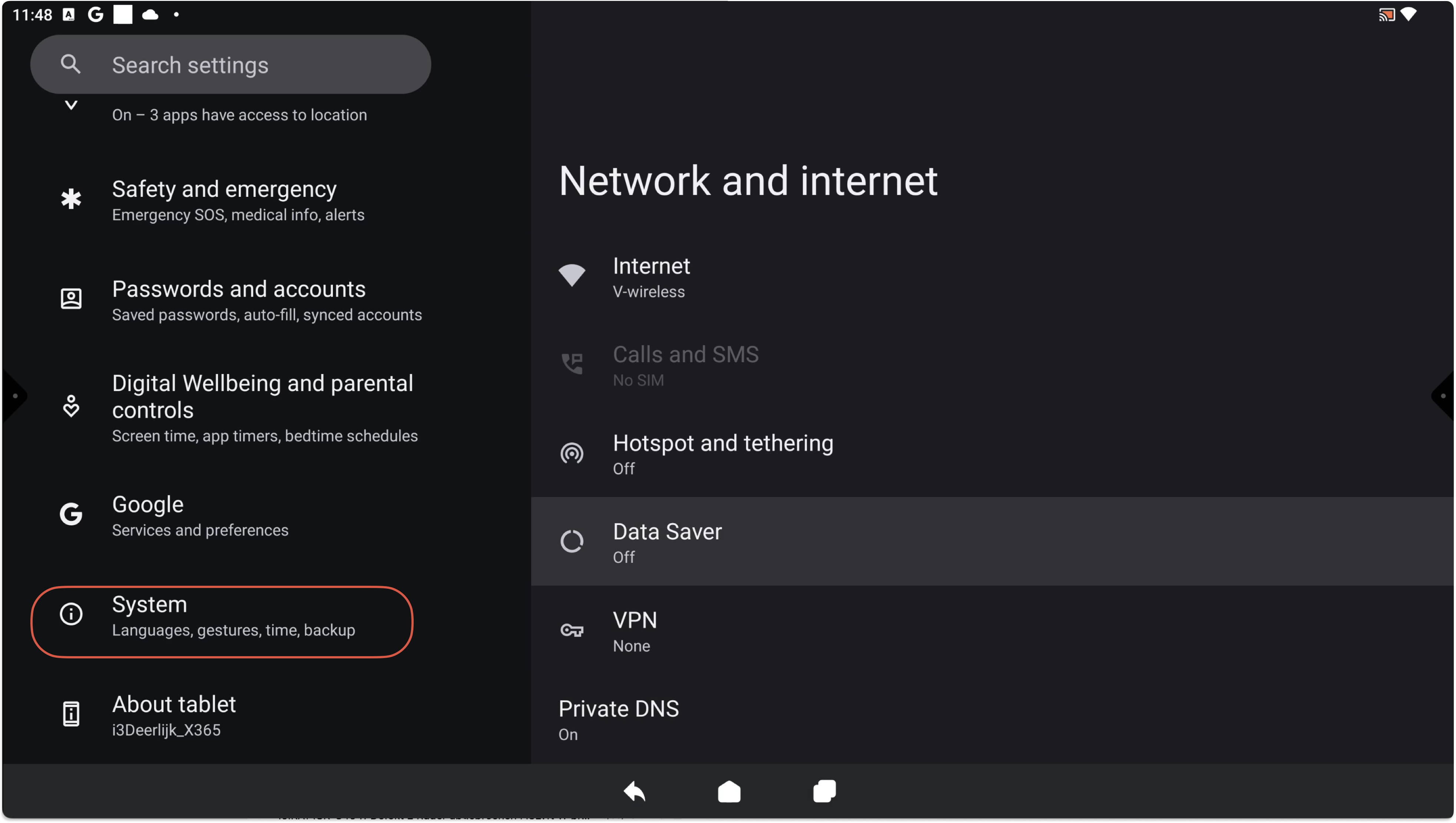
-
Tap “Reset options.”
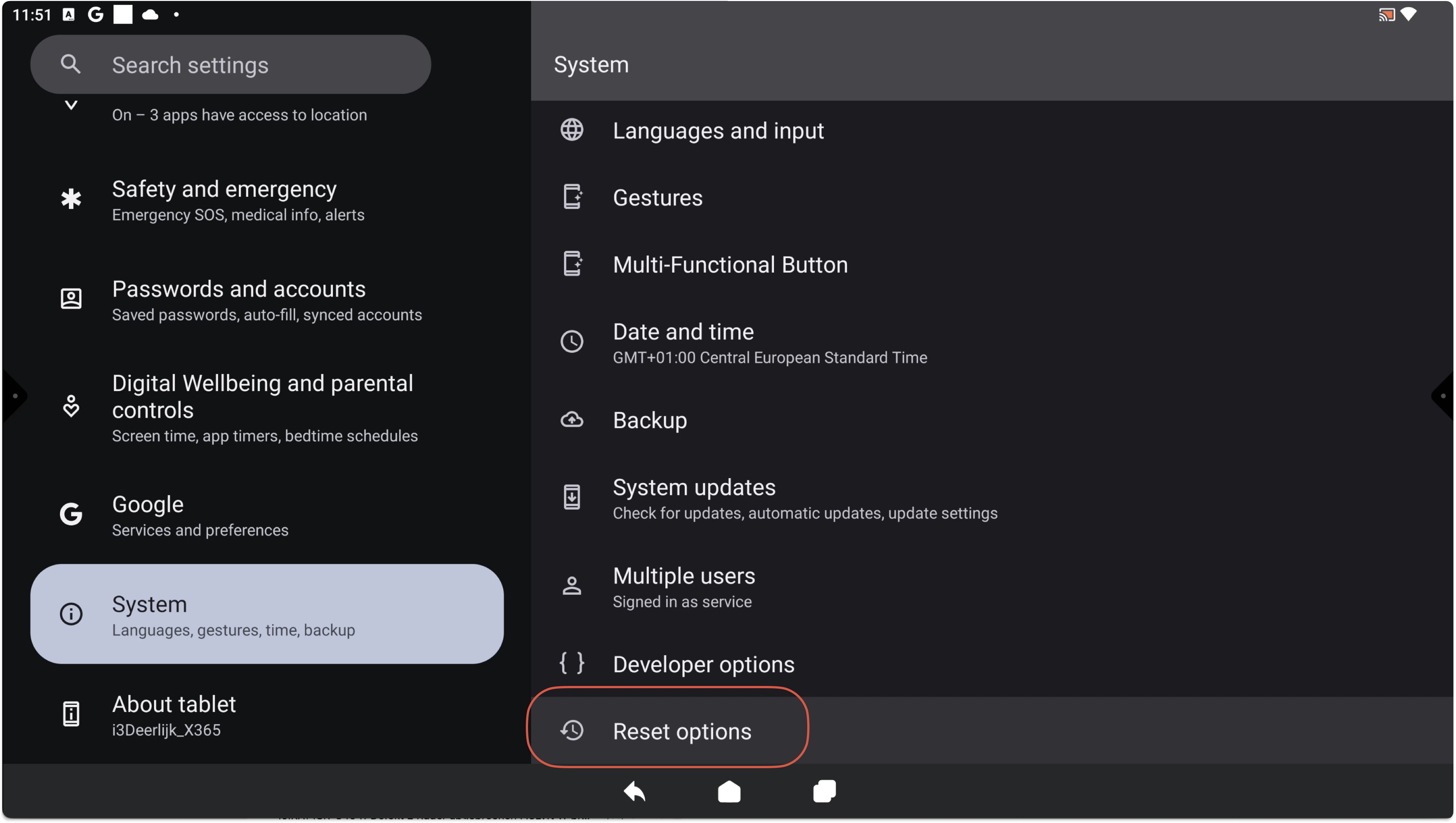
-
Choose “Erase all data (factory reset).”
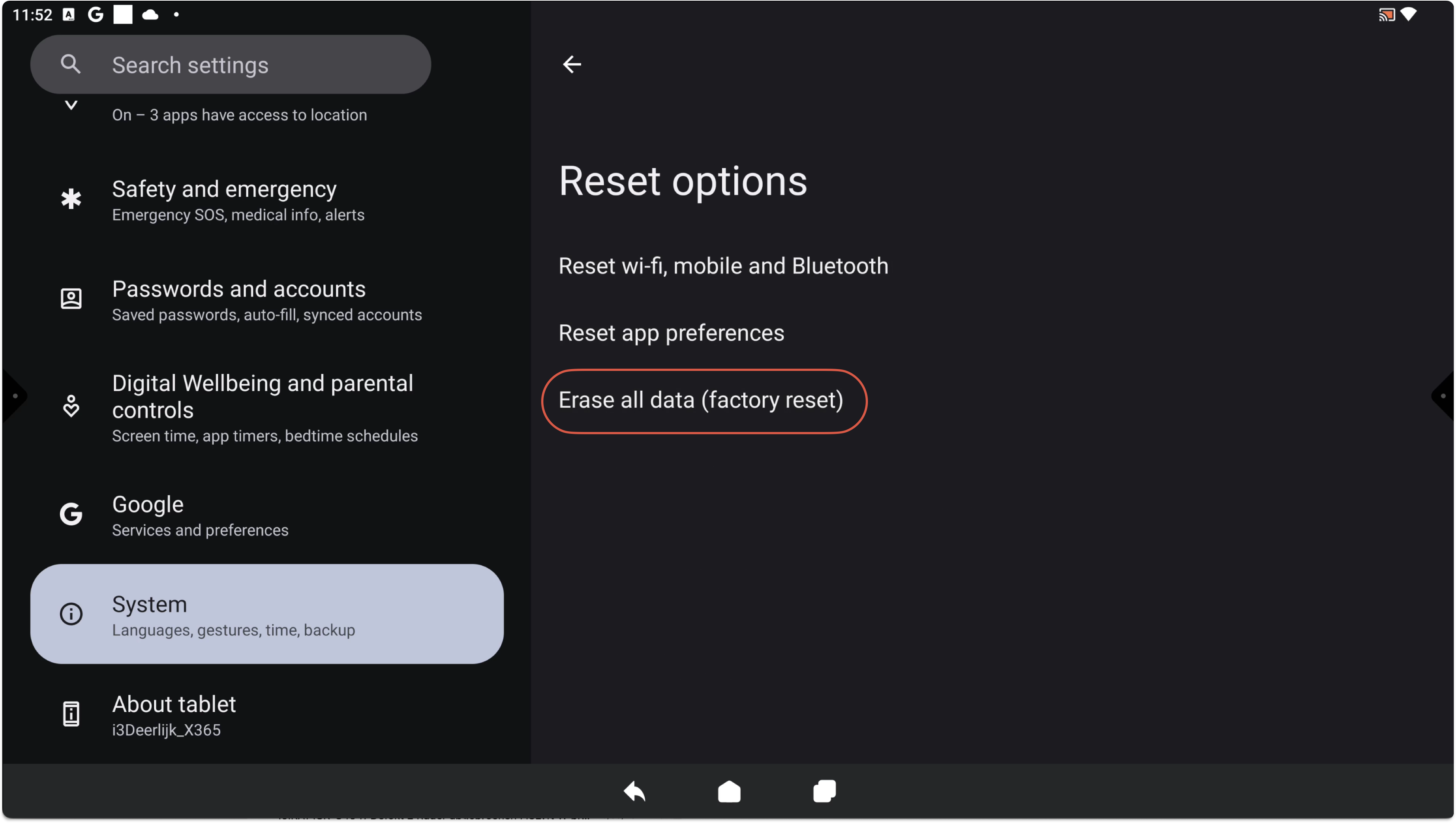
-
Confirm by tapping “Erase all data.”
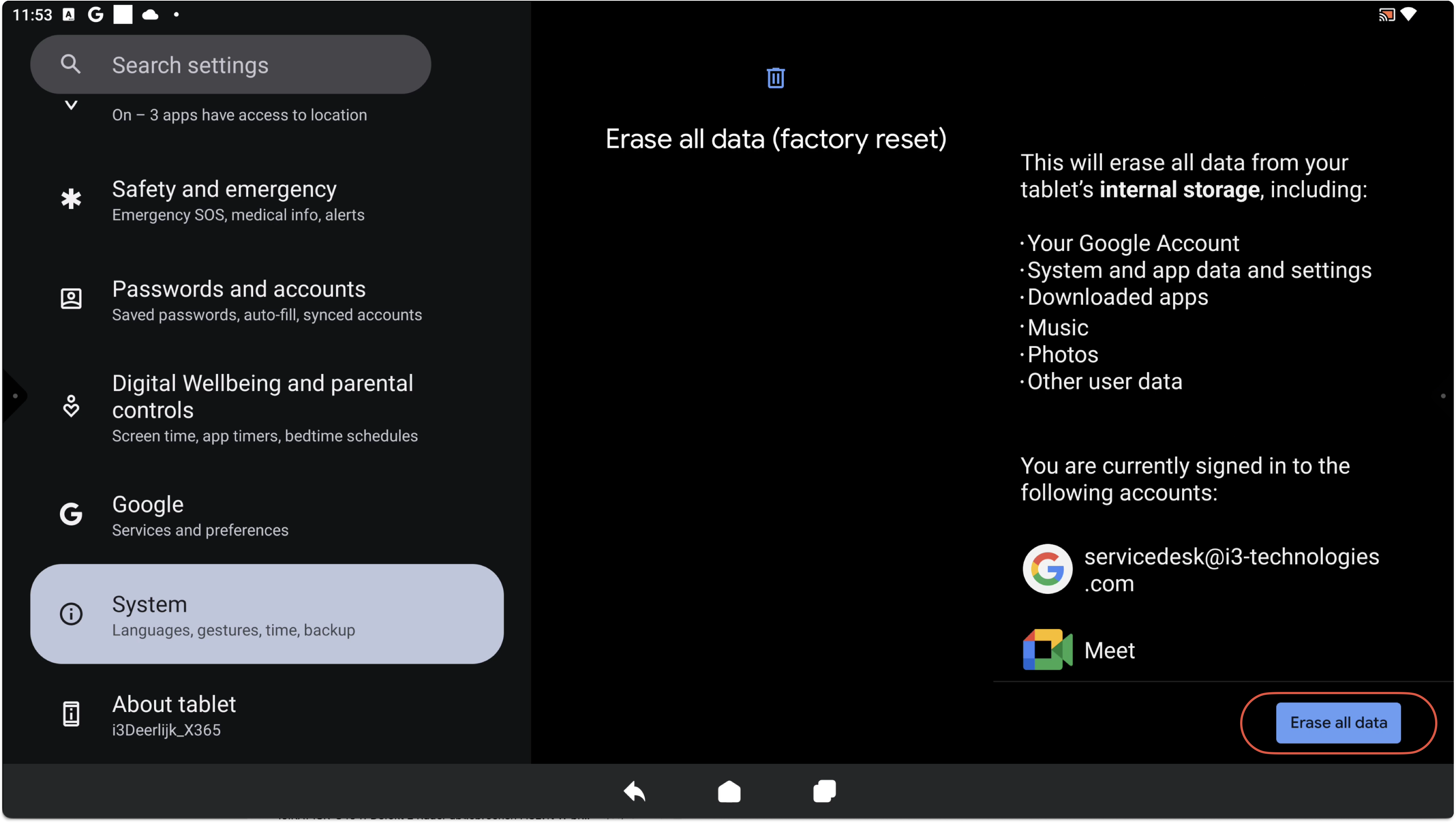
-
Wait for the display to restart and complete the reset.
Do not touch or power off your display until it has fully restarted. Interrupting the process can cause errors. You may see progress screens or the i3CONNECT logo during the reset.
Troubleshooting
-
If the display does not restart after the reset, unplug it for 30 seconds and plug it back in.
-
If you see error messages or the reset fails, repeat the steps above.
-
For persistent issues or if the display will not boot, contact i3CONNECT support.