
If you need to update the firmware on your i3TOUCH X3 display but don’t have access to the remote controller, this guide is for you. This process is typically used by IT staff or installers when the remote is lost, broken, or unavailable. Do not use these steps if you have a working remote, use the standard update method instead.
By the end of these instructions, your i3TOUCH X3 should restart and display the setup wizard, confirming the firmware update is complete.
If the display does not restart, shows errors, or the update process fails, see the troubleshooting section or contact i3CONNECT support.
Before you start
-
You’ll need a USB 2.0 flash drive (SanDisk recommended), formatted to FAT32.
-
Download the correct firmware version for your display size (see the Files section below).
-
Make sure you have at least two people to safely handle the display if needed.
Make sure there are no other files or folders on the USB drive.
Files
Choose the correct firmware for your display size by checking the serial number (e.g., i3TX375XXXXXXX = 75 inch).
|
|
v1.2.4 (06/2024) |
v2.0.4 (11/ 2024) |
v2.1.0 (02/ 2025) |
v3.0.0 (07/2025) |
v3.0.1 (8/2025) |
v3.0.3 (10/2025) |
v3.0.4 (12/2025) |
|---|---|---|---|---|---|---|---|
|
65inch |
unavailable |
||||||
|
75inch |
|||||||
|
86inch |
|||||||
|
98inch |
Instructions
-
Download and extract the firmware.
Download the correct firmware file for your display size to your computer. Extract the files to a folder on your computer. -
Prepare the USB drive.
Format your USB flash drive to FAT32. Copy only the extracted firmware files to the root of the USB drive.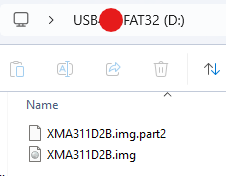
-
Test USB recognition.
Insert the USB drive into the i3TOUCH X3 display to check if it’s recognized. Remove it after confirming. -
Power off the display.
Turn off the i3TOUCH X3 using the power switch at the back. -
Insert the USB drive.
Plug the prepared USB drive into the display.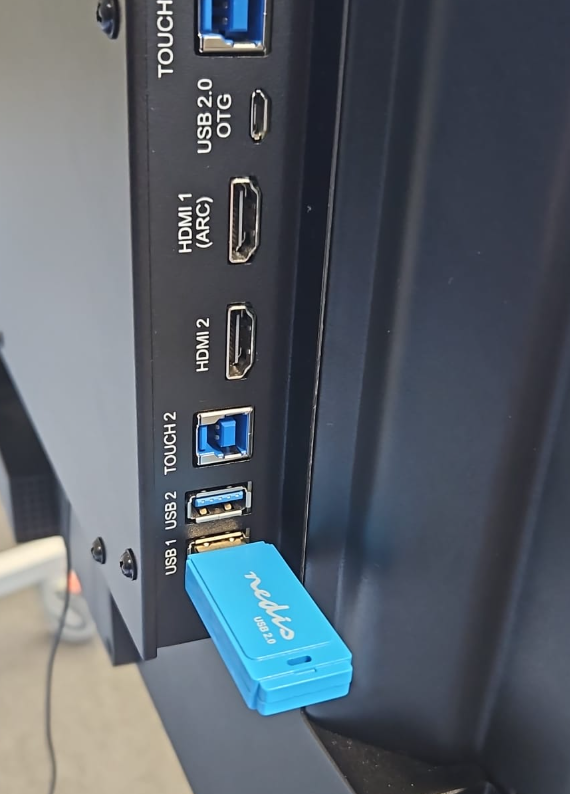
-
Enter firmware update mode.
Press and hold the power button on the display. While holding, flip the power switch ON at the back. Keep holding the power button until the update screen appears, then release.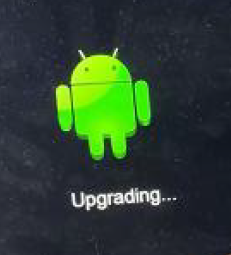
-
Wait for the update to complete.
The update progress bar will appear. Wait up to 5 minutes for the process to finish. The display will restart automatically when done.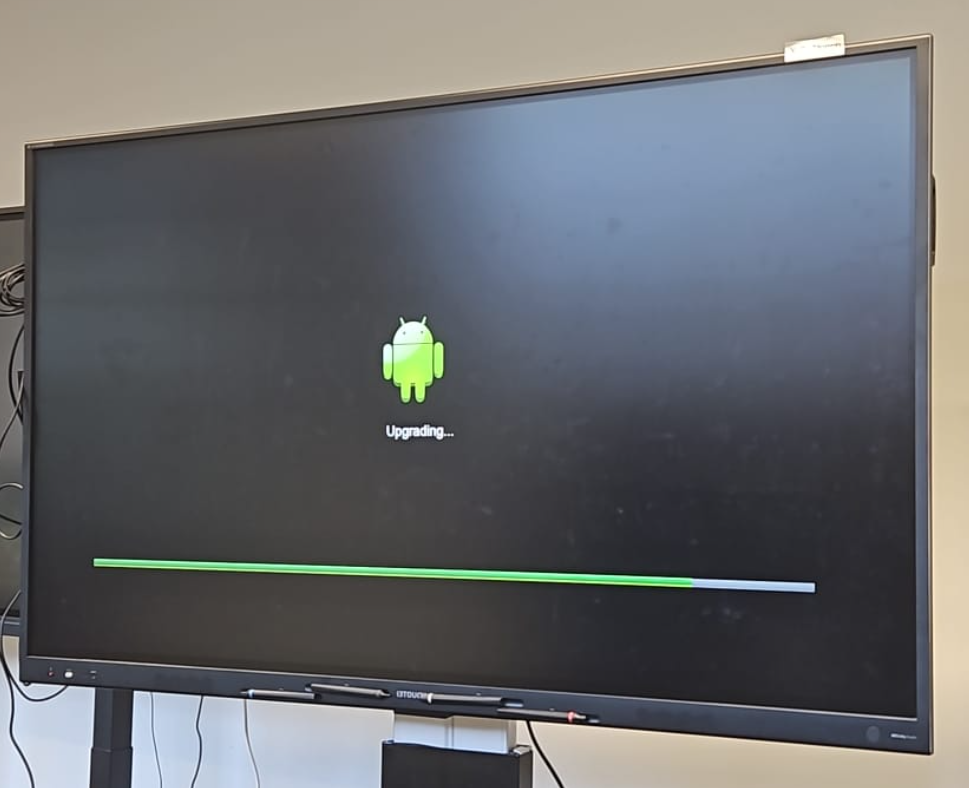
Do not touch the display, disconnect power, or remove the USB drive during the update.
-
Complete the setup wizard.
When the setup wizard appears, follow the on-screen steps to finish setup. -
Allow Google Play System Services to update.
After setup, the display will update Google Play System Services. The screen may go dark or restart several times for about 70 seconds.
If the display does not reload properly, reboot the system.
Troubleshooting
-
USB drive not recognized: Try a different USB 2.0 drive, ensure it’s FAT32 formatted, and only contains the firmware files.
-
No update screen appears: Double-check you’re holding the power button while switching on. Try again.
-
Update fails or display doesn’t restart: Remove power, wait 30 seconds, and repeat the process. If issues persist, contact i3CONNECT support.
-
Display stuck on dark/empty screen after update: Wait at least 2 minutes. If still stuck, reboot the display.