
If an app on your i3TOUCH X3 is slow, glitchy, or not working as expected, clearing its cache and data can often resolve the problem. This troubleshooting guide is for anyone experiencing app performance issues or unexpected behavior on their i3TOUCH X3. Do not use these steps if your issue is with system-wide settings or hardware problems; contact support for those cases.
By the end of these steps, your selected app should launch with default settings and improved performance. If the app still does not work after following these instructions, see the troubleshooting section below.
Clearing app data will remove all saved settings and files within the app. Only proceed if you are comfortable resetting the app to its default state
Before you start
-
Make sure you know which app is causing issues.
-
Be aware that clearing app data will reset the app to its original state and may remove saved settings or files within the app.
Instructions
-
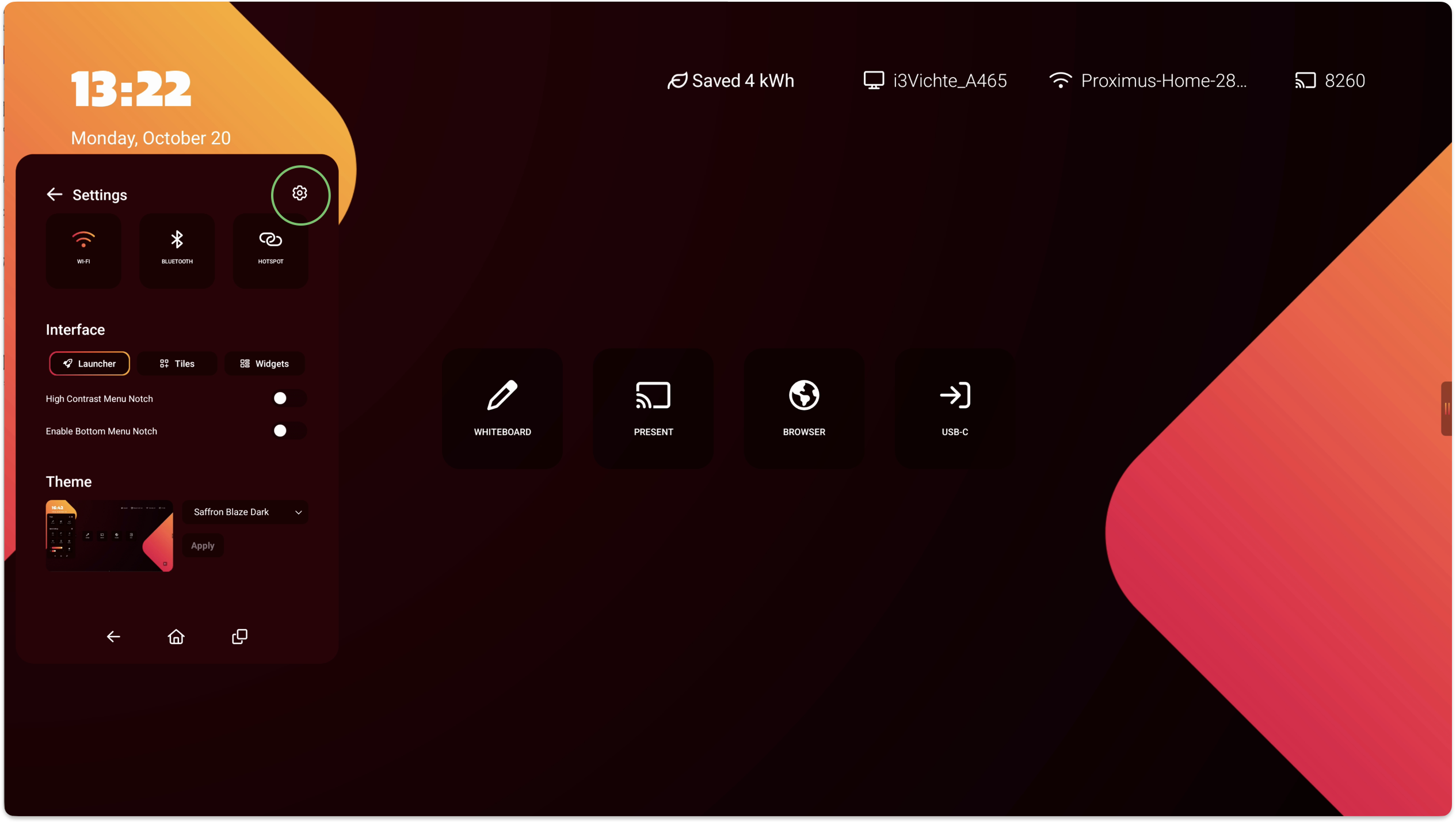
Open the side menu and select the Cogwheel, and select the Cogwheel again to open Settings.
-
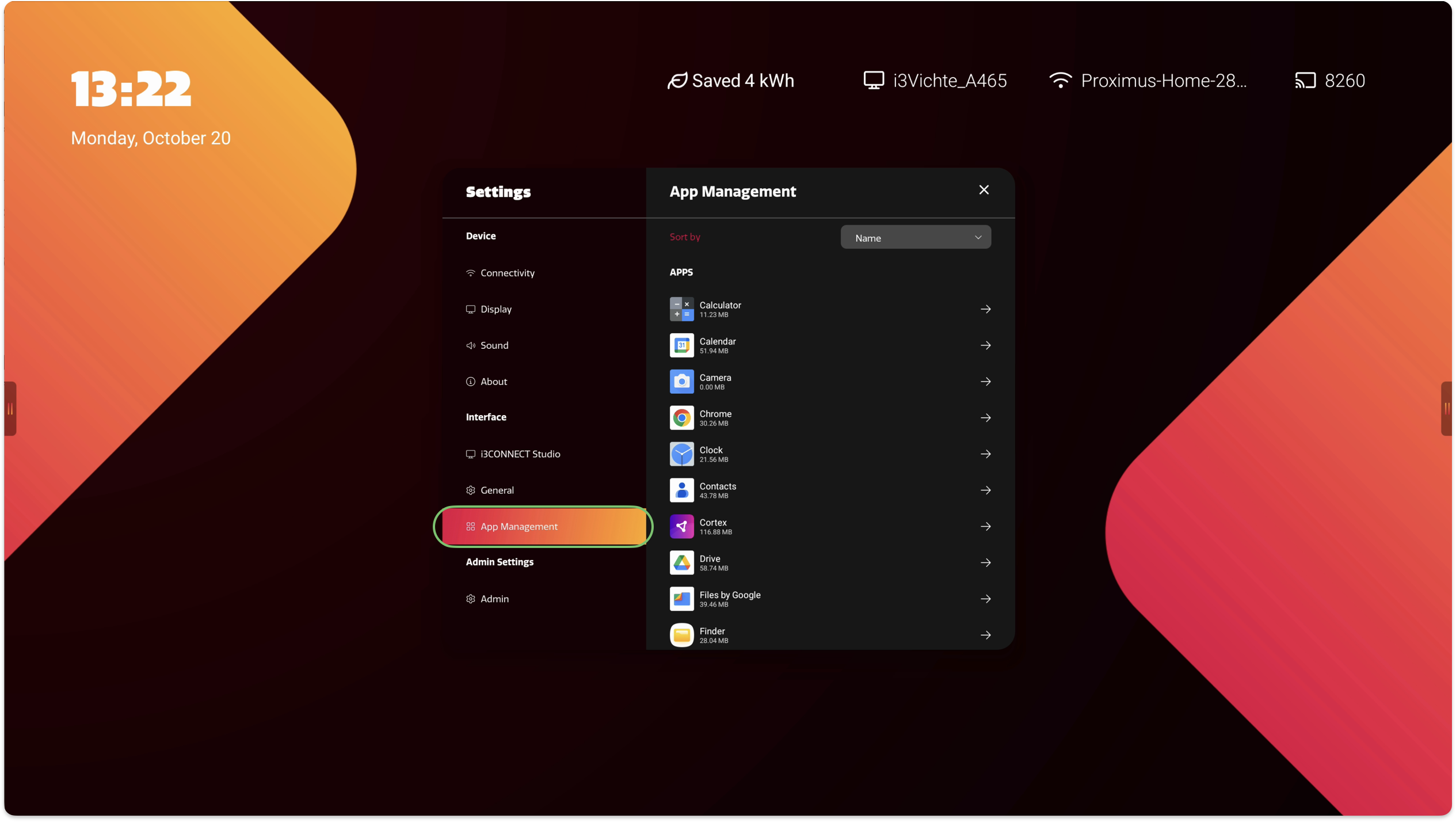
Select App Management and search for the app that needs to be reset.
-
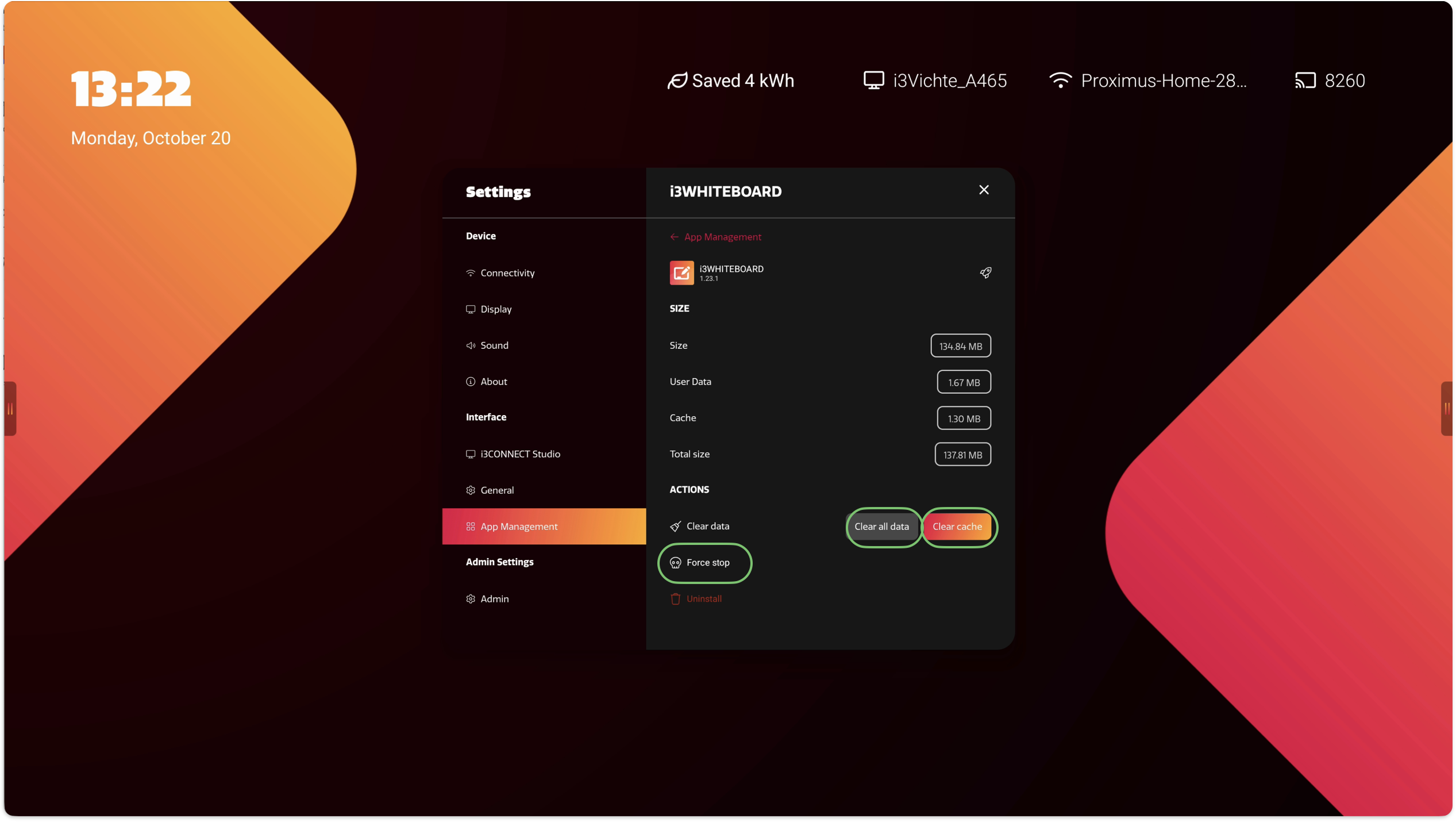
Press Force Stop, and then Clear cache and Clear all data to reset the app
Troubleshooting
-
If the app still does not work after clearing cache and data, try restarting your i3TOUCH X3.
-
If you cannot find the app in the list, make sure it is installed.
-
For persistent issues or system-wide problems, contact i3CONNECT support.