
Keep your display awake by adjusting the auto shutdown settings in i3CONNECT Studio. By following these steps, your i3CONNECT display will stay on and not turn off automatically after periods of inactivity.
This guide is for IT administrators, teachers, or anyone who needs the display to remain on without interruption. This article is not suitable if your display is shutting down due to hardware faults or power supply issues—please contact support in those cases.
Before you start
-
Ensure you have access to the display settings.
-
Make sure the display is powered on and connected to a stable power source.
Solution
-
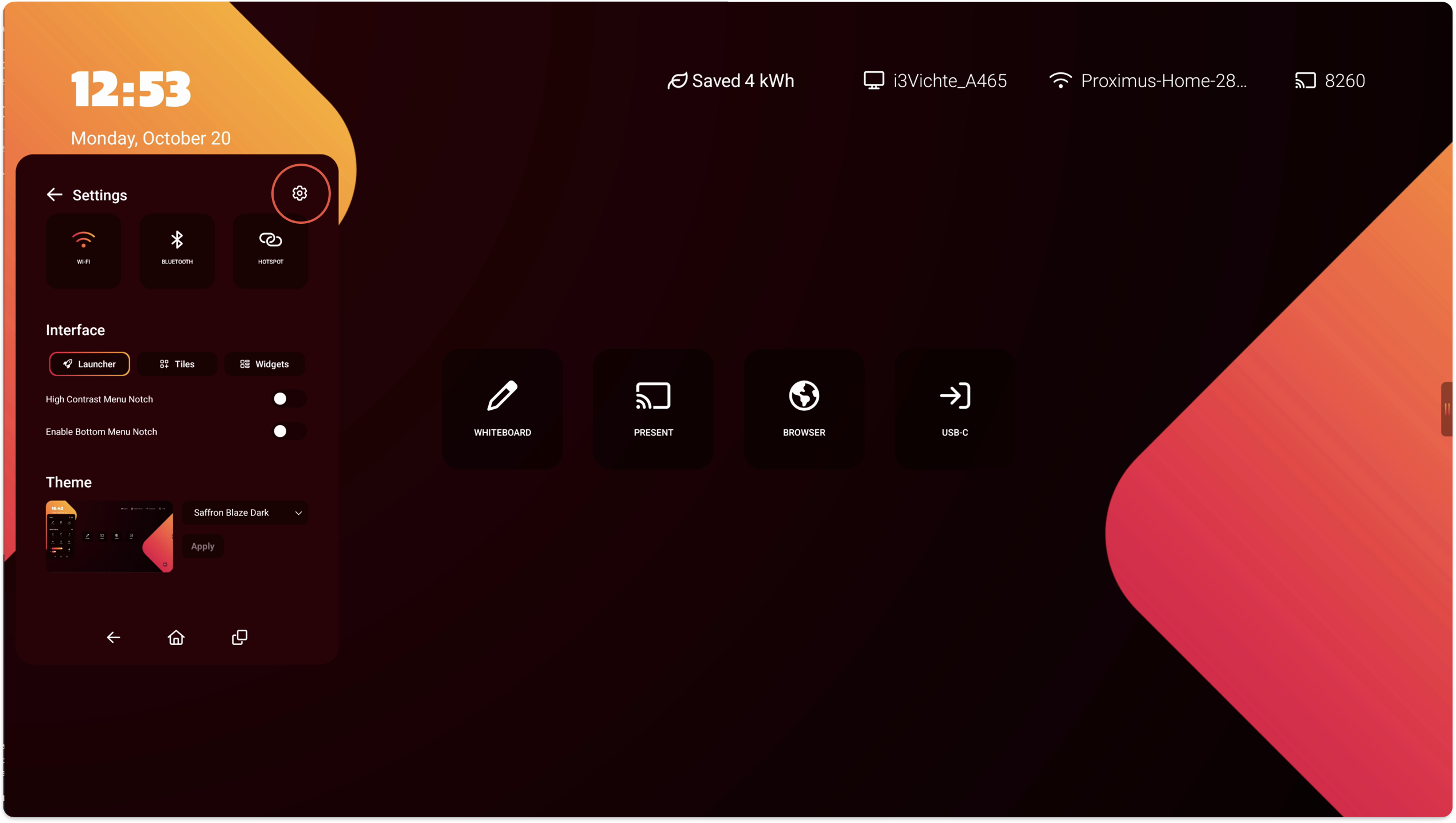
Open the side menu by tapping on the grabber on the left or right of the screen’s interface.
-
select the Cogwheel, and select the Cogwheel again to open Settings.
-
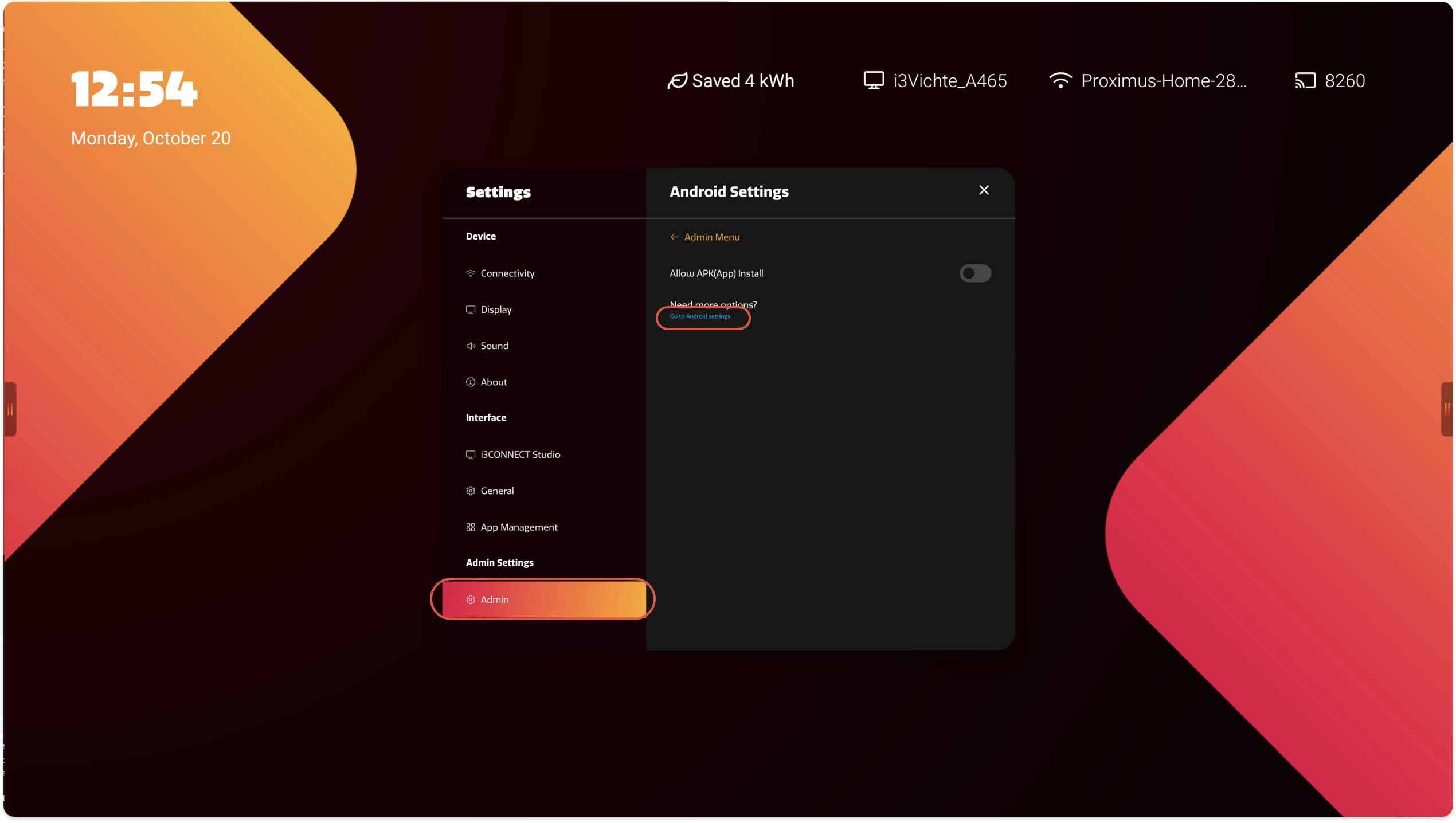
Navigate to Admin - Android settings - Go to Android settings to open the Android settings
-
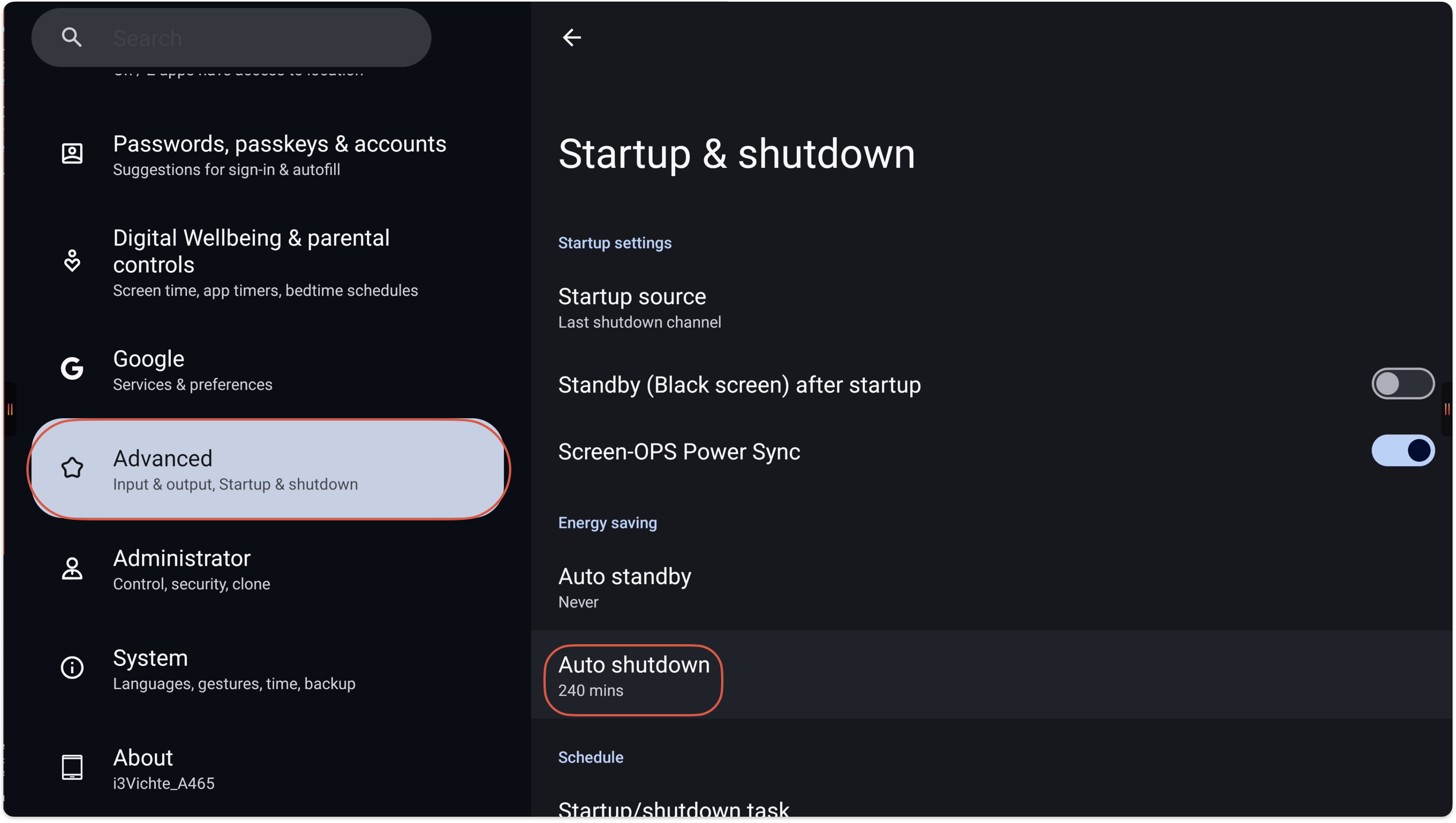
Once in the Android settings, navigate to Advanced - Startup & shutdown - Auto shutdown
-
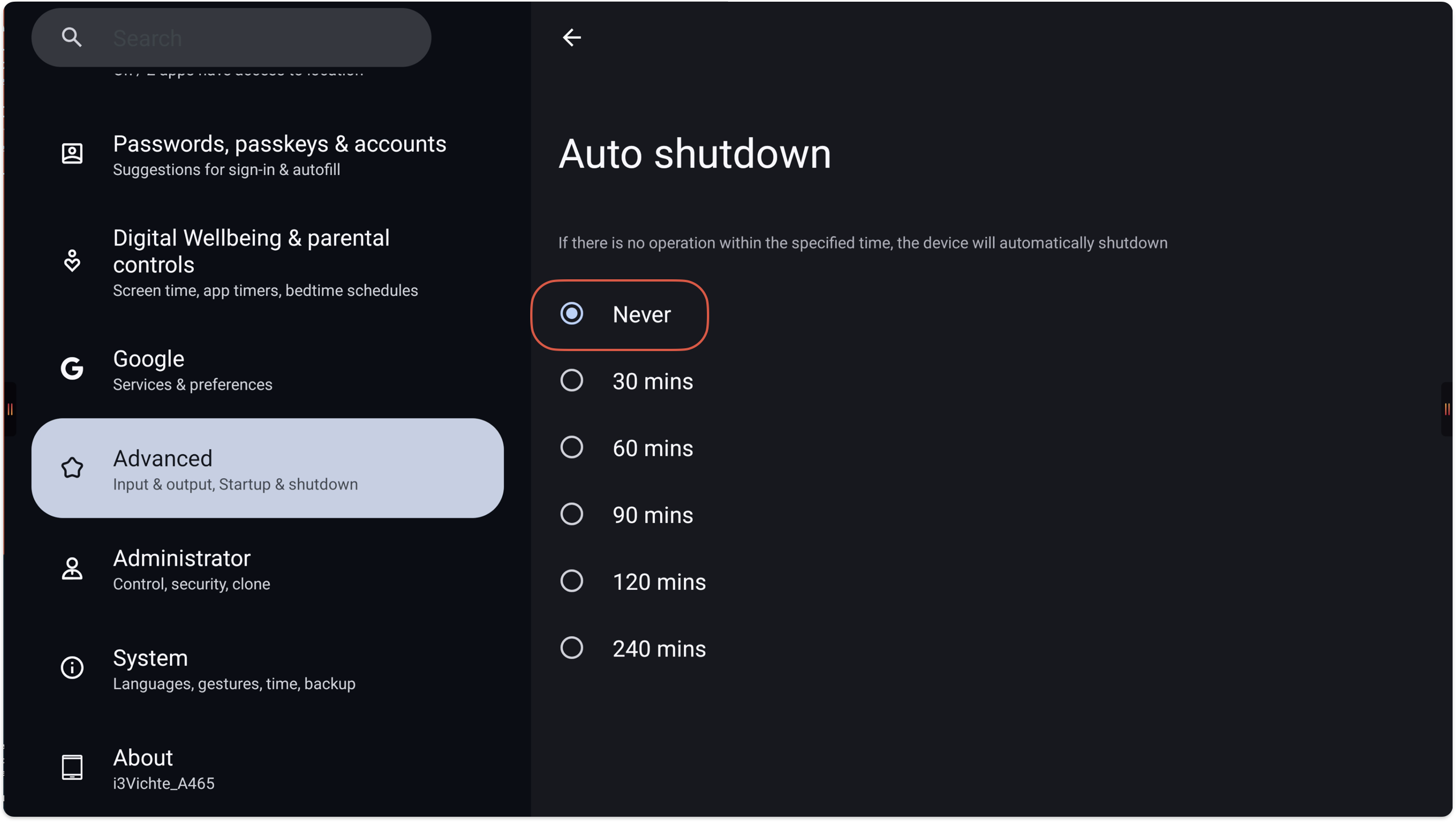
Change the setting to Never or any other desired time
Still not working?
If the display continues to turn off after these steps, or if you cannot access the settings, reach out to our support team for further assistance.