
Need to know your i3CONNECT display’s firmware version? This guide walks you through finding it using the built-in device info tool. Use this article if you’re troubleshooting, preparing for an update, or need to share details with support.
Before you start
-
Make sure your display is powered on.
-
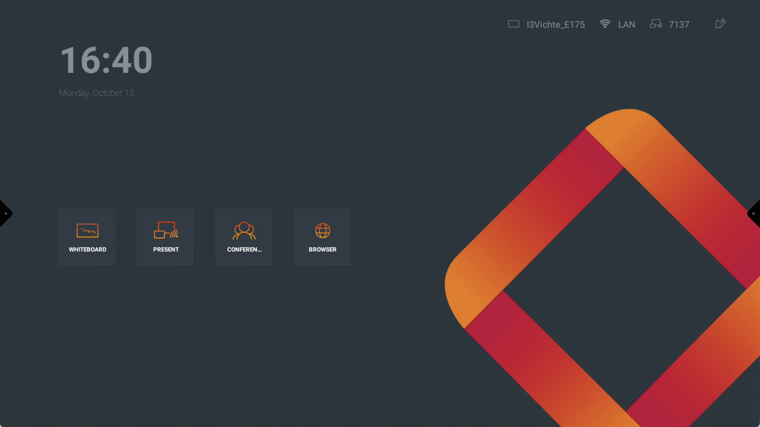
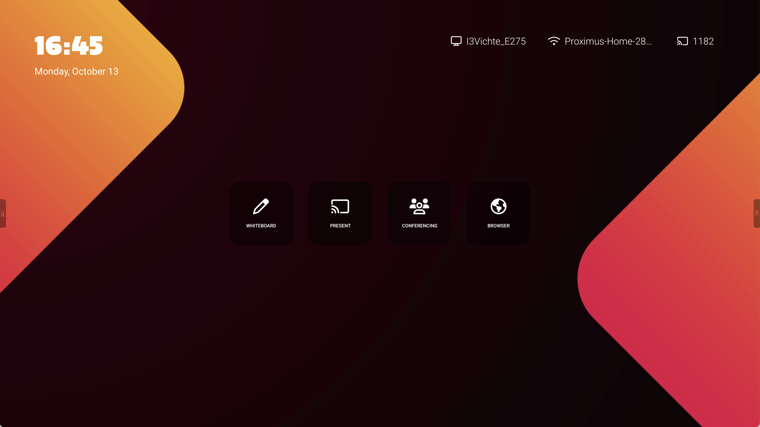
Confirm you have access to the main interface and know which one you have:
i3STUDIO or i3CONNECT Studio. Example images are shown below.
The color of the theme may be different.
If you’re unsure which interface you’re using, compare your home screen to images in our support articles or contact support for quick identification.
Instructions
For i3CONNECT Studio
-
Open the device info menu. Tap the settings gear on the home screen.
-
Select “Device Info.” This sectioen shows your firmware version and other key details.
-
Take a screenshot or note the version. This helps when contacting support or tracking updates.
For i3STUDIO (legacy displays)
-
Access the settings menu. Tap the gear icon on the main screen.
-
Find “About” or “Device Info.” The firmware version will be listed here.
-
Capture the info. Take a screenshot or write down the version for your records.
Troubleshooting
-
If you don’t see “Device Info” or “About,” your display may be running a custom interface. Contact support for guidance.
-
If the firmware version is missing or unreadable, try restarting your display and repeat the steps.
-
Still stuck? Our support team is ready to help you get the info you need.