
When to use this article
Use this guide if you need to update the system firmware on your i3CONNECT display but do not have access to the remote controller. This process is ideal for technical staff or IT administrators who need to perform a manual firmware upgrade using a USB stick. Do not use this method if your display is already running the latest firmware or if you have access to the remote controller, as the standard update process is easier.
Before you start
-
Ensure you have a compatible USB stick (minimum 4GB, FAT32 format; SanDisk recommended).
-
Download the correct firmware file for your display model and size
-
Confirm your display model and size by checking the serial number (e.g., I3T075E2XXXXXXXXX is 75 inch)
Instructions
-
Power off the i3TOUCH display completely.
-
Format your USB stick as FAT32 (minimum 4GB) by following these instructions:
Format a USB-Drive in FAT32 format -
Extract the downloaded firmware file to the root directory of the USB stick. You should see an "upgrade_3576" folder.
-
Insert the USB stick into the update port - often the USB2.0 port on the right bottom side of the display (see image below).
-
Note: May vary per display, so always refer to the display specific manual by searching for "[display name] manual” in the support center.
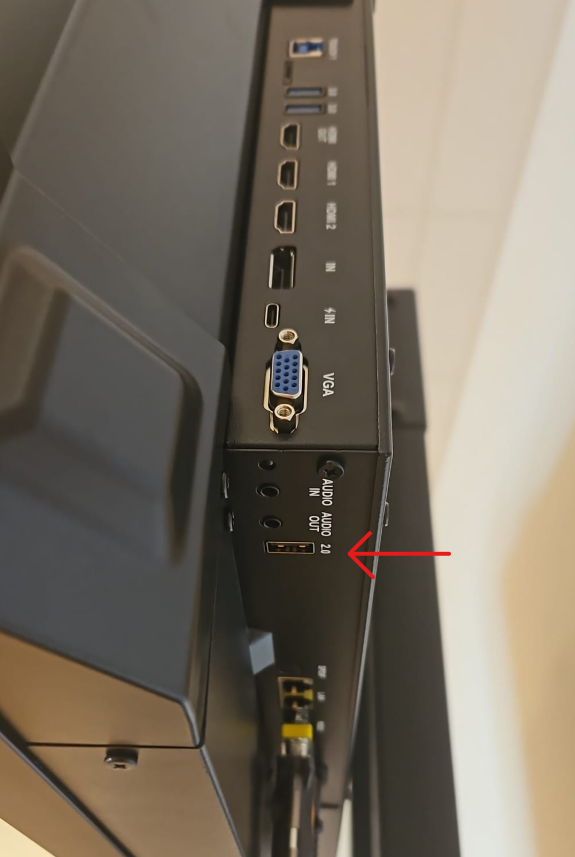
The correct USB port location on the display.
-
-
Power on the display. Press and hold the power button until the power LED blinks red and white.
-
The display will compare the firmware version on the USB with the installed version. If they are the same, the update will not proceed. You may need to install an intermediate version first if downgrading or skipping versions.
-
The display will upgrade first. When finished, the screen will reboot and upgrade the MCU (Microcontroller Unit) automatically. The full process takes about 15 minutes.
Do not interrupt the firmware upgrade process:
-
Do not touch the display (to avoid touch recalibration)
-
Do not disconnect the display from power
-
Do not remove the USB stick
By the end of this process, your i3CONNECT display should be running the selected firmware version. If the display does not reboot or the LED does not blink, contact i3CONNECT support.
Troubleshooting
-
If the firmware does not install, check that the USB stick is formatted correctly and the files are in the root directory.
-
If the LED does not blink or the display does not reboot, try a different USB stick or re-download the firmware file.
-
If you encounter persistent issues, contact i3CONNECT support for assistance.